Showing posts with label Wifi. Show all posts

Saturday, July 16, 2016

Linux - Wifi Configuration (Detailed)

This guide was tested with Dapper Drake, Feisty Fawn, Gutsy Gibbon, and Hardy Heron.

Since it appears that very few people take wireless security seriously, I'd like to come up with my first HOWTO and explain how I was able to configure a secure home network using WPA2, the latest encryption & authentication standard. There are also other types of configuration (WPA1, mixed mode, LEAP, PEAP, DHCP, etc.) shown in the appendix. Feedback is much appreciated.

Common stumbling blocks - Make sure that:

  1. Ethernet cable is unplugged.
  2. No firewall & configuration tool is running (e.g. Firestarter).
  3. MAC filtering is disabled.
  4. NetworkManager, Wifi-Radar & similar wireless configuration tools are disabled/turned off and not in use.
  5. Some cards/drivers (e.g. Madwifi) do not support WPA2 (AES). Try WPA1 (TKIP) if WPA2 secured connections fail.
  6. RTxxx (Ralink) drivers do not support this approach. Either install "ndiswrapper" replacing Serialmonkey's driver or visit this site.
  7. Turn off "roaming" if you repeatedly fail to establish a connection.


My Requirements:
1. WPA2 / RSN
2. AES / CCMP
3. Hidden ESSID (no broadcast)
4. Static IP (because I use port forwarding & firewall, etc.)
5. Pre-shared key (no EAP)
If you want to know more about WPA / RSN & 802.11i security specification, I recommend this site.


Now let's get started:


0. Install "wpa-supplicant":

sudo apt-get install wpasupplicant

1. Verify that your network device ("wlan0"?) is working & your wireless network is detected:

iwconfig

iwlist scan

Your network device & wireless network should appear here.


2. Open "/etc/network/interfaces":

sudo gedit /etc/network/interfaces

The content should look similar to this:

auto lo
iface lo inet loopback
auto wlan0
iface wlan0 inet dhcp

3. Now replace the last 2 lines with the following using your own network settings (the sequence in which the lines appear is crucial):

auto wlan0
iface wlan0 inet static
address 192.168.168.40
gateway 192.168.168.230
dns-nameservers 192.168.168.230
netmask 255.255.255.0

wpa-driver wext
wpa-ssid
<your_essid>
wpa-ap-scan 2
wpa-proto RSN
wpa-pairwise CCMP
wpa-group CCMP
wpa-key-mgmt WPA-PSK
wpa-psk
<your_hex_key> [IMPORTANT: See "WPA-PSK key generation"]

  • auto wlan0:
    Your network interface (e.g. wlan0, eth1, rausb0, ra0, etc.).
  • iface wlan0 inet static:
    Self-explanatory... I am using a Static IP instead of DHCP. "iface wlan0" must correspond to your network interface (see above).
  • address, netmask, [..], dns-nameservers:
    Also self-explanatory... Be aware that "broadcast" needs to end with ".255" for negotiation with the router. These lines need to be according to your own (static) network settings. For DHCP see further below.
  • wpa-driver:
    That's the wpa-driver for your card ('wext' is a generic driver that is applicable when using "ndiswrapper"). Leave it as it is. Other drivers are:

hostap = Host AP driver (Intersil Prism2/2.5/3)
atmel = ATMEL AT76C5XXx (USB, PCMCIA)
wext = Linux wireless extensions (generic)
madwifi = Atheros
wired = wpa_supplicant wired Ethernet driver

  • wpa-ssid:
    Your network's ESSID (no quotes "").
  • wpa-ap-scan:
    "1" = Broadcast of ESSID.
    "2" = Hidden broadcast of ESSID.
  • wpa-proto:
    "RSN" = WPA(2)
    "WPA" = WPA(1)
  • wpa-pairwise & wpa-group:
    "CCMP" = AES cipher as part of WPA(2) standard.
    "TKIP" = TKIP cipher as part of WPA(1) standard.
  • wpa-key-mgmt:
    "WPA-PSK" = Authentication via pre-shared key (see 'key generation' further below).
    "WPA-EAP" = Authentication via enterprise authentication server.


VERY IMPORTANT ("WPA PSK Key Generation"):
Now convert your WPA ASCII password using the following command:

wpa_passphrase <your_essid> <your_ascii_key>

Resulting in an output like...

network={
ssid="test"
#psk="12345678"
psk=fe727aa8b64ac9b3f54c72432da14faed933ea511ecab1 5bbc6c52e7522f709a
}

Copy the "hex_key" (next to "psk=...") and replace <your_hex_key> in the "interfaces" files with it. Then save the file and restart your network:

sudo /etc/init.d/networking restart

You should be connecting to your router now... However, I figured that a restart is sometimes necessary so that's what I usually do (I know this sounds a bit clumsy - see post #2 for startup script).


*** Revoking read-permission from ‘others' ***

sudo chmod o=-r /etc/network/interfaces


*** Revoking read-permission from 'others' ***
*** Sample configuration WPA2 & DHCP, ESSID broadcast enabled ***

auto wlan0
iface wlan0 inet dhcp
wpa-driver wext
wpa-ssid
<your_essid>
wpa-ap-scan 1
wpa-proto RSN
wpa-pairwise CCMP
wpa-group CCMP
wpa-key-mgmt WPA-PSK
wpa-psk
<your_hex_key> [IMPORTANT: See "WPA-PSK key generation"]


*** Sample configuration WPA2 & DHCP, ESSID broadcast enabled ***
*** Sample configuration WPA1 & DHCP, ESSID broadcast enabled ***

auto wlan0
iface wlan0 inet dhcp
wpa-driver wext
wpa-ssid
<your_essid>
wpa-ap-scan 1
wpa-proto WPA
wpa-pairwise TKIP
wpa-group TKIP
wpa-key-mgmt WPA-PSK
wpa-psk
<your_hex_key> [IMPORTANT: See "WPA-PSK key generation"]


*** Sample configuration WPA1 & DHCP, ESSID broadcast enabled ***
*** Sample configuration mixed mode (WPA1, WPA2) & DHCP, ESSID broadcast ***

auto wlan0
iface wlan0 inet dhcp
wpa-driver wext
wpa-ssid
<your_essid>
wpa-ap-scan 1
wpa-proto WPA RSN
wpa-pairwise TKIP CCMP
wpa-group TKIP CCMP
wpa-key-mgmt WPA-PSK
wpa-psk
<your_hex_key> [IMPORTANT: See "WPA-PSK key generation"]


*** Sample configuration mixed mode (WPA1, WPA2) & DHCP, ESSID broadcast*****
*** Sample conf. LEAP, WEP, DHCP, ESSID broadcast ***

auto wlan0
iface wlan0 inet dhcp
wpa-driver wext
wpa-ssid
<your_essid>
wpa-ap-scan 1
wpa-eap LEAP
wpa-key-mgmt IEEE8021X
wpa-identity
<your_user_name>
wpa-password
<your_password>


*** Sample conf. LEAP, WEP, DHCP, ESSID broadcast ***
*** Sample conf. PEAP, AES, DHCP, ESSID broadcast ***

auto wlan0
iface wlan0 inet dhcp
wpa-driver wext
wpa-ssid
<your_essid>
wpa-ap-scan 1
wpa-proto RSN
wpa-pairwise CCMP
wpa-group CCMP
wpa-eap PEAP
wpa-key-mgmt WPA-EAP
wpa-identity
<your_identity>
wpa-password
<your_password>


*** Sample conf. PEAP, AES, DHCP, ESSID broadcast ***
*** Sample conf. TTLS, WEP, DHCP, ESSID broadcast ***

auto wlan0
iface wlan0 inet dhcp
wpa-driver wext
wpa-ssid
<your_essid>
wpa-ap-scan 1
wpa-eap TTLS
wpa-key-mgmt IEEE8021X
wpa-anonymous-identity
<anonymous_identity>
wpa-identity
<your_identity>
wpa-password
<your_password>
wpa-phase2
auth=PAP [Also: CHAP, MSCHAP, MSCHAPV2]


*** Sample conf. TTLS, WEP, DHCP, ESSID broadcast ***
*** NOT TESTED: Sample conf. EAP-FAST, WPA1/WPA2, DHCP, ESSID broadcast ***

auto wlan0
iface wlan0 inet dhcp
wpa-driver wext
wpa-ssid
<your_essid>
wpa-ap-scan 1
wpa-proto RSN WPA
wpa-pairwise CCMP TKIP
wpa-group CCMP TKIP
wpa-key-mgmt WPA-EAP
wpa-eap FAST
wpa-identity
<your_user_name>
wpa-password
<your_password>
wpa-phase1
fast_provisioning=1
wpa-pac-file
/path/to/eap-pac-file


*** NOT TESTED: Sample conf. EAP-FAST, WPA1/WPA2, DHCP, ESSID broadcast ****
***Tested adapters***

1. Linksys WUSB54G V4 (ndiswrapper; wpa-driver = wext)
2. Intel IPW2200 (Linux driver; wpa-driver = wext)
3. Linksys WPC54G (ndiswrapper; wpa-driver = wext)
4. D-Link WNA-2330 (Linux driver; wpa-driver = madwifi)
5. Linksys WMP54G V2 (ndiswrapper; wpa-driver = wext)
6. D-Link WDA-2320 (Linux driver; wpa-driver = madwifi)
7. Netgear WPN311 (Linux driver; wpa-driver = wext)
8. Netgear WG511v2 (ndiswrapper; wpa-driver = wext)


*** Tested adapters ***
*** Post this if you are stumped ***

# route
# iwconfig
# sudo iwlist scan
# sudo lshw -C network
# sudo cat /etc/network/interfaces
# sudo ifdown -v
<your_interface>

# sudo ifup -v
<your_interface>


*** Post this if you are stumped ***
*** Other useful commands ***

# Ubuntu version & kernel >> uname -a
# Root file access >> alt F2 then 'gksudo nautilus' in cli
# Get IP Address or Renew >> sudo dhclient wlan0 [or whatever your wl adapter is]
# Get wireless info >> iwconfig
# Get AP info >> iwlist scan
# Get wireless info >> iwlist (lots of options will list)
# Routes if wlan0 working >> route
# DNS resolving via eth1 >> cat /etc/resolv.conf
# List devices/modules >> lspci, lsusb, lshw, lsmod
# Restart network >> sudo /etc/init.d/networking restart
# Boot messages >> dmesg
# Kill NWM >> sudo killall NetworkManager
# Events from your wl >> iwevent
# Restart all daemons >> sudo /etc/init.d/dbus restart
# Restart network >> sudo /etc/init.d/networking restart


Taken From:

Tuesday, June 30, 2015

Cisco - NAT Overload on the Loopback (exit with different Public IP)

The Loopback Interfaces are very usefull to troubleshoot, it allows you to do test without using physical interfaces that may or may not be up. You can even shutdown manually / administratively a physical interface and enter it’s IP addresses on a loopback, and do your tests (like anouncing network via a dynamic routing protocol)

You can take the loopback interfaces and take them one step further, and make them part of the solution, and avoid having an extra routers, this is possible because the traffic goes in and out like it was entering and exiting another router.

In this example I will show you how to do NAT Overload to an IP different from the one in the WAN interface, this means that you will exit to the Internet with diferent Public IP from the one in the WAN interface. This is usefull for example when you want your guest wifi users to exit to the Internet with an Public IP that is different from the one the employes use.

Without NAT Overload on the Loopback (NAT Outside) you would have to implement a cenário like this:NO_NAT_LOOPBACK

where you need an extra router (R0) to do the NAT Overload to the Public IP (100.0.0.1). Besides the aditional router you spend four Public IPs in the interconection between R0 and R1.

With NAT Overload on the Loopback interface you only need a cenário like this:NAT_LOOPBACK_PLUS

Below I will show you how to accomplish this in two ways:

  • PBR with Set Next Hop – You also spend four Public IPs like in the cenario with a real router
  • PBR with Set Inteface – You only spend one Public IP (the 100.0.0.1)

we use PBR to force the traffic we want to NAT with a different Public IP through to the Loopback Interface in order to get Nated. You could point the default route to the Loopback Interface, but when the traffic returned it wouldn’t be sent out through the WAN Interface (Fa0/1 on R1), It would be sent again to the Loopback.


NAT Overload on the Loopback - PBR with Set Next Hop 

In this cenario we have a /30 Public IP in the Loopback this implies the following network:

  • One IP for the network – 100.0.0.0
  • One IP for R1 Loopback Interface  (NAT Target) – 100.0.0.1
  • One IP for the Next Hop (wich does not exist) - 100.0.0.2
  • Once IP for Broadcast - 100.0.0.2

the IP for the Next Hop (100.0.0.2) at first glance look quite unuseful, but if you look PBR route map we use this IP even though it does not exist, because this forces the traffic to go out the Loopback (100.0.0.1) because it’s directly connected to the netwok (10.0.0.0/30) of the next hop set in the PBR route map.

## PC1 ###########################
hostname PC1

interface FastEthernet0/0
ip address 10.0.0.1 255.255.255.0
no shutdown

ip route 0.0.0.0 0.0.0.0 10.0.0.254

 
## ISP ###########################
hostname ISP

interface FastEthernet0/1
ip address 200.0.0.2 255.255.255.252
no shutdown
 
ip route 0.0.0.0 0.0.0.0 200.0.0.1

 
## R1 ############################
interface loopback 111
ip address 100.0.0.1 255.255.255.252
ip nat outside
no shutdown
 
interface FastEthernet 0/0
description *** LAN ***
ip address 10.0.0.254 255.255.255.0
ip nat inside
ip policy route-map Nat-Loopback
no shutdown

interface FastEthernet 0/1
description *** WAN ***
ip address 200.0.0.1 255.255.255.252
ip nat outside
no shutdown

access-list 102 remark *** Traffic for NAT Overload on The Loopback ***
access-list 102 permit ip 10.0.0.0 0.0.0.255 any
 
ip nat inside source list 102 interface loopback 111 overload
ip route 0.0.0.0 0.0.0.0 200.0.0.2
 
route-map Nat-Loopback permit 10
match ip address 102
 set ip next-hop 100.0.0.2

 
## TEST ##########################
ISP# debug ip icmp
ISP# terminal monitor


PC1#ping 200.0.0.2
Type escape sequence to abort.
Sending 5, 100-byte ICMP Echos to 200.0.0.2, timeout is 2 seconds:
!!!!!
Success rate is 100 percent (5/5), round-trip min/avg/max = 112/160/220 ms
PC1#


ISP#
*Mar  1 00:28:33.051: ICMP: echo reply sent, src 200.0.0.2, dst 100.0.0.1
*Mar  1 00:28:33.255: ICMP: echo reply sent, src 200.0.0.2, dst 100.0.0.1
*Mar  1 00:28:33.387: ICMP: echo reply sent, src 200.0.0.2, dst 100.0.0.1
*Mar  1 00:28:33.551: ICMP: echo reply sent, src 200.0.0.2, dst 100.0.0.1
*Mar  1 00:28:33.671: ICMP: echo reply sent, src 200.0.0.2, dst 100.0.0.1


NAT Overload on the Loopback - PBR with Set Interface

In this cenario we have a /32 Public IP in the Loopback this implies the following network:

  • One IP for R1 Loopback Interface  (NAT Target) – 100.0.0.1

this achives the same result but using only one IP, and saving the other three for other usages.


In RED you have the changes from the previous cenario (PBR with Set Next Hop )

## PC1 ###########################
hostname PC1

interface FastEthernet0/0
ip address 10.0.0.1 255.255.255.0
no shutdown

ip route 0.0.0.0 0.0.0.0 10.0.0.254

 
## ISP ###########################
hostname ISP

interface FastEthernet0/1
ip address 200.0.0.2 255.255.255.252
no shutdown
 
ip route 0.0.0.0 0.0.0.0 200.0.0.1

 
## R1 ############################

interface loopback 111
ip address 100.0.0.1 255.255.255.255
ip nat outside
no shutdown
 
interface FastEthernet 0/0
description *** LAN ***
ip address 10.0.0.254 255.255.255.0
ip nat inside
ip policy route-map Nat-Loopback
no shutdown

interface FastEthernet 0/1
description *** WAN ***
ip address 200.0.0.1 255.255.255.252
ip nat outside
no shutdown

access-list 102 remark *** Traffic for NAT Overload on The Loopback ***
access-list 102 permit ip 10.0.0.0 0.0.0.255 any
 
ip nat inside source list 102 interface loopback 111 overload
ip route 0.0.0.0 0.0.0.0 200.0.0.2
 
route-map Nat-Loopback permit 10
match ip address 102
set interface loopback 111
%Warning:Use P2P interface for routemap set
                interface clause

 
## TEST ##########################
ISP# debug ip icmp
ISP# terminal monitor


PC1#ping 200.0.0.2
Type escape sequence to abort.
Sending 5, 100-byte ICMP Echos to 200.0.0.2, timeout is 2 seconds:
!!!!!
Success rate is 100 percent (5/5), round-trip min/avg/max = 112/160/220 ms
PC1#


ISP#
*Mar  1 00:28:33.051: ICMP: echo reply sent, src 200.0.0.2, dst 100.0.0.1
*Mar  1 00:28:33.255: ICMP: echo reply sent, src 200.0.0.2, dst 100.0.0.1
*Mar  1 00:28:33.387: ICMP: echo reply sent, src 200.0.0.2, dst 100.0.0.1
*Mar  1 00:28:33.551: ICMP: echo reply sent, src 200.0.0.2, dst 100.0.0.1
*Mar  1 00:28:33.671: ICMP: echo reply sent, src 200.0.0.2, dst 100.0.0.1

Sunday, January 26, 2014

Share Your Internet via Wifi – Windows 8 (Tablet / Desktop)

How to Share Your 3G/4G Internet Connection With Other Devices From Your Windows Tablet

clip_image001

I’m sure that we are not the only people who carry around multiple devices and only have 1 or 2 mobile data plans. If the device carrying your data plan happens to be your Windows tablet, start celebrating. We’ll show you how you can share that data goodness with your other devices.

Note: The following method was tested and confirmed working on a Samsung ATIV Tab.

How to Share Your Internet Connection With Other Devices From Your Windows Tablet

Press the Windows + R key combination to bring up a run box, type ncpa.cpl and hit enter.

clip_image003

When your network connections control panel window opens, right-click on your Wireless network adapter and select properties from the context menu.

clip_image005

Now switch over to the Sharing tab and allow other devices to use your machine’s internet by selecting the first checkbox and then unchecking the second before clicking on the OK button.

clip_image007

Now press the Win + X keyboard combination to bring up the WinX menu in the bottom left of your screen. From here you will need to launch an administrative command prompt, or PowerShell prompt if you happen to be running Windows 8.1.

clip_image009

The first thing we need to do is set up the wireless network, which is done using the netsh command like so:

netsh wlan set hostednetwork mode=allow ssid=”How-To Geek” key=”Pa$$w0rd$”

Where ssid is the name of your network and key is the password you want users to connect with. It is also worth mentioning that the access point is created with WPA2-PSK (AES) encryption.

clip_image011

Finally we need to start broadcasting our newly created network so that our other devices can pick it up.

netsh wlan start hostednetwork

clip_image013

That’s all there is to it. When you are done, you can simply run the following command to stop the network.

netsh wlan stop hostednetwork

clip_image015

Taken From: http://www.howtogeek.com/167504/how-to-share-your-3g4g-internet-connection-with-other-devices-from-your-windows-tablet/
Thursday, January 16, 2014

Homemade Dropbox with Raspberry Pi and BTSync

Clone Dropbox with a Raspberry Pi and BTSync

clip_image001

After constantly hitting my Dropbox space limit, I decided to build my own distributed backup tool. What I ended up with was an external hard drive with a dedicated Raspberry Pi that keeps in sync with my laptop over the internet using BitTorrent Sync. This new BTSync folder fully replaced my Dropbox folder, and allowed me to streamline my large media backups. I've explained every step of the build below.

Recommended Hardware

These are the items you'll need if you want to duplicate what I've built. If you're building more than 1 node, I highly recommend you buy different brand external hard drives (eg. 1 Western Digital, 1 Seagate, etc). Even different models should be sufficient. If it turns out one goes bad after a year, chances are the second won't die as well.

Install Raspbian

Grab the latest version of NOOBS (New Out of Box Software). NOOBS makes it easy to get the Raspbian OS up and running on your Raspberry Pi, along with setting some basic config options. Once you have it downloaded, copy the contents of the zip onto a freshly formatted SD card (FAT filesystem).

Once you boot up your Raspberry Pi with this SD card and install Raspbian, you'll be given a few more options. These are the settings I usually change, but you should also look around yourself to see what's available.

  • Enable SSH
  • Set the overclocking level to mild
  • Configure a unique hostname

For more detailed setup instructions, check out the installation readme included in the downloaded zip archive.

Fix the Keyboard Layout

If you're using a USB keyboard, you may notice that some of the characters aren't being entered correctly. To switch your keyboard layout from the default of English (UK) to English (US), you can follow the simple instructions after running this command.

sudo dpkg-reconfigure keyboard-configuration

Connect to WiFi

Assuming you've turned on your Raspberry Pi with the wifi dongle inserted, you can move onto configuring the wifi connection. You may want to give it a fixed IP address to make connecting to it from another machine easier. You'll find it is much quicker to SSH into the device rather than hook up a keyboard and monitor every time you want to tweak something.

Connect the External Drive

I haven't had any issues with disks formatted using ext3 or ext4, so using one of those for your external disk is recommended. You can use sudo fdisk -l to find the path of the disk (probably /dev/sda1), which you'll need for mounting. Here's how to mount it. Don't forget to change ext4 below to whatever you used.

sudo mkdir /media/external_disk

sudo mount -t ext4 /dev/sda1 /media/external_disk

Once you verify that works and you can access your files on the disk (if any), you should be able to add the disk to /etc/fstab by adding a new line like this

/dev/sda1 /media/external_disk ext4 defaults 0 0

Now when you boot your Raspberry Pi, the external drive should automatically mount.

Install BTSync

Finally you'll want to download and install BTSync. Be sure to also follow the instructions to make BTSync start on startup too, so you don't need to manually start it every time. Once it's installed and running, you should be able to configure it from any machine by pointing the browser to the Raspberry Pi's IP and port 8888 (eg http://10.0.0.12:8888). It is a good idea to go into the options and set a password for this page.

Lots of Data

The reason I started this project in the first place was because I had over 1TB of pictures and videos I wanted to keep synced across 2 hard drives in 2 different cities. While creating two nodes has done the job, I am still working on the best way to access the data without disconnecting the drive from the Raspberry Pi every time I want to add/remove something. I think my next step will be to run a samba server on each device as well, so I can treat them as network drives and access everything. FTP is also an option. What are your thoughts?

Taken From: http://reustle.io/blog/btsync-pi

Sunday, December 8, 2013

Setting up Wifi via the Command Line – Linux/Raspberry Pi (WPA2)

image

The Raspberry Pi has many great features straight out of the box,  unfortunately WiFi is not one of them, in this guide I’ll show you how I WiFi equipped my Raspberry PI for only a fiver.
We will be assuming that you have a head less setup (without a monitor) so the guide should work for everyone, either via SSH (remote) or via a local terminal session if you do have a monitor.
Also its worth noting that some WiFi adapters will require a powered USB hub between the Raspberry PI and the USB module, the one used below doesn’t due to it’s power consumption assuming you don’t have anything else drawing large currents from the USB power.

1. What you will need…

  • Raspberry Pi, with Wheezy
  • Internet Connection (via the ethernet port to begin with)
  • WiFi network to test on image
  • USB WiFi Dongle, either of the below work:
  • Amazon Link (USA Amazon)
  • Amazon Link or Amazon Link (UK Amazon)


2. Update the OS

There are so many times you will run into a bug when installing something new and find out that it would have worked if your system was up to date, taking no risks here so get your system updated

sudo apt-get update
sudo apt-get upgrade

Due to the RAM/CPU power on the Pi’s, this might take a while, brew anyone? 
  
 
3. Reboot

Power down the device, install your WiFi USB module and turn it back on.


4. Setup the interface configuration

sudo nano /etc/network/interfaces

Normally your base configuration will look something like this?

  allow-hotplug wlan0
 
  iface wlan0 inet manual
  wpa-roam /etc/wpa_supplicant/wpa_supplicant.conf

  iface default inet dhcp

Assuming you have a DHCP server on your LAN (normally your DSL/Cable router) use the following configuration, your SSID and password will be put in the wpa_supplicant.conf later on in this guide.

## FILE: /etc/network/interfaces ##
  allow-hotplug wlan0
 
  iface wlan0 inet manual
  wpa-roam /etc/wpa_supplicant/wpa_supplicant.conf

  iface wlan0 inet dhcp

If you don’t have a DHCP server, or if you want to just statically assign the IP address you can use the following, however update the IP, Netmask and Gateway to match your network.

## FILE: /etc/network/interfaces ##
  allow-hotplug wlan0
 
  iface wlan0 inet manual                           
  wpa-roam /etc/wpa_supplicant/wpa_supplicant.conf
   
  iface wlan0 inet static
  network 192.168.1.0
  address 192.168.1.249
  netmask 255.255.255.0
  gateway 192.168.1.254
  broadcast 192.168.1.255
 

5. Setup the WPA configuration

Finally you will want to edit the WPA configuration as below, don’t forget to update it for your SSID and WPA password!

## FILE: /etc/wpa_supplicant/wpa_supplicant.conf ##
  network={
  ssid="SSID-GOES-HERE"
  proto=RSN
  key_mgmt=WPA-PSK
  pairwise=CCMP TKIP
  group=CCMP TKIP
  psk="WIFI-PASSWORD-GOES-HERE"
  }

6. Final Reboot

Ok that should be it, do a final reboot remove the wired ethernet cable and your IP should automatically come onto the network as a normal WiFi device.

OR do the the following if you don’t want to reboot:

sudo ifdown wlan0
sudo ifup wlan0
   

Problems?

First

This device should work out of the box, if for any reason it doesn’t you will want to do the following:

sudo wget http://dl.dropbox.com/u/80256631/install-rtl8188cus-latest.sh -O /boot/install-rtl8188cus-latest.sh

sudo /boot/install-rtl8188cus-latest.sh

Now go back to step 3 and try again.


Second

Run the below command, you should see your WiFi device there? If not there could be an issue with the hardware, try it in another PC…

lsusb

You should see a line that looks like this:

Bus 001 Device 005: ID 0bda:8189 Realtek Semiconductor Corp. RTL8187B Wireless 802.11g Network adapter.

Based On: http://pingbin.com/2012/12/setup-wifi-raspberry-pi/


About WPA2 (aka IEEE 802.11i-2004) & WPA SUPLICANT

Short for Wi-Fi Protected Access 2, the follow on security method to WPA for wireless networks that provides stronger data protection and network access control.

It provides enterprise and consumer Wi-Fi users with a high level of assurance that only authorized users can access their wireless networks.

Based on the IEEE 802.11i standard, WPA2 provides government grade security by implementing the National Institute of Standards and Technology (NIST) FIPS 140-2 compliant AES encryption algorithm and 802.1x-based authentication.  [Adapted from Wi-Fi.org]

There are two versions of WPA2:

  • WPA2-Personal (password)
  • WPA2-Enterprise (server authentication)

WPA2-Personal protects unauthorized network access by utilizing a set-up password. WPA2-Enterprise verifies network users through a server. WPA2 is backward compatible with WPA.

LINKS

Saturday, December 7, 2013

Setting up Wifi via the Command Line – Linux/Raspberry Pi (WPA aka WPA1)

Setting up Wifi with the Command Line

Created by Simon Monk

This tutorial works best if your router is broadcasting the SSID. Make sure you have "Broadcast SSID" set up on your router! This may not work with "private" SSID setups

Setting up WiFi in Occidentalis, is also pretty straight forward. You just need to add the name of your wireless network (its SSID) and your password to a configuration file.

Step 1.

Boot the Raspberry Pi without the WiFi adapter plugged in.

Step 2.

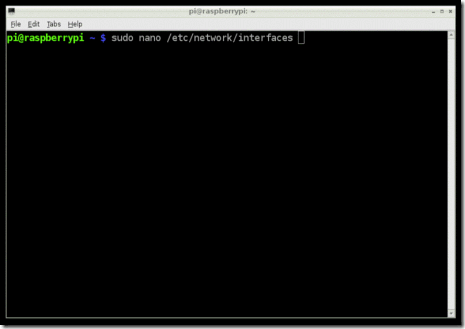
Open a Terminal session by clicking on the LXTerminal icon, and enter the following command into it:

Copy Code

1. sudo nano /etc/network/interfaces

clip_image002

    auto lo

    iface lo inet loopback
    iface eth0 inet dhcp

    allow-hotplug wlan0
    auto wlan0

    iface wlan0 inet dhcp
    wpa-ssid "ssid"
    wpa-psk "password"

If you are using a 'hidden' SSID, try the following (hat-tip to http://www.dafinga.net/2013/01/how-to-setup-raspberry-pi-with-hidden.html)

    auto lo

    iface lo inet loopback
    iface eth0 inet dhcp

    auto wlan0
    allow-hotplug wlan0
    iface wlan0 inet dhcp
    wpa-scan-ssid 1
    wpa-ap-scan 1
    wpa-key-mgmt WPA-PSK
    wpa-proto RSN WPA
    wpa-pairwise CCMP TKIP
    wpa-group CCMP TKIP
    wpa-ssid "My Secret SSID"
    wpa-psk "My SSID PSK"

    iface default inet dhcp

Step 3.

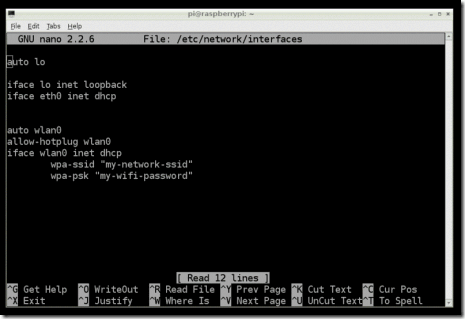
This opens an editor screen of the wifi configuration file you need to change.

clip_image004

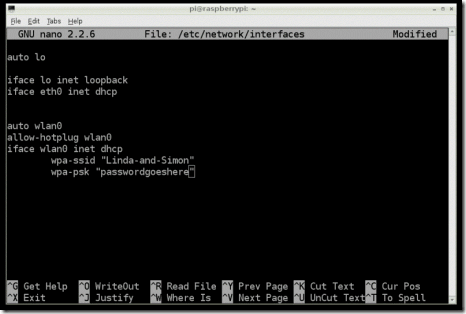
The two places where you need to make a change are on the last two lines. Change the file so that it looks like this:

clip_image006

Of course, you should put in your network and password! Note that you need to keep the double-quote characters around your wireless network name and password.

This kind of editor does not let you use the mouse. Instead, use the cursor keys to move around the file.

Step 4.

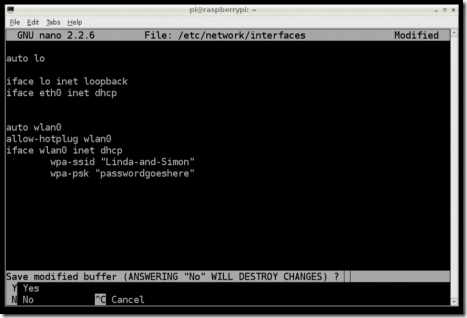
When you have finished press [ctrl]x. This will ask if you want to save the modified files.

clip_image008

Press 'Y' and then Return to save the file with the same name.

Step 5.

Shut down your Raspberry Pi, plug the WiFi adapter in and start it up again. You should find that the Raspberry Pi connects using the WiFi adapter as it boots up.

Taken From: http://learn.adafruit.com/adafruits-raspberry-pi-lesson-3-network-setup/setting-up-wifi-with-occidentalis

Friday, October 5, 2012

Wifi on Linux via Command Line

Connect to a wireless network via command line


I know, the first thing you are asking is “Why would I want to have to connect to a wireless network from the command line?” To that question I can give you a simple answer…What if you want to create a script to run that will bring up your wireless network as soon as your desktop is loaded? You could get really complex and create a start up script to load a desktop based on what wirelessaccess point you needed to join. That’s one of the beauties of Linux, if you can dream it, you can do it.
But I am getting too far ahead of myself. Let’s get back to the basics shall we? First I am going to assume that your wireless card was detected by your distribution and has the proper drivers loaded. With that accomplished you will need to have the following tools:
  • ifconfig: Enable your wireless device.
  • iwlist: List the available wireless access points.
  • iwconfig: Configure your wireless connection.
  • dhclient: Get your IP address via dhcp.
The first command you need to use is ifconfig. With this command you are going to enable your wireless device. Most likely your device will be called wlan0. So in order to enable this you would enter the command (as root):

ifconfig wlan0 up

You won’t see any feedback unless there is a problem.
The next step is to scan for your wireless network to make sure it is available. Do this with the following command:

iwlist wlan0 scan

With this command you will see output like the following:

Cell 01 - Address: 00:21:43:4E:9B:F0
ESSID:"HAIR STROBEL"
Mode:Master
Channel:5
Frequency:2.432 GHz (Channel 5)
Quality=100/100? Signal level:-45 dBm? Noise level=-95 dBm
Encryption key:on
IE: WPA Version 1
Group Cipher : TKIP
Pairwise Ciphers (1) : TKIP
Authentication Suites (1) : PSK
IE: IEEE 802.11i/WPA2 Version 1
Group Cipher : TKIP
Pairwise Ciphers (1) : CCMP
Authentication Suites (1) : PSK
Bit Rates:1 Mb/s; 2 Mb/s; 5.5 Mb/s; 11 Mb/s; 22 Mb/s
6 Mb/s; 9 Mb/s; 12 Mb/s; 18 Mb/s; 24 Mb/s
36 Mb/s; 48 Mb/s; 54 Mb/s
Extra:tsf=000002f1d9be01b7

So you know this network is available. From the above output you can also see this network is employing WPA2, so you will need a passkey. If you don’t know that passkey, you are out of luck (which would be the case no matter if you were using a front end in Linux, Windows, or Mac.)

Now it’s time to configure your connection. To do this issue the command:

iwconfig wlan0 essid NETWORK_ID key WIRELESS_KEY

Where NETWORK_ID is the ESSID of the network with which you want to connect and WIRELESS_KEY is the security key needed to connect to the wireless access point.

Note: iwconfig defaults to using a HEX key. If you want to use an ascii key you will have to add the “s:” prefix to your key like so:

iwconfig wlan0 essid NETWORK_ID key s:WIRELESS_KEY

Now that you have your configuration set, it’s time to get an IP address with the help of dhclient. Issue the command:

dhclient wlan0

If no output is reported there are no errors. You should now be up and running.


Make it a script

Of course who wants to type out all of those commands. Instead of doing this you could create a script for this like so:

#! /bin/bash
ifconfig wlan0
iwconfig wlan0 essid NETWORK_ID key WIRELESS_KEY
dhclient wlan0

Where NETWORK_ID is the actually essid of the network and WIRELESS_KEY is the security key for that network. Save this script with the filename wireless_up.sh and then make this script executable with the command:

chmod u+x wireless_up.sh

You can make this a global command by placing this script in /usr/local/bin. You can now issue the command wireless_up.sh from anywhere in your directory structure and it will run, connecting you to the configured wireless access point.

If you frequent many wireless access points you can create a script for each one giving them each unique names. By doing this, when you need to connect to a specific access point, just run the script associated with that access point and you’re good to go.

Taken From: http://www.ghacks.net/2009/04/14/connect-to-a-wireless-network-via-command-line/

Tuesday, August 21, 2012

Forward Ports on Your Router From a Desktop (UPnP)

clip_image002

UPnP is a convenient way for programs to forward ports without you having to pull up your router’s web interface and forward ports manually. Unfortunately, some programs that require port forwarding don’t support UPnP – that’s where UPnP PortMapper comes in.

This application takes care of port forwarding for you, right from your desktop. If your IP address changes, you don’t need to log into your router and change your port forwarding rules – you can have the application update them for you.

If you visit a friend’s house and join their network, you don’t have to ask for their router’s password to forward ports – just fire up the application and activate your preset rules.

Installation

UPnP Port Mapper is written in Java, so you’ll need the free Java Runtime Environmentinstalled to run it. After installing Java, you can download UPnP Port Mapper from SourceForge. In addition to Windows, this application also works on Mac OS X and Linux.

UPnP Port Mapper communicates with your router with the UPnP protocol, so you’ll also need a router with UPnP enabled to use this application. If UPnP is disabled on your network’s router, this program can’t do anything.

After downloading UPnP Port Mapper, double-click the .jar file to launch it.

clip_image004

Forwarding Ports

To get started, click the Connect button in UPnP Port Mapper. If you see a Windows Firewall pop-up window, click the Unblock button. You may have to allow Java network access in the Windows firewall pop-up that appears.

If UPnP PortMapper informs you that it can’t find your router, click the Connect button again unblocking the application in the Windows firewall.

clip_image006

If it worked, you’ll see a list of UPnP port mappings in the top pane (this list will be empty by default), as well as your router’s external IP address on the Internet and its IP address on your local network.

To create a new port forwarding preset, click the Create button.

clip_image008

Enter a description for your port forwarding rule and provide a list of one or more ports to forward. You can specify port ranges or forward a list of ports using a single preset.

You can also specify a specific remote host. If you enter an IP address, only traffic from that IP address will be forwarded to your computer from your router. For example, you can use this feature to only allow connections from a friend’s IP address on the Internet.

The Use local host box is checked by default, making it easy to forward ports without having to double-check your computer’s local IP address. However, you could also use this application to forward ports to multiple different computers on your network.

clip_image010

Port forwarding presets you specify will appear  in the Port mapping presets box. Select a preset and click the Use button to activate it.

Clicking this button forwards the ports on your router – they’ll appear in the Port mappings box at the top of the window. You can remove port mappings by selecting them and clicking the Remove button.

clip_image012

The port mappings will be saved on your router until its UPnP data is cleared – depending on your router, this may happen when your router is restarted. If you open UPnP Port Mapper later and click the Connect button, you’ll see your active port mappings.

You will also need to reapply port mapping settings if your computer’s local IP address changes.

With your presets, you can quickly and easily apply these port mapping settings on any network with a router that supports UPnP – this can be convenient if you move around and need to forward ports for gaming, servers, or other purposes.

Taken From: http://www.howtogeek.com/122227/how-to-quickly-forward-ports-on-your-router-from-a-desktop-application/

Wednesday, June 27, 2012

WiFi for Arduino via dd-wrt Router (Serial/TCP/USB)

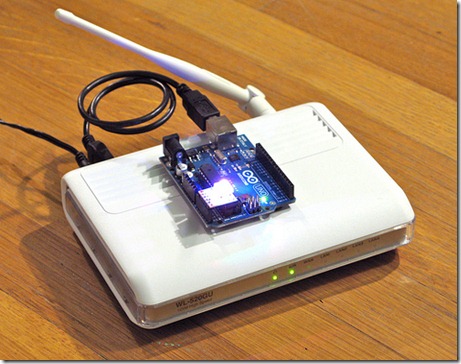
I love Arduino but its lack of wireless bugs me. And it sucks that WiFi Shields for the Arduino cost as much a cell phone. I want something cheap. Turns out, small, cheap WiFi routers like the Asus WL-520gu can run theDD-WRT Linux firmware and act as serial-to-network gateway for Arduinos (or most any other USB device). Here’s how to do it.

(Hey, is this a Wifi-controlled BlinkM? I think it is.)
clip_image001

A quick video showing a router acting as a serial-to-network gateway:

This is not that new of a concept, hacking Linux onto a router for some neat DIY purpose. One of my favorite past hacks is MightyOhm’s WiFi Radio project. And of course, see my own book Hacking Roomba for an example of how to put a Roomba on the Net.

This post is specifically about trying to make a DD-WRT router a transparent gateway for an Arduino.

The steps are:

  1. Install DD-WRT Firmware
  2. Configure Router to be WiFi Client
  3. Do Some Tests
  4. Install USB Serial Drivers
  5. Install Serial-to-Network Proxy

1. Install DD-WRT Firmware

To get it working, you need to install two firmware files. The first is to convert from standard Asus firmware to a standard DD-WRT, then the second adds in additional features.

Follow the steps in the “New Wiki Install Material” section on DD-WRT’s wiki on the Asus WL-520gu. It seems scary at first, but stick with it. (And for more than you ever wanted to know about Asus and TFTP, see Asus_TFTP_Flash.)

Below is an abbreviated and summarized version of the full instructions.

1a. Download firmwards and needed tools

Download the “trx” firmware to your computer. (“trx” files are what Asus routers need when updating via TFTP) It is called: dd-wrt.v24-12548_NEWD_mini_asus.trx.

Also, download the second “bin” firmware to your computer. (“bin” firmware files are what DD-WRT uses. It is called: dd-wrt.v24_usb_generic.bin

1b. Install 1st firmware (“.trx”)

Connect your router to your computer via an Ethernet cable, set your computer to have the IP address 192.168.1.7.

Do the mentioned “30-30-30″ reset to the router, then send the “trx” firmware file with tftp. On Mac OS X (and Linux), do this by opening up a terminal window and typing:
% tftp 192.168.1.1
tftp> mode binary
tftp> put dd-wrt.v24-12548_NEWD_mini_asus.trx
tftp> quit

Then wait for five minutes (seriously). Power cycle the router and its web interface should be available. It will ask you for a admin username and password, be sure to fill this out.

1c. Install 2nd firmware (“.bin”)

This is a pretty standard firmware upgrade process. Just follow the instructions in the DD-WRT page above and you should end up with a router that’s ready to go.

2. Configure Router to be WiFi Client

With the router running a good basic DD-WRT firmware, it now needs to be modified to act like a wireless client, instead of an access point, enable things like SSH server for command-line access, and enable USB.

After each step below, reboot the router.

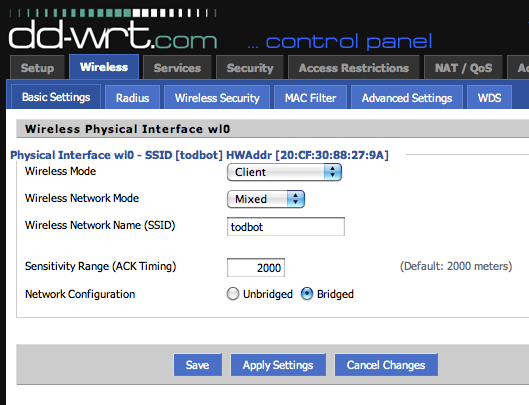
2a. Enable wireless client mode

Go to the “Wireless/Basic Settings page, and set the router to be a wireless client on your network. If you have WEP/WPA, you’ll need to go to the Wireless/Wireless Security page to set that up. And if you want your Arduino to have a static IP address instead of a DHCP-obtained one, head over to Setup/Basic Setupand change “Connection Type” to “Static IP”; you’ll be presented with a set of form fields to input the IP address.

Note that at the end of this, your router will have two IP addresses: one being the “management” IP address of 192.168.1.1 you’re currently using to configure the router and only available via a “LAN” Ethernet port, and the other being the DHCP or static-assigned IP address on your network. The router considers this the WAN IP address. (even though this router is not going to be acting like a router in the normal sense)

DD-WRT “Wireless/Basic Settings page
clip_image003

2b. Enable useful management options

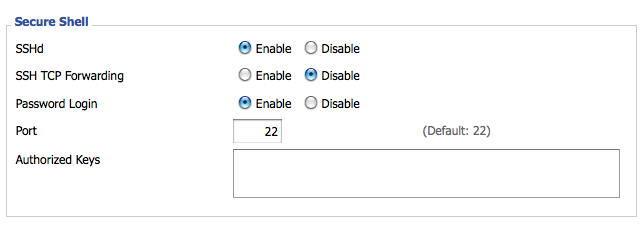
In the Services/Services page, in the “Secure Shell” section, enable SSH so you can log into it and copy files to it.

DD-WRT Services/Services page
clip_image005

In the Administration/Management page, in the “Remote Access” section, enable Web and SSH access from the WAN port (and the IP address the router gets from your WiFi), and in the “JFFS2 Support” tab enable JFFS2 so you have some flash memory you can write to.

DD-WRT Administration/Management page
clip_image007

Go to the Security/Firewall page, and turn off the firewall. This doesn’t need to be a super secure thing (at least not to start). And it causes lots of problems that are hard to diagnose.

DD-WRT Security/Firewall page
clip_image009

2c. Enable USB

Go to the Services/USB page and enable the USB kernel drivers. The firmware doesn’t come with USB-to-serial drivers needed for Arduino, we’ll do those later.

DD-WRT Services/USB page
clip_image011

3. Do Some Tests

At this point, on reboot your router should join your WiFi network, grab an IP address from your network’s DHCP server, and have two IP addresses. The first, is the “LAN” admin IP address of 192.168.1.1. This only works when you have an Ethernet cable plugged into one of the LAN ports. The other address is the “WAN” address that’s obtained over WIFi from your network.

3a. Find the WAN IP of your Router

Because of the various settings above, the admin page and ssh server is available on both IPs. If you go to the Status/Sys-Info page (using the admin IP address and an Ethernet cable), you can see what the WAN IP address is, like below. On my network, the Asus got an IP of 192.168.42.138.

DD-WRT Status/Sys-Info page
clip_image013

3b. Test out SSH login

You should also log into the router now. The username is “root”, not the admin username you chose when first setting up the router. The password however is the password you chose during first setup. Open up a terminal window and ssh in.
clip_image015

DD-WRT is a real Linux, but with a reduced command set. Many useful commands are there though, like “ping”, “wget”, “lsmod”, “df”, etc.

4. Install USB Serial Drivers

Now that you have a working system, time to put on the USB serial drivers. There isn’t a very good way of doing this on such a memory-constrained router like the WL-520gu (the routers with more built-in flash can properly use the “ipkg” package management system to get these drivers). But here’s one way:

4a. Find USB Serial Drivers

This USB kernel modules post on the dd-wrt.com forums has a zip file called “fs_and_usb_modules_2_4_37.tar.gz ” containing the three files we need to talk to an Arduino. You can download that driver bundle yourself and pull out the files needed.

Or you can grab them from here:
- fs_and_usb_modules_2_4_37/usb/serial/usbserial.o
- fs_and_usb_modules_2_4_37/usb/serial/ftdi_sio.o
- fs_and_usb_modules_2_4_37/usb/acm.o
The last one is what you use if you’re using an Arduino Uno. The other two are what you’re using for any other kind of Arduino.

4b. Put Drivers in Router’s flash space

The “JFFS2″ feature lets us use part of the flash memory as a disk. We’ll put the drivers there. So ssh into the router, cd over to the jffs partition and pull down the drivers.
% ssh root@192.168.1.1
# cd /jffs
# mkdir kmods
# cd kmods
# wget http://todbot.com/asus_wl520gu/fs_and_usb_modules_
2_4_37/usb/serial/usbserial.o
# wget http://todbot.com/asus_wl520gu/fs_and_usb_modules_
2_4_37/usb/serial/ftdi_sio.o
# wget http://todbot.com/asus_wl520gu/fs_and_usb_modules_
2_4_37/usb/acm.o

4c. Load drivers and set to startup automatically

Back in the DD-WRT web interface, go to the Adminstration/Commands page and copy the below into the Commands window:
insmod /jffs/kmods/usbserial.o
insmod /jffs/kmods/ftdi_sio.o
insmod /jffs/kmods/acm.o

Click “Run Commands” to run the commands immediately. Click “Save Startup” to make these commands run on reboot. You could have also typed those commands on the command-line.

On the ssh command-line, you can type “lsmod” to see if the drivers have loaded.

If you have an Arduino or FTDI cable plugged into the USB port on reboot, you can also type “dmesg” to see if the Arduino is detected. In dmesg you should see:
usb.c: registered new driver serial
usbserial.c: USB Serial support registered for Generic
usbserial.c: USB Serial Driver core v1.4
usbserial.c: USB Serial support registered for FTDI SIO
usbserial.c: USB Serial support registered for FTDI 8U232AM Compatible
usbserial.c: USB Serial support registered for FTDI FT232BM Compatible
usbserial.c: FTDI FT232BM Compatible converter detected
usbserial.c: FTDI FT232BM Compatible converter now attached to ttyUSB0 (or usb/tts/0 for devfs)

5. Install Serial-to-Network Proxy

Now that you have the Arduino showing up as a serial device to the router, you can use any unix tool that can talk to serial devices to control the Arduino. Or you could write your own. While this router probably doesn’t have enough memory for PHP or Perl, you could write a compiled program in C/C++. You’ll need to install the cross-compile tools, which isn’t exactly trivial unfortunately. You can find some tips at the DD-WRT Wiki on Development, this post and this post on the dd-wrt.com forums, and this OpenWrt wiki page on the SDK.

But perhaps one of the most useful is a “serial proxy”. This is a familiar concept in the Arduino world. A serial proxy is a small program that essentially turns a serial port into a TCP port. There is a good small command-line one called “ser2net” that comes with Ubuntu.

I didn’t want to get the full WRT SDK cross-compiling up and running to port ser2net to DD-WRT and thankfully I didn’t have to. Andrew Hazelden has done the hard work and posted the results in a post about how to use serial ports on the Linksys WRT54GS (a very similar router).

You can read his post for more details and more code. I’ve stuck the single file needed for us here:
- ser2net_2.3-1_mipsel.ipk

5a. Download and Install ser2net

SSH into the router again and do the following:
% ssh root@192.168.1.1
# cd /jffs
# wget http://todbot.com/asus_wl520gu/ser2net_2.3-1_mipsel.ipk
# ipkg install ser2net_2.3-1_mipsel.ipk
# rm ser2net_2.3-1_mipsel.ipk
This will install ser2net in /jffs/usr/sbin/ser2net .

5b. Test ser2net

Time to do some tests. Get your Arduino, load up a sketch on it that reads and writes to the serial port (I like bitlash, a command interpreter for Arduino), and plug the Arduino into the router.

Then on the command-line, type:
# ser2net -C "3001:raw:600:/dev/usb/tts/0:57600 NONE 1STOPBIT 8DATABITS -XONXOFF -LOCAL -RTSCTS"

This runs ser2net with the settings of:
- “3001″ is the TCP port you will connect to,
- “/dev/usb/tts/0″ is serial port (will be “/dev/usb/acm/0″ for Arduino Uno),
- “57600″ is the baud rate

On another computer, open up a network terminal program like the command-line “telnet”:
% telnet 192.168.1.1 3001
You should be able to communicate with your Arduino as if you were using the Arduino Serial Monitor.

5c. Put ser2net in startup script

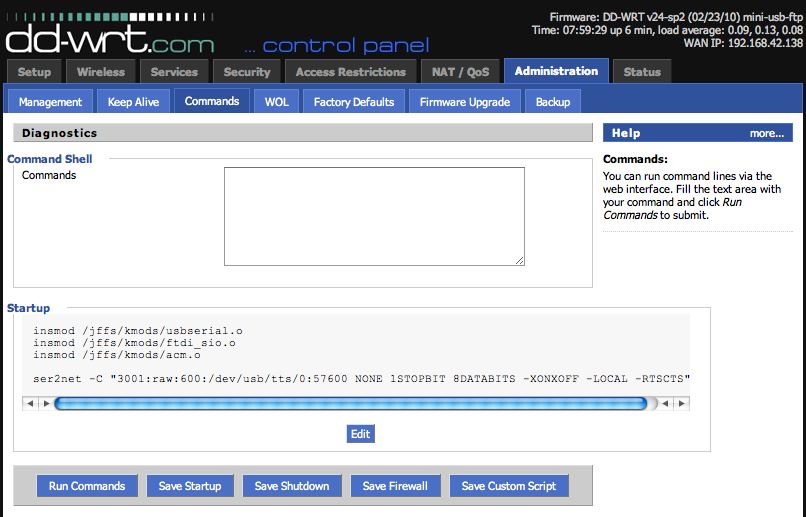
Once you figure out the ser2net config that works for your setup, you can have that run on startup by editing the startup command. Go back into the DD-WRT web gui and go to Administration/Commands. Edit the Startup script and add your ser2net command line to it. When you click “Save Startup” the result will be something like this:

DD-WRT Administration/Commands page
clip_image017

Done!

Now you can unplug your Arduino, load up any sketch to it, and then control it from where ever you can ping that router. You can even have the Arduino pull data out from the Net by having a different kind of serial-to-network proxy that is Arduino-facing, instead of Net-facing.

This should also work for other dd-wrt routers that have a USB port.

Taken From: http://todbot.com/blog/2010/12/16/wifi-for-arduino-with-asus-wl-520gu/comment-page-1/

Howto use a dd-wrt Router's Internal Serial Port (Serial/TCP)

By Andrew Hazelden, January 17, 2010 7:51 pm
clip_image001
This is Andrew's Guide to DD-WRT network serial ports.
A Linksys WRT54G / WRT54GS router makes a great wireless network serial port. In the following guide I will go over the techniques I use to allow TCP or UDP connections. This tutorial covers how to do this with the DD-WRT firmware. The WRT54GS has two serial ports. The first one is connected as a serial console at startup. The second one can be used easily for connecting GPS units, microcontrollers, weather stations or any other serial device.
DD-WRT Homepage
http://www.dd-wrt.com/site/index
Rod Whitby has an article that explains how to solder the required header pins onto your WRT54GS router.
http://www.rwhitby.net/projects/wrt54gs
Using the pinout from Ron Whitby's site you can either hook up a 3.3 Volt serial device directly to your WRT54GS router or, with additional work, you could make / get a voltage converter board to allow true rs-232 serial voltage levels to be converted to 3.3 Volt TTL levels. This type of converter board device would use a Maxim-IC MAX3233E chip. A 10 pin IDC connector ribbon cable can run from your voltage converter board to your header pins soldered onto the WRT54GS. The converter board can draw its power off the router terminal pins through the ICD connector.
Note: Crimping standard servo terminal type connectors onto your serial device's cable will make wiring up the serial port connections to the Linksys WRT54GS easy during prototyping. This type of connection is shown in the two pictures below:
clip_image001[1]
clip_image002
Requirements:
3.3 Volt Locosys GPS (NG Hobbies sells the Locosys LS20033 10 Hz model)
Locosys GPS cable with 5 position 0.1" connector (Also at NG Hobbies )
Linksys WRT54G / WRT54GS router
DD-WRT firmware (v24 suggested)
0.1” 10 pin header
clip_image003
2.54mm Pin Header Strip
The header pins are called either:
  • Double Row Male 2x40 Pin Header Strip 2.54mm ( eBay )
  • 0.1" Break Away Header Pins
  • CONN HDR BRKWAY .100 80POS VERT  ( Digi-Key )
The 2x5 pin header was made by snapping off a piece from standard 0.1” (2.54mm) PCB Male Header Pins  (2 row x 40). You can find these at Digi-Key, or on eBay.
SSH Client Software:
Putty or Terminal
Optional:
WinSCP
I have packaged up the utilities you require for this project into a ZIP archive:
http://www.andrewhazelden.com/files/2010/January/dd-wrt_serial_TCP.zip
This archive will allow you to set up a network TCP/IP connection on your DD-WRT router using the /dev/tts/1 serial port. The archive dd-wrt_serial_TCP.zip has the following programs:
libncurses_5.6-1_mipsel.ipk
netcat_0.7.1-1_mipsel.ipk
ser2net_2.3-1_mipsel.ipk
---------------------------------------------------------------------------------------------------------------------------------
Step 1. Solder on a 10 pin header
Follow Ron Whitby’s instructions and solder the 10 pin header onto your linksys router.
http://www.rwhitby.net/projects/wrt54gs
Step 2. Install the dd-wrt v24 firmware on your WRT54G / WRT54GS Linksys router.
Step 3. Check your dd-wrt network settings
Set up your network and wireless settings. I recommend setting the router up with a fixed IP address. I use 192.168.1.80 for the wireless router. You will have to decide if you will use either client bridged or client routed modes for the Linksys router or you might even make it an access point.
Step 4. Enable JFFS2 Support on your router.
You must compete this step if you want the process to work!
To do this go to the Administration > management section in the dd-wrt user inteface.
Scroll down to the JFFS2 Support section. Enable the JFFS2 and Clean JFFS2 options.
Click Apply.
Now reboot the router.
This will allocate storage in the flash memory where you will save the programs on your router. I find you have to reboot your router once after enabling JFFS2 Support for it to work properly.
clip_image005
Step 5. SSH into the router. ( You could also use telnet.)
On Windows I recommend the PUTTY program as an SSH Client:
http://www.chiark.greenend.org.uk/~sgtatham/putty/
On Mac OS X I recommend using the Terminal application found in your
/Applications/Utilities folder.
Assuming your router’s IP address is 192.168.1.80 and your dd-wrt username is root, use the following command:
ssh -l root 192.168.1.80
The default password is admin
clip_image007
Last login: Sun Jan 17 15:40:52 on ttys000
Mac-Pro:~ DSI$ ssh -l root 192.168.1.80
DD-WRT v24 std (c) 2008 NewMedia-NET GmbH
Release: 04/24/08 (SVN revision: 9433)
root@192.168.1.80's password:
==========================================================
____  ___    __        ______ _____         ____  _  _
| _ \| _ \   \ \      / /  _ \_   _| __   _|___ \| || |
|| | || ||____\ \ /\ / /| |_) || |   \ \ / / __) | || |_
||_| ||_||_____\ V  V / |  _  | |     \ V / / __/|__   _|
|___/|___/      \_/\_/  |_| \_\|_|     \_/ |_____|  |_|
DD-WRT v24
http://www.dd-wrt.com
==========================================================
BusyBox v1.9.2 (2008-04-24 06:02:12 CEST) built-in shell (ash)
Enter 'help' for a list of built-in commands.
root@dd-wrt:~#
Step 6. Download the files to your dd-wrt.
The technique I use is to download the files using the wget command on the dd-wrt router.
On Mac OS X you can enable web sharing in your System Preferences Control Panel.
clip_image009
Click on the Sharing Option.
In the Sharing section enable Web Sharing.
clip_image011
This enables the Apache based HTTP web server built into your Mac. You can place files either in the computer's sharing folder or in your user account’s sharing folder.
If you type your computer's IP address in your favorite web browser you will see a directory listing. For example, my computer's local IP address is 192.168.1.8 so I would type the following in the address bar:
http://192.168.1.8
clip_image013
The local path to your computer’s web-sharing folder is:
/Library/WebServer/Documents/
Step 7.
Installing TCP serial software using Mac OS X:

The local IP address of my desktop computer is 192.168.1.8 . You should substitute your IP address where you see 192.168.1.8 in the following examples.
Type the following into your ssh session window:
cd /jffs/tmp
If there is no /jffs/tmp directory that would likely indicate the you need to enable JFFS2 support. See Step 4.
To download the software to the dd-wrt:
wget http://192.168.1.8/libncurses_5.6-1_mipsel.ipk
wget http://192.168.1.8/netcat_0.7.1-1_mipsel.ipk
wget http://192.168.1.8/ser2net_2.3-1_mipsel.ipk

To install the software packages using the IPKG installer:
ipkg install libncurses_5.6-1_mipsel.ipk
ipkg install ser2net_2.3-1_mipsel.ipk
ipkg install netcat_0.7.1-1_mipsel.ipk

Installing TCP serial software using Windows:
On Windows I recommend the PUTTY program as an SSH Client:
http://www.chiark.greenend.org.uk/~sgtatham/putty/
WinSCP is a great Windows program for copying files onto your dd-wrt router using the SCP protocol:
http://winscp.net/eng/download.php
clip_image015
Using WinSCP login to the router using SCP. The default username is root.
clip_image017
Unzip the dd-wrt TCP serial software on your desktop and copy the .ipk fliles using WinSCP to the router's /jffs/tmp folder.
clip_image019
Connect to the router using PuTTY and SSH.
clip_image021
Login to your dd-wrt router with SSH
clip_image023
Using SSH install the three .ipk files located at /jffs/tmp you copied via WinSCP.
To install the software packages using the IPKG installer:
ipkg install libncurses_5.6-1_mipsel.ipk
ipkg install ser2net_2.3-1_mipsel.ipk
ipkg install netcat_0.7.1-1_mipsel.ipk

Step 8. Test Ser2net
Connect your serial device to the dd-wrt. This example expects that your serial device is connected to TTS/1. I am using a Lococsys 10 Hz GPS connected at 38,400 baud. I set up the serial device to output data on TCP port 3001 but any other port number could be used. The ser2net program only allows a single TCP connection to the serial port at a time.
In the SSH session window type in:
ser2net -C "3001:raw:600:/dev/tts/1:38400 NONE 1STOPBIT 8DATABITS -XONXOFF -LOCAL -RTSCTS"
If you copy the above text, make sure your web browser didn't convert the quotes into smart quotes as this will give an error in your SSH terminal program.
To check if the program is installed properly and running, type in:
top
This shows the currently running programs on the dd-wrt router. In the right hand column labeled COMMAND you should see ser2net listed part way down. Press Control-C to quit top.
clip_image025
Step 9.  Set up the startup script.
To make the serial software ser2net start at boot time we will make it a startup script. Connect to the Linksys router. In my case, I will connect to http://192.168.1.80/Diagnostics.asp
This will load up the Administration / Commands section in the dd-wrt software.
Paste the following text into the Command Shell section of the web-gui of the dd-wrt router firmware control panel:

ser2net -C "3001:raw:600:/dev/tts/1:38400 NONE 1STOPBIT 8DATABITS -XONXOFF -LOCAL -RTSCTS"
If you copy the above text, make sure your web browser didn't convert the quotes into smart quotes as this will give an error in your SSH terminal program.
Click the Save Startup button.
clip_image027
Reboot the router.
Step 10. Let’s now test if everything is working!
Open a new terminal window.
On Mac OS X and Linux there is a handy Unix tool called Netcat. Netcat is also known as “nc” for short. It allows you to easily test UDP and TCP network connections. If you search on Google there are also pre-compiled versions of Netcat for windows.
Type the following into your terminal window:
nc 192.168.1.80 3001
This tells Netcat to connect to the Linksys router on port 3001 using the TCP protocol.
If your serial device is properly connected you should see data scrolling by in the terminal window.
clip_image029
Step 11. Conclusions
You can now access the serial port on a dd-wrt either through the Ethernet port on the router or wirelessly using WIFI.
On Mac OS X it is possible to use BSD Sockets to connect and transfer data between desktop software and the remote network serial port.
On Windows you can either use a TCP socket and connect directly or you can use virtual serial port software that will make the network TCP data look like it is coming in on a Windows COM port.
A free program for Windows that maps the TCP serial data to a virtual serial port is:
HW VSP3 - Virtual Serial Port
http://www.hw-group.com/products/hw_vsp/index_en.html
clip_image031
Some people like to use Python scripting for its easy network socket programming.
http://www.python.org/
Another way to access the network TCP serial data is to use the Simple Directmedia Layer "SDL" with the SDL_net cross-platform networking library. This works equally well on Mac / Windows / Linux platforms.
http://www.libsdl.org/
http://www.libsdl.org/projects/SDL_net/
clip_image033
Step 12.
And additional step is that you could setup your serial port enhanced dd-wrt router to be a wireless repeater. Wireless repeater bridge mode allows your dd-wrt router to connect to a wireless access point for internet access and also allows clients to connect directly to your dd-wrt. Another handy thing about this mode is that you can place this router a long way away from your access point and you don't have to run any Ethernet cable to hook it up. With a properly setup grid or patch antenna the dd-wrt wireless repeater router could even be a kilometer or more away. As well you can connect to the dd-wrt with an device like an iPod to check the settings. I have a Terminal app on my iPod so I can even log in to the router with SSH and change settings.
clip_image035
You might find that enabling the dd-wrt repeater bridge mode is just what your project needs.
clip_image037
You can define two separate wireless security passwords for your router. One for the physical interface and one for the virtual interface.
You have now completed part 1 of this tutorial on setting up network serial ports using a Linksys router. Part 2 of this tutorial covers setting up a UDP based network serial port on your Linksys WRT54G router using a custom build of busybox and netcat.
Installing Ser2net Without JFFS2 Support
A blog reader named Matt sent me a tip from the DD-WRT forums on how you can install ser2net on routers without JFFS2 support. The technique uses an http server to host a gzipped copy of ser2net.  The file is downloaded using wget, expanded with tar xzf, and then ser2net is run from the command line with the appropriate arguments.
cd /tmp
wget http://[your-webserver-ip/folder-name]/ser2net-2.5-mips.tar.gz
tar xzf ser2net-2.5-mips.tar.gz
cd ser2net-2.5
./ser2net -C "1024:raw:600:/dev/tts/1:38400 NONE 1STOPBIT 8DATABITS -XONXOFF -LOCAL -RTSCTS"

Note: If you make this a startup script on the router the HTTP webserver URL has to be accessible from the router at boot time for this to work. This means you might have to store the file on your local LAN. You can download a copy of the file ser2net-2.4-mips.tar.gz here.
This also applies to the Asus WL-520gu and many other DDWrt routers (except for the pinout part).
Taken From: http://www.andrewhazelden.com/blog/2010/01/how-to-use-the-serial-ports-on-a-linksys-wrt54gs-with-dd-wrt-v24/
Check out Part 2, Wich is the same but via UDP: http://www.andrewhazelden.com/blog/2012/03/setting-up-a-udp-based-network-serial-port-on-a-linksys-wrt54g-router/