Showing posts with label Windows. Show all posts

Friday, April 17, 2026

Windows 11 - Local Account

If you dont want to put your email on windows and create a local account like in previous wondows version just follow this:


 - Install windows 11 up to this screen   

   "Is this the rigth country or region ?"

 - Shift + F10

 - Command line (CLI) will show 

 - Click a bit on the Window

 - Type on CLI 

   > oobe\bypassnro


 - The machine will reboot and will get

   back to up to this screen:

   "Is this the rigth country or region ?"

 - Shift + F10

 - Command line (CLI) will show  

 - Type on CLI:

   > ipconfig /release

   disconnects the machin from the network

  - Close CLI


- Continue... Next... 

 - Install windows 11 up to this screen:

   "Let´s connect you to a network"

   select:

   "I dont have Internet"

   then:

   "Continue with limited setup"

 - And it will go the local account setup


 - Now its business as usual... Next... Next...

Friday, November 8, 2024

NVIDIA TESLA P100 - Windows and VMWare (Software Versions)

 The NVIDIA Tesla P100 is a server GPU, thas has become afordable recently, you can use it on Windows directly or as a GRID GPU on VMWARE ESXi (shared between VMs). 

As this is an older GPU it's not supported on the latest drivers in Windows or the latest VMWARE ESXi (it's well supported on Proxmox).


Windows

You can get the windows drivers here:

https://cloud.google.com/compute/docs/gpus/grid-drivers-table?hl=pt-br#windows_drivers

the latest driver that will support the P100 is:

        538.33

from example version 551.61 does not support the P100:


VMware ESXi
The latest version of ESXi that suports the P100 as a Grid GPU is ESXi 6.7.
On later versions of VMWare you can only do Passthrough to one VM.


Hope this helps someone to avoid losing as much time as I did trying finding the rigth versions of software that support the NVIDIA Tesla P100.

Monday, October 8, 2018

Nvidia Shield - NAS Server (SMBv1)


Configuring The Nvidia Shield (v8.0.0)

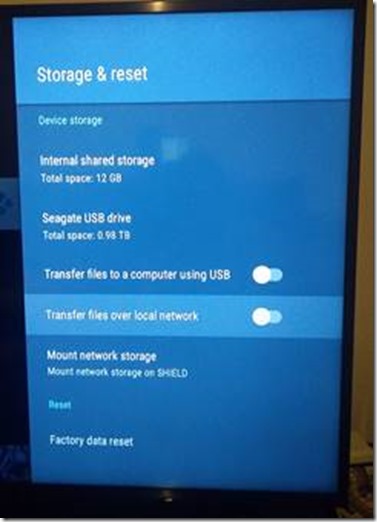
Go to Settings > Storage & reset > Transfer files over network, to turn this feature on.

clip_image002

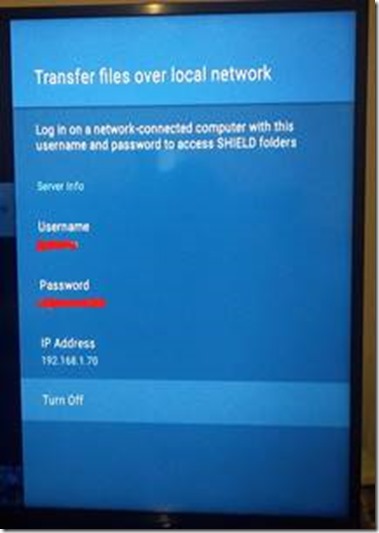
You'll be presented with a

  • User name - the Nvidia Shield generates it but you can change it
  • Password - the Nvidia Shield generates the password not you

that you can use on a networked PC to access SHIELD folders.

clip_image004

Make sure your PC is on the same network as your SHIELD.


Activate SMB1 Client on Windows 10

This is a legacy protocol and it´s client is disabled by default, to enable it:

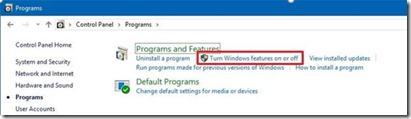
  1. Open Control Panel.
  2. Click on Programs.
  3. Click on Turn Windows features on or off link.

clip_image006

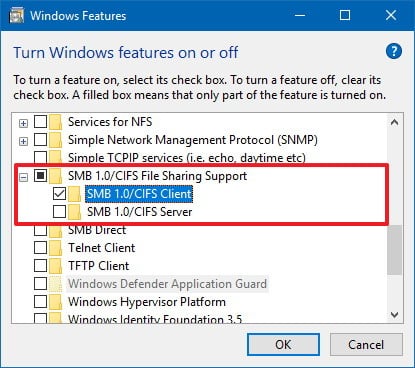
  1. Expand the SMB 1.0/CIFS File Sharing Support option.
  2. Check the SMB 1.0/CIFS Client option.

clip_image007

  1. Click the OK button.
  2. Click the Restart now button.

After completing these steps, you'll once again be able to see and connect to network devices running the old protocol on your local network from your Windows 10 computer.


Accessing The Nvidia Shield Shared Folder

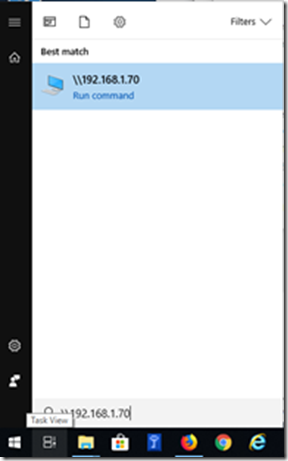
On windows start menu run the following command:

image

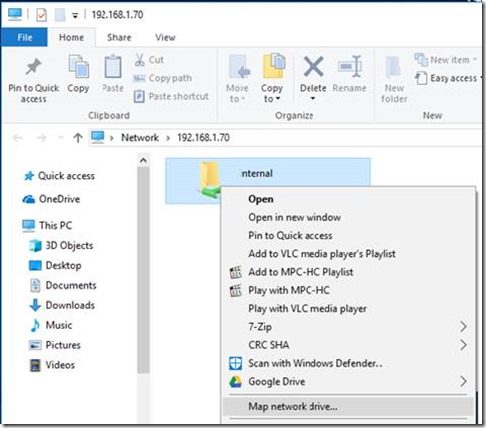
You can also permanently map your SHIELD as a network drive by right-clicking on "Network" in File Explorer and selecting "Map Network Drive". Select an unused Drive letter.

clip_image011


Based On:

https://nvidia.custhelp.com/app/answers/detail/a_id/4172/~/how-do-i-share-shield-tv-folders-with-a-pc

Tuesday, April 18, 2017

Windows - Streaming to TVs (via DLNA)

Here I’ going to show you how to stream media (in this the example is video but it should be similar to other media)  and share files with a Smart TV.

Smart TVs support a standard protocol called DLNA that allows you to stream video and share files to stream, among other things. Normally TV brands give it another name like AllShare (Samsung).

Windows Media Player and Windows itself support DLNA, wich is very usefull in order to display you media in you TV.


Enable Streaming

The DLNA streaming on Windows is off by default, so we need to enable it, the easiest is from Windows Media Player, just go to: 

01

Turn on you TV and wait a bit (20s) after click on “Turn on media streaming”:

02

now just click OK (check that you TV is on the list and is allowed), additionally you can change you media library name and disallow devices in your network:

03.00

later on if you want to comeback to this menu to Allow or Disallow a device you can just go to Windows Media Player again:

MEDIA P

An alternative to get to this menu without Windows Media Player is just to go to the Start Windows icone and type “Media streaming options”, and click on the icon with that name:

image


Stream From the PC to the TV

First put your files here:

image

now this video will be available on the Videos section in Windows Media Player, you can select it and cast the video to your TV.

The first time you do this a popup will show on your TV asking if you allow the PC to stream, just select OK, the next time the streaming will automatically.

03.01

when the streaming starts, it will show you the controlls and the progress bar:

03.02

and you should be seeing the video on you TV Smile.

The inconvenience with this is that you have to go to you PC to start the video and maintain the player window open (in the next topic we are going to see how to start videos from the TV).

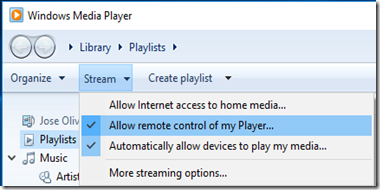
By default TV you only have the pause control over the video, but you can enable all the controls (Back, Forward, Previous Video, Next Video) with this option:

image


Start Videos From The TV (or another PC)

At this point if you already can stream from the PC to the TV, what you don’t know is that when you enabled streaming in the above section you are also started sharing the files in the Video library (by default only the Video folder) on your PC via DLNA.

Now on the TV you can get the the Videos library’s folders that your PC is sharing.

image

In my TV (Samsung Smart TV) you can find the PC by pressing on the  “Sources” in the TV remote.

As you can see bellow your PC is represented by a media icon, which has you PC name plus the library name you gave when you enabled streaming.

ICONfor other brands it should be similar, but check you TV’s Manual.

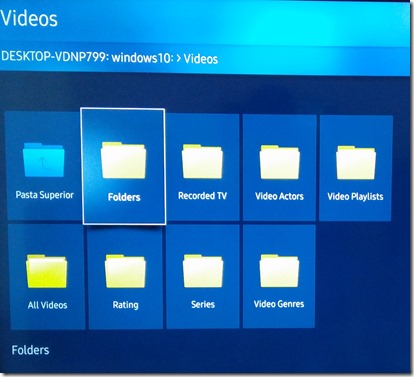
When you click the icon you get something like this:

PHOTO_20170425_082017

DLNA categorizes and organizes your media which is normally quite confusing.

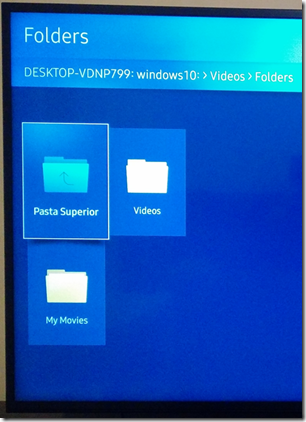
The easiest way is to go into the right category in this case Videos, and then select “Folders” that shows you the actual folders that you shared instead of some confusing DLNA organization.

PHOTO_20170425_082039

if you want more folders to show on the TV you can just add them to the library, like this:

05

as you can see on the TV you have de default Video folder and the My Movies folder that we have just added to the Videos library.

image

if you just want to watch the videos in another Windows PC instead of you TV (ex: your Laptop), on that PC you just need to go to “Network”:

image

click on the media device icon, which will open Windows Media Player with the remote library already added to it:

image

and push play


Hope this was helpful !!!!!!! Smile

Tuesday, June 14, 2016

Windows – SSH SOCKS Proxy

If you have a Raspberry Pi or any Linux machine at home, you can use it as an SSH Proxy with the help of SSH and exit to the Internet via you home conection/IP.

Some of the advantages are:

  • Privacy (SSH Traffic is Encrypted)
  • Bypassing Local Security Policies (Access Blocked Services)

no aditional configuration needed on the SSH server

You only need to forward port 22 on your internet router to the linux host on your LAN (no aditional configuration needed on youre Linux SSH server).

Now that you have port 22 forwarded to you Linux in you home Lan, from somewhere on the Internet setup an Dynamic SSH Tunnel on Putty like show bellow (replace the 98.125.80.38  with your own Public IP):

01

02

03

04

The tunnel will remain working as long this Putty windows is open:

04.1

Now on your Browser (or any other aplication that supports it) you must configure the Socks Proxy to point to the local end of the Dynamic SSH Tunnel, and that’s it.

Now all your browser’s traffic will be sent to the local port 8080 wich SSH wil tunnel it to you home where it will exit via you linux machine.

Here I show how to set up the Socks Proxy on IE (Internet Explorer).

Tools > Internet Options > Connections > LAN Settings > Proxy Server > Advanced

05

You can go on your browser to:

to confirm see Public IP and confirm from wich connection you entering the internet

Friday, October 9, 2015

How to Mount CD/DVDs Images - Windows, Mac, and Linux

Disc images have become more useful than ever on modern PCs that often lack CD and DVD drives. Create ISO files and other types of disc images and you can “mount” them, accessing the virtual discs as if they were physical discs inserted into your computer.

You can also use these image files to burn copies of the original discs later, creating duplicate copies. Disc image files contain a complete representation of a disc.


Windows

Windows 10 allows you to mount both .ISO and .IMG disc image files without any third-party software. Just double-click a .ISO or .IMG disc image you want to make available. If this doesn’t work, you should be able to click the “Disk Image Tools” tab on the ribbon and click “Mount.” It will appear under Computer as if it were inserted into a physical disc drive.

This feature was added back in Windows 8, so it will also work on Windows 8 and 8.1.

To unmount the disc later, right-click the virtual disc drive and select “Eject.” The disc will be unmounted and the virtual disc drive will disappear from the Computer window until you mount a disc in it again.

clip_image001

To mount ISO or IMG images on Windows 7 — or to mount images in other formats, such as BIN/CUE, NRG, MDS/MDF, or CCD — we recommend the free, open-source, and simple WinCDEmu utility.

Just right-click an image file after installing it, click “Select drive letter & mount,” and you can mount other types of images Windows doesn’t support.

Some other third-party utilities have additional support for emulating various copy-protection technologies, allowing copy-protected discs to function normally. However, such techniques are being phased out and aren’t even supported by modern versions of Windows.

clip_image002


Mac

On a Mac, double-clicking common disc image formats will mount them. This is why you can simply double-click a downloaded .DMG file to access its contents and install Mac applications, for example.

The DiskImageMounter application that handles this can also mount .ISO, .IMG, .CDR, and other types of image files. Just double-click the file to mount it. If this doesn’t work, Option-click or right-click a file, point to “Open With,” and select “DiskImageMounter.

When you’re done, just click the “Eject” button next to the mounted image in the Finder’s sidebar to eject it and unmount it — just like you’d unmount a .DMG image when you’re done with it.

clip_image003

You can also try mounting the disc image file by opening the Disk Utility application. Press Command+Space, type Disk Utility, and press Enter to open it. Click the “File” menu, select “Open Image,” and select the disc image you want to mount.

clip_image004


Linux

Ubuntu’s Unity desktop and GNOME include an “Archive Mounter” application that can mount ISO files and similar image files graphically. To use it, right-click an .ISO file or another type of disc image, point to Open With, and select “Disk Image Mounter.”

You can later unmount the image by clicking the eject icon next to the mounted image in the sidebar.

clip_image005

You can also mount an .ISO file or another disc image with a Linux terminal command. This is particularly useful if you’re just using the command line, or if you’re using a Linux desktop that doesn’t provide a tool to make this easy. (Of course, graphical tools for mounting ISO files and similar images may be available in your Linux distribution’s software repositories.)

To mount an ISO or IMG file on Linux, first open a Terminal window from your Linux desktop’s applications menu. First, type the following command to create the /mnt/image folder. You can create practically any folder you like — you just have to create a directory where you’ll mount the image. The contents of the disc image will be accessible at this location later.

sudo mkdir /mnt/image

Next, mount the image with the following command. Replace “/home/NAME/Downloads/image.iso” with the path to the ISO, IMG, or other type of disc image you want to mount.

sudo mount -o loop /home/NAME/Downloads/image.iso /mnt/image

To unmount the disc image later, just use the umount command:

sudo umount /mnt/image

clip_image006

Some guides recommend you add “-t iso9660” to the command. However, this isn’t actually helpful - it’s best to let the mount command automatically detect the required file system.

If you’re trying to mount a more obscure type of disc image format that the mount command can’t automatically detect and mount in this way, you may need commands or tools designed specifically for working with that type of image file format.

This should “just work” on most modern operating systems, allowing you to mount and use ISO images and other common types of image files in a few clicks. Windows 7 users will have the toughest time, as it isn’t integrated into that older version of Windows, but WinCDEmu is a lightweight and easy way to accomplish this.

Taken From:

Monday, September 21, 2015

Windows – PPTP VPN Server (+IOS Client +Port Forward)

Here we are going to show you how to set up a Home VPN by using a user PC running windows, so that you can access you home network form almost every device. 


VPN Server (Windows – User Edition)

The configuration is identical in Windows 7/8/10 (maybe on XP to)

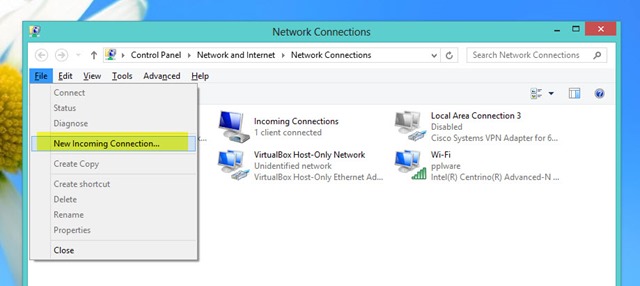
To create the VPN Server you should go to Control Panel > Network and Internet and then Network Connections .

Ther you should press the ALT key so that the options bar appears, next you should go to File > New Incoming Connection

clip_image002

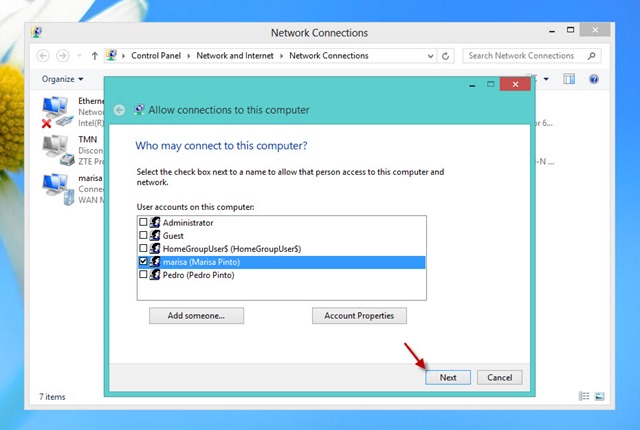
Select or add the users that can access the VPN

clip_image003

clip_image004

(Optional) In case that you want to define the addresses to give to the remote machines you should click on Properties

clip_image005

clip_image006

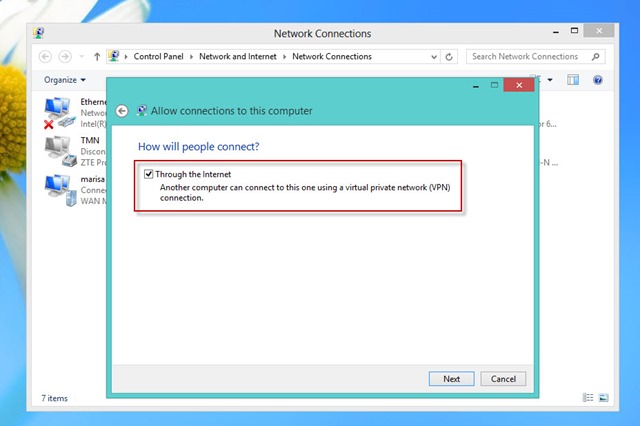
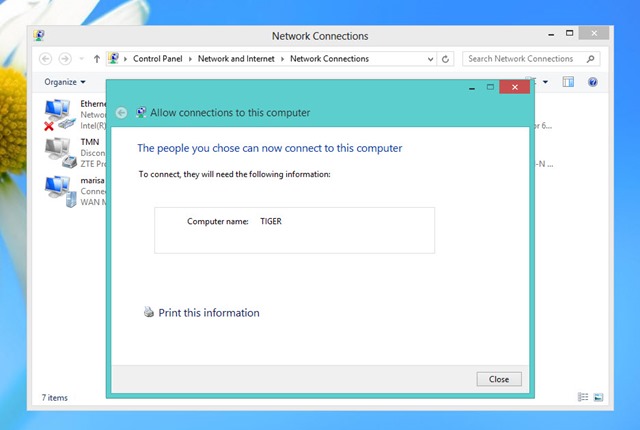
Now you have a PPTP VPN Server that receives the tunnels and forwards the traffic to the Lan, where it’s connected.


Port Forwarding

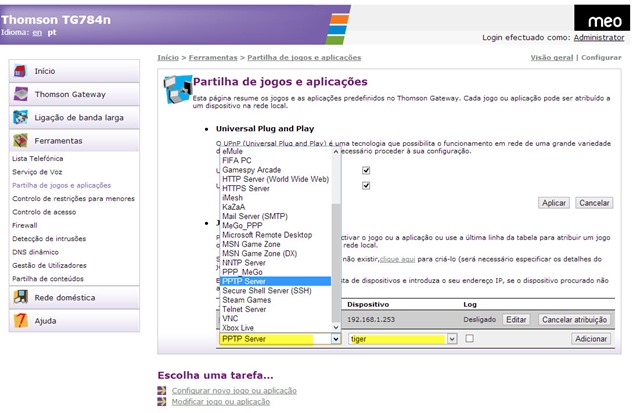
On your home router you need to forward PPTP trafic to your internal PPTP VPN Server.

Your need to forward:

  • PPTP Port 1723: Router Public IP ==> Internal PPTP Server
  • GRE Protocol (Protocol 47) : Router Public IP ==> Internal PPTP Server

clip_image007


VPN Client

Almost every system has a PPTP client already installed (IPhone / Android / Windows / Linux)

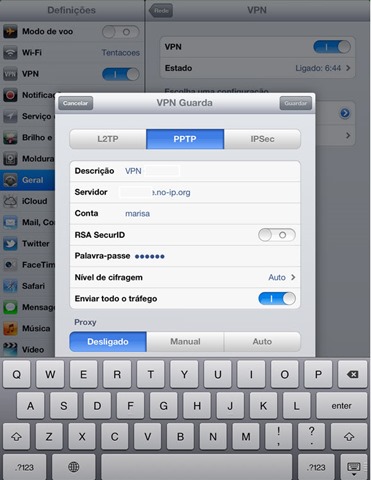
For the IPhone just do:

  • Description / Descrição: Brief description of the connection
  • Server / Servidor: Router Public IP / Name (DynDNS like no-ip)
  • Account / Conta: User Name
  • Password / Palavra-passe: Password
  • clip_image009

for the other systems the configuration is also pretty straight forward

Based on:

Monday, August 3, 2015

Windows - Downgrade From Windows 10 to 7 or 8.1

How to Downgrade from Windows 10 to Windows 7 or 8.1

clip_image001

Windows 10 combines the best of Microsoft’s previous operating systems and combines them into one ultimate package. If you opted in to the free upgrade and have changed your mind after running Windows 10 for a few days, you’ll be pleased to know that it’s easy to roll back.

Don’t worry if you didn’t consider this before you upgraded. Microsoft has made it easy to change back to your previous operating system for a limited period. But there are other options too, meaning if you really don’t like the Windows 10 experience, you’re not stuck with it permanently.

If you’re thinking of rolling back to Windows 7 or 8.1, please drop into the comments section afterwards to let us know why and which method you’ll be using.


Back Up Before You Downgrade

You should do this before upgrading to Windows 10. It’s incredibly important that you always back up your system before making any major change. Although some of the processes outlined below should keep your data in tact, nothing is ever definite and it’s not worth taking the risk.

clip_image002

If you have backed up recently and your data hasn’t changed much since, it could just be a case of copying over a few extra files. If you need to do a full backup, check out our guide on the safest ways to backup. I recommend something likeCrashPlan for the future because it’ll take regular backups of your system, which is a practice you should follow anyway.

Also, make sure you’re not backing up to the same drive that the operating system is installed on. This might mean you’ll have to use an external hard drive or online cloud storage, but a backup is not secure if it’s sitting in the same place as your original data.


Built-in Downgrade Option

When upgrading from a previous version of Windows to 10, your old operating system files will be stored in a folder called Windows.old. This can be removed to free up space, but its existence means that rollback is easy.

Windows 10 has a built-in feature that allows you to go back to your old operating system. The caveat is that this option is only available for one month after you’ve upgraded. If that time has passed, check out some of the other options available below.
clip_image003

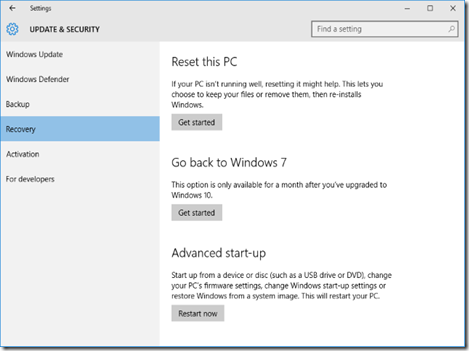
To get started, press Windows Key + I to bring up the Settings menu. ClickUpdate & security and then select Recovery from the left-hand navigation. Here you will see a header called Go back to Windows X (dependent on what version you were on before). Click Get started.

A window will open to ask while you’re going back to an old version. Fill this in and continue to click Next, noting the prompts and information like not unplugging your system during the process. The rollback will then begin, during which you won’t be able to use your system.
clip_image004

You might have to reinstall some programs or alter a couple of settings to get things back to how they were previously, but overall you should find it a quick and easy process.


Reinstall Your Previous Windows Version

Another method you could opt for is to do a fresh install of your old operating system. This will wipe everything on your drive, meaning the backup of personal data mentioned earlier is a required step before proceeding with this solution.

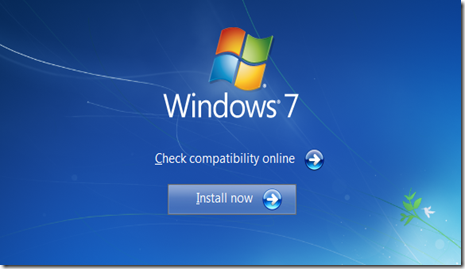
If you’ve got the previous Windows version on physical media, like a disc or USB drive, put it into your computer. If you don’t have a physical version then you can create one direct from Microsoft thanks to their Windows 7 Software Recovery andWindows 8.1 Installation Media. We have previously explained in detail how to created bootable Windows installation media.
clip_image005

Then restart your system and look for the message that’ll read something like “press F12 to choose boot device”. The message and key might vary – F10 and Esc are common alternatives. You can tap the key multiple times to make sure it’s registered.

You’ll then see a menu that will list all of the bootable devices to choose from. Use the arrow keys to select the one which corresponds to the media you just put in and then press Enter. Then follow the installation wizard, ensuring to select a custom install if prompted – this means you want to do a completely fresh install. You’ll be asked for your product license key, which can be found on the installation media (if Windows was purchased separately), or usually on a sticker on the device or with the PC’s documentation (if Windows came with the machine).


From a Drive Image

This one will only be applicable if you prepared ahead before upgrading to Windows 10. That is, if you have an image of your drive you can just restore that. An image is a complete copy of what’s on a drive, which includes personal data as well as the operating system’s files.

clip_image006

A drive image can be created in Windows 7 and 8.1 using the System Image utility (do a system search to find it), which can then be stored on external media. To restore from this in Windows 10, press Windows Key + I, click Update & security, then select Recovery. Underneath Advanced start-up, click Restart now and follow the prompts to restore from your drive image.

Again, this only works if you did an image of your drive before upgrading to Windows 10. If you didn’t, use one of the other options listed above. It’ll also wipe any data you created since making the drive image, so be sure to back up where necessary.


Roll Right Back

Microsoft is hoping everyone will love Windows 10, especially since it’s the last version of Windows, but that might not be the case. Thankfully, it’s easy to downgrade to your preferred version, regardless of whether you planned ahead before upgrading.

Remember, Microsoft’s rollback feature in Windows 10 will only be available for 30 days after you upgraded, so do it sooner rather than later if you want to use the easiest method.

Are you considering rolling back from Windows 10 or have you already? What didn’t you like about Microsoft’s new operating system?~

Taken From: http://www.makeuseof.com/tag/downgrade-windows-10-windows-7-8-1/