Showing posts with label custom. Show all posts

Saturday, September 22, 2012

Customized Windows 7 (RT Se7en Lite and AIK)

How To Create a Customized Windows 7 Installation Disc With Integrated Updates

image

Do you want to save time when installing Windows 7? You can create a customized installation disc and have it perform an installation without asking you questions, integrate updates and drivers, tweak Windows, and remove Windows components.

We’ll be using RT Se7en Lite for this – if you’ve used nLite with Windows XP or vLite with Windows Vista in the past, it works similarly. RT Se7en Lite is a sort of vLite or nLite for Windows 7.

Image Credit: bfishadow on Flickr

What You’ll Need

To do this, you’ll need Windows 7 installed on your computer. You’ll also need to download and install the Windows Automated Installation Kit (WAIK) for Windows 7 from Microsoft – RT Se7en Lite is a more user friendly frontend to WAIK.

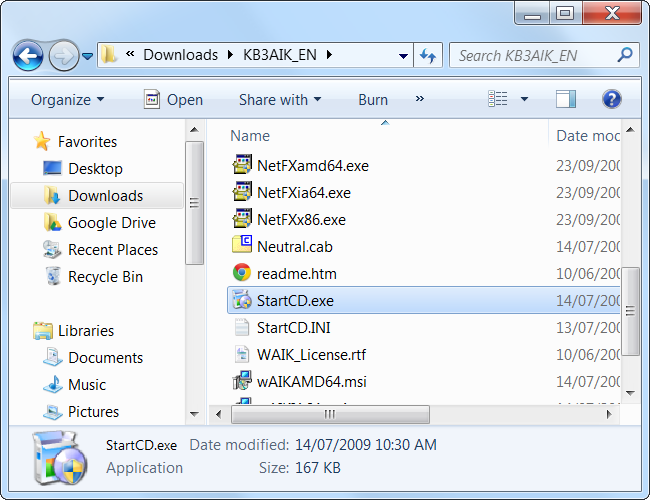
WAIK is 1.7 GB, so the download may take a while if you have a slow Internet connection. After downloading it, extract it with a file extraction program such as 7-Zip.

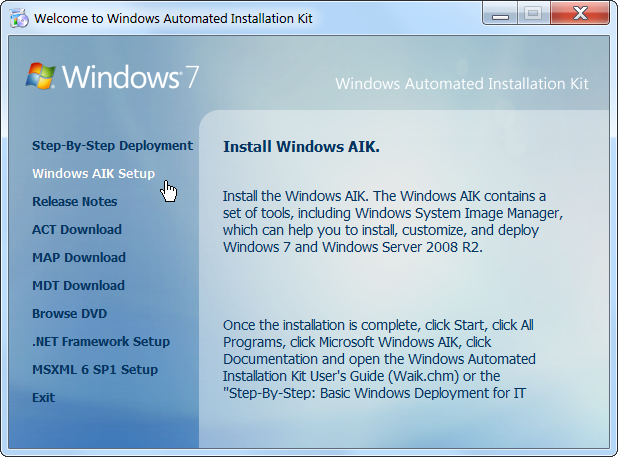
Run the StartCD.exe file, select Windows AIK Setup, and follow the instructions on your screen to install Windows AIK.

You’ll also need a Windows 7 installation source – either a physical disc or ISO file.

Next, download and install RT Se7en Lite from here – it’s free and donation-supported. Download the appropriate version for your version of Windows — x86 if you’re using a 32-bit version of Windows or x64 if you’re using a 64-bit edition.

Using RT Se7en Lite

First, click the Browse button and provide your Windows 7 files – if you have an ISO file on your hard drive, click Select ISO file and navigate to it. If you have a Windows disc, insert the disk, click Select OS path, and navigate to the disc.

If you provide an ISO, you’ll have to specify an extraction path where the ISO’s files will be extracted to – you’ll need several gigabytes of space on your hard disk for this.

The files will be automatically extracted after you provide your ISO.

After selecting the edition of Windows 7 you’re customizing, RT Se7en Lite will load the image. If you have a Windows 7 disc without Service Pack 1 integrated, click the Slipstream Service Pack option in the “Select an image to configure” window and you’ll be able to integrate SP1.

Click over to the Task pane and select the tasks you want to perform after the image is loaded. You can manually check the check boxes or select a preset. Selecting one of the check boxes will activate the corresponding configuration pane at the left side of the window.

The integration pane allows you to integrate Windows updates, drivers, language packs, and even third-party applications into your installation disc. To integrate updates, you’ll have to download their installer files and load them into RT Seven Lite with the Add button.

On the Features Removal or Components tab, you can permanently remove components from your Windows installation disc and control which Windows features are installed by default. For example, you can remove the included games from your Windows installer disc, or force Windows to install the IIS web server by default.

The Tweaks tab allows you to customize the default settings for the Windows Control Panel, Desktop, Explorer, and a variety of other Windows components. You can even add custom registry settings to tweak other settings that aren’t present in the list.

The Unattended section allows you to create an unattended installation disc – you provide answers to installation questions beforehand and Windows will install without asking you these questions during the installation process.

For example, you can enter your product key ahead of time so Windows won’t ask you for it. The other tabs allow you to control other settings – for example, selecting the hard disks that Windows will install on. If you complete enough of these settings, Windows will install automatically without asking you any questions during the installation, allowing you to perform an unattended Windows installation.

The Customization pane allows you to add custom screensavers, wallpapers, themes, documents, and even logon screens to your Windows 7 disc.

On the ISO Bootable pane, you can create a ISO image from your customized installation disc. You can also burn it to a DVD or copy it to a bootable USB drive.

RT Se7en Lite’s developers recommend booting your custom Windows 7 image in a virtual machine and installing it in the virtual machine before you use it on a physical computer, just to make sure everything is working properly.

You can use VirtualBox or VMware Player to do this – both are free.

Monday, April 30, 2012

Homemade “Find My iPhone” for Android – Free

iPhone users can pay $99 per year for a tool to find their lost iPhone. On Android, just under $6.50 (once) lets you build your own GPS-locating, SMS-triggered tracker for your lost-or-stolen Precious. Here's how to do it.

After installing a program and setting up a script, you'll be able to set your phone to watch for an SMS, from a certain number, containing a certain piece of text. When it finds it, you can have your phone buzz, make a sound, even say something like "Help!" out loud, and pop up a text on the screen indicating that something is amiss. That's the warning shot, for those do-gooders who actually return phones. In any case, your phone quietly turns on its GPS and Wi-Fi sensors in the background, then sends you back a text with the best GPS data it could get. You can modify this script to your heart's content, though, to be more obnoxious, send back more info, or run other programs when you send your code.

Check out the video above for a low-rent crime thriller that shows this system in action.

As some regular readers might have guessed, the secret sauce to building this app is Tasker. It's an automation app for Android that costs about $6.25 U.S. at the moment, available both through the Market and the developer's own site. We've previously walked through the basics, explored geekier setups, and highlighted some awesome reader uses. Now we're going to walk through one of the most useful Tasker profiles we've seen, the root setup for which came from Lifehacker reader Eric.

Set Up a Location-Grabbing Profile

clip_image002

Your Android phone does not constantly check its location when GPS is turned on—it'd be kind of scary if it did, not to mention battery murdering. We're going to create a profile that does make the phone grab its coordinates as best it can, using both a GPS fix, if available, and triangulation of nearby Wi-Fi hotspots that Google knows about.

On Tasker's main "Profiles" screen, hit the New button at bottom. Choose the "Location" as your Context—the "if" in your "if/then" automation. Make sure that both Net and GPS are turned on with green highlights, and that the Radius option is set to its closest option, 30 meters. Just hit "Done" here, because we don't actually need to make Tasker find our current location, but simply have a profile that does that when asked to. You'll see what we mean in a minute.

clip_image004

On the next screen, where you're asked to add Tasks to fire off when your Context is met, we're going to add just one simple task. Hit the "+" button in the lower-left, choose the "Tasker" category, then select "Stop" and hit "Done" on the pop-up screen, then "Done" again on the list of Tasks. All we want this profile to do is turn on and get the location. Adding "Stop" merely makes it a one-trick pony.

clip_image006

Back at the main screen, find that location-fixing Profile you've just created, with the flag icon in the left-hand column. Tap once on that flag icon, then expand the arrow next to the "Profile" option. Select the "Name" or "Rename" option, and give it a name that makes sense, like "GetGPSfix." You're done with that profile now, so let's create the real phone-finding automaton.

Build Your Phone-Finding Snitch Profile

clip_image008

Back at Tasker's main Profiles screen, hit the New button again, but this time choose "Event" as your context, pick the "Phone" category, and "Received SMS" as your event.

You'll want to think about the number and message you enter in here. In my case, I use a Google Voice account to manage my SMS, so I effectively have two numbers—the "hard" number that my phone carrier assigns me, and which Tasker is monitoring on the phone, and my Google Voice number, which I can send texts from using any browser. If you're not rolling with Google Voice, you can easily set up the phone of a significant other or very good friend—just make the activation text very unique.

Be sure to format the phone number watched for with a "+1" in front of your full 10-digit number—that's how it works in the U.S., at least. If you're setting up another person's phone as the trigger number, you can press and hold on the field under "Sender" and select that person from your Contacts list, too. In the "Message" field, use a code that nobody's going to send you casually—"SOS" in caps should work fine.

clip_image010
At the Tasks list, it's time for you to set up your actual emergency plan. In general, you're going to create some noise on the phone itself and leave a call-back number (your friend or your Google Voice account), then turn on GPS and Wi-Fi and text yourself with the inside info anyways.

Here's how I set up my list of tasks—the order is somewhat important, but you can add or modify these steps to your liking. If you come up with something good farther down the line, no worries: you can press and hold on any task and drag it up or down the priority list.

Hit the "+" button before each task to create it, then follow these menu options:

§ Alert -> Notify Sound: The "Title" field will show up in your Notifications Bar, along with the "Text" you include. Don't change "Number," but feel free to fire off a custom sound file, if you'd like.

 clip_image012

Alert -> Popup: Enter something like "Help!" in the Title, then fill out the Text as if it were a Post-It note on your phone. My text, derived from Eric's suggestion: "I have been stolen or left somewhere inadvertently. Please contact Kevin at [friend's phone number]." Move the Time slider all the way to the right, to keep that pop-up message for 38 seconds—though, if he was savvy with an Android, the thief or finder could hit the Back or Home buttons to dismiss it. But that's okay, because we're moving ahead!

  • Misc GPS: Set to "On."
  • Net -> WiFi: Set to "On."
  • Tasker -> Profile Status: Long-press on the field under Name, then pick that profile we created above to get the location fix—"GetGPSfix" in my case. Set it to go "On."
  • Tasker -> Wait: Move the Seconds slider over to about 30. We're waiting 30 seconds, after turning on GPS and WiFi, to give the location grabber some time to get a fix, or maybe the thief or reluctant returner to move near a window.

 clip_image014
Phone -> Send SMS: Enter your Google Voice or friends' number in the Number field, then enter this text in the Message. You can change it up, add more variable data, but be sure to include at least the following variables in all caps with a percentage sign in front:

It is %DATE at %TIME. Phone is located at: %LOC. Batt: %BATT.

You'll get back just what it sounds like, but the "%LOC" comes back as a pretty long string of GPS coordinates, so you'll want to keep it relatively simple so as not to break the string into two different texts.

  • Misc -> GPS: Set to Off.

You could have the WiFi turn off at the end, too, or bring up another pop-up message letting the thief know that his location is being constantly monitored—but I like to go the quiet route, rather than have my phone end up smashed or discarded.

Track Your Phone

clip_image016
Click image above for a larger view.

With that profile running on Tasker, your phone is now quietly monitoring incoming SMS messages to see if any come from that one number, with that one message. If it does, it sends back a text similar to what you see above. The nice thing about those GPS coordinates? You can plug them directly into Google Maps and see where your phone went off to—or help the police see.

clip_image018
I took my phone to the Sweet_ness 7 Cafe in Buffalo, placed it on a table a few feet away from a window, and sent myself a text from Google Voice. Lo and behold, the GPS coordinates it sent back were right on the money—even if Street View hadn't been updated there since the cafe renovated the space. Your mileage, vis-a-vis the thief's activities, will certainly vary, but since you're the one with control over your GPS and Wi-Fi toggles, there's a good chance your phone will eventually end up in the great wide open. And if you simply left your phone sitting somewhere, you can get a rough fix on where it is, and see how much battery life it's got left before you'll have to stop trying.


Thanks again to reader Eric for writing in with his awesome use of Tasker, along with a helpful poster in the Android Forums who explained the best way to get a GPS fix in Tasker with separate profiles.

Got questions on the setup? Have a craftier idea for a lost or stolen phone script? We want to hear it all in the comments.

Takem From:  http://lifehacker.com/5611003/build-a-find-my-iphone-clone-for-android

On the Android Market, if you search by “Find My Phone”, you can find apps that do this by default.

Saturday, December 10, 2011

Cyanogen Mod on HTC Hero

HTC Hero (GSM): Full Update Guide

This guide will walk you through the process of taking the HTC Hero (GSM) from stock to having the ability to flash the latest version of CyanogenMod.

Contents

Before you do anything — Make a backup

Don't forget to back up your data. If you have synced the device with a Google account, then the contacts, calendar, Gmail, & select other Google-related data will not be lost and will come back after the next sync. However, you should backup anything you want to keep that is not stored on the SD card:
It would also be a good idea to backup everything stored on the SD card in the rare case the SD card must be formatted to resolve any major problems.
MyBackup Root, SMS Backup & Restore, and Call Backup & Restore are all free applications that can assist with backing up your data.

Installing a Custom Recovery Image

For the HTC Hero (GSM), there are two custom recovery images available, Amon_Ra's Recovery & the ClockworkMod Recovery. Choose one and follow the instructions below on how to install each custom recovery image. If the HTC Hero (GSM) already has a custom recovery image, skip this section.
WARNING: INSTALLING A CUSTOM RECOVERY IMAGE ON THE HTC HERO (GSM) WILL VOID THE WARRANTY.
Amon_Ra's Recovery
  1. You will need ADB on the computer to install Amon_Ra's Recovery on the HTC Hero (GSM). Follow the Android SDK guide, to get the ADB shell on the computer.
  2. Download flash_image & the latest version of Amon_Ra's Recovery:
    • flash_image: Download
      md5: bd475f29e0665c702f8eaf57a0423b58
    • Amon_Ra's Recovery 1.7.0.1: Download
      md5: 2c399ba2d780742c1eb8bb2710a31684

  3. Unzip the flash_image &and copy its contents with Amon_Ra's Recovery to the same folder as adb (the /platform-tools folder within the Android SDK folder).

  4. Connect the HTC Hero (GSM) to the computer via USB.

  5. On the computer, open terminal and run the following commands:
    adb push recovery-RA-hero-v1.7.0.1.img /data/local/
    adb push flash_image /data/local/
    adb shell chmod 777 /data/local/recovery-RA-hero-v1.7.0.1.img
    adb shell chmod 777 /data/local/flash_image
    adb shell rm /data/local/rights/mid.txt
    adb shell ln -s /dev/mtd/mtd1 /data/local/rights/mid.txt
    adb reboot

  6. The HTC Hero (GSM) will reboot. Once it's booted back all the way, run the following command:
    adb shell /data/local/flash_image recovery /data/local/recovery-RA-hero-v1.7.0.1.img

  7. Amon_Ra's Recovery should now be installed on the HTC Hero (GSM).
ClockworkMod Recovery
  1. You will need ADB on the computer to install the ClockworkMod Recovery on the HTC Hero (GSM). Follow the Android SDK guide, to get the ADB shell on the computer.
  2. Download flash_image & the latest version of the ClockworkMod Recovery:
    • flash_image: Download
      md5: bd475f29e0665c702f8eaf57a0423b58
    • ClockworkMod Recovery 2.5.0.7: Download
      md5: 4e576c048d8d4d8890e755992577a5b
  3. Unzip the flash_image &and copy its contents with the ClockworkMod Recovery to the same folder as adb (the /platform-tools folder within the Android SDK folder).

  4. Connect the HTC Hero (GSM) to the computer via USB.

  5. On the computer, open terminal and run the following commands:
    adb push recovery-clockwork-2.5.0.7-hero.img /data/local/
    adb push flash_image /data/local/
    adb shell chmod 777 /data/local/recovery-clockwork-2.5.0.7-hero.img
    adb shell chmod 777 /data/local/flash_image
    adb shell rm /data/local/rights/mid.txt
    adb shell ln -s /dev/mtd/mtd1 /data/local/rights/mid.txt
    adb reboot

  6. The HTC Hero (GSM) will reboot. Once it's booted back all the way, run the following command:
    adb shell /data/local/flash_image recovery /data/local/recovery-clockwork-2.5.0.7-hero.img

  7. The ClockworkMod Recovery should now be installed on the HTC Hero (GSM).


Flashing CyanogenMod

Amon_Ra's Recovery process
  1. Download the latest version of CyanogenMod.
    Optional: Download the Google Apps for the device.

  2. Place the CyanogenMod update.zip file on the root of the SD card.
    Optional: Place the Google Apps .zip on the root of the SD card also.

  3. Boot into Amon_Ra's Recovery.

  4. Once you enter Amon_Ra's Recovery, scroll up & down with the trackball, and the trackball button to select.

  5. Select Wipe, then Wipe data/factory reset

  6. Select Flash zip from sdcard.

  7. Select the CyanogenMod update.zip.
    • Optional: Install the Google Apps by performing steps 6 & 7 again and choosing the Google Apps update.zip.

  8. Once the installation has finished, select Reboot system. The HTC Hero (GSM) now should boot into CyanogenMod.
ClockworkMod Recovery process
Method via Recovery
  1. Download the latest version of CyanogenMod.
    Optional: Download the Google Apps for the device.

  2. Place the CyanogenMod update.zip file on the root of the SD card.
    Optional: Place the Google Apps .zip on the root of the SD card also.

  3. Boot into the ClockworkMod Recovery.

  4. Once the device boots into the ClockworkMod Recovery, use the side volume buttons to move around, and either the power button or the trackball to select.
    Optional: Select backup and restore to create a backup of current installation on the HTC Hero (GSM).

  5. Select the option to Wipe data/factory reset.

  6. Then select the option to Wipe cache partition.

  7. Select Install zip from sdcard.

  8. Select Choose zip from sdcard.

  9. Select the CyanogenMod update.zip.
    Optional: Install the Google Apps by performing steps 7 - 9 again and choosing the Google Apps update.zip.

  10. Once the installation has finished, select +++++Go Back+++++ to get back to the main menu, and select the Reboot system now option. The HTC Hero (GSM) should now boot into CyanogenMod.
Method via ROM Manager
  1. Launch RomManager.
    Optional: Choose the first option in the app, Flash ClockworkMod Recovery to update to the latest version.

  2. Select the Download ROM option from the main menu in the ROM Manager.

  3. Select the CyanogenMod option, and then choose the latest version of CyanogenMod from the menu.
    Optional: When you select the latest version of CyanogenMod, check the Google Apps* option.

  4. Once the ROM is finished downloading, it asks if you would like to Backup Existing ROM and Wipe Data and Cache.

  5. If Superuser prompts for root permissions check to Remember and then Allow.

  6. The HTC Hero (GSM) will now reboot into the recovery, wipe data and cache, and then install CyanogenMod. When it's finished installing it will reboot into CyanogenMod.

Taken From: http://wiki.cyanogenmod.com/wiki/HTC_Hero_(GSM):_Full_Update_Guide

Monday, July 14, 2008

Live CD From Your In Installation / Running System - Ubuntu - Hard Way

Transforming your Installation into a Live DVD/CD


José Oliveira: I tested this tutorial on Ubuntu 8.04 Hardy Heron using the method without using de debootstrap, and it worked like a charm, my only work was copying the commands from tutorial and paste them in the bash shell :).


This HOWTO is about making a live CD/DVD from the main system on your hard drive. This might be desired if you have customized your system and want to have it on CD.

Another approach that will be discussed here is building your live CD/DVD from scratch. This will be done by building a new system using debootstrap. This is usefull if you want to build a clean live CD, or if you want to build a minimal rescue cd. (Consult Appendix.2 for more details about building a CD from scratch).

The live CD is usually created with a filesystem called squashfs. Squashfs is read only compressed filesystem that allow us to squeeze our system into a single CD. Note that your system has to be about 2GB (this might need some trial an error) to produce a compressed image that fits on the CD.


Background on live CD/DVD

Note: This section is a clarification of how live CD works. You don't have to read it. You can skip it if you want.

A live CD/DVD is basically a normal linux installation just like an ordinary harddrive installation. However, simply copying the harddirve installation over to a CD/DVD is not enough to produce a working system. Why? because there are still minor differences between a live CD/DVD and on ordinary harddrive installation. So in addition to copying our harddirve installation to the CD/DVD we must address those differences as well.

So what are these differences?
  1. The CD or DVD is read only media. Linux needs to have write access to certain parts of the system to be able to operate properly (like "/dev" "/proc" "/var" "/tmp"). There are a lot of approaches to address this problem. All of which utilize the system RAM. Some of these approaches enable write access only to essential directories and files, and hence, they do not allow the user to modify the system or install new packages while in the live CD. Other approaches, like unionfs which is what is used in this guide, allows the user to write to any part of the system. This is done by merging part of the RAM with the read-only filesystem of the live CD/DVD and making the look like one filesystem that have read-write access. Unionfs has to be mounted at boot in a certain manner.


  2. With the harddrive installation the location of the root filesystem is fixed. So it is passed to the kernel at boot time using the root=/dev/... parameter. With a live CD/DVD, the location of the root device is not fixed as the user might have multiple cdrom drives, these drives can be ide, scsi ... etc. So for the root filesystem to be mounted, there must be a way to identify the root device, and then we have to load the suitable kernel modules (to be able to access the cdrom controller as well as the CD filesystem). All this has to be done even before we have a root filesystem mounted.


  3. To fit on a CD, the filesystem is usually compressed using squashfs. So we need to autodetect the filesystem type. We also need to have the proper modules for mounting it.


These considerations require special preparation at boot time, some of which must be performed even before mounting the actual filesystem. How can we do this?

Linux introduced a mechanism that allow for such preparations at boot time before the actual root filesystem is mounted. It is called the initial root filesystem or initramfs. This mechanism is used also in mounting normal harddirve installations, as it adds flexibilty to the boot process.


initramfs is virtual filesystem. It is a compressed cpio (cpio is an archive format similar to tar) archive that contains a minimal shell, kernel modules necessary for mounting the root filesystem and number of scripts that perform some tasks at boot time. The most important of these scripts is a script called init located at the root of the initramfs.

How does initramfs work?

The boot loader loads both the kernel and the initramfs into memory and starts the kernel. The kernel then unpacks the initramfs and mount it as initial root filesystem, and then looks for the init program within the initial filesystem, and once it finds it, it executes it and hand the boot process over to it. This init scirpt is responsible for finding the real root filesystem and mounting it. It is also responsible for any special preparations required at boot time.

So any special operations required for booting the system from live media can be coded into the initramfs boot scripts.

How is initramfs is created?

We do not have to create initramfs manually (although it can be done). There are tools for creating and updating initramfs like the command update-initramfs. Moreover, these tools can include custom scripts into the initramfs if they are placed in a certain preset locations (/usr/share/initramfs/scripts). So all we have to do is dump our custom scripts (which will do all the required preparation for booting the live CD/DVD) into these preset locations, and then create a custom initramfs by running update-initramfs.

We don't even have to write these scripts. Why? becuase there are packages that have scripts tailored for booting form live CDs. One of these packages is called casper (this is the package used in this howto). By installing casper into the system, it places the scripts in there proper locations (where they can be spotted by update-initrfamfs). The only thing we need to do after installing casper is running update-initramfs to create an initramfs suitable for live CD/DVD.


The live CD/DVD structure:

The directory tree of the live CD/DVD we are going to create is going to look like this:

Code:

(CD ROOT)
|-------+casper
| |-------filesystem.${FORMAT}
| |-------filesystem.manifest
| |-------filesystem.manifest-desktop
|
|-------+boot
| |--------+grub
| | |--------menu.lst
| | |--------stage2_eltorito
| |
| |-------vmlinuz
| |-------initrd.gz
| |-------memtest86+
|
|--------md5sum.txt

  • /casper/filesystem.${FORMAT}: This is the container of the linux filesystem we are going to copy from our harddisk. It is usually a compressed filesystem like squahsfs.
  • /casper/filesystem.manifest: This file is optional. You only need it if you decide to include the Ubuntu installer in the CD. The purpose of this file will be explained later.
  • /casper/filesystem.manifest-desktop: This file is optional. You only need it if you decide to include the Ubuntu installer in the CD. The purpose of this file will be explained later.
  • /boot/grub/menu.lst: File containing boot options for the live CD/DVD.
  • /boot/grub/stage2_eltorito: The boot loader of the CD. (stage2 of grub).
  • /boot/vmlinuz: The linux kernel. This is copied form the linux filesystem.
  • /boot/initrd.gz: the initramfs that contain the customizations necessary for the live CD/DVD.
  • /boot/memtest86+: Optional file used to test the RAM of the machine form the live CD/DVD.
  • /md5sum.txt: Optional file containing checksums for all the files in the CD.


What you need:
  • A working Debian or Ubuntu machine with internet access.
  • CD/DVD Writer.
  • Enough space in your harddirve. At least two times as much space as your installation size.


Outline of the steps:

A. Prepare Our work environment.

B. Copy the Source system to the target directory.
Note: People building a live CD/DVD from scratch using debootstrap: This step and replaced with the instructions listed here.

C. Chroot into the new system and make some modifications.

D. Prepare The CD directory tree.

E. Build the CD/DVD

Appendix 1. Adapting this guide to Debian.
Appendix 2. Building the live media form scratch using Debootstrap.


Conventions used in this HOWTO:
  • Text highlighted in Magenta is meant to be replaced by the user's custom value.
  • Commands performed within a chroot will be in Blue.
  • Optional arguments or steps will be highlighted in Gray.
  • Special notes and instructions for people building a live CD/DVD from scratch using debootstrap are highlighted in Green
  • I will use gedit as my default text editor. Replace gedit with your favorite text editor.

A. Preparing the environment

1. Set some variables

Code:

export WORK=~/work
export CD=~/cd
export FORMAT=squashfs
export FS_DIR=casper


The WORK Directory is where our temporary files and mount point will reside.
The CD is the location of the CD tree.
FORMAT is the filesystem type. We you are going to use a compressed squashfs
FS_DIR is the location of the actual filesystem image within the cd tree.

Replace only the values highlighted in Magenta.


2. Create the CD and the WORK directory structure:

Code:

sudo mkdir -p ${CD}/{${FS_DIR},boot/grub} ${WORK}/rootfs


3. Install some packages on your current system:

Code:

sudo apt-get update


Code:

sudo apt-get install mkisofs grub squashfs-tools linux-ubuntu-modules-$(uname -r) qemu


qemu is optional. It is only needed for testing the cd before burning it. It can be substituted with any other virtualization software like virtualbox.

linux-ubuntu-modules-$(uname -r) is only needed for Ubuntu Gutsy and later. If using an Ubuntu version prior to Gutsy omit this package as it is part of the main kerenl package.


B. Copy your installation into the new filesystem.

Note: People building a live CD/DVD from scratch using debootstrap: skip this step and replace it with the instructions listed here.

Code:

sudo rsync -av --one-file-system --exclude=/proc/* --exclude=/dev/*\
--exclude=/sys/* --exclude=/tmp/* --exclude=/home/*\
--exclude=/lost+found / ${WORK}/rootfs


Note: rsync is used instead of cp to take advantage of the --one-file-system and the --exclude options.


If you have a separate boot partition you will have to copy it using the following command:

Code:

sudo cp -av /boot/* ${WORK}/rootfs/boot


(Optional) Copy settings in your home dir:


If you want to preseve your user account settings which are stored in your home directory, you can copy them to ${WORK}/rootfs/etc/skel/.

But first we have to define what files we want to copy. For example I am using xcfe4 as my DE, and it stores all it settings in a directory called .config in my home directory, so I am going to add .config to the variable $CONFIG:

Code:

CONFIG='.config .bashrc'

Now, Copy the CONFIG files using the following command:

Code:

cd ~ && for i in $CONFIG
do
sudo cp -rpv --parents $i ${WORK}/rootfs/etc/skel
done


C. Chroot into the new system and modify it:

1. Chroot into the copied system after mounting proc and dev:

Note: People building a live CD/DVD from scratch using debootstrap: skip this step.

Code:

sudo mount -o bind /dev/ ${WORK}/rootfs/dev


Code:

sudo mount -t proc proc ${WORK}/rootfs/proc


Code:

sudo chroot ${WORK}/rootfs /bin/bash

N.B: All commands in Blue are done within a chroot.

Now you are within chroot environment, type the following command:

Code:

LANG=


Note: People building a live CD/DVD from scratch using debootstrap: Resume the steps of the guide here.


2. Install Packages Essential for live CD:


Code:

apt-get update


Code:

apt-get install casper discover1 xresprobe


casper contain the live scirpts.
discover1 & xresprobe are used for autodetectin hardware at startup.


3. (Optional) If you want your live cd to have an installer, install the Ubuntu installer:

Code:

apt-get install ubiquity


Note: People using kde replace replace the previous command with

Code:

apt-get install ubiquity ubiquity-frontend-kde


Credit for this goes note to Fragadelic author of remastersys. Remastersys.


(Optional Step)Install any packages you want to be in the CD. Some of the following packages are useful in emergency situations:

Code:

sudo apt-get install gparted ms-sys testdisk wipe partimage xfsprogs reiserfsprogs jfsutils ntfs-3g ntfsprogs dosfstools mtools


gparted: patitioning tool. It is automatically installed as a dependecy of ubiquity.
ms-sys: writing a Microsoft compatible boot record (MBR).
testdisk: Partition scanner and disk recovery tool.
wipe: Secure file deletion.
partimage: backup partitions into a compressed image file (like norton ghost).
xfsprogs reiserfsprogs jfsutils: Tools for handling different filesystems.
mtools: Tools for manipulating MSDOS files


Note: People building a live CD/DVD from scratch using debootstrap: Additional step right here. Look in appendix.2 for details.


4. Update the initramfs:

Note: People building a live CD/DVD from scratch using debootstrap: Commands in this step are to be modified. Look in appendix.2 for details.


First update modules.dep:

Code:

depmod -a $(uname -r)

Code:

update-initramfs -u -k $(uname -r)


As already metioned above, the initramfs is reponsible for much of the preparation required at the boot time of the CD/DVD. The updated initramfs now contain the live scirpts installed with casper.


5. Delete these files.

Code:

for i in "/etc/hosts /etc/hostname /etc/resolv.conf /etc/timezone /etc/fstab /etc/mtab /etc/shadow /etc/shadow- /etc/gshadow /etc/gshadow- /etc/gdm/gdm-cdd.conf /etc/gdm/gdm.conf-custom /etc/X11/xorg.conf /boot/grub/menu.lst /boot/grub/device.map"
do
rm $i
done 2>/dev/null


These files are not needed in the CD/DVD. some of them are could interfer with the CD/DVD boot process. (e.g. shadow and gdm.conf-custom can interfere with autologin).


6. Clean apt cache

Code:

apt-get clean


7. Clean some dirs and files:

Code:

rm -r /tmp/* /root/* 2>/dev/null


Code:

rm /boot/*.bak 2>/dev/null


8. Remove non system users

Note: People building a live CD/DVD from scratch using debootstrap: skip this step.

Code:

for i in `cat /etc/passwd | awk -F":" '{print $1}'`
do
uid=`cat /etc/passwd | grep "^${i}:" | awk -F":" '{print $3}'`
[ "$uid" -gt "999" -a "$uid" -ne "65534" ] && userdel --force ${i} 2>/dev/null
done

Non-system users are users created by you that have user id more than 999.


9. Clean the chroot environment form unnecessary files:

Note: People building a live CD/DVD from scratch using debootstrap: skip this step.

Code:

find /var/run /var/log /var/mail /var/spool /var/lock /var/backups /var/tmp -type f -exec rm {} \;


10. If you are using GDM recreate it's config file:

Note: People building a live CD/DVD from scratch using debootstrap: skip this step.

Code:

[ -f "/etc/gdm/factory-gdm.conf" ] && cp -f /etc/gdm/factory-gdm.conf /etc/gdm/gdm.conf 2>/dev/null


Sometimes a customized /etc/gdm/gdm.conf can interfere with the live CD/DVD autologin.


11. Create some files in /var/log:

Note: People building a live CD/DVD from scratch using debootstrap: skip this step.

Code:

for i in dpkg.log lastlog mail.log syslog auth.log daemon.log faillog lpr.log mail.warn user.log boot debug mail.err messages wtmp bootstrap.log dmesg kern.log mail.info
do
touch /var/log/${i}
done


Most of these files are log files that have been cleaned in step 7. We created an empty files in their place to prevent the system from complaining at boot.


12. Exit chroot

Code:

exit


D. Prepare The CD directory tree:

1. Copy the kernel, the updated initrd and memtest prepared in the chroot:

Note: People building a live CD/DVD from scratch using debootstrap: Commands in this step are to be modified. Look in appendix.2 for details.

Code:

sudo cp -vp ${WORK}/rootfs/boot/vmlinuz-$(uname -r) ${CD}/boot/vmlinuz


Code:

sudo cp -vp ${WORK}/rootfs/boot/initrd.img-$(uname -r) ${CD}/boot/initrd.gz


Code:

sudo cp -vp ${WORK}/rootfs/boot/memtest86+.bin ${CD}/boot


2. Generate manifest:

Note: This step is only needed if you installed the Ubuntu installer ubiquity. This step generates two files (filesystem.manifest & filesystem.manifest-desktop).


Code:

sudo chroot ${WORK}/rootfs dpkg-query -W --showformat='${Package} ${Version}\n' | sudo tee ${CD}/${FS_DIR}/filesystem.manifest


Code:

sudo cp -v ${CD}/${FS_DIR}/filesystem.manifest{,-desktop}


Code:

REMOVE='ubiquity casper user-setup discover1 xresprobe os-prober libdebian-installer4'


Code;

for i in $REMOVE
do
sudo sed -i "/${i}/d" ${CD}/${FS_DIR}/filesystem.manifest-desktop
done


These two files are used by the ubiquity installer when installing to harddisk. These two files are just lists of packages. Ubiquity compares these two files and removes packages unique to filesystem.manifest. This way when installing to harddisk, packages like casper which is only useful in a live CD/DVD are removed. These packages that will be removed at install are defined in the variable $REMOVE


3. Unmount bind mounted dirs:


Code:

sudo umount ${WORK}/rootfs/proc


Code:

sudo umount ${WORK}/rootfs/sys


Code:

sudo umount ${WORK}/rootfs/dev


4. Convert the directory tree into a squashfs:

Code:

sudo mksquashfs ${WORK}/rootfs ${CD}/${FS_DIR}/filesystem.${FORMAT}


Note: Make sure the resulting file size can fit into your live media.


Note: Compression might incur a slight performace penalty. If you are using DVD and your overall system size is less than 4GB you don't have to use compression, instead you can use squashfs without compression by adding the -noI -noD -noF switches to mksquashfs.


5. Make Grub the bootloader of the CD

Copy grub file:


Code:

sudo find /boot /usr/lib/grub/ -iname 'stage2_eltorito' -exec cp -v {} ${CD}/boot/grub \;


Make the menu.lst

Code:

sudo gedit ${CD}/boot/grub/menu.lst


Copy the following text into it and save it.

Code:

# By default, boot the first entry.
default 0

# Boot automatically after 30 secs.
timeout 30

color cyan/blue white/blue


title Start Linux in Graphical Mode
kernel /boot/vmlinuz BOOT=casper boot=casper nopersistent rw quiet splash
initrd /boot/initrd.gz

title Start Linux in Safe Graphical Mode
kernel /boot/vmlinuz BOOT=casper boot=casper xforcevesa rw quiet splash
initrd /boot/initrd.gz

title Start Linux in Text Mode
kernel /boot/vmlinuz BOOT=casper boot=casper nopersistent textonly rw quiet
initrd /boot/initrd.gz

title Start Presistent Live CD
kernel /boot/vmlinuz BOOT=casper boot=casper persistent rw quiet splash
initrd /boot/initrd.gz

title Start Linux Graphical Mode from RAM
kernel /boot/vmlinuz BOOT=casper boot=casper toram nopersistent rw quiet splash
initrd /boot/initrd.gz

title Memory Test
kernel /boot/memtest86+.bin

title Boot the First Hard Disk
root (hd0)
chainloader +1


6. Calculate MD5

Code:

cd $CD && find . -type f -print0 | xargs -0 sudo md5sum | sudo tee ${CD}/md5sum.txt


E. Build the CD/DVD

1. Make the ISO file

Code:

sudo mkisofs -b boot/grub/stage2_eltorito \
-no-emul-boot -boot-load-size 4 -boot-info-table \
-V "Custom Live CD" -cache-inodes -r -J -l \
-o ~/live-cd.iso $CD


2. Test the CD

Test using qemu emulator

Code:

qemu -cdrom ~/live-cd.iso -boot d


Or use any other virtualization program you like.


Update: As noted by az in this post, while testing the iso with qemu sometimes it drops you to an initramfs shell because of a problem with qemu. This behaviour has been confirmed by other users. In this case it is advisable to retest the iso with another virtualization software like virtualbox or to burn the iso to REWRITABLE cd and test directly on your pc.


3. (Optional) Clean our workspace

Code:

[ -d "$WORK" ] && rm -r $WORK $CD


Final Notes:


  • If you are using a custom kernel make sure it has support for the following:

    1. Support of loopback device.
    2. Support for the filesystem format you are using (e.g. squashfs ).
    3. Support for unionfs.
    4. Support for initramfs.


  • There are some extra options I put in the grub menu. The ones that I have not tried are highlighted in Red below:


    1. Start linux form RAM. This option is only possible if your ram is larger than data on the live media. This option can be useful if you are building a minimal command line rescue disc as it would enhance performance to start it from RAM.

    2. Start in presistent mode. To learn about it more look here.

    3. Start Linux in Text Mode. This will not start X. The user will be autologged into a virtual terminal (the kind of terminal you get when you press Alt+Ctrl+F1). Note that this option will not work in all Ubuntu versions prior to Gutsy.


Appendix 1. Adapting this guide to Debian

This guide can be modified to apply to Debian systems as well. There are number of differeces between Ubuntu and Debian that we must take into account:

  1. As of Debian lenny, casper is deprecated and replaced with live-initramfs. live-initramfs is a fork of casper and it has the same options, with one difference in the CD directory tree sturcute. This can be solved by setting the variable FS_DIR=live instead of FS_DIR=casper.
  2. Sqaushfs modules and unionfs modules are in two separate packages.
  3. Ubiquity installer is not present in the Debain repositories. Ubiquity is only needed if you intend to install Linux from the live CD/DVD to the harddisk. I have not tried using ubiquity on Debian so I am not sure if it will work. To install it on Debian you have to add Ubuntu main repository to your sources.list.

So in light of the points mentioned above we have to make the following modifications to adapt the guide to Debian:
In step A.1 replace FS_DIR=casper with


Code:

FS_DIR=live


Replace the command in Step A.3 with:

Code:

sudo apt-get install mkisofs grub squashfs-tools squashfs-modules-$(uname -r) qemu


Replace the command in Step C.2 with:

Code:

apt-get install live-initramfs unionfs-modules-$(uname -r) discover1 xresprobe


Skip step C.3 and D.2 if you do not intend to try ubiquity on Debian.

In Step D.5 Replace every occurence of BOOT=casper and boot=casper in menu.lst with BOOT=live and boot=live respectively


Appendix 2. Building the live media form scratch using debootstrap.

Instead of using your current installation to be the basis of you live CD, you can build a custom system from scratch into any directory in your system using debootstrap, and then use that as the basis of your CD. The modifications you have to make are:

  • skip step B alltogether. Instead, do the instructions listed here to build your custom system from scratch using debootstarp
  • after finishing the instructions of the guide mentioned above, you resume the steps in this guide, going straight to step C.2 (skip step C.1).

Before step C.4 set the following variable:

Code:

export kversion=`cd /boot && ls vmlinuz-* | sed 's@vmlinuz-@@'`


Modify the two commands in step C.4 so they look lik this:

Code:

depmod -a ${kversion}


Code:

update-initramfs -u -k ${kversion}


Skip the following steps: C8, C9, C10, C11

Modify the commands in Step D.1 as follows:


Code:

find ${WORK}/rootfs/boot -iname 'vmlinuz*' -exec sudo cp -vp {} ${CD}/boot/vmlinuz \;


Code:

find ${WORK}/rootfs/boot -iname 'initrd.img*' -exec sudo cp -vp {} ${CD}/boot/initrd.gz \;


Code:

sudo cp -vp ${WORK}/rootfs/boot/memtest86+.bin ${CD}/boot


dit (1): 20/02/08
  1. Added Suggestions for packages useful in rescue CD.
  2. Modified step D.5 as per RumorsOfWar suggestion.


Update (2): 14/03/08

Fragadelic kindly posted this guide on his website. Fragadelic is the author of remastersys. Remastersys is a tool that can create a live CD/DVD in an automated manner as opposed to the step by step nature of this guide. Another advantage of remastersys is that it has a GUI for those who do not want to miss with the command line.


Edit (3): 12/04/08
Correcting a typo in step E.2 as pointed out by vbgeek


Edit (4): 21/04/08
Removed live-initramfs from the variable REMOVE (in step D.2) as pointed out by gjhicks


Edit (5): 05/05/08
Removed the appendix of how to make the cd using a unix filesystem like ext2. This is now obsolete as you can use squashfs without compression by adding the -noI -noD -noF switches to mksquashfs.

Last edited by capink; May 13th, 2008 at 07:27 AM.


Taken From: http://ubuntuforums.org/showthread.php?t=688872

Thursday, June 26, 2008

Customizing Linux Live CDs - Ubuntu 8.04 - Desktop

This is based on the an article from Linux Journal for Ubuntu 7.04, and i have made some adjustments, with the following tags:

my - is where i added something it wasn't there.

myc - is where i corrected something

----------------------------------------------------------------
Paranoid Penguin - Customizing Linux Live CDs, Part I
May 1st, 2008 by Mick Bauer in


Make your desktop completely portable with a custom live CD.

In my recent column “Security Features in Ubuntu” (LJ, March 2008), I mentioned that the live CD method of running Linux from a CD-ROM or DVD rather than directly from a hard drive has important and useful security ramifications. I went on to promise that this would be the topic of a future column.

Never one to renege on a promise, this month I bring you the first of a multipart series about Linux live CDs. In this month's column, I describe some security usages for bootable Linux CDs and demonstrate a quick-and-easy way to customize the standard Ubuntu Desktop CD that allows you to change its included bundle of software.
Uses of Bootable Linux CDs

At this point, you may be wondering, “What's the big deal about bootable Linux CDs? Aren't all Linux installation CDs bootable?”

On the one hand, yes. Linux installation CDs always have been bootable. But, not all Linux installation CDs offer you the option of simply running Linux from the CD without installing it right away. This is the difference between a live Linux CD and an installer CD.

Live CDs are especially handy for trying out a distribution before committing it to your hard disk. Usually, they include an installer applet that makes it easy to make that commitment, if you so choose. But, these are very general live CD uses.

For the security-conscious user, or for the conscientious-security user (but not for the unconscious user), live CDs also are useful, among other things, for the following:

* Using untrusted hardware, such as public-use PCs at coffee shops.

* Analyzing computers that may have been compromised.

* Recovering data from systems that no longer boot for some reason.

* Running software you'd prefer not to install on your hard disk.

Depending on your needs, you might be perfectly happy using an existing Linux live CD distribution, such as Knoppix, BackTrack or Ubuntu Desktop. But, what if you want to apply the very latest security patches to the live CD's installed applications? What if your favorite live CD lacks an application you really need? Or, what if you don't want to have to configure things manually, such as network settings, after every single time you boot?

These are some of the many reasons you might want to customize your Linux live CD. For the remainder of this month's column, I walk through the process of patching and adding security software to Ubuntu Desktop 7.10. Much of what follows applies directly to other squashfs-based distributions, such as Linux Mint, SLAX and BackTrack, and indirectly to most other live CD distributions.
Prerequisites

Before you can customize your Ubuntu Desktop live CD, you need several things:

1. An ISO file for the current version of Ubuntu Desktop (or Linux Mint).

2. The squashfs-tools package installed on your system.

3. The mkisofs package installed on your system.

You can get the ISO file in one of two ways: download it from www.ubuntu.com, or create it from an actual Ubuntu CD via the dd command, like this:

bash-$ dd if=/dev/cdrom of=./ubuntu-7.10-desktop-i386.iso

For the remainder of this article, I assume your ISO image resides in your home directory. I also assume you're running Ubuntu, but if you aren't, for commands that begin with sudo, you instead should do whatever else you usually do to become root temporarily (for example, su or su -c).

The squashfs-tools package provides utilities for creating and mounting squashfs filesystems. Most of an Ubuntu live CD is taken up by one enormous squashfs image that is uncompressed and mounted as / when you boot the CD. To remaster the CD, you need to mount a copy of its squashfs image, change various files and directories in it, and save the edited directory structure as a new squashfs image.

Finally, you'll use the mkisofs command to convert the various files and directories you've just edited into a single ISO image file.

In describing how these three prerequisites relate to each other, I also discuss the three stages of the live CD remastering process: mounting the squashfs image, changing it in various ways and incorporating it into a new ISO image.
The Procedure

The procedure I'm about to step through is based on the one at www.debuntu.org (see Resources). Much of what follows won't be very security-focused; in subsequent columns, I'll go into greater depth in applying this stuff to security applications. Right now, my immediate goal is to tell you what you need to know to begin experimenting with your own customized live CDs right away, and I'm sure you'll think of cool things to do between now and my next column.

In demonstrating these commands, I'm going to try a new convention that bends reality a little bit and will number each bash-prompt: 01-$, 02-$, and so on. This way, I'll be able to refer to each command by line number. We'll see whether this helps, or whether I'm just getting nostalgic for my BASIC programming days—send me an e-mail if you have an opinion either way.

First, log on as a nonprivileged user, open a command window (none of what we do here will require the X Window System), and navigate to your home directory. Type this command to create mountpoints for the old ISO image and its squashfs image, a top-level directory for creating the new CD file hierarchy and a directory for rebuilding the root filesystem that will become the new squashfs image:

01-$ mkdir -p ./isomount ./isonew/squashfs ./isonew/cd ./isonew/custom

Next, mount the original ISO image, and copy everything in it, except the squashfs image itself, into the ./isonew/cd directory:

02-$ sudo mount -o loop ./ubuntu-7.10-desktop-i386.iso ./isomount/

03-$ rsync --exclude=/casper/filesystem.squashfs -a ./isomount/ ./isonew/cd

Line 03 uses rsync rather than cp, so you don't need to repopulate the isonew/cd directory every time you make a new ISO image. Whenever rsync encounters identical files, it copies only the differences in the new file to the old one, rather than copying the entire file (if there are no differences, it leaves the “target” version alone).

Note: if you're working within some directory other than your home directory, and if that directory is on a Windows partition rather than a native Linux partition (such as ext2, ext3 or ReiserFS), you'll get many errors when copying files around—some of which may cause this procedure to fail. You don't need to do all of this within your home directory, but you should do it on a Linux partition.

You've copied the skeleton of the original CD into isonew/cd, so now you can get busy with the squashed root filesystem by enabling squashfs support in your running kernel and mounting the squashfs image:

04-$ sudo modprobe squashfs

05-$ sudo mount -t squashfs -o loop ./isomount/casper/filesystem.squashfs ./isonew/squashfs/

Next, copy the original root filesystem into the rebuild directory:

06-$ sudo rsync -a ./isonew/squashfs/ ./isonew/custom

Before you enter the Matrix by chrooting into this root filesystem and customizing it, you should make sure networking and the apt system will work once you do, by copying some configuration files from your running system:

07-$ sudo cp /etc/resolv.conf /etc/hosts ./isonew/custom/etc/

08-$ sudo cp /etc/apt/sources.list ./isonew/custom/etc/apt/

This assumes, of course, that your running system is communicating with the network properly and that its sources.list file includes entries for the universe, multiverse and partner repositories (or anywhere else from whence you intend to obtain packages). If you have anything else you'd like to include in your custom live CD, such as other configuration files, documents, images and so on, now is a good time to copy those over too. Just remember that space is precious.

Now you're ready to enter your new root filesystem. I've written extensively about using chroot jails to contain server dæmons, so that if they're hijacked, the attacker gains access to only a small subset of your filesystem. Well, right now, you're about to chroot yourself, so that all changes you make—adding and removing packages, downloading updates, editing configuration files and so on—are applied to your custom ISO's root filesystem, not your underlying system's root filesystem.

Here's how to swallow the Blue Pill:

09-$ sudo chroot ./isonew/custom

From this point on, until you type the command exit (step 22, below), you'll be in an environment in which / is no longer your underlying filesystem's root, but actually /home/you/isonew/custom (where /home/you is your local home directory, or wherever else you created the isonew hierarchy).

Now that you're jacked in, you need to bring the proc and sysfs filesystems on-line, so that your “real” system's kernel can interact properly with the “fake” system represented by your soon-to-be-customized root filesystem. Now, set your home directory to /root (actually /home/you/isonew/custom/root):

10-# mount -t proc none /proc/

11-# mount -t sysfs none /sys/

11.5(my)# mount -t devpts none /dev/pts

12-# export HOME=/root

Note that the prompts in my examples have switched to # from $, indicating that you're now running in a root shell. This is necessary, because you'll need to be root in order to exit the chroot jail you've voluntarily entered.

Now you're ready to customize. This is the part when you don't necessarily need my help; you can be creative. For example purposes though, let's make some space for new packages and update the ones that are left.

What are you going to use your new live CD for? Secure Web browsing using untrusted hardware isn't a bad start. You shouldn't need OpenOffice.org for that, and it takes up something like 85MB of your compressed squashfs image (remember, a standard CD ISO can't be larger than 650MB).

You can remove OpenOffice.org, plus a couple of things upon which only OpenOffice.org depends, like this:

13-# apt-get remove --purge `dpkg-query -W --showformat='${Package}\n'
↪|grep openoffice`

Did you notice the embedded dpkg-query...|grep... command? It queries the root filesystem's deb-package database for a complete list of installed packages. The output of this is piped through a grep search for the string “openoffice”. You can use the command in line 13 to find and purge other groups of packages by simply changing the grep query.

Suppose you also want to get rid of The GIMP, which takes up more than 6.5MB (after compression) on your live CD image. So, swap out the string “openoffice” in the previous command with “gimp”, like this:

14-# apt-get remove --purge `dpkg-query -W --showformat='${Package}\n'
↪|grep gimp`

Other good candidates for removal include non-English language packs (which take up anywhere from 0.5–1.5MB compressed), and multimedia applications such as Rhythmbox, totem and sound-juicer, which take up a few megabytes each, even after compression, and are unlikely to be useful for security purposes.

Decide for yourself. Browse through the list of installed packages with a quick aptitude search ~i |less. If you mistakenly purge something you decide you actually need, you always can exit the chroot jail and re-execute the rsync command on line 06.

aptitude vs. apt-get

Note that I'm using apt-get here, rather than the more-sophisticated aptitude. This is because one of aptitude's key features, the ability to delete packages that are no longer necessary automatically, can be dangerous when used on any system on which packages have been installed by any tool other than aptitude.

Because aptitude maintains its own database of installation histories, it can miss key dependencies in this context and remove packages that you do, in fact, need. Therefore, you should use aptitude only to remove programs that you installed with aptitude. If you later need to undo an installation that included automatically installed dependencies, you can use apt-get autoremove to achieve the same thing.

So, now you've made room for your custom toolkit. If you want to use your live CD for anonymous Web surfing, you may want to install Tor and Privoxy. First, you need to update your custom root filesystem's package database to synchronize it with the sources.list file you copied over in line 08:

15-# apt-get update

Now, you can use apt-get install just as you would on any other live system to install your custom packages:

16-# apt-get install tor privoxy

As a professional paranoiac, I'd be remiss if I didn't point out that both of these packages are from Ubuntu's universe repository, and as such, they aren't provided with the same level of support as packages in the main and restricted repositories, although the Ubuntu MOTO Security Team does its best to keep up with security patches. This is a trade-off you'll probably find yourself making frequently, however. As I pointed out in my column in the March 2008 issue, many of Ubuntu's most useful security utilities are available only in the universe and metaverse repositories.

After you've installed your custom applications, make sure your entire system is fully patched. As with any other Ubuntu (or other Debian-based) system, you can use apt-get dist-upgrade. Because this will result in quite a bit of updates being downloaded and installed, and because space is at a premium on our ISO image, immediately follow the upgrade with a clean:

17-# apt-get dist-upgrade

18-# apt-get clean

Come to think of it, this one step—upgrading the live CD's packages—may be the only security-related reason you need to customize your live CD. Applying security patches is that important!

There's just one more thing to do before packing up your new ISO: custom configuration. You may want to edit the hosts or resolv.conf files you copied over before (or, after exiting the chroot jail, you simply may want to copy over them with the originals from ./isonew/squashfs/etc). You may want to preconfigure Tor by editing /etc/tor/torrc and /etc/tor/tor-socks.conf, and Privoxy via the files in /etc/privoxy.

As with removing and installing packages, this process is the same as on any other system: fire up your (non-GUI) text editor of choice (nano, vi and ed are all present in the standard Ubuntu ISO), and edit anything that needs editing.

Are you done customizing? If so, you can take your Red Pill and exit the Matrix—I mean, the chroot jail. On your way out, empty the /tmp directory, and unmount the chrooted /proc and /sys filesystems:

19-# rm -rf /tmp/*

20-# umount /proc/

21-# umount /sys/

21.5(my)-# umount /dev/pts

22-# exit

You're back in reality (at least, back in your previous working directory on the underlying system). Before you pack up your ISO, you'll have to build a new manifest file (a list of all packages in the new live CD root filesystem), recompress the customized root filesystem into a squashfs file and regenerate the md5sum of your live CD files.

First, to rebuild your manifest file:

23(myc)-$ chmod a+w ./isonew/cd/casper/filesystem.manifest

24-$ sudo chroot ./isonew/custom dpkg-query -W --showformat='${Package} ${Version}\n' > ./isonew/cd/casper/filesystem.manifest

25-$ sudo cp ./isonew/cd/casper/filesystem.manifest ./isonew/cd/casper/filesystem.manifest-desktop

In line 23, you made the old manifest file writeable, so you could copy over it. In line 24, you temporarily popped back into the root filesystem chroot jail to generate the package list with dpkg-query. And in line 25, you copied the new manifest into an identical file called filesystem.manifest-desktop.

Now you can resquash your root filesystem:

26-$ sudo mksquashfs ./isonew/custom ./isonew/cd/casper/filesystem.squashfs

If you like, you can edit the DISKNAME parameter in the file ./isonew/cd/README.diskdefines. Regardless, next you should regenerate your live CD's md5sum, so you can detect tampering later on:

27-$ sudo rm ./isonew/cd/md5sum.txt

28-$ sudo -s

29-# cd ./isonew/cd

30-# find . -type f -print0 | xargs -0 md5sum > md5sum.txt

31-# exit

And, you've reached the final step. Now you can write your finished ISO image file:

32-$ cd ./isonew/cd

33(myc)-$ sudo mkisofs -r -V "Ubuntu-Live-PrivateSurf" -b isolinux/isolinux.bin -c isolinux/boot.cat -cache-inodes -J -l -no-emul-boot -boot-load-size 4 -boot-info-table -o ~/Ubuntu-Live-7.10-PrivateSurf.iso -pathspec ./

Your home directory now contains a new customized live CD ISO file, named Ubuntu-Live-7.10-PrivateSurf.iso. You can boot it directly from hard disk using VMware, QEMU or some other virtualization engine to test it. Or, of course, simply burn it to CD using your CD-writing utility of choice.
Conclusion

You've now got the basic technique for customizing an Ubuntu live CD. Although I didn't go into much depth showing actual customizations beyond removing and adding packages, I'll continue this series next time with detailed guidance on bundling and preconfiguring specific security tools into your live CD.

Until then, have fun experimenting with live CDs, and of course, be safe!

Appendix

Here's the complete procedure, in the form of a raw list of all commands described in this article. The $ prompt indicates commands executed as an unprivileged user, and the # prompt shows commands that are executed by root.

00-$ dd if=/dev/cdrom of=./ubuntu-7.10-desktop-i386.iso

01-$ mkdir -p ./isomount ./isonew/squashfs ./isonew/cd ./isonew/custom

02-$ sudo mount -o loop ./ubuntu-7.10-desktop-i386.iso ./isomount/

03-$ rsync --exclude=/casper/filesystem.squashfs -a ./isomount/ ./isonew/cd

04-$ sudo modprobe squashfs

05-$ sudo mount -t squashfs -o loop ./isomount/casper/filesystem.squashfs ./isonew/squashfs/

06-$ sudo rsync -a ./isonew/squashfs/ ./isonew/custom

07-$ sudo cp /etc/resolv.conf /etc/hosts ./isonew/custom/etc/

08-$ sudo cp /etc/apt/sources.list ./isonew/custom/etc/apt/

09-$ sudo chroot ./isonew/custom

10-# mount -t proc none /proc/

11-# mount -t sysfs none /sys/

11.5(my)# mount -t devpts none /dev/pts

12-# export HOME=/root

13-# apt-get remove --purge `dpkg-query -W --showformat='${Package}\n' |grep openoffice`

14-# apt-get remove --purge `dpkg-query -W --showformat='${Package}\n'
↪|grep gimp`

15-# apt-get update

16-# apt-get install tor privoxy

17-# apt-get dist-upgrade

18-# apt-get clean

19-# rm -rf /tmp/*

20-# umount /proc/

21-# umount /sys/

21.5(my)# umount /dev/pts

22-# exit

23(myc)-$ chmod a+w ./isonew/cd/casper/filesystem.manifest

24-$ sudo chroot ./isonew/custom dpkg-query -W --showformat='${Package} ${Version}\n' > ./isonew/cd/casper/filesystem.manifest

25-$ sudo cp ./isonew/cd/casper/filesystem.manifest
↪./isonew/cd/casper/filesystem.manifest-desktop

26-$ sudo mksquashfs ./isonew/custom
↪./isonew/cd/casper/filesystem.squashfs

27-$ sudo rm ./isonew/cd/md5sum.txt

28-$ sudo -s

29-# cd ./isonew/cd

30-# find . -type f -print0 | xargs -0 md5sum > md5sum.txt

31-# exit

32-$ cd ./isonew/cd

33(myc)-$ sudo mkisofs -r -V "Ubuntu-Live-PrivateSurf" -b isolinux/isolinux.bin -c isolinux/boot.cat -cache-inodes -J -l -no-emul-boot -boot-load-size 4 -boot-info-table -o ~/Ubuntu-Live-7.10-PrivateSurf.iso -pathspec ./

Resources

Debuntu.org's “Customize Your Ubuntu Live CD” Tutorial: www.debuntu.org/how-to-customize-your-ubuntu-live-cd

Jeffery Douglas Waddel's “Secure Boot CDs for VPN HOWTO”: www.linux.org/docs/ldp/howto/Secure-BootCD-VPN-HOWTO.html

Daniel Barlow's “Building Your Own Live CD”: www.linuxjournal.com/article/7246

Mick Bauer (darth.elmo@wiremonkeys.org) is Network Security Architect for one of the US's largest banks. He is the author of the O'Reilly book Linux Server Security, 2nd edition (formerly called Building Secure Servers With Linux), an occasional presenter at information security conferences and composer of the “Network Engineering Polka”.

Copyright © 1994 - 2008 Linux Journal. All rights reserved.


Taken From: Linux Journal, nº 169 May 2008 - Customizing Linux Live CDs, Part I,
by Mick Bauer's Paranoid Penguin

Customizing Linux Live CDs - Ubuntu 7.10 - Desktop

Paranoid Penguin - Customizing Linux Live CDs, Part I
May 1st, 2008 by Mick Bauer in

Make your desktop completely portable with a custom live CD.

In my recent column “Security Features in Ubuntu” (LJ, March 2008), I mentioned that the live CD method of running Linux from a CD-ROM or DVD rather than directly from a hard drive has important and useful security ramifications. I went on to promise that this would be the topic of a future column.

Never one to renege on a promise, this month I bring you the first of a multipart series about Linux live CDs. In this month's column, I describe some security usages for bootable Linux CDs and demonstrate a quick-and-easy way to customize the standard Ubuntu Desktop CD that allows you to change its included bundle of software.
Uses of Bootable Linux CDs

At this point, you may be wondering, “What's the big deal about bootable Linux CDs? Aren't all Linux installation CDs bootable?”

On the one hand, yes. Linux installation CDs always have been bootable. But, not all Linux installation CDs offer you the option of simply running Linux from the CD without installing it right away. This is the difference between a live Linux CD and an installer CD.

Live CDs are especially handy for trying out a distribution before committing it to your hard disk. Usually, they include an installer applet that makes it easy to make that commitment, if you so choose. But, these are very general live CD uses.

For the security-conscious user, or for the conscientious-security user (but not for the unconscious user), live CDs also are useful, among other things, for the following:

* Using untrusted hardware, such as public-use PCs at coffee shops.

* Analyzing computers that may have been compromised.

* Recovering data from systems that no longer boot for some reason.

* Running software you'd prefer not to install on your hard disk.

Depending on your needs, you might be perfectly happy using an existing Linux live CD distribution, such as Knoppix, BackTrack or Ubuntu Desktop. But, what if you want to apply the very latest security patches to the live CD's installed applications? What if your favorite live CD lacks an application you really need? Or, what if you don't want to have to configure things manually, such as network settings, after every single time you boot?

These are some of the many reasons you might want to customize your Linux live CD. For the remainder of this month's column, I walk through the process of patching and adding security software to Ubuntu Desktop 7.10. Much of what follows applies directly to other squashfs-based distributions, such as Linux Mint, SLAX and BackTrack, and indirectly to most other live CD distributions.
Prerequisites

Before you can customize your Ubuntu Desktop live CD, you need several things:

1. An ISO file for the current version of Ubuntu Desktop (or Linux Mint).

2. The squashfs-tools package installed on your system.

3. The mkisofs package installed on your system.

You can get the ISO file in one of two ways: download it from www.ubuntu.com, or create it from an actual Ubuntu CD via the dd command, like this:

bash-$ dd if=/dev/cdrom of=./ubuntu-7.10-desktop-i386.iso

For the remainder of this article, I assume your ISO image resides in your home directory. I also assume you're running Ubuntu, but if you aren't, for commands that begin with sudo, you instead should do whatever else you usually do to become root temporarily (for example, su or su -c).

The squashfs-tools package provides utilities for creating and mounting squashfs filesystems. Most of an Ubuntu live CD is taken up by one enormous squashfs image that is uncompressed and mounted as / when you boot the CD. To remaster the CD, you need to mount a copy of its squashfs image, change various files and directories in it, and save the edited directory structure as a new squashfs image.

Finally, you'll use the mkisofs command to convert the various files and directories you've just edited into a single ISO image file.

In describing how these three prerequisites relate to each other, I also discuss the three stages of the live CD remastering process: mounting the squashfs image, changing it in various ways and incorporating it into a new ISO image.
The Procedure

The procedure I'm about to step through is based on the one at www.debuntu.org (see Resources). Much of what follows won't be very security-focused; in subsequent columns, I'll go into greater depth in applying this stuff to security applications. Right now, my immediate goal is to tell you what you need to know to begin experimenting with your own customized live CDs right away, and I'm sure you'll think of cool things to do between now and my next column.

In demonstrating these commands, I'm going to try a new convention that bends reality a little bit and will number each bash-prompt: 01-$, 02-$, and so on. This way, I'll be able to refer to each command by line number. We'll see whether this helps, or whether I'm just getting nostalgic for my BASIC programming days—send me an e-mail if you have an opinion either way.

First, log on as a nonprivileged user, open a command window (none of what we do here will require the X Window System), and navigate to your home directory. Type this command to create mountpoints for the old ISO image and its squashfs image, a top-level directory for creating the new CD file hierarchy and a directory for rebuilding the root filesystem that will become the new squashfs image:

01-$ mkdir -p ./isomount ./isonew/squashfs ./isonew/cd ./isonew/custom

Next, mount the original ISO image, and copy everything in it, except the squashfs image itself, into the ./isonew/cd directory:

02-$ sudo mount -o loop ./ubuntu-7.10-desktop-i386.iso ./isomount/

03-$ rsync --exclude=/casper/filesystem.squashfs -a ./isomount/
↪./isonew/cd

Line 03 uses rsync rather than cp, so you don't need to repopulate the isonew/cd directory every time you make a new ISO image. Whenever rsync encounters identical files, it copies only the differences in the new file to the old one, rather than copying the entire file (if there are no differences, it leaves the “target” version alone).

Note: if you're working within some directory other than your home directory, and if that directory is on a Windows partition rather than a native Linux partition (such as ext2, ext3 or ReiserFS), you'll get many errors when copying files around—some of which may cause this procedure to fail. You don't need to do all of this within your home directory, but you should do it on a Linux partition.

You've copied the skeleton of the original CD into isonew/cd, so now you can get busy with the squashed root filesystem by enabling squashfs support in your running kernel and mounting the squashfs image:

04-$ sudo modprobe squashfs

05-$ sudo mount -t squashfs -o loop
↪./isomount/casper/filesystem.squashfs ./isonew/squashfs/

Next, copy the original root filesystem into the rebuild directory:

06-$ sudo rsync -a ./isonew/squashfs/ ./isonew/custom

Before you enter the Matrix by chrooting into this root filesystem and customizing it, you should make sure networking and the apt system will work once you do, by copying some configuration files from your running system:

07-$ sudo cp /etc/resolv.conf /etc/hosts ./isonew/custom/etc/

08-$ sudo cp /etc/apt/sources.list ./isonew/custom/etc/apt/

This assumes, of course, that your running system is communicating with the network properly and that its sources.list file includes entries for the universe, multiverse and partner repositories (or anywhere else from whence you intend to obtain packages). If you have anything else you'd like to include in your custom live CD, such as other configuration files, documents, images and so on, now is a good time to copy those over too. Just remember that space is precious.

Now you're ready to enter your new root filesystem. I've written extensively about using chroot jails to contain server dæmons, so that if they're hijacked, the attacker gains access to only a small subset of your filesystem. Well, right now, you're about to chroot yourself, so that all changes you make—adding and removing packages, downloading updates, editing configuration files and so on—are applied to your custom ISO's root filesystem, not your underlying system's root filesystem.

Here's how to swallow the Blue Pill:

09-$ sudo chroot ./isonew/custom

From this point on, until you type the command exit (step 22, below), you'll be in an environment in which / is no longer your underlying filesystem's root, but actually /home/you/isonew/custom (where /home/you is your local home directory, or wherever else you created the isonew hierarchy).

Now that you're jacked in, you need to bring the proc and sysfs filesystems on-line, so that your “real” system's kernel can interact properly with the “fake” system represented by your soon-to-be-customized root filesystem. Now, set your home directory to /root (actually /home/you/isonew/custom/root):

10-# mount -t proc none /proc/

11-# mount -t sysfs none /sys/

12-# export HOME=/root

Note that the prompts in my examples have switched to # from $, indicating that you're now running in a root shell. This is necessary, because you'll need to be root in order to exit the chroot jail you've voluntarily entered.

Now you're ready to customize. This is the part when you don't necessarily need my help; you can be creative. For example purposes though, let's make some space for new packages and update the ones that are left.

What are you going to use your new live CD for? Secure Web browsing using untrusted hardware isn't a bad start. You shouldn't need OpenOffice.org for that, and it takes up something like 85MB of your compressed squashfs image (remember, a standard CD ISO can't be larger than 650MB).

You can remove OpenOffice.org, plus a couple of things upon which only OpenOffice.org depends, like this:

13-# apt-get remove --purge `dpkg-query -W --showformat='${Package}\n'
↪|grep openoffice`

Did you notice the embedded dpkg-query...|grep... command? It queries the root filesystem's deb-package database for a complete list of installed packages. The output of this is piped through a grep search for the string “openoffice”. You can use the command in line 13 to find and purge other groups of packages by simply changing the grep query.

Suppose you also want to get rid of The GIMP, which takes up more than 6.5MB (after compression) on your live CD image. So, swap out the string “openoffice” in the previous command with “gimp”, like this:

14-# apt-get remove --purge `dpkg-query -W --showformat='${Package}\n'
↪|grep gimp`

Other good candidates for removal include non-English language packs (which take up anywhere from 0.5–1.5MB compressed), and multimedia applications such as Rhythmbox, totem and sound-juicer, which take up a few megabytes each, even after compression, and are unlikely to be useful for security purposes.

Decide for yourself. Browse through the list of installed packages with a quick aptitude search ~i |less. If you mistakenly purge something you decide you actually need, you always can exit the chroot jail and re-execute the rsync command on line 06.

aptitude vs. apt-get

Note that I'm using apt-get here, rather than the more-sophisticated aptitude. This is because one of aptitude's key features, the ability to delete packages that are no longer necessary automatically, can be dangerous when used on any system on which packages have been installed by any tool other than aptitude.

Because aptitude maintains its own database of installation histories, it can miss key dependencies in this context and remove packages that you do, in fact, need. Therefore, you should use aptitude only to remove programs that you installed with aptitude. If you later need to undo an installation that included automatically installed dependencies, you can use apt-get autoremove to achieve the same thing.

So, now you've made room for your custom toolkit. If you want to use your live CD for anonymous Web surfing, you may want to install Tor and Privoxy. First, you need to update your custom root filesystem's package database to synchronize it with the sources.list file you copied over in line 08:

15-# apt-get update

Now, you can use apt-get install just as you would on any other live system to install your custom packages:

16-# apt-get install tor privoxy

As a professional paranoiac, I'd be remiss if I didn't point out that both of these packages are from Ubuntu's universe repository, and as such, they aren't provided with the same level of support as packages in the main and restricted repositories, although the Ubuntu MOTO Security Team does its best to keep up with security patches. This is a trade-off you'll probably find yourself making frequently, however. As I pointed out in my column in the March 2008 issue, many of Ubuntu's most useful security utilities are available only in the universe and metaverse repositories.

After you've installed your custom applications, make sure your entire system is fully patched. As with any other Ubuntu (or other Debian-based) system, you can use apt-get dist-upgrade. Because this will result in quite a bit of updates being downloaded and installed, and because space is at a premium on our ISO image, immediately follow the upgrade with a clean:

17-# apt-get dist-upgrade

18-# apt-get clean

Come to think of it, this one step—upgrading the live CD's packages—may be the only security-related reason you need to customize your live CD. Applying security patches is that important!

There's just one more thing to do before packing up your new ISO: custom configuration. You may want to edit the hosts or resolv.conf files you copied over before (or, after exiting the chroot jail, you simply may want to copy over them with the originals from ./isonew/squashfs/etc). You may want to preconfigure Tor by editing /etc/tor/torrc and /etc/tor/tor-socks.conf, and Privoxy via the files in /etc/privoxy.

As with removing and installing packages, this process is the same as on any other system: fire up your (non-GUI) text editor of choice (nano, vi and ed are all present in the standard Ubuntu ISO), and edit anything that needs editing.

Are you done customizing? If so, you can take your Red Pill and exit the Matrix—I mean, the chroot jail. On your way out, empty the /tmp directory, and unmount the chrooted /proc and /sys filesystems:

19-# rm -rf /tmp/*

20-# umount /proc/

21-# umount /sys/

22-# exit

You're back in reality (at least, back in your previous working directory on the underlying system). Before you pack up your ISO, you'll have to build a new manifest file (a list of all packages in the new live CD root filesystem), recompress the customized root filesystem into a squashfs file and regenerate the md5sum of your live CD files.

First, to rebuild your manifest file:

23-$ chmod +w ./isonew/cd/casper/filesystem.manifest

24-$ sudo chroot ./isonew/custom dpkg-query -W --showformat='${Package}
↪${Version}\n' > ./isonew/cd/casper/filesystem.manifest

25-$ sudo cp ./isonew/cd/casper/filesystem.manifest
↪./isonew/cd/casper/filesystem.manifest-desktop

In line 23, you made the old manifest file writeable, so you could copy over it. In line 24, you temporarily popped back into the root filesystem chroot jail to generate the package list with dpkg-query. And in line 25, you copied the new manifest into an identical file called filesystem.manifest-desktop.

Now you can resquash your root filesystem:

26-$ sudo mksquashfs ./isonew/custom
↪./isonew/cd/casper/filesystem.squashfs

If you like, you can edit the DISKNAME parameter in the file ./isonew/README.diskdefines. Regardless, next you should regenerate your live CD's md5sum, so you can detect tampering later on:

27-$ sudo rm ./isonew/cd/md5sum.txt

28-$ sudo -s

29-# cd ./isonew/cd

30-# find . -type f -print0 | xargs -0 md5sum > md5sum.txt

31-# exit

And, you've reached the final step. Now you can write your finished ISO image file:

32-$ cd ./isonew/cd

33-$ sudo mkisofs -r -V "Ubuntu-Live-PrivateSurf" -b
↪isolinux/isolinux.bin -c isolinux/boot.cat -cache-inodes -J -l
↪-no-emul-boot -boot-load-size 4 -boot-info-table -o
↪~/Ubuntu-Live-7.10-PrivateSurf.iso .

Your home directory now contains a new customized live CD ISO file, named Ubuntu-Live-7.10-PrivateSurf.iso. You can boot it directly from hard disk using VMware, QEMU or some other virtualization engine to test it. Or, of course, simply burn it to CD using your CD-writing utility of choice.
Conclusion

You've now got the basic technique for customizing an Ubuntu live CD. Although I didn't go into much depth showing actual customizations beyond removing and adding packages, I'll continue this series next time with detailed guidance on bundling and preconfiguring specific security tools into your live CD.

Until then, have fun experimenting with live CDs, and of course, be safe!

Appendix

Here's the complete procedure, in the form of a raw list of all commands described in this article. The $ prompt indicates commands executed as an unprivileged user, and the # prompt shows commands that are executed by root.

00-$ dd if=/dev/cdrom of=./ubuntu-7.10-desktop-i386.iso

01-$ mkdir -p ./isomount ./isonew/squashfs ./isonew/cd
↪./isonew/custom

02-$ sudo mount -o loop ./ubuntu-7.10-desktop-i386.iso ./isomount/

03-$ rsync --exclude=/casper/filesystem.squashfs -a ./isomount/
↪./isonew/cd

04-$ sudo modprobe squashfs

05-$ sudo mount -t squashfs -o loop
↪./isomount/casper/filesystem.squashfs ./isonew/squashfs/

06-$ sudo rsync -a ./isonew/squashfs/ ./isonew/custom

07-$ sudo cp /etc/resolv.conf /etc/hosts ./isonew/custom/etc/

08-$ sudo cp /etc/apt/sources.list ./isonew/custom/etc/apt/

09-$ sudo chroot ./isonew/custom

10-# mount -t proc none /proc/

11-# mount -t sysfs none /sys/

12-# export HOME=/root

13-# apt-get remove --purge `dpkg-query -W --showformat='${Package}\n'
↪|grep openoffice`

14-# apt-get remove --purge `dpkg-query -W --showformat='${Package}\n'
↪|grep gimp`

15-# apt-get update

16-# apt-get install tor privoxy

17-# apt-get dist-upgrade

18-# apt-get clean

19-# rm -rf /tmp/*

20-# umount /proc/

21-# umount /sys/

22-# exit

23-$ chmod +w ./isonew/cd/casper/filesystem.manifest

24-$ sudo chroot ./isonew/custom dpkg-query -W --showformat='${Package}
↪${Version}\n' > ./isonew/cd/casper/filesystem.manifest

25-$ sudo cp ./isonew/cd/casper/filesystem.manifest
↪./isonew/cd/casper/filesystem.manifest-desktop

26-$ sudo mksquashfs ./isonew/custom
↪./isonew/cd/casper/filesystem.squashfs

27-$ sudo rm ./isonew/cd/md5sum.txt

28-$ sudo -s

29-# cd ./isonew/cd

30-# find . -type f -print0 | xargs -0 md5sum > md5sum.txt

31-# exit

32-$ cd ./isonew/cd

33-$ sudo mkisofs -r -V "Ubuntu-Live-PrivateSurf" -b
↪isolinux/isolinux.bin -c isolinux/boot.cat -cache-inodes -J -l
↪-no-emul-boot -boot-load-size 4 -boot-info-table -o
↪~/Ubuntu-Live-7.10-PrivateSurf.iso .

Resources

Debuntu.org's “Customize Your Ubuntu Live CD” Tutorial: www.debuntu.org/how-to-customize-your-ubuntu-live-cd

Jeffery Douglas Waddel's “Secure Boot CDs for VPN HOWTO”: www.linux.org/docs/ldp/howto/Secure-BootCD-VPN-HOWTO.html

Daniel Barlow's “Building Your Own Live CD”: www.linuxjournal.com/article/7246

Mick Bauer (darth.elmo@wiremonkeys.org) is Network Security Architect for one of the US's largest banks. He is the author of the O'Reilly book Linux Server Security, 2nd edition (formerly called Building Secure Servers With Linux), an occasional presenter at information security conferences and composer of the “Network Engineering Polka”.

Copyright © 1994 - 2008 Linux Journal. All rights reserved.


Taken From: Linux Journal, nº 169 May 2008 - Customizing Linux Live CDs, Part I,
by Mick Bauer's Paranoid Penguin