Showing posts with label dhcp. Show all posts

Thursday, December 8, 2011

Windows Server 2008 Domain Controller and DNS Server Setup

This tutorial will explain how to setup Windows Server 2008 Domain Controller and DNS
Server.

Click on Start > Run

clip_image002
Now type dcpromo > Click OK

clip_image004

The system will start checking if Active Directory Domain Services ( AD DS) binaries are installed, then will start installing them. The binaries could be installed if you had run the dcpromo command previously and then canceled the operation after the binaries were installed.

clip_image006

clip_image008

The Active Directory Domain Services Installation Wizard will start, either enable the checkbox beside Use Advanced mode installation and Click Next , or keep it unselected and click on Next

clip_image010

The Operating System Compatibility page will be displayed, take a moment to read it and click Next

clip_image012

Choose Create a new domain in a new forest, Click Next

clip_image014

Enter the Fully Qualified Domain Name of the forest root domain inside the textbox, click Next

clip_image016

If you selected Use advanced mode installation on the Welcome page, the Domain NetBIOS Name page appears. On this page, type the NetBIOS name of the domain if necessary or accept the default name and then click Next.

clip_image018

Select the Forest Functional Level, choose the level you desire and click on Next.

clip_image020

Make sure to read the description of each functional level to understand the difference between each one.

In the previous step, If you have selected any Forest Functional Level other than windows Server 2008 and clicked on Next , you would then get a page to select the domain Functional Level. Select it and then click on Next

clip_image022

In the Additional Domain Controller Options page, you can select to install the domain Name Service to your server. Note that the First domain controller in a forest must be a Global Catalog that’s why the checkbox beside Global Catalog is selected and it cannot be cleared. The checkbox is also selected by default when you install an additional domain controller in an existing domain, however you can clear this checkbox if you do not want the additional domain controller to be a global catalog server. The first domain controller in a new forest or in a new domain can not be a Read Only Domain Controller (RODC), you can later add a RODC but you must have at least one Windows Server 2008 Domain Controller.

I want to set my DC as a DNS Server as well, so I will keep the checkbox beside DNS server selected and click on Next

clip_image024

If you don’t have static ip assigned to your server you will see similar to the following screen now you need to assign static ip and start the above process.

clip_image026

If the wizard cannot create a delegation for the DNS server, it displays a message to indicate that you can create the delegation manually. To continue, click Yes

clip_image028

Now you will have the location where the domain controller database, log files and SYSVOL are stored on the server.

The database stores information about the users, computers and other objects on thenetwork. the log files record activities that are related to AD DS, such information about an object being updated. SYSVOL stores Group Policy objects and scripts. By default, SYSVOL is part of the operating system files in the Windows directory either type or browse to the volume and folder where you want to store each, or accept the defaults and click on Next

clip_image030

In the Directory Services Restore Mode Administrator Password (DSRM) page, write a password and confirm it. This password is used when the domain controller is started in Directory Services Restore Mode, which might be because Active Directory Domain services is not running, or for tasks that must be performed offline.Make sure that you memorize this password when you need it.

clip_image032

Summary page will be displayed showing you all the setting that you have set . It gives you the option to export the setting you have setup into an answer file for use with other unattended operations, if you wish to have such file, click on the Export settings button and save the file.

clip_image034

DNS Installation will start

clip_image036

Followed by installing Group Policy Management Console, the system will check first if it is installed or not.

clip_image038

clip_image040

Configuring the local computer to host active directory Domain Services and other operations will take place setting up this server as a Domain Controller active Directory Domain Services installation will be completed, click Finish.

clip_image042

Click on Restart Now to restart your server for the changes to take effect.

clip_image044

Once the server is booted and you logon to it, click on Start > Administrative Tools
you will notice that following have been installed :
Active Directory Domains and Trusts
Active Directory Sites and Services
Active Directory Users and Computers
ADSI Edit
DNS
Group Policy Management

clip_image046

That’s it now your new win server 2008 domain controller with dns server setup was completed.

Taken From: http://www.windowsreference.com/windows-server-2008/step-by-step-guide-for-windows-server-2008-domain-controller-and-dns-server-setup/

Wednesday, November 23, 2011

Turning Your PC into a DD-WRT Wired Router - From Windows

Normally, when we cover DD-WRT and other firmware replacements for wireless routers, we discuss flashing (or uploading) the firmware to a router. However, DD-WRT also has an X86 version that can be installed onto just about any generic PC.

This is great if you don’t have a compatible router lying around and don’t want to track one down with the right model and version number. Plus it lets you exceed the usual 16MB of RAM and slow CPU in the off-the-shelf consumer-level routers.

In this tutorial, we’ll build and set up a DD-WRT machine.

Features on a normal dd-wrt firmware (wifi router):
http://www.dd-wrt.com/wiki/index.php/What_is_DD-WRT%3F

Limitations of the X86 version

Keep in mind; if you want to go the free route, you’ll only have a wired router—but you can add separate access points. Wi-Fi support is only available in the registered version by purchasing a Professional Activation for € 20.00 ($28.36).

You also lose these features for any X86 version of DD-WRT:

  • USB Support. For example, you can’t connect USB drives or printers to share them on the network.
  • Journaling Flash File System (jffs). Normally this would let you store files directly on the router, such as for NoCatSplash hotspot captive portal pages and other custom configuration.
  • Itsy Package Management System (Ipkg). This would have let you add features from OpenWRT that aren’t already in DD-WRT.
Putting the DD-WRT machine together

First, make sure you have an X86 compatible PC, i386 or greater, which is just about any old PC. You need only 16MB or more of RAM. However, you do need at least two network (Ethernet) cards, one for the Internet and others for the LAN.

Don’t forget a spare hard drive. It must be dedicated to the cause as it will be reformatted and repartitioned.

Though a monitor and keyboard aren’t required, they’re useful if you run into problems, so you can access the console.

Getting ready for the installation

We’re going to use a Windows-based program to upload the DD-WRT disk image to the spare hard drive. So you need to take the drive out of the DD-WRT machine and temporarily put it into a working computer.

On your working computer, you need to download the transfer utility, physdiskwrite, and the desired X86 version of DD-WRT. At the time of this writing, the most current release is v24 Service Pack 1. If going the free route download dd-wrt_public_vga.image or dd-wrt_full_vga.image if you’re purchasing a license.

It’s easier to download the DD-WRT file to the physdiskwrite folder.

Verify the drive assignments

When you upload the disk image to the drive, the utility will be referencing the computer’s drives using the disk numbers. So you’re absolutely sure you have the right disk—and not the one you use every day—you should verify the drive assignments.

You can open the Computer Management program to view the Disk Management utility in Windows:

In Vista, click Control Panel > System and Maintenance > Administrative Tools > Computer Management.

In XP, Control Panel > Performance and Maintenance > Administrative Tools > Computer Management.

The disk numbers (Disk0, Disk1, Disk2, etc.) are shown on the graph of drives and partitions.

Transferring the image using physdiskwrite

When you’re ready, here’s how to install DD-WRT X86 onto your hard drive from your working computer:

1.    Bring up a Command Prompt. If using Vista, click the Start button, type cmd into the search box, right-click the cmd icon, and select Run as administrator. In XP, simply click Start > Run, type cmd and hit Enter.

2.    Navigate to the directory where you have the physdiskwrite utility and disk image. It might be easier to browse to the location in Windows and copy the location from the address bar. Then in the Command Prompt you’d type cd, paste in the path, and hit Enter.

3.    Type physdiskwrite -u dd-wrt_public_vga.image and hit Enter. Adjust the image file name if you’re using a different one.

4.    Type the disk number of the spare drive. WARNING: Remember, this completely erases everything from the drive and you’ll lose any files on it.

5.    After it completes, shut down and unplug the computer to remove the drive and put it back in the DD-WRT machine.

Getting started with DD-WRT X86

After DD-WRT boots up, the router should start working. You should hook the WAN/Internet cable up to the ether0 interface, which is usually the built-in or on-board Ethernet port, if any. The remaining interfaces are for the LAN/network. You can connect them to computers or to a switch.

You can figure out which interface is which by referencing the console screen after hooking up a cable to the interfaces. It tells you the status, which includes the interface number.

The default IP address is of the router is 192.168.1.1. The DHCP server is enabled, just like with the firmware versions, so users will automatically receive an IP. To access the Web GUI, type the IP of the router into a browser. To access the console on the machine, hit Enter. The default username is root and the password is admin.

Read our other DD-WRT tutorials

Now that you have a DD-WRT router up and running—hopefully—take a look at all the tutorials we have on the subject. Maybe extend your range with WDS, build a wireless bridge, use multiple SSIDs, and much more.

Eric Geier is the author of many networking and computing books, including Home Networking All-in-One Desk Reference For Dummies (Wiley 2008) and 100 Things You Need to Know about Microsoft® Windows Vista (Que 2007).

Taken From: http://www.wi-fiplanet.com/tutorials/article.php/3835526

Wednesday, July 23, 2008

Configure a Linux DHCP Server

Configure a DHCP Server


Introduction

Normally if you have a cable modem or DSL, you get your home PC's IP address dynamically assigned from your service provider. If you install a home cable/DSL router between your modem and home network, your PC will most likely get its IP address at boot time from the home router instead. You can choose to disable the DHCP server feature on your home router and set up a Linux box as the DHCP server.

This chapter covers only the configuration of a DHCP server that provides IP addresses. The configuration of a Linux DHCP client that gets its IP address from a DHCP server is covered in Chapter 3, "Linux Networking", on Linux Networking.
Download and Install the DHCP Package

Most RedHat and Fedora Linux software products are available in the RPM format. Downloading and installing RPMs aren't hard. If you need a refresher, Chapter 6, "Installing Linux Software", covers how to do this in detail.

When searching for the file, remember that the DHCP server RPM's filename usually starts with the word dhcp followed by a version number like this: dhcp-3.0.1rc14-1.i386.rpm.

Debian Note: With Debian / Ubuntu the package name may include a version number. Use the dpkg --list | grep dhcp command to get a list of all your dhcp packages and use the output to infer what the DHCP server package name would be. In this case we can guess that the package name should be dhcp3-server. If you need a DEB package installation refresher you can take a look at Chapter 6, "Installing Linux Software".

root@u-bigboy:/tmp# dpkg --list | grep dhcp
ii dhcp3-client 3.0.3-6ubuntu7 DHCP Client
ii dhcp3-common 3.0.3-6ubuntu7 Files used by all the dhcp3* packages
root@u-bigboy:/tmp#

The /etc/dhcpd.conf File

When DHCP starts, it reads the file /etc/dhcpd.conf. It uses the commands here to configure your network. The standard DHCP RPM package doesn't automatically install a /etc/dhcpd.conf file, but you can find a sample copy of dhcpd.conf in the following directory which you can always use as a guide.

/usr/share/doc/dhcp-/dhcpd.conf.sample

You have to copy the sample dhcpd.conf file to the /etc directory and then you'll have to edit it. Here is the command to do the copying for the version 3.0p11 RPM file:

[root@bigboy tmp]# cp /usr/share/doc/dhcp-3.0pl1/dhcpd.conf.sample /etc/dhcpd.conf

Debian Note: With Debian / Ubuntu the configuration file name is /etc/dhcp*/dhcpd.conf and has the same syntax as that used by Redhat / Fedora.

Here is a quick explanation of the dhcpd.conf file: Most importantly, there must be a subnet section for each interface on your Linux box.


ddns-update-style interim
ignore client-updates

subnet 192.168.1.0 netmask 255.255.255.0 {

# The range of IP addresses the server
# will issue to DHCP enabled PC clients
# booting up on the network

range 192.168.1.201 192.168.1.220;

# Set the amount of time in seconds that
# a client may keep the IP address

default-lease-time 86400;
max-lease-time 86400;

# Set the default gateway to be used by
# the PC clients

option routers 192.168.1.1;
# Don't forward DHCP requests from this
# NIC interface to any other NIC
# interfaces

option ip-forwarding off;

# Set the broadcast address and subnet mask
# to be used by the DHCP clients

option broadcast-address 192.168.1.255;
option subnet-mask 255.255.255.0;

# Set the DNS server to be used by the
# DHCP clients

option domain-name-servers 192.168.1.100;

# Set the NTP server to be used by the
# DHCP clients

option nntp-server 192.168.1.100;

# If you specify a WINS server for your Windows clients,
# you need to include the following option in the dhcpd.conf file:

option netbios-name-servers 192.168.1.100;

# You can also assign specific IP addresses based on the clients'
# ethernet MAC address as follows (Host's name is "laser-printer":

host laser-printer {
hardware ethernet 08:00:2b:4c:59:23;
fixed-address 192.168.1.222;
}
}
#
# List an unused interface here
#
subnet 192.168.2.0 netmask 255.255.255.0 {
}

There are many more options statements you can use to configure DHCP. These include telling the DHCP clients where to go for services such as finger and IRC. Check the dhcp-options man page after you do your install:

[root@bigboy tmp]# man dhcp-options

Note: The host statement seen in the sample dhcpd.conf file can be very useful. Some devices such as network printers default to getting their IP addresses using DHCP, but users need to access them by a fixed IP address to print their documents. This statement can be used to always provide specific IP address to DHCP queries from a predefined a NIC MAC address. This can help to reduce systems administration overhead.


How to Get DHCP Started

To get DHCP started:

1) Some older Fedora/RedHat versions of the DHCP server will fail unless there is an existing dhcpd.leases file. Use the command touch /var/lib/dhcp/dhcpd.leases to create the file if it does not exist.

[root@bigboy tmp]# touch /var/lib/dhcp/dhcpd.leases

2) Use the chkconfig command to get DHCP configured to start at boot:

[root@bigboy tmp]# chkconfig dhcpd on

With Debian / Ubuntu the equivalent command for the dhcp3-server package would be:

root@u-bigboy:/tmp# sysv-rc-conf dhcp3-server on

3) Use the service command to instruct the /etc/init.d/dhcpd script to start/stop/restart DHCP after booting

[root@bigboy tmp]# service dhcpd start
[root@bigboy tmp]# service dhcpd stop
[root@bigboy tmp]# service dhcpd restart

With Debian / Ubuntu the equivalent commands would be:

root@u-bigboy:/tmp# /etc/init.d/dhcp*-server start
root@u-bigboy:/tmp# /etc/init.d/dhcp*-server stop
root@u-bigboy:/tmp# /etc/init.d/dhcp*-server restart

4) Remember to restart the DHCP process every time you make a change to the conf file for the changes to take effect on the running process. You also can test whether the DHCP process is running with the following command; you should get a response of plain old process ID numbers:

[root@bigboy tmp]# pgrep dhcpd

5) Finally, always remember to set your PC to get its IP address via DHCP.


DHCP Servers with Multiple NICs (Network Interfaces)

When a DHCP configured PC boots, it requests its IP address from the DHCP server. It does this by sending a standardized DHCP broadcast request packet to the DHCP server with a source IP address of 255.255.255.255.

If your DHCP server has more than one interface, you have to add a route for this 255.255.255.255 address so that it knows the interface on which to send the reply; if not, it sends it to the default gateway. (In both of the next two examples, we assume that DHCP requests will be coming in on interface eth0).

Note: More information on adding Linux routes and routing may be found in Chapter 3, "Linux Networking".

Note: You can't run your DHCP sever on multiple interfaces because you can only have one route to network 255.255.255.255. If you try to do it, you'll discover that DHCP serving working on only one interface.


Temporary Solution

You can temporarily add a route to 255.255.255.255 using the route add command as seen below.

[root@bigboy tmp]# route add -host 255.255.255.255 dev eth0

If you want this routing state to be maintained after a reboot, then use the permanent solution that's discussed next.


Permanent Solution

The new Fedora Linux method of adding static routes doesn't seem to support sending traffic out an interface that's not destined for a specific gateway IP address. The DHCP packet destined for address 255.255.255.255 isn't intended to be relayed to a gateway, but it should be sent using the MAC address of the DHCP client in the Ethernet frame.

You have one of two choices. Add the route add command to your /etc/rc.local script, or add an entry like this to your /etc/sysconfig/static-routes file.

#
# File /etc/sysconfig/static-routes
#
eth0 host 255.255.255.255

Note: The /etc/sysconfig/static-routes file is a deprecated feature and Fedora support for it will eventually be removed.

Now that you have configured your server, it's time to take a look at the DHCP clients.


Configuring Linux Clients to Use DHCP

A Linux NIC interface can be configured to obtain its IP address using DHCP with the examples outlined in , "Linux Networking". Please refer to this chapter if you need a quick refresher on how to configure a Linux DHCP client.


Configuring Windows Clients to Use DHCP

Fortunately Windows defaults to using DHCP for all its NIC cards so you don't have to worry about doing any reconfiguration.
Using a Single DHCP Server to Serve Multiple Networks

As stated before, DHCP clients send their requests for IP addresses to a broadcast address which is limited to the local LAN. This would imply that a DHCP server is required on each subnet. Not so. It is possible to configure routers to forward DHCP requests to a DHCP server many hops away. This is done by inserting the IP address of the router's interface on the DHCP client's network into the forwarded packet. To the DHCP server, the non-blank router IP address field takes precedence over the broadcast address and it uses this value to provide a DHCP address that is meaningful to the client. The DHCP server replies with a broadcast packet, and the router, which has kept track of the initial forwarded request, forwards it back towards the client. You can configure this feature on Cisco devices by using the ip helper-address command on all the interfaces on which DHCP clients reside. Here is a configuration sample that points to a DHCP server with the IP address 192.168.36.25:

interface FastEthernet 2/1
ip address 192.168.1.30 255.255.255.0
ip helper-address 192.168.36.25


Simple DHCP Troubleshooting

The most common problems with DHCP usually aren't related to the server; after the server is configured correctly there is no need to change any settings and it therefore runs reliably. The problems usually occur at the DHCP client's end for a variety of reasons. The following sections present simple troubleshooting steps that you can go through to ensure that DHCP is working correctly on your network.


DHCP Clients Obtaining 169.254.0.0 Addresses

Whenever Microsoft DHCP clients are unable to contact their DHCP server they default to selecting their own IP address from the 169.254.0.0 network until the DHCP server becomes available again. This is frequently referred to as Automatic Private IP Addressing (APIPA). Here are some steps you can go through to resolve the problem:

* Ensure that your DHCP server is configured correctly and use the pgrep command discussed earlier to make sure the DHCP process is running. Pay special attention to your 255.255.255.255 route, especially if your DHCP server has multiple interfaces.
* Give your DHCP client a static IP address from the same range that the DHCP server is supposed to provide. See whether you can ping the DHCP server. If you cannot, double-check your cabling and your NIC cards.
* DHCP uses the BOOTP protocol for its communication between the client and server. Make sure there are no firewalls blocking this traffic. DHCP servers expect requests on UDP port 67 and the DHCP clients expect responses on UDP port 68.


Conclusion

In most home-based networks, a DHCP server isn't necessary because the DSL router / firewall usually has DHCP capabilities, but it is an interesting project to try. Just remember to make sure that the range of IP addresses issued by all DHCP servers on a network doesn't overlap because it could possibly cause unexpected errors. You might want to disable the router/firewall's DHCP server capabilities to experiment with your new Linux server.

A DHCP server may be invaluable in an office environment where the time and cost of getting a network engineer to get the work done may make it simpler for Linux systems administrators to do it by themselves.

Creating a Linux DHCP server is straightforward and touches all the major themes in the previous chapters. Now it's time to try something harder, but before we do, we'll do a quick refresher on how to create the Linux users who'll be using many of the applications outlined in the rest of the book.


Taken From: "http://www.linuxhomenetworking.com/wiki/index.php/Quick_HOWTO_:_Ch08_:_Configuring_the_DHCP_Server"

Wednesday, July 2, 2008

Booting Thin Clients - Over a Wireless Bridge

Thin Clients Booting over a Wireless Bridge

May 1st, 2008 by Ronan Skehill, Alan Dunne and John Nelson

How quickly can thin clients boot over a wireless bridge, and how far apart can they really be?

In the 1970s and 1980s, the ubiquitous model of corporate and academic computing was that of many users logging in remotely to a single server to use a sliver of its precious processing time. With the cost of semiconductors holding fast to Moore's Law in the subsequent decades, however, the next advances in computing saw desktop computing become the standard as it became more affordable.

Although the technology behind thin clients is not revolutionary, their popularity has been on the increase recently. For many institutions that rely on older, donated hardware, thin-client networks are the only feasible way to provide users with access to relatively new software. Their use also has flourished in the corporate context. Thin-client networks provide cost-savings, ease network administration and pose fewer security implications when the time comes to dispose of them. Several computer manufacturers have leaped to stake their claim on this expanding market: Dell and HP Compaq, among others, now offer thin-client solutions to business clients.

And, of course, thin clients have a large following of hobbyists and enthusiasts, who have used their size and flexibility to great effect in countless home-brew projects. Software projects, such as the Etherboot Project and the Linux Terminal Server Project, have large and active communities and provide excellent support to those looking to experiment with diskless workstations.

Connecting the thin clients to a server always has been done using Ethernet; however, things are changing. Wireless technologies, such as Wi-Fi (IEEE 802.11), have evolved tremendously and now can start to provide an alternative means of connecting clients to servers. Furthermore, wireless equipment enjoys world-wide acceptance, and compatible products are readily available and very cheap.

In this article, we give a short description of the setup of a thin-client network, as well as some of the tools we found to be useful in its operation and administration. We also describe a test scenario we set up, involving a thin-client network that spanned a wireless bridge.

What Is a Thin Client?

A thin client is a computer with no local hard drive, which loads its operating system at boot time from a boot server. It is designed to process data independently, but relies solely on its server for administration, applications and non-volatile storage.

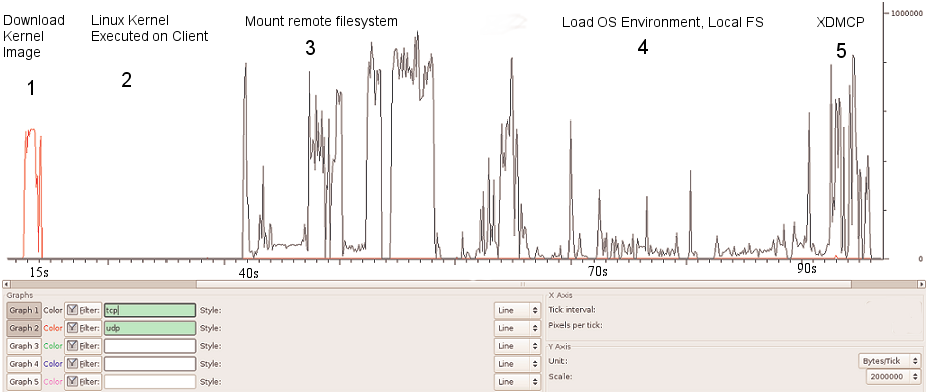
Figure 1. LTSP Traffic Profile and Boot Sequence

Following the client's BIOS sequence, most machines with network-boot capability will initiate a Preboot EXecution Environment (PXE), which will pass system control to the local network adapter. Figure 1 illustrates the traffic profile of the boot process and the various different stages, which are numbered 1 to 5. The network card broadcasts a DHCPDISCOVER packet with special flags set, indicating that the sender is trying to locate a valid boot server. A local PXE server will reply with a list of valid boot servers. The client then chooses a server, requests the name of the Linux kernel file from the server and initiates its transfer using Trivial File Transfer Protocol (TFTP; stage 1). The client then loads and executes the Linux kernel as normal (stage 2). A custom init program is then run, which searches for a network card and uses DHCP to identify itself on the network. Using Sun Microsystems' Network File System (NFS), the thin client then mounts a directory tree located on the PXE server as its own root filesystem (stage 3). Once the client has a non-volatile root filesystem, it continues to load the rest of its operating system environment (stage 4)—for example, it can mount a local filesystem and create a ramdisk to store local copies of temporary files. The fifth stage in the boot process is the initiation of the X Window System. This transfers the keystrokes from the thin client to the server to be processed. The server in return sends the graphical output to be displayed by the user interface system (usually KDE or GNOME) on the thin client.

The X Display Manager Control Protocol (XDMCP) provides a layer of abstraction between the hardware in a system and the output shown to the user. This allows the user to be physically removed from the hardware by, in this case, a Local Area Network. When the X Window System is run on the thin client, it contacts the PXE server. This means the user logs in to the thin client to get a session on the server.

In conventional fat-client environments, if a client opens a large file from a network server, it must be transferred to the client over the network. If the client saves the file, the file must be again transmitted over the network. In the case of wireless networks, where bandwidth is limited, fat client networks are highly inefficient. On the other hand, with a thin-client network, if the user modifies the large file, only mouse movement, keystrokes and screen updates are transmitted to and from the thin client. This is a highly efficient means, and other examples, such as ICA or NX, can consume as little as 5kbps bandwidth. This level of traffic is suitable for transmitting over wireless links.

How to Set Up a Thin-Client Network with a Wireless Bridge

One of the requirements for a thin client is that it has a PXE-bootable system. Normally, PXE is part of your network card BIOS, but if your card doesn't support it, you can get an ISO image of Etherboot with PXE support from ROM-o-matic (see Resources). Looking at the server with, for example, ten clients, it should have plenty of hard disk space (100GB), plenty of RAM (at least 1GB) and a modern CPU (such as an AMD64 3200).

The following is a five-step how-to guide on setting up an Edubuntu thin-client network over a fixed network.

1. Prepare the server.

In our network, we used the standard standalone configuration. From the command line:

sudo apt-get install ltsp-server-standalone

You may need to edit /etc/ltsp/dhcpd.conf if you change the default IP range for the clients. By default, it's configured for a server at 192.168.0.1 serving PXE clients.

Our network wasn't behind a firewall, but if yours is, you need to open TFTP, NFS and DHCP. To do this, edit /etc/hosts.allow, and limit access for portmap, rpc.mountd, rpc.statd and in.tftpd to the local network:

portmap: 192.168.0.0/24
rpc.mountd: 192.168.0.0/24
rpc.statd: 192.168.0.0/24
in.tftpd: 192.168.0.0/24

Restart all the services by executing the following commands:

sudo invoke-rc.d nfs-kernel-server restart
sudo invoke-rc.d nfs-common restart
sudo invoke-rc.d portmap restart

2. Build the client's runtime environment.

While connected to the Internet, issue the command:

sudo ltsp-build-client

If you're not connected to the Internet and have Edubuntu on CD, use:

sudo ltsp-build-client --mirror file:///cdrom

Remember to copy sources.list from the server into the chroot.

3. Configure your SSH keys.

To configure your SSH server and keys, do the following:

sudo apt-get install openssh-server
sudo ltsp-update-sshkeys

4. Start DHCP.

You should now be ready to start your DHCP server:

sudo invoke-rc.d dhcp3-server start

If all is going well, you should be ready to start your thin client.

5. Boot the thin client.

Make sure the client is connected to the same network as your server.

Power on the client, and if all goes well, you should see a nice XDMCP graphical login dialog.

Once the thin-client network was up and running correctly, we added a wireless bridge into our network. In our network, a number of thin clients are located on a single hub, which is separated from the boot server by an IEEE 802.11 wireless bridge. It's not an unrealistic scenario; a situation such as this may arise in a corporate setting or university. For example, if a group of thin clients is located in a different or temporary building that does not have access to the main network, a simple and elegant solution would be to have a wireless link between the clients and the server. Here is a mini-guide in getting the bridge running so that the clients can boot over the bridge:

  • Connect the server to the LAN port of the access point. Using this LAN connection, access the Web configuration interface of the access point, and configure it to broadcast an SSID on a unique channel. Ensure that it is in Infrastructure mode (not ad hoc mode). Save these settings and disconnect the server from the access point, leaving it powered on.

  • Now, connect the server to the wireless node. Using its Web interface, connect to the wireless network advertised by the access point. Again, make sure the node connects to the access point in Infrastructure mode.

  • Finally, connect the thin client to the access point. If there are several thin clients connected to a single hub, connect the access point to this hub.

We found ad hoc mode unsuitable for two reasons. First, most wireless devices limit ad hoc connection speeds to 11Mbps, which would put the network under severe strain to boot even one client. Second, while in ad hoc mode, the wireless nodes we were using would assume the Media Access Control (MAC) address of the computer that last accessed its Web interface (using Ethernet) as its own Wireless LAN MAC. This made the nodes suitable for connecting a single computer to a wireless network, but not for bridging traffic destined to more than one machine. This detail was found only after much sleuthing and led to a range of sporadic and often unreproducible errors in our system.

The wireless devices will form an Open Systems Interconnection (OSI) layer 2 bridge between the server and the thin clients. In other words, all packets received by the wireless devices on their Ethernet interfaces will be forwarded over the wireless network and retransmitted on the Ethernet adapter of the other wireless device. The bridge is transparent to both the clients and the server; neither has any knowledge that the bridge is in place.

For administration of the thin clients and network, we used the Webmin program. Webmin comprises a Web front end and a number of CGI scripts, which directly update system configuration files. As it is Web-based, administration can be performed from any part of the network by simply using a Web browser to log in to the server. The graphical interface greatly simplifies tasks, such as adding and removing thin clients from the network or changing the location of the image file to be transferred at boot time. The alternative is to edit several configuration files by hand and restart all dæmon programs manually.

Evaluating the Performance of a Thin-Client Network

The boot process of a thin client is network-intensive, but once the operating system has been transferred, there is little traffic between the client and the server. As the time required to boot a thin client is a good indicator of the overall usability of the network, this is the metric we used in all our tests.

Our testbed consisted of a 3GHz Pentium 4 with 1GB of RAM as the PXE server. We chose Edubuntu 5.10 for our server, as this (and all newer versions of Edubuntu) come with LTSP included. We used six identical thin clients: 500MHz Pentium III machines with 512MB of RAM—plenty of processing power for our purposes.

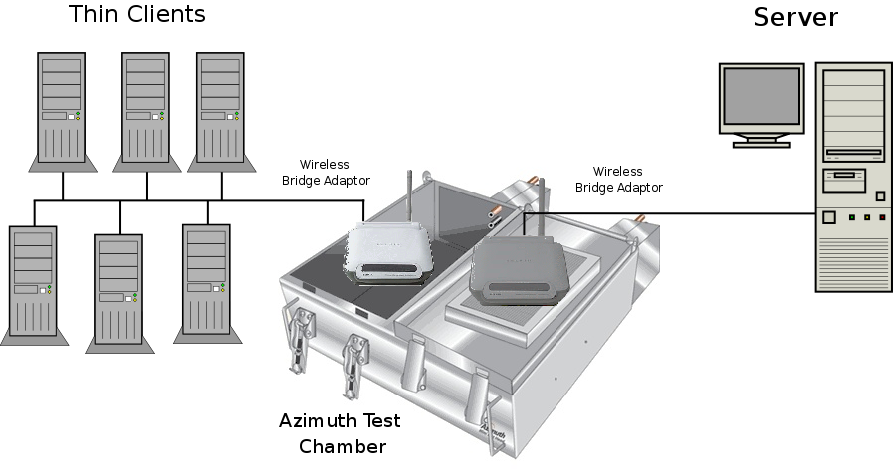
Figure 2. Six thin clients are connected to a hub, and in turn, this is connected to wireless bridge device. On the other side of the bridge is the server. Both wireless devices are placed in the Azimuth chamber.

When performing our tests, it was important that the results obtained were free from any external influence. A large part of this was making sure that the wireless bridge was not affected by any other wireless networks, cordless phones operating at 2.4GHz, microwaves or any other sources of Radio Frequency (RF) interference. To this end, we used the Azimuth 301w Test Chamber to house the wireless devices (see Resources). This ensures that any variations in boot times are caused by random variables within the system itself.

The Azimuth is a test platform for system-level testing of 802.11 wireless networks. It holds two wireless devices (in our case, the devices making up our bridge) in separate chambers and provides an artificial medium between them, creating complete isolation from the external RF environment. The Azimuth can attenuate the medium between the wireless devices and can convert the attenuation in decibels to an approximate distance between them. This gives us the repeatability, which is a rare thing in wireless LAN evaluation. A graphic representation of our testbed is shown in Figure 2.

We tested the thin-client network extensively in three different scenarios: first, when multiple clients are booting simultaneously over the network; second, booting a single thin client over the network at varying distances, which are simulated by altering the attenuation introduced by the chamber; and third, booting a single client when there is heavy background network traffic between the server and the other clients on the network.

Figure 3. A Boot Time Comparison of Fixed and Wireless Networks with an Increasing Number of Thin Clients

Figure 4. The Effect of the Bridge Length on Thin-Client Boot Time

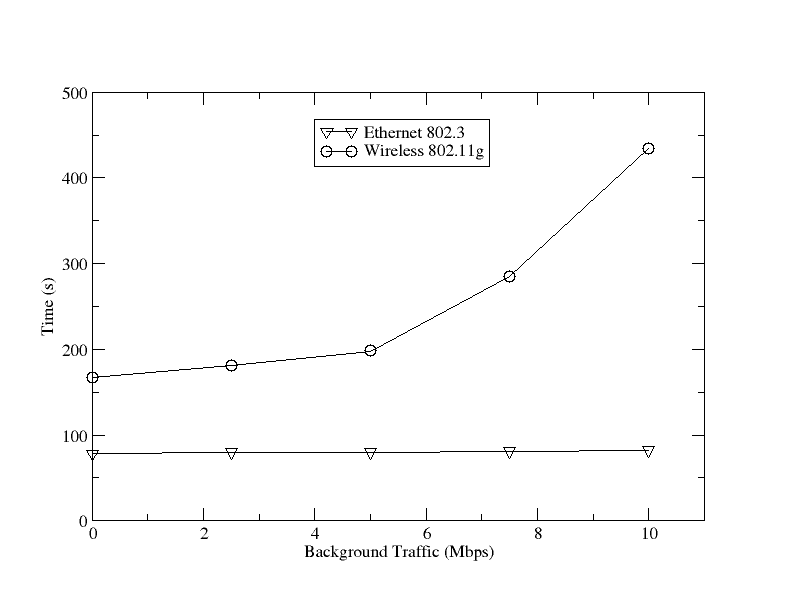
Figure 5. Boot Time in the Presence of Background Traffic

Conclusion

As shown in Figure 3, a wired network is much more suitable for a thin-client network. The main limiting factor in using an 802.11g network is its lack of available bandwidth. Offering a maximum data rate of 54Mbps (and actual transfer speeds at less than half that), even an aging 100Mbps Ethernet easily outstrips 802.11g. When using an 802.11g bridge in a network such as this one, it is best to bear in mind its limitations. If your network contains multiple clients, try to stagger their boot procedures if possible.

Second, as shown in Figure 4, keep the bridge length to a minimum. With 802.11g technology, after a length of 25 meters, the boot time for a single client increases sharply, soon hitting the three-minute mark. Finally, our test shows, as illustrated in Figure 5, heavy background traffic (generated either by other clients booting or by external sources) also has a major influence on the clients' boot processes in a wireless environment. As the background traffic reaches 25% of our maximum throughput, the boot times begin to soar. Having pointed out the limitations with 802.11g, 802.11n is on the horizon, and it can offer data rates of 540Mbps, which means these limitations could soon cease to be an issue.

In the meantime, we can recommend a couple ways to speed up the boot process. First, strip out the unneeded services from the thin clients. Second, fix the delay of NFS mounting in klibc, and also try to start LDM as early as possible in the boot process, which means running it as the first service in rc2.d. If you do not need system logs, you can remove syslogd completely from the thin-client startup. Finally, it's worth remembering that after a client has fully booted, it requires very little bandwidth, and current wireless technology is more than capable of supporting a network of thin clients.

Acknowledgement

This work was supported by the National Communications Network Research Centre, a Science Foundation Ireland Project, under Grant 03/IN3/1396.

Ronan Skehill works for the Wireless Access Research Centre at the University of Limerick, Ireland, as a Senior Researcher. The Centre focuses on everything wireless-related and has been growing steadily since its inception in 1999.

Alan Dunne conducted his final-year project with the Centre under the supervision of John Nelson. He graduated in 2007 with a degree in Computer Engineering and now works with Ericsson Ireland as a Network Integration Engineer.

John Nelson is a senior lecturer in the Department of Electronic and Computer Engineering at the University of Limerick. His interests include mobile and wireless communications, software engineering and ambient assisted living.


Taken From: Linux Journal, nº 170 2008 - Thin Clients Booting over a Wireless Bridge, by Kyle Ronan Skehill, Alen Dunne and John Nelson