Showing posts with label gui. Show all posts

Sunday, December 10, 2017

Raspberry Pi/Linux - Installing Webmin

Today I’m going to show you how to install webmin on you Raspberry Pi or other linux machines. I tested this on a Raspberry Pi.


On The Cli

On the CLI of the machine you want to install Webmin, just do.

sudo apt-get install perl libnet-ssleay-perl openssl libauthen-pam-perl libpam-runtime libio-pty-perl apt-show-versions python

wget https://downloads.sourceforge.net/project/webadmin/webmin/1.870/webmin_1.870_all.deb

sudo dpkg -i webmin_1.870_all.deb

now Webmin should be installed and running.


On a Browser

Let’s access Webmin, just swap the 192.168.10.20 IP with the IP where you installed webmin, and access it on the browser like this:

https://192.168.10.20:10000

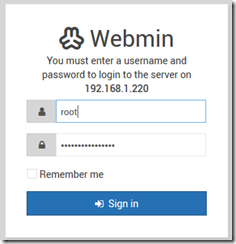
and login to webmin:

image

the user and pasword are you machines’s local linux users and passwords.

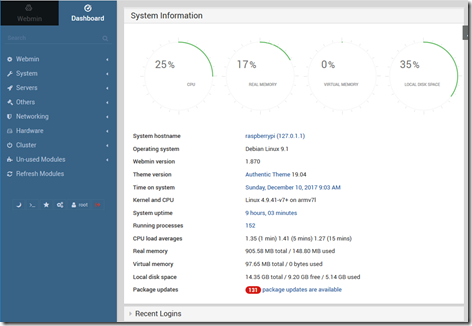
Now you start managing you linux from a Gui :)

image

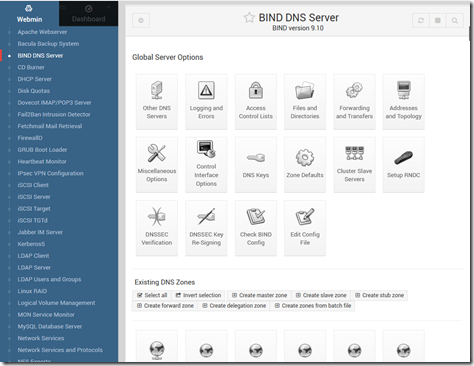
My main goal personally was to have a Gui to manage DNS (Bind), which becomes quite easy with webmin.:

image

Saturday, September 26, 2015

Linux - PPTP VPN Server (via GUI on Ubuntu)


How to Setup a “Split Tunnel” VPN (PPTP) Client on Ubuntu 10.04

Sometimes you need to use a VPN connection to grant access to remote network resources and for that you use a VPN, but if you don’t want all of your client traffic to go through the VPN link, you’ll need to setup your VPN to connect in a “split tunnel” mode. Here’s how to do it on Ubuntu.

Note: make sure that you’ve read our article covering how to setup a VPN server for Debian-based Linux, which also covers configuring the Windows client.


Split what the what now?

The “split tunnel” term refers to the fact that the VPN client creates a “tunnel” from the client all the way to the server for “private” communication.

Traditionally the VPN connection is set up to create “the tunnel” and once it is up all the client’s communication is routed through that “tunnel”. this was good back in the day when the VPN connection had a couple of goals that overlapped and complimented each other:

  • The connection was meant to grant access for the road warrior from anywhere.
  • All of  the client’s connections need to be secured by means of  going through the corporate firewall.
  • The client computer must not be able to connect a potentially malicious network with the corporate network.

The way the VPN connection of the time achieved this goal, was to set the “default gateway” or “route” of the client machine to the corporate VPN server.

  • This method, while affective for the above goals has several disadvantages, espeshelly if you are implementing the VPN connection only for the “grant access” point:
  • It will slow down the entire surfing experience of the client computer to the speed of the VPN server’s upload speed, which is usually slow.
  • It will disable access to local resources like other computers in the local network unless they are all connected to the VPN, and even then the access will be slowed down because it has to go all the way to the internet and come back.

To overcome these shortcomings we will create a regular VPN dialer with one note worthy exception, that we will set the system to NOT use it as the “Default Gateway” or “route” when connected.

Doing this will make it so that the client will use the “VPN tunnel” only for the resources behind the VPN server and will access the internet normally for everything else.


Let’s get cracking

The first step is to get into “Network connections” and then “Configure VPN”.

One way you can do this is by clicking the desktop icon for networking as shown in the picture.

clip_image001

Another way is to go to “System” > “Preferences” > “Network Connections”.
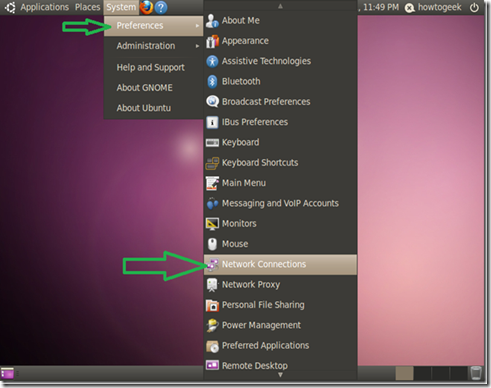
clip_image002

Once your on the “VPN” tab in the “Network connections” configurations window, click “Add”.

clip_image003

On the next window we only need to click “Create”, as the default connection type of PPTP is what we want to use.
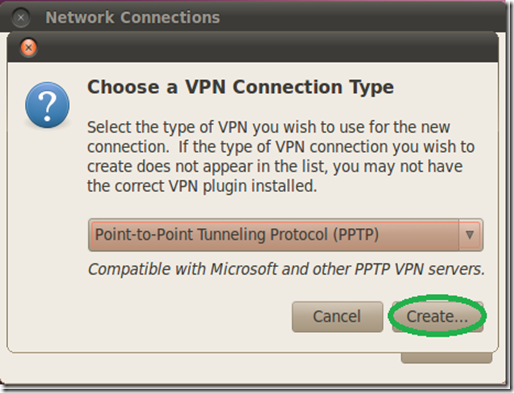
clip_image004

In the next window give your dialer a name, fill in the gateway with your servers DNS-name or IP address as seen from the internet and fill in the user credentials.

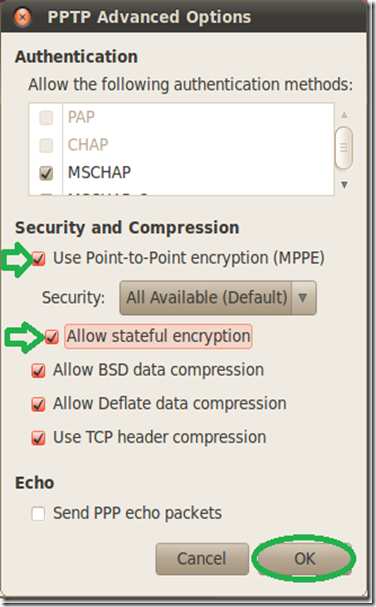
If you have used the “Setting up a VPN (PPTP) server on Debian” guide for the server setup or you are using this client for a DD-WRT PPTP server setup, you also need to enable the MPPE encryption options for authentication.

Click on “Advanced”.
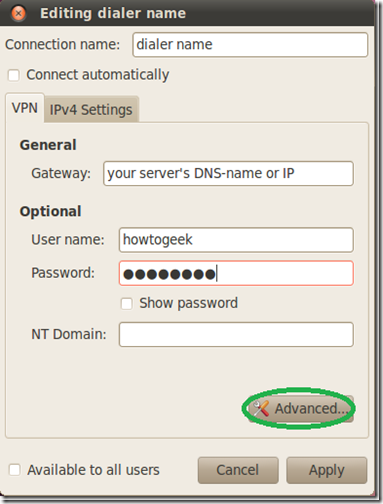
clip_image005

On the “Advanced Options” window check the first checkbox for the MPPE option, then the second checkbox to allow stateful encryption and click “OK”.
clip_image006

Back on the main window, click the “IPv4 Settings” tab.

clip_image007

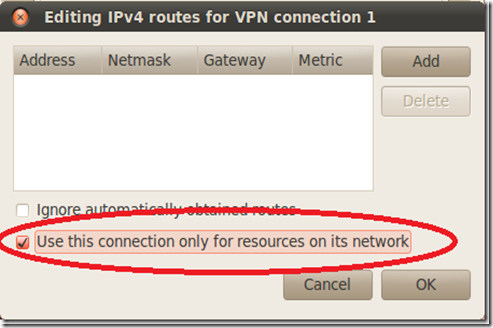
On the routes configuration window check the checkbox of “Use this connection only for resources on its network”.
clip_image008

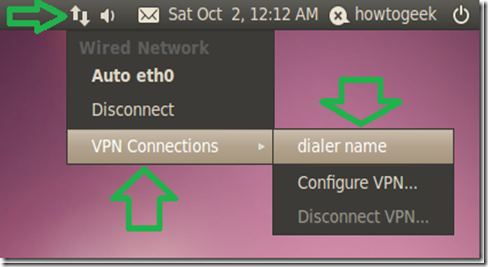
Activate the VPN connection client by clicking on the “Network connections” icon and selecting it.
clip_image009

That’s it, you can now access the resources on the VPN servers side as if you were on the same network while not sacrificing your download speed in the process…


Taken From: http://www.howtogeek.com/51340/setting-up-a-split-tunnel-vpn-pptp-client-on-ubuntu-10-04/
Wednesday, May 14, 2014

Display Linux Applications (X11) on Windows – via Putty (SSH)

X Forwarding with Putty on Windows

Intro to X Forwarding

Unix machines have been able to run software on a remote machine and display the GUI locally for almost two decades. Linux and Mac OS X support X Forwarding with no extra software. Any terminal on Linux should do X Forwarding, Mac users need to run "Applications > Utilities > XTerm". In a command line terminal run "ssh -Y jdoe@compute.example.edu matlab" and you'll be running matlab on "compute.example.edu" but seeing it on your desktop.

Windows users need two pieces of software: an secure shell program (ssh) to establish the remote connection and an X Server to handle the local display.

Prerequisites

Configuring Putty

  • 1. Add Unix hostname
  • 2. Switch Protocol to SSH
  • 3. Type name of session in saved sessions
  • 4. Click 'Save'

ScreenShot013

  • 5. Expand the 'SSH' tab from the 'Category' list
  • 6. Choose 'X11' from 'SSH' list
  • 7. Check 'Enable X11 Forwarding'

ScreenShot012

  • 8. Choose 'Session' from 'Category' list
  • 9. Click 'Save'

Starting the X Server on Windows

Configuring Xming

Just run "All Programs > Xming Xming" and leave all at it’s defaults as show in the picture bellow. It should work if you've got PuTTY configured.

ScreenShot010ScreenShot006ScreenShot007ScreenShot008ScreenShot009

Connecting

  • 1. Start Xming
  • 2. Start Putty
  • 3. Double click on the saved session you want

ScreenShot014

  • 4. Enter username and password as requested
  • 5. You should now be able to run X applications from the host
    on your local desktop

Based On: http://www.math.umn.edu/systems_guide/putty_xwin32.html

Wednesday, July 2, 2008

Graphicall Desktop for Ubuntu Server Edition

If you have installed an Ubuntu Server Edition, the first sing you notice is that you dont have X11, GDM, Gnome or KDE, only a text shell.

Here I'm going to show you howto install the Ubuntu Desktop for the Server Edition.

It's actually quite easy, just type on the bash shell:

$ sudo apt-get install ubuntu-desktop

Now sit down and wait, for apt-get to download and install about 900 packets / 472 MB.

And that it, next time you reboot you have the same Gnome Desktop that in the Ubuntu Desktop Edition.

Saturday, April 28, 2007

Install fwbuilder 2.1.10 from source in Ubuntu 7.04

Firewall builder is a gui to help you build frewalls, the target firewall can be iptable, ipfilter, cisco pix, etc.

Conect your computer to the internet.

# - means it´s to be executed in the bash shell, without the # of course


# sudo apt-get install qt3-dev-tools

# sudo apt-get install libc6-dev

# sudo apt-get install g++


# sudo apt-get install libxml2-dev

# sudo apt-get install libxslt1-dev


download libfwbuilder-2.1.10.tar.gz at here and extract it.

# cd /.../libfwbuilder-2.1.10

# ./configure

# sudo make

# sudo make install


Now we have to install some Qt packages in order to fwbuilder-2.1.10.tar.gz compile, i don't now exactly wich ones are needed, i instaled the folowing packages.

libavahi-qt3-1 0.6.17-0ubuntu3 -- Avahi Qt3 integration library
libqt3-compat-headers 3.3.8really3.3.7-0ubuntu5 -- Qt 1.x and 2.x compatibility includes
libqt3-headers 3.3.8really3.3.7-0ubuntu5 -- Qt3 header files
libqt3-i18n 3.3.8really3.3.7-0ubuntu5 -- i18n files for Qt3 library
libqt3-mt 3.3.8really3.3.7-0ubuntu5 -- Qt GUI Library (Threaded runtime version), V
libqt3-mt-dev 3.3.8really3.3.7-0ubuntu5 -- Qt development files (Threaded)
libqt4-core 4.2.3-0ubuntu3 -- Qt 4 core non-GUI functionality runtime libr
libqt4-dev 4.2.3-0ubuntu3 -- Qt 4 development files
libqt4-gui 4.2.3-0ubuntu3 -- Qt 4 core GUI functionality runtime library
libqt4-qt3support 4.2.3-0ubuntu3 -- Qt 3 compatibility library for Qt 4
libqt4-sql 4.2.3-0ubuntu3 -- Qt 4 SQL database module
libqthreads-12 1.6.8-6build1 -- QuickThreads library for Guile
qt3-designer 3.3.8really3.3.7-0ubuntu5 -- Qt3 Designer
qt3-dev-tools 3.3.8really3.3.7-0ubuntu5 -- Qt3 development tools

Some of these migth not be necessary.


download fwbuilder-2.1.10.tar.gz at here and extract it.

# cd /.../fwbuilder-2.1.10

# ./configure

# sudo make

# sudo make install


# cd /usr/lib/i486-linux-gnu/

or

# cd /usr/lib/x86_64-linux-gnu/

if you have a amd64 (x86_64-linux) processor (may also for other 64 bit cpus) runing a 64 bit linux distribution.


# sudo ln -s /usr/local/lib/libfwbuilder.so.7.3.0 libfwbuilder.so.7

# sudo ln -s /usr/local/lib/libfwcompiler.so.7.3.0 libfwcompiler.so.7


now just run "fwbuilder":

# fwbuilder