Showing posts with label mac. Show all posts

Friday, October 9, 2015

How to Mount CD/DVDs Images - Windows, Mac, and Linux

Disc images have become more useful than ever on modern PCs that often lack CD and DVD drives. Create ISO files and other types of disc images and you can “mount” them, accessing the virtual discs as if they were physical discs inserted into your computer.

You can also use these image files to burn copies of the original discs later, creating duplicate copies. Disc image files contain a complete representation of a disc.


Windows

Windows 10 allows you to mount both .ISO and .IMG disc image files without any third-party software. Just double-click a .ISO or .IMG disc image you want to make available. If this doesn’t work, you should be able to click the “Disk Image Tools” tab on the ribbon and click “Mount.” It will appear under Computer as if it were inserted into a physical disc drive.

This feature was added back in Windows 8, so it will also work on Windows 8 and 8.1.

To unmount the disc later, right-click the virtual disc drive and select “Eject.” The disc will be unmounted and the virtual disc drive will disappear from the Computer window until you mount a disc in it again.

clip_image001

To mount ISO or IMG images on Windows 7 — or to mount images in other formats, such as BIN/CUE, NRG, MDS/MDF, or CCD — we recommend the free, open-source, and simple WinCDEmu utility.

Just right-click an image file after installing it, click “Select drive letter & mount,” and you can mount other types of images Windows doesn’t support.

Some other third-party utilities have additional support for emulating various copy-protection technologies, allowing copy-protected discs to function normally. However, such techniques are being phased out and aren’t even supported by modern versions of Windows.

clip_image002


Mac

On a Mac, double-clicking common disc image formats will mount them. This is why you can simply double-click a downloaded .DMG file to access its contents and install Mac applications, for example.

The DiskImageMounter application that handles this can also mount .ISO, .IMG, .CDR, and other types of image files. Just double-click the file to mount it. If this doesn’t work, Option-click or right-click a file, point to “Open With,” and select “DiskImageMounter.

When you’re done, just click the “Eject” button next to the mounted image in the Finder’s sidebar to eject it and unmount it — just like you’d unmount a .DMG image when you’re done with it.

clip_image003

You can also try mounting the disc image file by opening the Disk Utility application. Press Command+Space, type Disk Utility, and press Enter to open it. Click the “File” menu, select “Open Image,” and select the disc image you want to mount.

clip_image004


Linux

Ubuntu’s Unity desktop and GNOME include an “Archive Mounter” application that can mount ISO files and similar image files graphically. To use it, right-click an .ISO file or another type of disc image, point to Open With, and select “Disk Image Mounter.”

You can later unmount the image by clicking the eject icon next to the mounted image in the sidebar.

clip_image005

You can also mount an .ISO file or another disc image with a Linux terminal command. This is particularly useful if you’re just using the command line, or if you’re using a Linux desktop that doesn’t provide a tool to make this easy. (Of course, graphical tools for mounting ISO files and similar images may be available in your Linux distribution’s software repositories.)

To mount an ISO or IMG file on Linux, first open a Terminal window from your Linux desktop’s applications menu. First, type the following command to create the /mnt/image folder. You can create practically any folder you like — you just have to create a directory where you’ll mount the image. The contents of the disc image will be accessible at this location later.

sudo mkdir /mnt/image

Next, mount the image with the following command. Replace “/home/NAME/Downloads/image.iso” with the path to the ISO, IMG, or other type of disc image you want to mount.

sudo mount -o loop /home/NAME/Downloads/image.iso /mnt/image

To unmount the disc image later, just use the umount command:

sudo umount /mnt/image

clip_image006

Some guides recommend you add “-t iso9660” to the command. However, this isn’t actually helpful - it’s best to let the mount command automatically detect the required file system.

If you’re trying to mount a more obscure type of disc image format that the mount command can’t automatically detect and mount in this way, you may need commands or tools designed specifically for working with that type of image file format.

This should “just work” on most modern operating systems, allowing you to mount and use ISO images and other common types of image files in a few clicks. Windows 7 users will have the toughest time, as it isn’t integrated into that older version of Windows, but WinCDEmu is a lightweight and easy way to accomplish this.

Taken From:

Monday, November 24, 2014

Change MAC Address on Linux (Ubuntu / Debian)

Temporary MAC Address Change

When you change the MAC address for an interface, you need to have the network interface disabled (down) and than to set the new MAC.

You can do both this things with the command:

$ sudo ifconfig eth0 down hw ether AA:BB:CC:DD:EE:FF && ifconfig eth0 up

This sets down the eth0 interface, changes the mac to AA:BB:CC:DD:EE:FF and turns the interface back down.

Or, do it in the old fashioned way:

$ sudo ifconfig eth0 down
$ sudo ifconfig eth0 hw ether AA:BB:CC:DD:EE:FF
$ sudo ifconfig eth0 up

Read more about the ifconfig command here.


Permanent MAC Address Change

To set the hardware address (MAC), open the /etc/network/interface file in your favourite text editor:

$ sudo vim /etc/network/interfaces

After the network interface configuration, paste this line: hwaddress ether AA:BB:CC:11:22:33.
Note: AA:BB:CC:11:22:33 is just a sample, replace it with the MAC address you want to set for your interface.

Example, with dhcp enabled network interface:

auto eth0
iface eth0 inet dhcp
hwaddress ether AA:BB:CC:11:22:33

Example, with a network interface having a static ip:

auto eth0
iface eth0 inet static
address 192.168.0.100
netmask 255.255.255.0
network 192.168.0.0
broadcast 192.168.0.255
gateway 192.168.0.1
hwaddress ether AA:BB:CC:11:22:33

To apply the MAC change, restart the network interface:

$ sudo /etc/init.d/networking restart

Based On:

Saturday, November 1, 2014

How to Create Bootable USB Drives and SD Cards For Every Operating System

How to Create Bootable USB Drives and SD Cards For Every Operating System

clip_image001

Creating installation media for your operating system of choice used to be simple. Just download an ISO and burn it to CD or DVD. Now we’re using USB drives, and the process is a little different for each operating system.

You can’t just copy files form an ISO disc image directly onto your USB drive. The USB drive’s data partition needs to be made bootable, for one thing. This process will usually wipe your USB drive or SD card.

From a Linux ISO

Ubuntu recommends the Universal USB Installer for creating bootable Linux USB drives on Windows. This tool can create bootable disc images for many different Linux distributions.UNetbootin is another popular alternative.

Download the Linux distribution you want to use in .ISO form. Run the tool, select your desired distribution, browse to your downloaded ISO file, and choose the USB drive you want to use. The tool will do the rest.

clip_image002

You can use similar tools on Linux. For example, Ubuntu includes a Startup Disk Creator tool for creating bootable Ubuntu USB drives. UNetbootin also runs on Linux, so you can use that too.

clip_image003

From an IMG File

Some operating system projects provide an IMG file instead of an ISO file. An IMG file is a raw disk image that needs to be written directly to a USB drive.

Use Win32 Disk Imager to write an IMG file to a USB drive or SD card. Provide a downloaded IMG file and the tool will write it directly to your drive, erasing its current contents. You can also use this tool to create IMG files from USB drives and SD cards.

clip_image004

Linux users can use the dd command to directly write an IMG file’s contents to a removable media device. Insert the removable media and run the following command on Ubuntu:

sudo dd if=/home/user/file.img of=/dev/sdX bs=1M

Replace /home/user/file.img with the path to the IMG file on your file system and /dev/sdX with the path to your USB or SD card device. Be very careful to specify the correct disk path here — if you specify the path to your system drive instead, you’ll write the contents of the image to your operating system drive and corrupt it

clip_image005

From a Windows 7 ISO

Provide the ISO file and a USB flash drive and the tool will create a bootable drive.

clip_image006

From a Windows 8 or 8.1 Product Key

If you have a Windows 8 or Windows 8.1 product key, you can download installation media directly from Microsoft and create a USB drive all at once. Download the appropriate tool from the Upgrade Windows with only a product key page. Run it, provide your product key, and tell the wizard you want to create a bootable USB drive.

Note that Windows 8 and Windows 8.1 have different product keys, so you’ll need to jump through hoops if you want to install Windows 8.1 with a Windows 8 product key. You may just want to install Windows 8 and upgrade to Windows 8.1 from within Windows 8 — that’s Microsoft’s officially supported method.

clip_image007

From a Windows 8 or 8.1 ISO

If you already have a Windows 8 or 8.1 ISO file and you want to create installation media without redownloading anything, you can actually use the Windows 7 USB/DVD download tool for this.

Just provide the Windows 8 or 8.1 ISO file when prompted. The tool will happily create Windows 8 or 8.1 installation media if you provide the appropriate ISO file.

clip_image008

If you need to boot into DOS to use a low-level firmware upgrade, BIOS update, or system tool that still requires DOS for some reason, you can use the Rufus tool to create a bootable DOS USB drive.

Rufus uses FreeDOS, an open-source implementation of DOS that should run whatever DOS program you need to use.

clip_image009

From Mac OS X Installation Files

You can create a bootable drive with Mac OS X on it by downloading the latest version of OS X from the Mac App Store. Use Apple’s included “createinstallmedia” tool in a terminal or by run the third-party DiskMaker X tool.

The Mac OS X drive can be used to install OS X on other Macs or upgrade them to the latest version without any long downloads.

clip_image011

From a Windows ISO for Mac

If you plan on installing Windows on a Mac via Boot Camp, don’t bother creating a bootable USB drive in the usual way. Use your Mac’s Boot Camp tool to start setting things up and it will walk you through creating a bootable Windows installation drive with Apple’s drivers and Boot Camp utilities integrated.

You can use this drive to install Windows on multiple Macs, but don’t use it to install Windows on non-Apple PCs.

clip_image012

Some of these tools overlap — for example, Rufus can also be used to create bootable drives from Linux ISOs, IMG files, and even Windows ISO Files. We suggested the most popular, widely recommended tools for each task here.

Image Credit: USBMemoryDirect on Flickr

Taken From: http://www.howtogeek.com/191054/how-to-create-bootable-usb-drives-and-sd-cards-for-every-operating-system/

Monday, October 27, 2008

Change Your Mac Address in Linux

# In order to change your MAC address just type the following:

$ sudo ifconfig eth0 down hw ether 0A:0B:0C:0D:AA:BB


Note: "0A:0B:0C:0D:AA:BB" is just an example, you should put there the disired MAC address

Note: bringing down the interface (sudo ifconfig eth0 down) and them changing the mac address (sudo ifconfig eth0 hw ether 0A:0B:0C:0D:AA:BB) did not work, instead i did all in one line as shown above


# Now bring the interface back up, and you are ready to go.

$ sudo ifconfig eth0 up

Wednesday, July 2, 2008

Encripted Partitions and LiveCD - On The Fly (Linux, Mac, Windows)

Paranoid Penguin - Customizing Linux Live CDs, Part II

May 1st, 2008 by Mick Bauer

Note that Ubuntu 8.4 includes the packages easycrypt and gdecrypt, two graphical front ends for TrueCrypt, but no packages for TrueCrypt itself, on which both easycrypt and gdecrypt depend (though the latter, even without TrueCrypt, can create non-TrueCrypt-compatible encrypted volumes). So the instructions I give here on downloading and installing TrueCrypt itself still are applicable to Ubuntu 8.4.

Installing TrueCrypt

Although I just disclaimed the intention of making this a TrueCrypt primer, a little introduction is in order. TrueCrypt is a free, open-source, cross-platform volume-encryption utility. It's also highly portable. The TrueCrypt binary itself is self-contained, and any TrueCrypt volume can be mounted on any Windows or Linux system on which the TrueCrypt binary will run or compile. TrueCrypt can be run either from a command line or in the X Window System.

TrueCrypt is becoming quite popular and is held in high regard by crypto experts I know (it appears to be a sound implementation of known, good algorithms like AES and Twofish), but its license is a bit complicated. For this reason, TrueCrypt hasn't yet been adopted into Debian or Ubuntu officially, even though Ubuntu 8.10's universe packages easycrypt and gdecrypt depend on it (see the Ubuntu 7.10 vs. 8.4 sidebar).

So, to install TrueCrypt on an Ubuntu system, you need to download it directly from www.truecrypt.org/downloads.php. When I was writing this article, TrueCrypt version 5.1 was current, and the Ubuntu deb file I downloaded was called truecrypt-5.1-ubuntu-x86.tar.gz, though by the time you read this, it may be something else. Besides an Ubuntu deb package, TrueCrypt also is available as a SUSE RPM file (that also might work on other RPM-based distros) and as source code.

Now, it's time to install TrueCrypt. You're going to need to install TrueCrypt in at least two places: on the master system you're using to create your custom live CD and either on the live CD image itself or on whatever removable media (such as a USB drive) you're going to keep your encrypted volume.

First, let's install TrueCrypt on the master system. Open a command shell, unpack the TrueCrypt archive in your home directory, and change your working directory to the directory that gets unpacked:

bash-$ tar -xzvf ./truecrypt-5.1-ubuntu-x86.tar.gz

bash-$ cd truecrypt-5.1

Next, use the dpkg command to install the deb file:

bash-$ sudo dpkg -i ./truecrypt_5.1-0_i386.deb

With TrueCrypt 5.1, only three files are installed on your system: its license and user guide, both in /usr/share/truecrupt/doc/, and the binary itself, /usr/bin/truecrypt. TrueCrypt doesn't require any special kernel modules; it's a monolothic process. This means that if you copy /usr/bin/truecrypt to the same Flash drive on which you keep your encrypted volume, you won't need to install it on your Ubuntu live CD.

You may prefer doing so anyhow. Here's how:

  1. Follow steps 00–12 in the procedure I described last month for mounting your custom ISO and chrooting into it (see Appendix).

  2. From a different, non-chrooted shell, copy the TrueCrypt deb package truecrypt_5.1-0_i386.deb into the ISO root you just chrooted into (isonew/custom/ in last month's examples).

  3. Back in your chrooted shell, run dpkg -i ./truecrypt_5.1-0_i386.deb (no sudo necessary here, as you're already root).

  4. Finally, follow steps 19–33 from last month's procedure to clean up, unmount and repackage your custom live CD image. And, of course, use your CD-burning application of choice to burn your image into a shiny new live CD

Creating an Encrypted Volume

Now, you can create an encrypted volume. For our purposes here, it will be a simple “file vault” to mount as a subdirectory of your home directory. But, it just as easily could be an entire home directory that you mount over the one your live CD uses. Come to think of it, you also could do that with /etc. For now, however, I'll leave it to you to explore the technical subtleties of those usage scenarios (see Resources for some pointers on home directory encryption).

TrueCrypt can be run either in text mode, via the truecrypt -t command (followed by various options) or in graphical mode. For now, let's stick to graphical mode. To start it, simply type the following from within a terminal window:

bash-$ truecrypt &

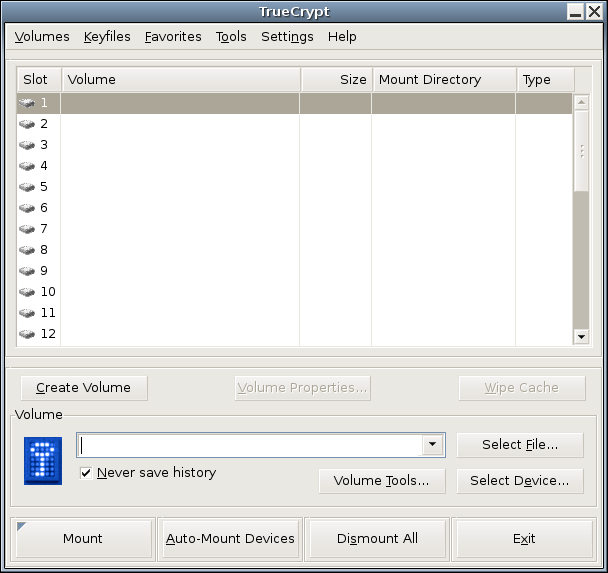
And, you should see what's shown in Figure 1.

Figure 1. TrueCrypt 5.1 GUI for Linux

Click Create Volume to start the TrueCrypt Volume Creation Wizard. We'll create a standard TrueCrypt volume, not a hidden one (you can hide one TrueCrypt volume inside the “empty” space of another, as all unused space in a TrueCrypt volume is filled with random characters). So, click Next.

In the wizard's next screen, you can specify the path and name of the file in which your encrypted volume will be stored or the name of an entire disk partition to encrypt. Here, we're creating a file-hosted volume, and in our example scenario, this file will be /home/ubuntu/realhome2 (no file extension is necessary). After typing that path, click Next.

In the wizard's third screen, we must specify the volume's size. In this example, I'm creating a 500MB volume.

After clicking Next, you can choose an Encryption Algorithm and a Hash Algorithm. The defaults, AES and RIPEMD-160, respectively, are good choices. You also can click the Test button to make sure TrueCrypt's built-in cryptographic functions work properly on your system.

The next step is to set a volume password. Choose a strong one! You also can specify and create keyfiles—files that TrueCrypt will look for every time you mount this volume. If any keyfile is missing, or if its contents have changed in any way since you created the volume, TrueCrypt won't mount the volume. Properly used, keyfiles can provide another level of authentication to your encrypted volume. But, we aren't going to use any in this example. Enter a password (twice) and click Next.

Important note: TrueCrypt has no back doors of any kind. For this reason, if you forget your volume's password, or if any of its keyfiles are lost or corrupted, you will not be able to recover the contents of your encrypted volume. By all means, choose a difficult-to-guess volume password, but make sure you won't forget or lose it yourself!

Now we come to the Format Options screen, which asks a subtle question: which filesystem? The choices here are FAT, which is actually the Windows 95 vfat filesystem (MS-DOS FAT16 with long filenames), and None. If you select FAT, TrueCrypt will format your new encrypted volume for you. However, vfat isn't a journaling filesystem; it isn't very resilient to file corruption and other filesystem errors.

Worse, strange things can happen if you store certain kinds of Linux system files on a vfat partition, because vfat can't store certain Linux file attributes. The only reason to choose vfat is if you intend to use the volume with both Linux and Windows systems. If you're going to use it only on Linux, especially if you're going to use it as a home directory (or /etc), you should choose None, and formate the virtual partition yourself, which I'll show you how to do in a minute.

For now, click Next to proceed to the Volume Format screen. This is your chance to generate some entropy (randomness) with which TrueCrypt can initialize its crypto engine, pursuant to encrypting your volume. To do so, move your mouse randomly within the window a while, and then click Format.

That's it! You've created /home/ubuntu/realhome2 and now are ready to format it. Click Exit to close the Volume Creation Wizard.

Formatting the Volume

My personal favorite native-Linux journaling filesystem is ext3, so that's what we use here. Before we format our new volume though, we need to have TrueCrypt map it to a virtual device. This isn't really mounting per se, but that's the TrueCrypt function we need to use.

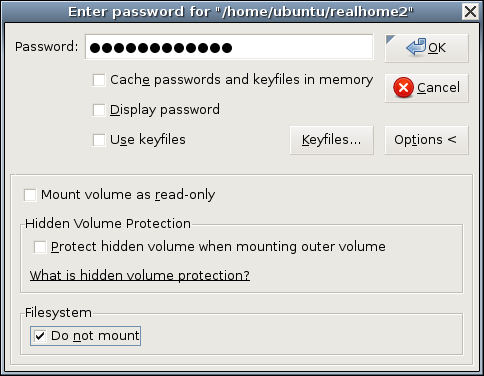
Back in the TrueCrypt GUI (Figure 1), type the full path of our new volume (/home/ubuntu/realhome2) in the text box next to the key icon (or navigate to it using the Select File... dialog), and click Mount. In the box that pops up, enter your volume's password, and then click Options >. Here's where things get a little strange. Click the box next to Do not mount (Figure 2). Now you can click OK.

Figure 2. Not Mounting Our Unformatted Volume

Why, you may wonder, are you telling TrueCrypt “do not mount” in the middle of the Mount dialog? Because, of course, you can't mount an unformatted partition. But, TrueCrypt can map it to a virtual device, and this is, in fact, what TrueCrypt has just done.

Back in the TrueCrypt main screen, your volume file now should be listed in Slot 1. To find the virtual device to which it's been mapped, click Volume Properties. As shown in Figure 3, realhome3 has been mapped to /dev/loop0.

Figure 3. Volume Properties

Now, we can format the new encrypted volume. In your terminal window, type:

05-$ sudo mkfs.ext3 /dev/loop0
Volume Ownership

Voilà! You now have a mountable, usable encrypted virtual volume! If you want to test it or begin populating it with confidential data you intend to use with your live CD, you can mount it “for real” by going back to the TrueCrypt GUI, clicking Dismount, and then clicking Mount (the same button; it's context-sensitive). (This time, do not select the Do not mount button.) If you don't specify a mountpoint, TrueCrypt automatically creates one called /media/truecrypt1.

Note that if you mount different TrueCrypt volumes in succession, the mountpoints will be named /media/truecrypt1, /media/truecrypt2 and so on, where the trailing digit corresponds to the Slot number TrueCrypt uses in creating virtual device mappings (Figure 1). Note also that when mounting a TrueCrypt volume from the GUI, you may need to click on an empty slot number before clicking the Mount number, if one isn't selected already.

By default, TrueCrypt mounts your ext3-formatted TrueCrypt volume with root ownership. Depending on how you plan to use it, that may be appropriate. But, as a matter of principle, you don't want to use root privileges for ordinary tasks like word processing. If you're going to use this volume as your Documents directory, it's going to need to be usable by some unprivileged user.

The custom live CD image we created last month has only the default Ubuntu accounts on it. For now, let's stick with those—that way, you'll be able to use this encrypted volume with any Ubuntu 7.10 live CD, not just your custom image. Here's how to make your volume usable by the default live CD user account ubuntu.

First, create, map, format and mount your volume as described above. I'll assume that TrueCrypt mounted it to /media/truecrypt1.

Open or switch to a terminal window. If you do an ls -l of /media, the listing for your volume should look like this:

drwxr-xr-x  3 root     root  1024 2008-03-09 23:21 truecrypt1

As you can see, only root can use this directory. Because we want it to be usable by our live CD's ubuntu account, and because that account's user ID (UID) and group ID (GID) are 999 and 999, respectively, we issue this command:

05-$ sudo chown -R 999:999 /media/truecrypt1

This performs a bit of magic. The user/group ownerships you just specified are now embedded in your TrueCrypt volume's filesystem. From this point on, wherever you mount this volume, regardless of the mountpoint's ownership and permissions when it isn't in use, your volume will be mounted with UID and GID both set to 999.

If you subsequently mount the TrueCrypt volume on a system on which some user or group other than ubuntu has a numeric ID of 999 (per its local /etc/passwd and /etc/group files), then that user or group will own the mounted volume, even if that system has an account or group named ubuntu. And, if on that system the UID 999 doesn't correspond to any user, you'll need to be root in order to use the mounted volume. (But, in that case, you'll be no worse off than if you had skipped the chown exercise!)

Using the TrueCrypt Volume with Your Live CD

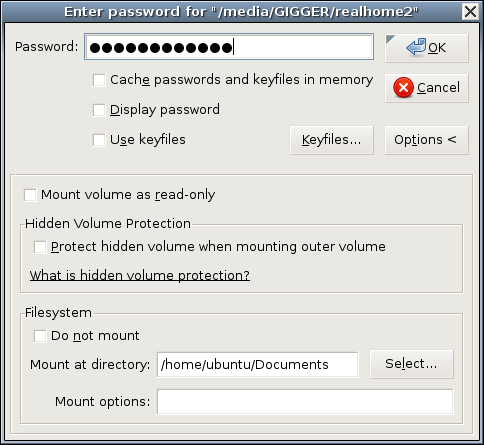
And now, the moment of truth. To use your encrypted TrueCrypt volume with an Ubuntu live CD, such as the one we modified last month, simply boot a system off that CD; insert the USB drive; execute the truecrypt binary from the USB drive or from the CD, if you installed TrueCrypt on your custom image; and mount your encrypted volume, specifying a mountpoint of /home/ubuntu/Documents (Figure 4).

Figure 4. Mounting Your Volume on /home/ubuntu/Documents

If TrueCrypt prompts you for an administrative password, leave it blank and click OK. By default, the ubuntu account on Ubuntu CDs has no password.

This brings me to the topic of next month's column: further securing and customizing your encrypted-Documents-enabled live CD image. Until then, be safe!

Mick Bauer (darth.elmo@wiremonkeys.org) is Network Security Architect for one of the US's largest banks. He is the author of the O'Reilly book Linux Server Security, 2nd edition (formerly called Building Secure Servers With Linux), an occasional presenter at information security conferences and composer of the “Network Engineering Polka”.


Taken From: Linux Journal, nº 170 2008 - Paranoid Penguin - Customizing Linux Live CDs, Part II, by Mick Bauer

Thursday, August 2, 2007

Tunelling P2P (Bitorrent) Over SSH

Have you ever been on a network somewhere where Bittorrent simply doesn’t work? The ports might be blocked, the packets are inspected, etc…? Well, after a little research and a buck i’ve managed to come up with a pretty good solution. I’d heard about tunneling content through SSH, but never really figured out how to get it working. That is, until now.

I was really excited my first day at Blue Lava when I heard that they had a 20mbps connection. I was told I could download full Linux ISO’s in ten minutes. Pretty quick. Sadly the ports for Bittorrent were blocked and my downloading spree never began.

Right now I am sitting in a Starbucks right near the south shore of Oahu, Hawaii. I’ve got Azureus open and its downloading at a steady pace of 170kbps, I’ve pretty much maxxed out the connection over here. The funny (or cool) thing is, the ports are blocked! So how can you bypass your corporate firewall or public hotspot (like Starbucks T-Mobile WiFi) and work out your download muscle? Read on!

First of all, you are going to need some sort of shell account to tunnel everything through. I’ve already tried using my Silenceisdefeat account, but their SSH server is not configured the way that we want it, so that won’t work. A friend of mine told me about Disflux, a service almost exactly like Silenceisdefeat. Disflux has their SSH servers configured the way we want em though, so that is what we are going to use.

UPDATE: Turns out that Disflux died or something. But! Don’t flip out! As it turns out (Thanks Chris! - #19) Silenceisdefeat.org, which is my choice of shell anyway, does work with this guide. However, it will only work if you connect to ssh.silenceisdefeat.org!

So I shelled out the $1 for my disflux Silenceisdefeat.org shell account (I actually already had one, best thing ever), and went on my merry way figuring out how to configure everything else. Some may think that paying for something like this is nuts, but honestly, Bittorrent has become a part of my everyday life, I depend on it like a crack addict depends on his crack. One buck is totally worth the hours of glee BitTorrent has to offer.

First thing you need to do after buying your shell account is open up a terminal (in OSX its in the Utilities folder), or download putty if you’re on Windows. If you are on Linux and don’t know how to open a terminal I feel sorry for you.

In the terminal type “ssh username@domain -D portnumber”, this goes for OSX and Linux. Now, with PuTTY on Windows I am not quite sure how to go about doing this. I am pretty sure you would just type “-D portnumber” into a extra flags option box or something, but I am really not quite sure. Edit: Scroll down for Eberth’s Windows guide! Or you lazy people can clicky.

For example, I use: “ssh whalesalad@ssh.silenceisdefeat.org -D 7777″. You can use any port you want, but make sure it isn’t being used by anything else. I happen to like the number 7777 so thats what I chose.

Screenshot_3.png

NOTE: In the screenshots Disflux is used, simply replace shelly.disflux.com with ssh.silenceisdefeat.org after creating an account and you will have no problems!

Now, what does this do? This has your open SSH session act as a SOCKS proxy. This is what we are going to have Azureus or any other bittorrent client of choice use.

-----------------------------------------------------------------------------------------------------------------------
In detail the -D [bind_address:]port option does the following:

Specifies a local “dynamic” application-level port forwarding.
This works by allocating a socket to listen to port on the local
side, optionally bound to the specified bind_address. Whenever a
connection is made to this port, the connection is forwarded over
the secure channel, and the application protocol is then used to
determine where to connect to from the remote machine. Currently
the SOCKS4 and SOCKS5 protocols are supported, and ssh will act
as a SOCKS server. Only root can forward privileged ports.
Dynamic port forwardings can also be specified in the configura‐
tion file.

----------------------------------------------------------------------------------------------------------------------------


Once that terminal is open, just minimize or hide it, but leave it open. The proxy will only work if that terminal is open and connected, so try not to fiddle with it.

Now we have to configure our BitTorrent client of choice. I recently “switched” to OSX and am using Azureus, but if I had my way I would be using the greatest client ever: uTorrent. Because I can’t get the internet working in Paralells at the moment I can’t help explain how to configure uTorrent, but here is what you need to do to get Azureus up and running with our newly created SOCKS proxy.

First of all you need to enable the Advanced options area of Azureus. You can do this by re-running (or running if this is your first time using Azureus) the configuration wizard. On OSX this is under the Azureus menu, I’m not quite sure where it is on Windows (=P). Choose the advanced user option, this will let us configure Azureus to use proxies. Once this is done, open up the preferences area of Azureus.

Screenshot_4.png

From there open up the “Connection” sub items and then the “Proxy Options”. From there, check the “Enable proxying of tracker communications” and “I have a SOCKS proxy”. In the host field enter “localhost” and in the port field enter whatever number you used to start the proxy, for me thats “7777″.

Save your options and thats it! Now you should be able to head to any one of the online tracker websites and download away! Legal files of course, we don’t encourage piracy or stealing here at the salad. Make sure to leave comments if it works for you, and any other tips or tidbits you’d like to share!


Edit: For all you windows users out there, Eberth made a comment below on how to get this working. He did such a good job, I’m going to include it right here in my guide.

First you need to get PuTTY. It’s a great client, back when I used Windows it was my SSH client of choice. You can find a direct link to PuTTy here.

Open up PuTTY and enter shelly.disflux.com into the host field.

Go to Connection > SSH > Tunnels, and write your port on the source port field (in this case i’m using the same as Michael, 7777) and select the “Dynamic” checkbox, click the add button.

I’d reccomend what Eberth explains in his comment, which would be to save your session so that next time you can just fire up PuTTY and double click your saved session to reload the same settings. Enter a name for the saved session and click save, its as easy as pie!

Now you’ve got your SOCKS proxy running, time to fire up your favorite BitTorrent client. Azureus users can use the same configuration that I have above, but if you’re smart you’re going to be using uTorrent. Here is a screenshot of the way Eberth configured his client:

Thanks Eberth!


Based on: http://www.whalesalad.com/2006/08/27/tunneling-bittorrent-over-ssh/