Showing posts with label monitoring. Show all posts

Tuesday, May 5, 2015

Cisco / Linux - Decapsulating Cisco ERSPAN With Linux

Decapsulation ERSPAN Traffic With Open Source Tools

Posted on May 3, 2015 by Radovan Brezula

Cisco Encapsulated Remote SPAN (ERSPAN) feature allows to monitor traffic on one or more ports and send the monitored traffic to one or more destination ports.  Traffic is encapsulated into GRE tunnel and routed via network to ERSPAN destination. Any device that supports ERSPAN can be used as ERSPAN destination. It might be another Cisco device or Linux with installed software that can decapsulate GRE traffic.

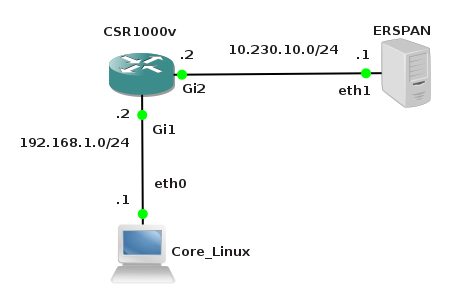
The goal of this article is to show methods and tools for decapsulation of  ERSPAN traffic. For this purpose I have built simple lab that consists of a Cisco CSR 1000v router and two Linux boxes. Core Linux represents a network host and generates network traffic (ICMP) that is going to be monitored. It is connected to the port GigabitEthernet1 of the Cisco router. The router is configured to monitor traffic on the port Gi1 and it sends traffic encapsulated in GRE tunneling protocol to IP address 10.230.10.1. It is the IP address of the ERSPAN destination configured on Linux  Security Union. Security Onion is a unique Linux distro for intrusion detection, network security monitoring, and log management based on Ubuntu however any other Linux distro can be used.

clip_image001

Picture 1 - ERSPAN Lab Topology

Below is an example of ERSPAN configuration on the CSR 1000v router. This is the source ERSPAN type and with configured rspan_id 1. The interface Gi1 is being monitored and the GRE traffic is sent to ERSPAN destination address IP 10.230.10.1.

CSR1000v# show running-config | b monitor
monitor session 1 type erspan-source
description ERSPAN to 10.230.10.1
source interface Gi1
destination
erspan-id 1
mtu 1464
ip address 10.230.10.1
origin ip address 10.230.10.2

Capturing ERSPAN Traffic with Wireshark

We are going to capture and analyze ERSPAN traffic with Wireshark packet sniffer. First configure IP address 10.230.10.1 on interface eth1 of the Linux Security Onion.

janosik@onion:~$ sudo su
root@onion# ip address add 10.230.10.1/24 dev eth1

Now use Wireshark to capture GRE traffic on Security Onion on its interface eth1 and ping the router IP address 192.168.1.2 from the Linux Core host (IP 192.168.1.1). If the source ERSPAN is properly configured on router, packets from the subnet 192.168.1.0/24 should appear in Wireshark output.

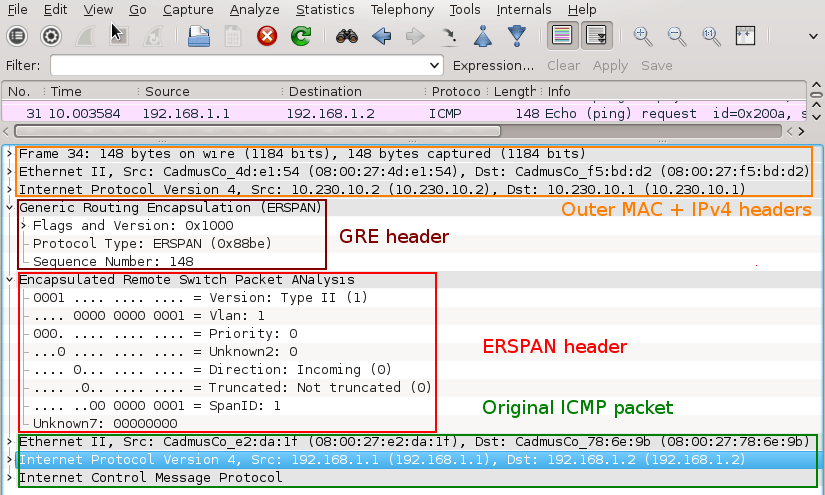
A closer look at the picture below reveals that the original packet ICMP packet (MAC header, IPv4 header and ICMP header) is now encapsulated as following.

MAC header + IPv4 header (10.230.10.2, 10.230.10.1) + GRE header (Protocol type ERSPAN) + ERPAN header + (original packet)

clip_image002

Picture 2 - Encapsulated GRE Traffic Captured on Interface Eth1

An original ICMP packet is encapsulated into GRE tunnel and the new outer MAC and IPv4 + GRE + ERSPAN headers are added to original packets. It allows encapsulated traffic to be forwarded through network to ERSPAN destination. However if we want software application such as IPS/IDS to analyze encapsulated packets, the outer L2 and L3 headers must be striped from packet. This can be done with tools such as RCDCAP  which dissects packets from GRE tunnel.


Configuring GRE tunnel on ERSPAN Destination Device

If for some reason we do not want to install special software that dissects packets from GRE tunnel we can configure GRE tunnel on ERSPAN destination (Linux Security Onion) and let IDS to listen on a tunneled interface. Thanks to this configuration the outer MAC and IPv4 headers are stripped and do no appear in Wireshark output.

a) Load gre module to kernel

janosik@onion:~$ sudo su
root@onion# modprobe ip_gre

b) Choose receiving interface and assign IPv4 to it

root@onion# ip addr add 10.230.10.1/24 dev eth1

Set the MTU of the network interface that receives GRE packets larger than 1500 e.g. to 1900.  Otherwise we are going to miss some bytes in larger packets.

root@onion# ip link set dev eth1 mtu 1900

c) Create virtual tunnel interface and associate it with IP previously configured on eth1 interface

root@onion# ip tunnel add mon0 mode gre local 10.230.10.1 ttl 8

d) Add IP address to interface mon0 which is not used for anything

root@onion# ip addr add 1.1.1.1/30 dev mon0

e) Change the state of mon0 device to up

root@onion# ip link set mon0 up

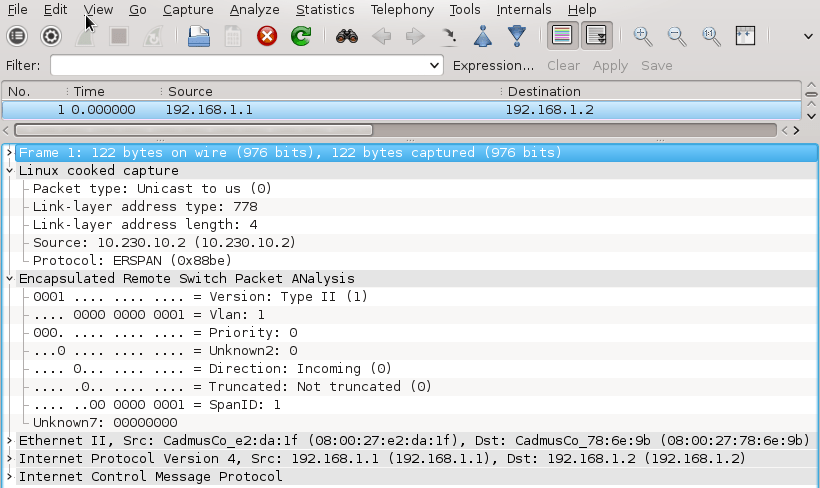
Again, generate some traffic in the subnet 192.168.1.0/24 and configure Wireshark to listen on interface mon0. Notice that the outer MAC and Ipv4 header are now stripped from the ICMP packet.

clip_image003

Picture 3 - Decapsulated Traffic Captured on Interface Eth1

Using RCDCAP for Decapsulating ERSPAN Traffic

RCDCAP is wrapper program that dissects the traffic and creates a virtual interface where the traffic is already decapsulated. I've compiled it from the source and created the Ubuntu package RCDCap-0.7.99-Linux for Ubuntu 15.04. Be aware that additional packages are needed to get it working.

janosik@onion:~$ sudo su
root@onion# apt-get install libboost-regex1.55.0

Use apt-get to install the packages below. If they are not available in a repository  download them from here and install manually with dpkg -i command.

  • libboost-program-options1.48.0_1.48.0-3_amd64.deb
  • libboost-thread1.48.0_1.48.0-3_amd64.deb
  • libboost-system1.48.0_1.48.0-3_amd64.deb

root@onion# dpkg -i libboost-program-options1.48.0_1.48.0-3_amd64.deb libboost-thread1.48.0_1.48.0-3_amd64.deb libboost-system1.48.0_1.48.0-3_amd64.deb

Now we can install RCDCAP with the command.

root@onion# dpkg -i RCDCap-0.7.99-Linux.deb

Once RCDCAP is installed configure interface eth1 to prepare for capturing.

janosik@onion:~$ sudo su
root@onion# ip addr add dev eth1 10.230.10.1/24
root@onion# ip link set dev eth1 mtu 1900
root@onion# ip link set dev eth1 up

Start RCDCAP with the command below and let Wireshark to listen on interface mon1.

root@onion# rcdcap -i eth1 --erspan --tap-persist --tap-device mon1 --expression "host 10.230.10.1"

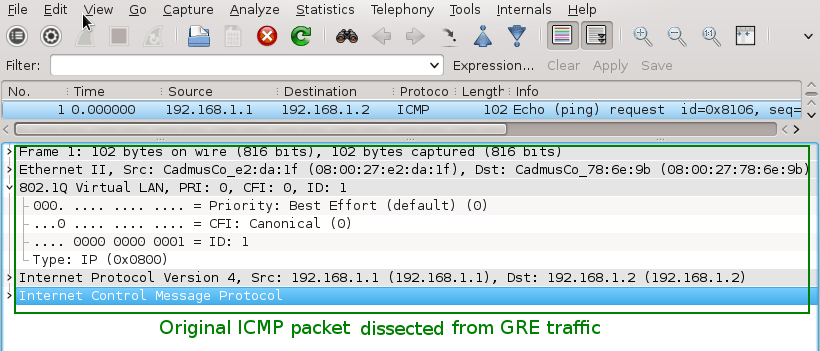
We can see that RCDCAP have dissected monitored traffic from GRE and only original MAC + IPv4 + ICMP headers and pyaload are presented in Wireshark output.

clip_image004

Picture 4 - Decapsulated Traffic Captured on Interface Mon1

Reference:

Taken From: http://brezular.com/2015/05/03/decapsulation-erspan-traffic-with-open-source-tools/

Saturday, March 1, 2014

ZenOss Core 4 – Installation

Zenoss Core 4 Installation
clip_image001

[1/24/2014: Post has been updated to reflect configuration with CentOS 6.5 and Zenoss Core 4.2.4
This is a sample installation guide for Zenoss Core 4. The single server installation closely aligns with the official Zenoss Core Installation Guide, but it also differs in some areas, and has a little more "glue".
The following components were used for this guide:

· CentOS

· Zenoss Core

· MariaDB

1. Hardware Requirements
You should meet these minimum hardware requirements for a single-server installation of Zenoss 4 Core (up to a 1000 devices):

Deployment Size

Memory

CPU

Storage

1 to 250 devices

4GB

2 cores

1 x 300GB (10K RPM or SSD)

250 to 500 devices

8GB

4 cores

1 x 300GB (10K RPM or SSD)

500 to 1000 devices

16GB

8 cores

1 x 300GB (15K RPM or SSD)

2. Operating System
My solution will be using the CentOS-6.5-x86_64-minimal.iso image. The aim of this image is to install a very basic CentOS 6.5 system, with the minimum number of packages needed to have a functional system. This post won't document the install process for CentOS 6 considering each environment (and associated requirements) is different. The main stages of the OS installation consist of language, storage, hostname, network, timezone, and the root password. 
Note: All commands are run within the context of the root account unless otherwise specified.
Make sure to update the system after the initial boot post install.

# yum -y update

I also install the following packages that are not included by default.

# yum -y install file ntp vim-enhanced man man-pages wget traceroute yum-utils

# hosts file
It's recommended to add a hostname entry (FQDN and short), of the local computer, to the hosts file. You can update the entry manually (via text editor), or run the following set of commands:

# ipv4addr=$(ip -f inet addr show dev eth0 | sed -n 's/^ *inet *\([.0-9]*\).*/\1/p')

# printf "$ipv4addr\t$(hostname -f)\t$(hostname -s)\n" >> /etc/hosts

# unset -v ipv4addr

Verify the entry.

# cat /etc/hosts

127.0.0.1 localhost localhost.localdomain localhost4 localhost4.localdomain4

::1 localhost localhost.localdomain localhost6 localhost6.localdomain6

10.1.206.43 zenoss.corp.example.com zenoss

# SELinux
Zenoss documentation states the requirement that SELinux be disabled. We can accomplish this by changing the SELINUX value to disabled in the /etc/sysconfig/selinux file. Modify the file with your text editor.

# vim /etc/sysconfig/selinux

# This file controls the state of SELinux on the system.

# SELINUX= can take one of these three values:

# enforcing - SELinux security policy is enforced.

# permissive - SELinux prints warnings instead of enforcing.

# disabled - No SELinux policy is loaded.

SELINUX=disabled

# SELINUXTYPE= can take one of these two values:

# targeted - Targeted processes are protected,

# mls - Multi Level Security protection.

SELINUXTYPE=targeted

Reboot the computer for the change to take effect.
After logging in after the reboot, verify SELinux is disabled. Run the following command:

# sestatus

SELinux status: disabled

# Network Time Protocol (NTP)
Time synchronization is an often overlooked, but a very essential, configuration step for new server deployments. In my configuration, I will have my zenoss server sync with an Active Directory domain controller (which holds the PDC emulator FSMO role) on my private network. We will need to modify the ntp.conf file with a text editor and start the NTP daemon process, and also set it for autostart at boot time. Notice I "comment out" the default public pool.ntp.org virtual cluster servers. You may want to leave these enabled if you don't have a particular time source to sync with.

# vim /etc/ntp.conf

...

# Permit all access over the loopback interface. This could

# be tightened as well, but to do so would effect some of

# the administrative functions.

restrict 127.0.0.1

restrict -6 ::1

# Hosts on local network are less restricted.

#restrict 192.168.1.0 mask 255.255.255.0 nomodify notrap

# Use public servers from the pool.ntp.org project.

# Please consider joining the pool (http://www.pool.ntp.org/join.html).

#server 0.centos.pool.ntp.org

#server 1.centos.pool.ntp.org

#server 2.centos.pool.ntp.org

# Use internal NTP Server (AD/DC01)

server 10.1.206.11 iburst

#broadcast 192.168.1.255 autokey # broadcast server

#broadcastclient # broadcast client

#broadcast 224.0.1.1 autokey # multicast server

#multicastclient 224.0.1.1 # multicast client

#manycastserver 239.255.254.254 # manycast server

#manycastclient 239.255.254.254 autokey # manycast client

...

Start the NTP daemon.

# service ntpd start

Starting ntpd: [ OK ]

Set the NTP daemon for autostart at boot time and verify.

# chkconfig ntpd on; chkconfig --list ntpd

ntpd 0:off 1:off 2:on 3:on 4:on 5:on 6:off

We can verify the NTP status by running the following command:

# ntpq -pn

remote refid st t when poll reach delay offset jitter

=================================================

*10.1.206.11 199.180.253.191 3 u 42 64 377 0.429 -69.204 58.561

# Firewall
Zenoss requires the following ports be open on the host firewall:

Port

Protocol

Direction

Description

11211

TCP/UDP

inbound

memcached

8080

TCP

inbound

Web interface

514

UDP

inbound

syslog

162

UDP

inbound

SNMP Traps

25

TCP

inbound

zenmail

Add the rules. It is recommended to add each rule with the iptables command, but I prefer to modify the /etc/sysconfig/iptables file directly with a text editor.

# vim /etc/sysconfig/iptables

# Firewall configuration written by system-config-firewall

# Manual customization of this file is not recommended.

*filter

:INPUT ACCEPT [0:0]

:FORWARD ACCEPT [0:0]

:OUTPUT ACCEPT [0:0]

-A INPUT -m state --state ESTABLISHED,RELATED -j ACCEPT

-A INPUT -p icmp -j ACCEPT

-A INPUT -i lo -j ACCEPT

-A INPUT -m state --state NEW -m tcp -p tcp --dport 22 -j ACCEPT

-A INPUT -m state --state NEW -m tcp -p tcp --dport 11211 -j ACCEPT

-A INPUT -m state --state NEW -m udp -p udp --dport 11211 -j ACCEPT

-A INPUT -m state --state NEW -m tcp -p tcp --dport 8080 -j ACCEPT

-A INPUT -m state --state NEW -m udp -p udp --dport 514 -j ACCEPT

-A INPUT -m state --state NEW -m udp -p udp --dport 162 -j ACCEPT

-A INPUT -m state --state NEW -m tcp -p tcp --dport 25 -j ACCEPT

-A INPUT -j REJECT --reject-with icmp-host-prohibited

-A FORWARD -j REJECT --reject-with icmp-host-prohibited

COMMIT

Restart the firewall service for the changes to take effect.

# service iptables restart

iptables: Flushing firewall rules: [ OK ]

iptables: Setting chains to policy ACCEPT: filter [ OK ]

iptables: Unloading modules: [ OK ]

iptables: Applying firewall rules: [ OK ]

# Oracle Java 6
From a client computer, browse to Oracle's Java Downloads and grab the latest Java Version 6 Linux x64 RPM file.
Transfer the file to the Zenoss server. The command/utility will vary depending on what client OS you're using. I recommend WinSCP or PSCP if using a Windows client. From a Linux or Mac OS X client, we can use the scp command. The following command will copy the file to root's home directory on the destination Zenoss server:

$ scp jre-6u45-linux-x64-rpm.bin root@10.1.206.43:

Back in our terminal for the Zenoss server, we now need to make the binary file executable.

# cd ~

# chmod u+x ./jre-6u45-linux-x64-rpm.bin

Install the Oracle Java Runtime Environment (JRE).

# ./jre-6u45-linux-x64-rpm.bin

Unpacking...

Checksumming...

Extracting...

UnZipSFX 5.50 of 17 February 2002, by Info-ZIP (Zip-Bugs@lists.wku.edu).

inflating: jre-6u45-linux-amd64.rpm

Preparing... ########################################### [100%]

1:jre ########################################### [100%]

Unpacking JAR files...

rt.jar...

jsse.jar...

charsets.jar...

localedata.jar...

plugin.jar...

javaws.jar...

deploy.jar...

Done.

Add the JAVA_HOME variable statement to the end of the system BASH profile file.

# echo 'export JAVA_HOME=/usr/java/default' >> /etc/profile

"Dot" source the system BASH profile file to add the JAVA_HOME variable to the current shell environment.

# . /etc/profile

Verify the variable is set and that Java is installed correctly.

# echo $JAVA_HOME

/usr/java/default

# java -version

java version "1.6.0_45"

Java(TM) SE Runtime Environment (build 1.6.0_45-b06)

Java HotSpot(TM) 64-Bit Server VM (build 20.45-b01, mixed mode)

3. Database
My solution diverges from the official Zenoss documentation. I prefer to deploy MariaDB instead of the standard MySQL server. MariaDB is an enhanced, drop-in replacement for MySQL. Visit theMariaDB website for more information.
Let's first add the MariaDB repo to our local YUM configuration.

# cat >> /etc/yum.repos.d/MariaDB.repo << EOF

> [mariadb]

> name = MariaDB

> baseurl = http://yum.mariadb.org/5.5/centos6-amd64

> gpgkey=https://yum.mariadb.org/RPM-GPG-KEY-MariaDB

> gpgcheck=1

> EOF

Verify.

# cat /etc/yum.repos.d/MariaDB.repo

[mariadb]

name = MariaDB

baseurl = http://yum.mariadb.org/5.5/centos6-amd64

gpgkey=https://yum.mariadb.org/RPM-GPG-KEY-MariaDB

gpgcheck=1

Then also verify the repository is enabled.

# yum repolist

Loaded plugins: fastestmirror

Loading mirror speeds from cached hostfile

* base: mirror.nwresd.org

* extras: mirrordenver.fdcservers.net

* updates: yum.phx.singlehop.com

mariadb | 1.9 kB 00:00

mariadb/primary_db | 15 kB 00:00

repo id repo name status

base CentOS-6 - Base 6,367

extras CentOS-6 - Extras 14

mariadb MariaDB 9

updates CentOS-6 - Updates 373

repolist: 6,763

Let's now install the required packages.

# yum -y install MariaDB-server MariaDB-client

After MariaDB has been installed, modify the MariaDB server.cnf configuration file with some recommended settings from Zenoss.

# vim /etc/my.cnf.d/server.cnf

...

# this is read by the standalone daemon and embedded servers

[server]

# this is only for the mysqld standalone daemon

[mysqld]

max_allowed_packet=16M

innodb_buffer_pool_size=256M

innodb_additional_mem_pool_size=20M

# this is only for embedded server

[embedded]

...

Start the MariaDB server.

# service mysql start

Starting MySQL.. SUCCESS!

Verify MariaDB is set for autostart at boot.

# chkconfig --list mysql

mysql 0:off 1:off 2:on 3:on 4:on 5:on 6:off

4. Zenoss Core
From a client computer, browse to the Zenoss Core site and grab the latest Zenoss Core 4 RPM package for RHEL/CentOS 6 64-bit (v4.2.4 at the date of this post).
Transfer the file to the Zenoss server. The command/utility will vary depending on what client OS you're using. I recommend WinSCP or PSCP if using a Windows client. From a Linux or Mac OS X client, we can use the scp command. The following command will copy the file to root's home directory on the destination Zenoss server:

$ scp zenoss_core-4.2.4-1897.el6.x86_64.rpm root@10.1.206.43:

Back in our terminal for the Zenoss server, install the Zenoss dependencies repositories.

# rpm -Uvh http://deps.zenoss.com/yum/zenossdeps-4.2.x-1.el6.noarch.rpm

Retrieving http://deps.zenoss.com/yum/zenossdeps-4.2.x-1.el6.noarch.rpm

Preparing... ########################################### [100%]

1:zenossdeps ########################################### [100%]

Verify the repositories are enabled.

# yum repolist

Loaded plugins: fastestmirror

Loading mirror speeds from cached hostfile

* base: mirror.nwresd.org

* extras: mirrordenver.fdcservers.net

* updates: yum.phx.singlehop.com

repo id repo name status

base CentOS-6 - Base 6,367

extras CentOS-6 - Extras 14

mariadb MariaDB 9

updates CentOS-6 - Updates 373

zenossdeps-repo Zenoss Dependencies - Base 18

zenossdeps-update-repo Zenoss Dependencies - Updates 0

repolist: 6,781

It's now time to install the Zenoss Core 4 package (and dependency packages).

# cd ~

# yum -y --nogpgcheck localinstall zenoss_core-4.2.4-1897.el6.x86_64.rpm

# memcached, rabbitmq-server, snmpd
Set the services to start automatically at boot, and also interactively start them.

# for svc in memcached rabbitmq-server snmpd; do chkconfig $svc on; service $svc start; done

# Start Zenoss
Run the following command to start Zenoss:

# service zenoss start

At this stage, Zenoss should be ready from a functional perspective. We now need to focus on securing the Zenoss server. 
5. Post-Install
The auto-deploy script offered by Zenoss runs a separate script that secures your Zenoss installation. Since we chose to do a normal install, we will have to manually fetch (and execute) the script. 
Switch to a login shell for the zenoss user.

# su -l zenoss

Verify the zenoss user shell. As a side note, that's an "interesting" UID number for the zenoss user. :-)

$ id

uid=1337(zenoss) gid=500(zenoss) groups=500(zenoss)

Download the secure_zenoss.sh file from GitHub.

$ wget --no-check-certificate https://raw.github.com/osu-sig/zenoss-autodeploy-4.2.3/master/secure_zenoss.sh

Before we run the script, let's get the default passwords for the zenoss user in the global.conf file.

$ egrep 'user|password' $ZENHOME/etc/global.conf | grep -v admin

zodb-user zenoss

zodb-password zenoss

amqpuser zenoss

amqppassword zenoss

zep-user zenoss

zep-password zenoss

Give the secure_zenoss.sh script the execute permission.

$ chmod u+x secure_zenoss.sh

Run the secure_zenoss.sh script. I opted not to change the MySQL (MariaDB) root password at this time. We will be performing that task in the next section.

$ ./secure_zenoss.sh

Restricting permissions on /opt/zenoss/etc/*.conf*

Assigning secure password for global.conf:zodb-password

Assigning secure password for global.conf:amqppassword

Assigning secure password for global.conf:zep-password

Assigning secure password for global.conf:hubpassword

Assigning secure password for hubpassword:admin

MySQL is configured with a blank root password.

Configure a secure MySQL root password? [Yn]: n

Forcing zeneventserver to only listen on 127.0.0.1:8084

Let's verify the passwords have been modified for the zenoss user in the global.conf file.

$ egrep 'user|password' $ZENHOME/etc/global.conf | grep -v admin

zodb-user zenoss

zodb-password 18zmcTgYsA+AjczljwQd

amqpuser zenoss

amqppassword 18zmcTgYsA+AjczljwQd

zep-user zenoss

zep-password 18zmcTgYsA+AjczljwQd

hubpassword 18zmcTgYsA+AjczljwQd

We will also need to modify the password in the zodb_db_main.conf and zodb_db_session.conf files to match the value set for the zodb-password property in the global.conf file. 
First, get the current configuration of these two files.

$ tail -n +1 $ZENHOME/etc/zodb_db_{main,session}.conf

==> /opt/zenoss/etc/zodb_db_main.conf <==

<mysql>

host localhost

port 3306

user zenoss

passwd zenoss

db zodb

</mysql>

==> /opt/zenoss/etc/zodb_db_session.conf <==

<mysql>

host localhost

port 3306

user zenoss

passwd zenoss

db zodb_session

</mysql>

Run the following commands to perform a substitution of the passwd property value for each of the files:

$ zodbpw=$(grep zodb-password $ZENHOME/etc/global.conf | awk '{print $2}')

$ sed -i.orig "5s/zenoss/$zodbpw/" $ZENHOME/etc/zodb_db_{main,session}.conf

$ unset -v zodbpw

Verify the modification was successful.

$ tail -n +1 $ZENHOME/etc/zodb_db_{main,session}.conf

==> /opt/zenoss/etc/zodb_db_main.conf <==

<mysql>

host localhost

port 3306

user zenoss

passwd 18zmcTgYsA+AjczljwQd

db zodb

</mysql>

==> /opt/zenoss/etc/zodb_db_session.conf <==

<mysql>

host localhost

port 3306

user zenoss

passwd 18zmcTgYsA+AjczljwQd

db zodb_session

</mysql>

Exit out of the shell for the zenoss user to return to the root user shell.

$ exit

logout

# MariaDB
The interactive mysql_secure_installation command improves the security of your MariaDB installation. It will allow you to set your MariaDB (MySQL) root password as well as other security related operations.

# mysql_secure_installation

The password for the MariaDB database zenoss user will also need to be set to "sync up" with the previous password modifications. We will use the value set for the passwd property in thezodb_db_* config files.

# mysql -u root -p

Enter password: <mysql_root_password>

Welcome to the MariaDB monitor. Commands end with ; or \g.

Your MariaDB connection id is 234

Server version: 5.5.34-MariaDB MariaDB Server

Copyright (c) 2000, 2013, Oracle, Monty Program Ab and others.

Type 'help;' or '\h' for help. Type '\c' to clear the current input statement.

MariaDB [(none)]> SET PASSWORD FOR 'zenoss'@'localhost' = PASSWORD('18zmcTgYsA+AjczljwQd');

Query OK, 0 rows affected (0.00 sec)

MariaDB [(none)]> \q

Bye

Restart the MariaDB server.

# service mysql restart

Shutting down MySQL. SUCCESS!

Starting MySQL.. SUCCESS!

# RabbitMQ
The following script will ensure the proper Zenoss credentials/permissions are set for the AMQP entities. 
Create the set-rabbitmq-perms.sh script file.

# vim set-rabbitmq-perms.sh

Enter the following information (exclude the line numbers), then save the file:

001 002 003 004 005 006 007 008 009 010 011 012 013 014 015 016 017 018 019 020 021 022 023 024 025

#!/usr/bin/env bash set -e VHOSTS="/zenoss" USER="zenoss" PASS="grep amqppassword \$ZENHOME/etc/global.conf | awk '{print \$2}'" if [ $(id -u) -eq 0 ] then RABBITMQCTL=$(which rabbitmqctl) $RABBITMQCTL stop_app $RABBITMQCTL reset $RABBITMQCTL start_app $RABBITMQCTL add_user "$USER" "$(su -l zenoss -c "$PASS")" for vhost in $VHOSTS; do $RABBITMQCTL add_vhost "$vhost" $RABBITMQCTL set_permissions -p "$vhost" "$USER" '.*' '.*' '.*' done exit 0 else echo "Error: Run this script as the root user." >&2 exit 1 fi

Give the script file the execute permission.

# chmod u+x set-rabbitmq-perms.sh

Run the script.

# ./set-rabbitmq-perms.sh

Stopping node rabbit@zenoss ...

...done.

Resetting node rabbit@zenoss ...

...done.

Starting node rabbit@zenoss ...

...done.

Creating user "zenoss" ...

...done.

Creating vhost "/zenoss" ...

...done.

Setting permissions for user "zenoss" in vhost "/zenoss" ...

...done.

Restart the rabbitmq-server daemon.

# service rabbitmq-server restart

Restarting rabbitmq-server: SUCCESS

rabbitmq-server.

Restart Zenoss.

# service zenoss restart

# Verification
Verify all Zenoss daemons are running.

# su -l zenoss -c 'zenoss status'

Daemon: zeneventserver program running; pid=10564

Daemon: zopectl program running; pid=10662

Daemon: zenrrdcached program running; pid=10667

Daemon: zenhub program running; pid=10730

Daemon: zenjobs program running; pid=10777

Daemon: zeneventd program running; pid=10831

Daemon: zenping program running; pid=10907

Daemon: zensyslog program running; pid=11035

Daemon: zenstatus program running; pid=11026

Daemon: zenactiond program running; pid=11064

Daemon: zentrap program running; pid=11185

Daemon: zenmodeler program running; pid=11196

Daemon: zenperfsnmp program running; pid=11222

Daemon: zencommand program running; pid=11254

Daemon: zenprocess program running; pid=11282

Daemon: zredis program running; pid=11283

Daemon: zenjmx program running; pid=11410

Daemon: zenwin program running; pid=11600

Daemon: zenwinperf program running; pid=11758

Daemon: zeneventlog program running; pid=11910

If the proper permissions have been set for the RabbitMQ zenoss vhost(s), then the following queues should be listed:

# rabbitmqctl -p /zenoss list_queues

Listing queues ...

celery 0

zenoss.queues.zep.migrated.summary 0

zenoss.queues.zep.migrated.archive 0

zenoss.corp.example.com.celeryd.pidbox 0

zenoss.queues.zep.rawevents 0

zenoss.queues.zep.heartbeats 0

zenoss.queues.zep.zenevents 0

zenoss.queues.zep.signal 0

zenoss.queues.zep.modelchange 0

...done.

6. Web Interface Setup Wizard
After the preceding steps have been completed, you are ready to start the Setup Wizard for the initial configuration of customizing Zenoss for your environment. On your client computer, open a web browser and type http://zenoss.corp.example.com:8080 (or http://10.1.206.43:8080) in the address field.

Taken From: http://binarynature.blogspot.pt/2012/11/zenoss-core-4-installation.html
Wednesday, August 4, 2010

System Administration - Overview

Taming the Beast

From Issue #191
March 2010

The right plan can determine the difference between a large-scale system administration nightmare and a good night's sleep for you and your sysadmin team.

As the appetite for raw computing power continues to grow, so do the challenges associated with managing large numbers of systems, both physical and virtual. Private industry, government and scientific research organizations are leveraging larger and larger Linux environments for everything from high-energy physics data analysis to cloud computing. Clusters containing hundreds or even thousands of systems are becoming commonplace. System administrators are finding that the old way of doing things no longer works when confronted with massive Linux deployments. We are forced to rethink common tasks because the tools and strategies that served us well in the past are now crushed by an army of penguins. As someone who has worked in scientific computing for the past nine years, I know that large-scale system administration can at times be a nightmarish endeavor, but for those brave enough to tame the monster, it can be a hugely rewarding and satisfying experience.

People often ask me, “How is your department able to manage so many machines with such a small number of sysadmins?” The answer is that my basic philosophy of large-scale system administration is “keep things simple”. Complexity is the enemy. It almost always means more system management overhead and more failures. It's fairly straightforward for a single experienced Linux sysadmin to single-handedly manage a cluster of a thousand machines, as long as all of the systems are identical (or nearly identical). Start throwing in one-off servers with custom partitioning or additional NICs, and things start to become more difficult, and the number of sysadmins required to keep things running starts to increase.

An arsenal of weapons in the form of a complete box of system administration tools and techniques is vital if you plan to manage a large Linux environment effectively. In the past, you probably would be forced to roll your own large-scale system administration utilities. The good news is that compared to five or six years ago, many open-source applications now make managing even large clusters relatively straightforward.

Monitoring

System administrators know that monitoring is essential. I think Linux sysadmins especially have a natural tendency to be concerned with every possible aspect of their systems. We love to watch the number of running processes, memory consumption and network throughput on all our machines, but in the world of large-scale system administration, this mindset can be a liability. This is especially true when it comes to alerting. The problem with alerting on every potential hiccup is that you'll either go insane from the constant flood of e-mail and pages, or even worse, you'll start ignoring the alerts. Neither of those situations is desirable. The solution? Configure your monitoring system to alert only on actionable conditions—things that cause an interruption in service. For every monitoring check you enable, ask yourself “What action must be taken if this check triggers an alert?” If the answer is “nothing”, it's probably better not to enable the check.

Monitoring Tools

If you were asked to name the first monitoring application that comes to mind, it probably would be Nagios. Used by just about everyone, Nagios is currently the king of open-source monitoring tools.

Zabbix sports a slick Web interface that is sure to make any manager happy. Zabbix scales well and might be posed to give Nagios a run for its money.

Ganglia is one of those must-have tools for Linux environments of any size. Its strengths include trending and performance monitoring.

I think it's smart to differentiate monitoring further into critical and noncritical alerts. E-mail and pager alerts should be reserved for things that require immediate action—for example, important systems that aren't pingable, full filesystems, degraded RAIDs and so on. Noncritical things, like NIS timeouts, instead should be displayed on a Web page that can be viewed when you get back from lunch. Also consider writing checks that automatically correct whatever condition they are monitoring. Instead of your script sending you an e-mail when Apache dies, why not have it try restarting httpd automatically? If you go the auto-correcting “self-healing” route, I'd recommend logging whatever action your script takes so you can troubleshoot the failure later.

When selecting a monitoring tool in a large environment, you have to think about scalability. I have seen both Zabbix and Nagios used to monitor in excess of 1,500 machines and implement tens of thousands of checks. Even with these tools, you might want to scale horizontally by dividing your machines into logical groups and then running a single monitoring server per group. This will increase complexity, but if done correctly, it will also prevent your monitoring infrastructure from going up in flames.

Configuration Management

In small environments, you can maintain Linux systems successfully without a configuration management tool. This is not the case in large environments. If you plan on running a large number of Linux systems efficiently, I strongly encourage you to consider a configuration management system. There are currently two heavyweights in this area, Cfengine and Puppet. Cfengine is a mature product that has been around for years, and it works well. The new kid on the block is Puppet, a Ruby-based tool that is quickly gaining popularity. Your configuration management tools should, obviously, allow you to add or modify system or application configuration files to a single system or groups of machines. Some examples of files you might want to manage are /etc/fstab, ntpd.conf, httpd.conf or /etc/password. Your tool also should be able to manage symlinks and software packages or any other node attributes that change frequently.

Configuration Management Tools

Cfengine is the grandfather of configuration management systems. The project started in 1993 and continues to be actively developed. Although I personally find some aspects of Cfengine a little clunky, I've been using it successfully for many years.

Puppet is a highly regarded Ruby-based tool that should be considered by anyone considering a configuration management solution.

Regardless of which configuration management tool you use, it's important to implement it early. Managing Linux configurations is something that should be set up as the node is being installed. Retrofitting configuration management on a node that is already in production can be a dangerous endeavor. Imagine pushing out an incorrect fstab or password file, and you get an idea of what can go wrong. Despite the obvious hazards of fat-fingering a configuration management tool, the benefits far outweigh the dangers. Configuration management tools provide a highly effective way of managing Linux systems and can reduce system administration overhead dramatically.

As an added bonus, configuration management systems also can be used as a system backup mechanism of sorts. Granted, you don't want to store large amounts of data in a tool like Cfengine, but in the event of system failure, using a configuration managment tool in conjunction with your node installation tools should allow you to get the system into a known good state in a minimal amount of time.

Provisioning

Provisioning is the process of installing the operating system on a machine and performing basic system configuration. At home, you probably boot your computer from a DVD to install the latest version of your favorite Linux distro. Can you imagine popping a DVD in and out of a data center full of systems? Not appealing. A more efficient approach is to install the OS over the network, and you typically do this with with a combination of PXE and Kickstart. There are numerous tools to assist with large-scale provisioning—Cobbler and Spacewalk are two—but you may prefer to roll your own. Your provisioning tools should be tightly coupled to your configuration management system. The ultimate goal is to be able to sit at your desk, run a couple commands, and see a hundred systems appear on the network a few minutes later, fully configured and ready for production.

Provisioning Tools

Rocks is a Linux distribution with built-in network installation infrastructure. Rocks is great for quickly deploying large clusters of Linux servers though it can be difficult to use in mixed Linux distro environments.

Spacewalk is Red Hat's open-source systems management solution. In addition to provisioning, Spacewalk also offers system monitoring and configuration file management.

Cobbler, part of the Fedora Project, is a lightweight system installation server that works well for installing physical and virtual systems.

Hardware

When it's time to purchase hardware for your new Linux super cluster, there are many things to consider, especially when it comes to choosing a good vendor. When selecting vendors, be sure to understand their support offerings fully. Will they come on-site to troubleshoot issues, or do they expect you to sit for hours on the phone pulling your hair out while they plod through an endless series of troubleshooting scripts? In my experience, the best, most responsive shops have been local whitebox vendors. It doesn't matter which route you go, large corporate or whitebox vendor, but it's important to form a solid business relationship, because you're going to be interacting with each other on a regular basis.

The odds are that old hardware is more likely to fail than newer hardware. In my shop, we typically purchase systems with three-year support contracts and then retire the machines in year four. Sometimes we keep machines around longer and simply discard a system if it experiences any type of failure. This is particularly true in tight budget years.

Purchasing the latest, greatest hardware is always tempting, but I suggest buying widely adopted, field-tested systems. Common hardware usually means better Linux community support. When your network card starts flaking out, you're more likely to find a solution to the problem if 100,000 other Linux users also have the same NIC. In recent years, I've been very happy with the Linux compatibility and affordability of Supermicro systems. If your budget allows, consider purchasing a system with hardware RAID and redundant power supplies to minimize the number of after-hours pages. Spare systems or excess hardware capacity are a must for large shops, because the fact of the matter is regardless of the quality of hardware, systems will fail.

Backups

Rethink backups. More than likely, when confronted with a large Linux deployment, you're going to be dealing with massive amounts of data. Deciding what data to back up requires careful coordination with stakeholders. Communicate with users so they understand backup limitations. Obviously, written policies are a must, but the occasional e-mail reminder is a good idea as well. As a general rule, you want to back up only absolutely essential data, such as home directories, unless requirements dictate otherwise.

Serial Console Access

Although it may seem antiquated, do not underestimate the value of serial console access to your Linux systems. When you find yourself in a situation where you can't access a system via SSH or other remote-access protocol, a good-old serial console potentially could be a lifesaver, particularly if you manage systems in a remote data center. Equally important is the ability to power-cycle a machine remotely. Absolutely nothing is more frustrating than having to drive to the data center at 3am to push the power button on an unresponsive system.

Many hardware devices exist for power-cycling systems remotely. I've had good luck with Avocent and APC products, but your mileage may vary. Going back to our “keep it simple” mantra, no matter what solution you select, try to standardize one particular brand if possible. More than likely, you're going to write a wrapper script around your power-cycling utilities, so you can do things like powercycle node.example.com, and having just a single hardware type keeps implementation more straightforward.

System Administrators

No matter how good your tools are, a solid system administration team is essential to managing any large Linux environment effectively. The number of systems managed by my group has grown from about a dozen Linux nodes eight years ago to roughly 4,000 today. We currently operate with an approximate ratio of 500 Linux servers to every one system administrator, and we do this while maintaining a high level of user satisfaction. This simply wouldn't be possible without a skilled group of individuals.

When hiring new team members, I look for Linux professionals, not enthusiasts. What do I mean by that? Many people might view Linux as a hobby or as a source of entertainment, and that's great! But the people on my team see things a little differently. To them, Linux is an awesomely powerful tool—a giant hammer that can be used to solve massive problems. The professionals on my team are curious and always thinking about more efficient ways of doing things. In my opinion, the best large-scale sysadmin is someone who wants to automate any task that needs to be repeated more than once, and someone who constantly thinks about the big picture, not just the single piece of the puzzle that they happen to be working on. Of course, an intimate knowledge of Linux is mandatory, as is a wide range of other computing skills.

In any large Linux shop, there is going to be a certain amount of mundane, low-level work that needs to be performed on a daily basis: rebooting hung systems, replacing failed hard drives and creating new user accounts. The majority of the time, these routine tasks are better suited to your junior admins, but it's beneficial for more senior people to be involved from time to time as they serve as a fresh set of eyes, potentially identifying areas that can streamlined or automated entirely. Senior admins should focus on improving system management efficiency, solving difficult issues and mentoring other team members.

Conclusion

We've touched a few of the areas that make large-scale Linux system administration challenging. Node installing, configuration management and monitoring are all particularly important, but you still need reliable hardware and great people. Managing a large environment can be nerve-racking at times, but never lose sight of the fact that ultimately, it's just a bunch of Linux boxes.

Jason Allen is CD/SCF/FEF Department Head at Fermi National Accelerator Laboratory, which is managed by Fermi Research Alliance, LLC, under Management and Operating Contract (DE-AC02-07CH11359) with the Department of Energy. He has been working with Linux professionally for the past 12 years and maintains a system administration blog at savvysysadmin.com.


Taken From: http://www.linuxjournal.com/article/10665

Thursday, April 9, 2009

Setting Up a SNMP Server in Ubuntu

What is net-snmp ?

Simple Network Management Protocol (SNMP) is a widely used protocol for monitoring the health and welfare of network equipment (eg. routers), computer equipment and even devices like UPSs. Net-SNMP is a suite of applications used to implement SNMP v1, SNMP v2c and SNMP v3 using both IPv4 and IPv6.

Net-SNMP Tutorials
http://www.net-snmp.org/tutorial/tutorial-5/

Net-SNMP Documentation
http://www.net-snmp.org/docs/readmefiles.html

# Installing SNMP Server in Ubuntu #####

$ sudo apt-get install snmpd


# Configuring SNMP Server #####

/etc/snmp/snmpd.conf - configuration file for the Net-SNMP SNMP agent.

/etc/snmp/snmptrapd.conf - configuration file for the Net-SNMP trap daemon.


Set up the snmp server to allow read access from the other machines in your network for this you need to open the file /etc/snmp/snmpd.conf change the following Configuration and save the file.

$ sudo gedit /etc/snmp/snmpd.conf


snmpd.conf
#---------------------------------------------------------------
######################################
# Map the security name/networks into a community name.
# We will use the security names to create access groups
######################################

# sec.name source community

com2sec my_sn1 localhost my_comnt
com2sec my_sn2 192.168.10.0/24 my_comnt


####################################
# Associate the security name (network/community) to the
# access groups, while indicating the snmp protocol version
####################################

# sec.model sec.name
group MyROGroup v1 my_sn1
group MyROGroup v2c my_sn1
group MyROGroup v1 my_sn2
group MyROGroup v2c my_sn2


group MyRWGroup v1
my_sn1
group MyRWGroup v2c my_sn1
group MyRWGroup v1 my_sn2
group MyRWGroup v2c my_sn2

#######################################
# Create the views on to which the access group will have access,
# we can define these views either by inclusion or exclusion.
# inclusion - you access only that branch of the mib tree
# exclusion - you access all the branches except that one
#######################################

# incl/excl subtree mask (opcional)
view my_vw1 included .1 80
view my_vw2 included .iso.org.dod.internet.mgmt.mib-2.system

#######################################
# Finaly associate the access groups to the views and give them
# read/write access to the views.
#######################################

# context sec.model sec.level match read write notif
access MyROGroup "" any noauth exact my_vw1 none none
access MyRWGroup "" any noauth exact my_vw2 my_vw2 none
# -----------------------------------------------------------------------------


# Give access to other interfaces besides the loopback #####

$ sudo gedit /etc/default/snmpd

find the line:

SNMPDOPTS='-Lsd -Lf /dev/null -u snmp -I -smux -p /var/run/snmpd.pid 127.0.0.1'

and change it to:

SNMPDOPTS='-Lsd -Lf /dev/null -u snmp -I -smux -p /var/run/snmpd.pid'


# Restart snmpd to load de new config #####

$ sudo /etc/init.d/snmpd restart


# Test the SNMP Server #####


$ sudo apt-get install snmp

$
sudo snmpwalk -v 2c -c my_comnt localhost system