Showing posts with label real. Show all posts

Monday, September 11, 2017

Raspberry - Remote Desktop via The Cloud (Real VNC)


Login via SSH

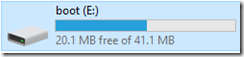
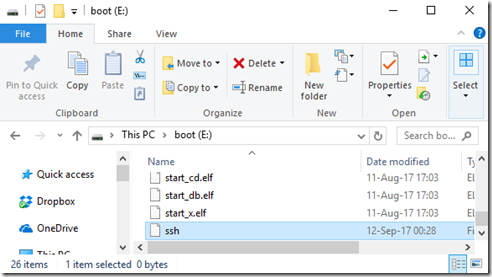
On your PC access the SD card with Raspbian installed:
image

create a file named ssh with no content:
image

this will signal the Raspberry Pi to start the SSH server.

Put the SD card on the raspberry and start it.


Start VNC Server

Now on the cli via SSH:

sudo raspi-config


### ADJUST RESOLUTION ###

7 Advanced Options

A5 Resolution

DTM Mode 16 1024x768 60 Hz 4:3


### ENABLE REAL VNC SERVER ###

Interfacing Options

P3 VNC –Yes  (ENTER TO ENABLE)
    
  Now it will install a bunch of packages


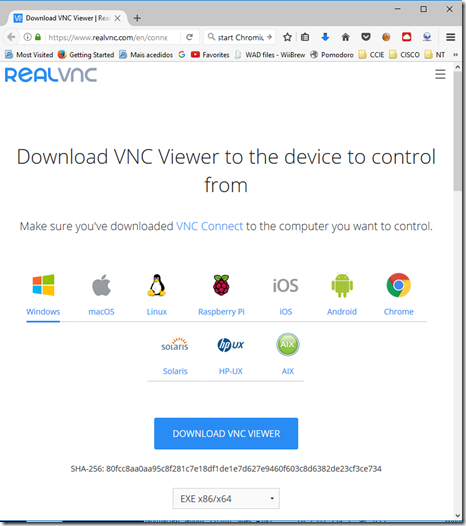
Install the Real VNC Client on a PC

Get the Real VNC Server here:

https://www.realvnc.com/en/connect/download/viewer/
image


Access the Raspberry Pi via VNC

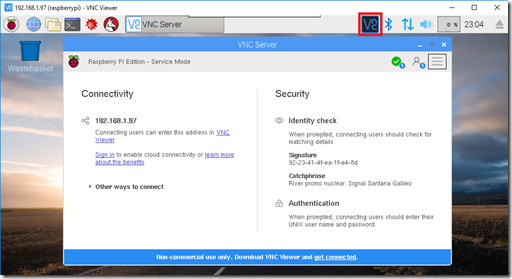
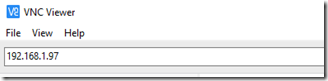
Get the Raspberry PI IP from you router or by connecting a HDMI screen to it:
image

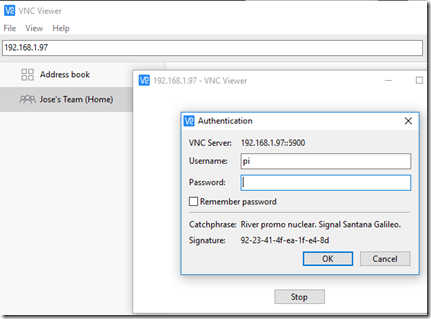
authenticate using a local user and password (the default is: pi / raspberry)
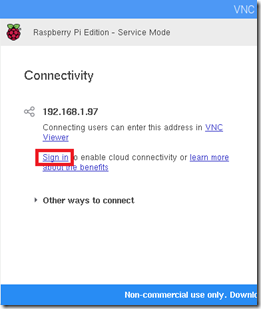
image


image


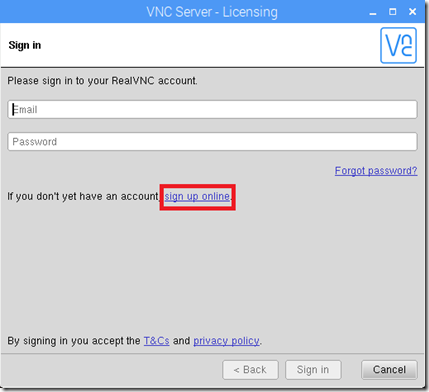
Creating a Cloud Account

image

image

if it does not open a browser, click on this link:

https://www.realvnc.com/en/raspberrypi/#sign-up

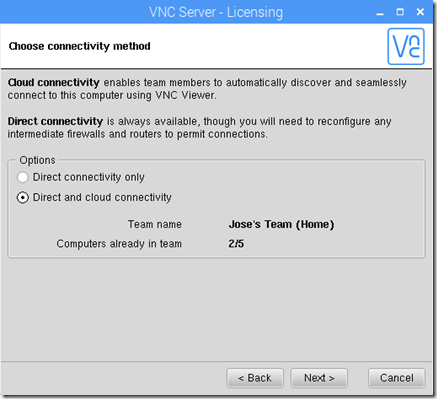
now create an account, and login into to the above window.
image

hit next and you are done.

You can have up to 5 devices with this free account.


Logging in to the Cloud

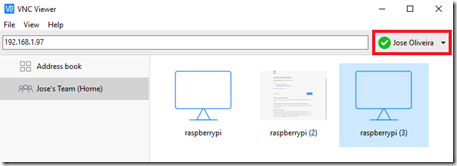
Now logging in the window above with the created account:
image

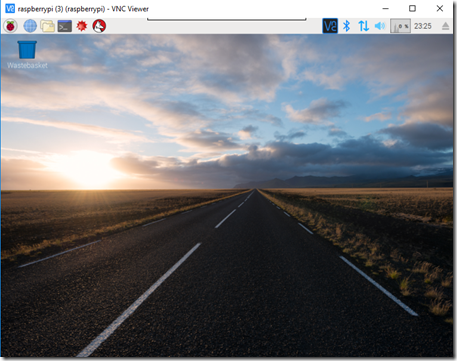
and it will show all your devices. Now you can just click on a device and with no port forwarding it will access it via the Real VNC Cloud:
image

Wednesday, November 28, 2007

How To Play RMVB (Real Media) in Mplayer

Mplayer by default doesn't play *.rmvb files, which are real player files, probably because the codecs are proprietary and because of that they can't be packed in the Mplayer basic codec pack.

Basically in this "how to" we are going to show how to add a additional pack of codecs (Windows codecs), in which the RMVB codec is included.

First off all, let's start by installing the Mplayer, using apt-get:

$ sudo apt-get install mplayer

Now that the mplayer is installed let's download the the pack, at:

ftp://opensys.linuxpackages.net/pub/Slackware-10.1/jay/mplayer/MPlayer_codecs-20050412-i686-1jto.tgz


Extract the MPlayer_codecs-20050412-i686-1jto.tgz like this:

$ mkdir /tmp/codecs
$ cd /tmp/codecs
$ tar -zxvf /.../MPlayer_codecs-20050412-i686-1jto.tgz

Now we have all the extracted content of MPlayer_codecs-20050412-i686-1jto.tgz in /tmp/codecs.

The next step is to copy the codecs to the rigth place, so that Mplayer can use them,
that place is the directory /usr/lib/win32 (which probably doesn't exist). To do that just do like this:


$ sudo mkdir /usr/lib/win32
$ sudo cp /tmp/codecs/usr/lib/codecs/* /usr/lib/win32

And that's it, now you can play RMVB files along with many others.

Just one more thing, cleaning up the extracted codecs:

$ sudo rm -rf /tmp/codecs

All set! Enjoy :)