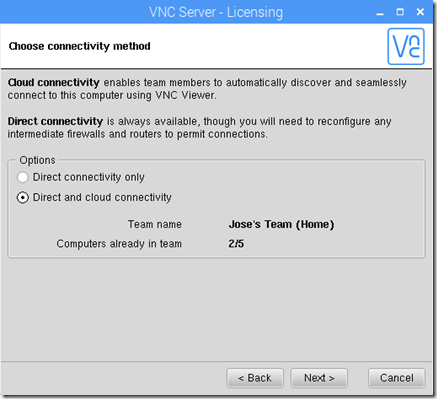
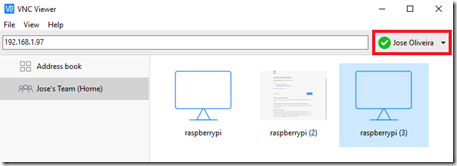
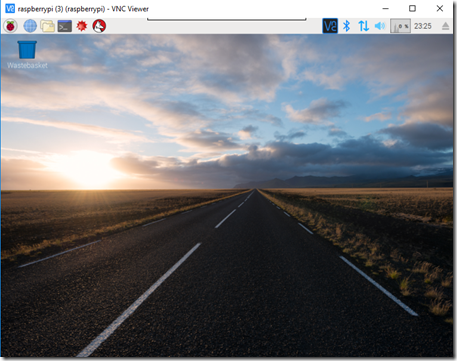
So you have a Raspberry Pi and you would like to maximize its tiny footprint by turning into a totally stand alone box—no monitor, keyboard, or other input peripherals. Read on as we show you how to set up remote shell, desktop, and file transfer access on your Pi.
Why Do I Want to Do This?
The Pi, even clad in a sturdy case, is a tiny computer. It’s perfect for tucking somewhere out of sight without a gaggle of wires sticking off of it—for many projects you simply don’t need a permanent monitor and peripheral accompaniment.
That doesn’t mean, however, that you won’t need to connect to the box to make changes, update things, transfer files, and so on. A perfect example of this is the cool little rain indicator we built as part of our Build an LED Indicator with a Raspberry Pi (for Email, Weather, or Anything) article. It doesn’t need all that stuff attached right to it, but we still would like the ability to hop onto the device and easily make changes or try out a new experiments with the LED module without having to drag it back into the workshop, and hook it up to a monitor, keyboard, mouse, etc. By configuring it for remote shell, remote desktop, and remote file transfer, we make it super simple to always interact with our Pi unit from the comfort of our desktop computer as if we’ve hooked the unit up to a full work station.
What Do I Need?
If you’re brand new to working with the Raspberry Pi, we strongly suggest checking out The HTG Guide to Getting Started with Raspberry Pi to get a handle on the basics of the device and get up to speed.
For this tutorial you will need the following things:
- A Raspberry Pi running Raspbian.
- A desktop or laptop computer.
- A local Wi-Fi or wired network to connect the Pi and your computer.
First, most of the steps in this tutorial should work with other Linux-based Pi distributions butwe’re going to be using Raspbian. You should have little trouble adapting the tutorial to other distributions.
Second, we’re using a Windows machine as our networked computer to interact with the Raspberry Pi unit as the remote head/interface. When appropriate, we’ll do our best to link to tutorials and suggested reading regarding performing parallel tasks and tools on OS X and Linux.
Setting Up and Connecting to the SSH Server
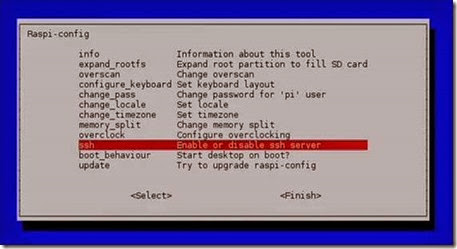
Remote command line access to your Raspbian installation is about the handiest little tweak you can make to your system, and it’s down right simple to enable.
Open up the terminal in Rasbian, the shortcut is LXTerminal on the desktop, and type in the following command:
sudo raspi-config
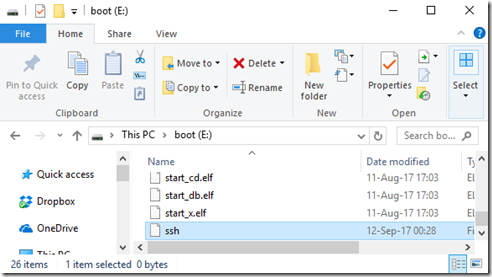
Navigate down to ssh and hit enter. When prompted about the SSH server, select Enable and hit enter again. You will be returned to the Raspi-config panel; navigate down to Finish and hit enter to close out the configuration tool. That’s all you need to do to turn on SSH access to your Pi. The default SSH login and password is pi and raspberry, respectively.
While you’re still sitting at the command line, now is a great time to check the IP of your Raspberry Pi unit on the local network. Type ifconfig at the prompt and then look at the output of the command. If you’re using the Ethernet port you want to look for the init addr in the eth0section; if you’re using Wi-Fi, you want to look for the init addr in the wlan0 section. In addition to checking and noting the IP address, this is also a great time to set up a static IP entry in your router so you don’t have to hunt for the IP in the future.
Now that we have the SSH server enabled, we know the login, and we know the IP address of the machine, it’s time to connect in via SSH and test it out. To do so from Linux and OS X you can simply use the ssh command at the terminal. Windows users, however, will need an SSH client like PuTTY.
Since we’re using a Windows box to remotely manage our Pi, PuTTY it is. Install a copy of PuTTY or extract the portable version and fire it up. There are a lot of settings you can mess with in PuTTY, but we only need to worry about a single thing to connect to our Pi. On the main Session interface, just type in the IP address of your Pi and select SSH below it:
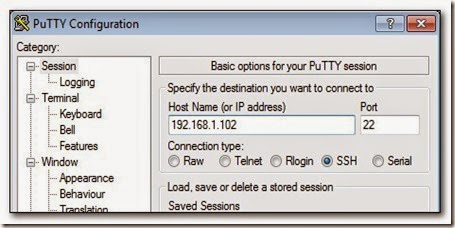
Hit Open at the bottom and PuTTY will launch a terminal window for you, connect to your Pi, and prompt you to log in. Go ahead and log in with pi / raspberry:
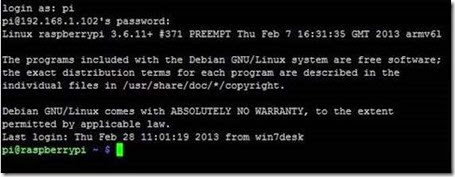
Once your SSH connection is functional, you could technically complete the rest of this tutorial remotely from the comfort of your desk—although we’d advise leaving the head and keyboard on your system until you have finish the whole project and have everything running smoothly.
Before we move on, there’s some extra functionality we can squeeze out of SSH. In addition to managing the command line remotely, you can also remotely transfer files using Secure Copy. It’s command line intensive and not particularly convenient for transferring a large number of files sourced from multiple directories, but for a one-off configuration file transfer or other small dump, it’s pretty handy. Check out our guide to copying files over SSH using the SCP command here.
We’re going to be looking closer more user-friendly/GUI-based file transfer techniques later in the tutorial.
Setting Up and Configuring Your Remote Desktop
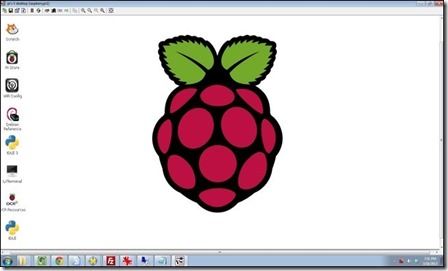
Remote command line access is awesome, but so is having access to the desktop for GUI-focused activities. Let’s bring the powers of the command line and the powers of the desktop together.
Although we’ve been referring to it as “remote desktop” to this point, the tool we’re actually installing is known as Virtual Network Computing (VNC)—iterations of which many are familiar with such as RealVNC and TightVNC. For this tutorial, we’ll be installing TightVNC on the Pi. In order to access the Pi-based TightVNC session, you will need a remote client such as:
Grab a copy now, and we’ll be trotting it out later in this section. For now, let’s get down to installing the TightVNC server on your Raspberry Pi. Open up the terminal. Enter the following command to get started:
sudo apt-get install tightvncserver
This will download and unpack the installation files; when prompted to continue press Y. After the installation is complete, you’ll be returned to the prompt. You can start the VNC one of two ways. Simply running the command for the server like so:
tightvncserver
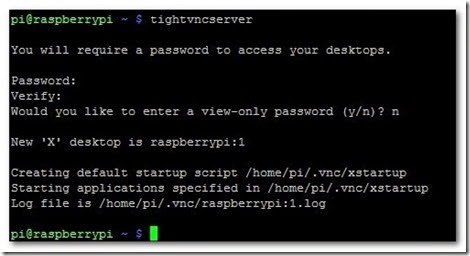
Will prompt you enter a password to access your VNC desktop—as seen in the screenshot above. The password needs to be 4-8 characters long. Once you confirm the password, you will be prompted to set a view-only password (you can opt out of the step, as we did).
Continue reading to learn how to configure your server and setup file transfer tools.
Alternatively, you can use a much more precise, albeit longer to type out, command that gives you more control over how the remote computer will see the desktop—most importantly, what resolution the desktop will display so you can enjoy a full screen view on the remote computer. To specify the resolution of the VNC desktop, use the following command, swapping out the resolution value (the fourth item in the command) for the resolution of the remote desktop:
vncserver :1 -geometry 1600×900 -depth 16 -pixelformat rgb565:
If at any point you make a mistake in setting up your VNC server instance and/or you want to shut down the VNC server, simply enter the following (changing the number after the colon to the number of the VNC instance you want to kill):
vncserver –kill :1
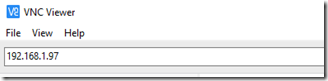
Now that we have the VNC server up and running, let’s connect into it from our remote desktop. Fire up TightVNC viewer on your computer and plug in the IP address of the Raspberry Pi unit followed by :1 like so:
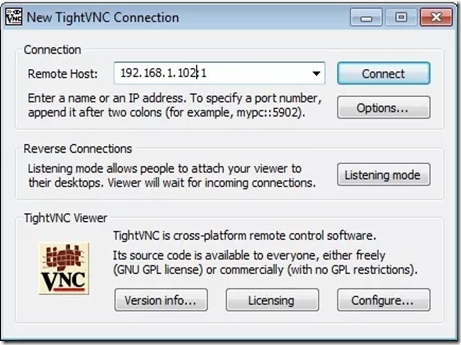
And here’s our reward for successfully configuring our VNC server—a nice full screen view of our remote Raspberry Pi unit:
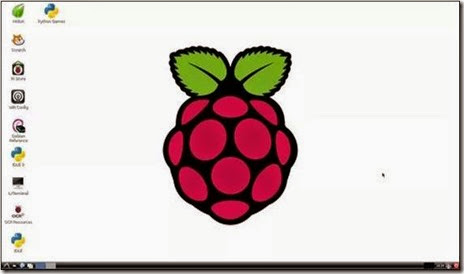
There’s a known issue with TightVNC and Rasbian that, thanks to a wonky permission change, will cause trouble with the actual monitor-is-attached desktop (while leaving the remote desktop interface provided by the VNC server untouched). To fix this issue before it even becomes a problem for you, head right to the command line and enter the following command:
sudo chown pi /home/pi/.Xauthority
This command changes the ownership of the .Xauthority file back to the user pi—for the curious, the .Xauthority file is used by the X-windows system in Rasbian and something during the TightVNC server installation and configuration process causes that little permissions hiccup.
With that little minor detour out the way, let’s get back to finishing our remote desktop configuration.
Now that we have full command line and desktop access to the Raspberry Pi, there’s one not-so-trivial tweak we need to make. The Raspi-config tool set the SSH server to automatically start on boot for us, but the VNC server is not yet configured in such a fashion. You can skip this step and manually start the server at the command line via SSH when you need it, but we’re trying to make this as fuss-free as possible for future use. Let’s take a minute now and create a startup file for the VNC server.
In order to automatically start the VNC server, we need to set up an init, or initialization, file that Raspbian will use to cleanly start and shut down the server during the boot and shut down process. Let’s create the init file now. At the command line type in the following command:
sudo nano /etc/init.d/tightvnc
This will create a file in the initialization directory called “tightvnc” and open the nano editor so we can paste in our script. In the nano editor, paste the following code (make sure to change the 1600×900 resolution value to match the screen of your remote computer:
#!/bin/sh
### BEGIN INIT INFO
# Provides: tightvncserver
# Required-Start:
# Required-Stop:
# Default-Start: 2 3 4 5
# Default-Stop: 0 1 6
# Short-Description: start vnc server
# Description:
### END INIT INFO
case “$1″ in
start)
su pi -c ‘vncserver :1 -geometry 1600×900 -depth 16 -pixelformat rgb565:’
echo “VNC Started”
;;
stop)
pkill Xtightvnc
echo “VNC Terminated”
;;
*)
echo “Usage: /etc/init.d/tightvnc {start|stop}”
exit 1
;;
esac
In addition to modifying the screen resolution portion of the script, there is one other thing you can modify. In line 14 you can change the command “su pi -c” to any other user account besides “pi” if you wish to VNC to the specific desktop for that account.
Once you have pasted and modified the code, it’s time to save it. Press CTRL+X to exit and save your work in nano. Once you are back at the command line, we need to make a few quick changes to the permissions of the file:
sudo chmod 755 /etc/init.d/tightvnc
Now the initialization file is executable. We can test it from the prompt:
sudo /etc/init.d/tightvnc start
sudo /etc/init.d/tightvnc stop
The last change we’re going to make is to update the rc.d file (which tracks which initilization scripts are in the /init.d/ folder):
sudo update-rc.d tightvnc defaults
After you enter that command, you’ll get a confirmation that the file was updated. Now it’s time for the real test: does the file load properly after reboot? Enter the following at the command line to reboot and be prepared with your VNC client to test the connection in a moment:
sudo reboot
Once the system has finished rebooting, log in with your VNC client. If your VNC session fails, visit the command prompt and run the tightvnc start command (from the test portion above) again to double check that the file is executable and that the password was saved properly.
At this point, we’re even further along in our mission to totally remote-control our Raspberry Pi unit. With remote command line access via SSH and remote desktop access via VNC under our belts, let’s move on to simplifying the process of transferring files between our Pi and desktop computer.
Setting Up and Configuring File Transfer Tools
Since we already have SSH set up, the easiest way to set up dead simple file transfer between our Pi and remote computers is to piggy back a GUI interface on the SSH connection. Remember how we talked about using SCP over SSH earlier in the tutorial? Running it from the command line gets real tedious, real fast. With a GUI wrapper, we’ll be able to spend more time moving files and playing with our Pi and less time pecking at the keyboard.
While there are a variety of GUI wrappers for the SCP command, we’re going to go with a cross-platform tool that many people already know, have, and love (and may even be unaware that it does SCP transfers): FileZilla. It’s available for Windows, OS X, and Linux—you can grab a copy here.
Once you have installed FileZilla, fire it up and go to File –> Site Manager. Create a new site entry, name it, and plug in user name and password for your Pi.
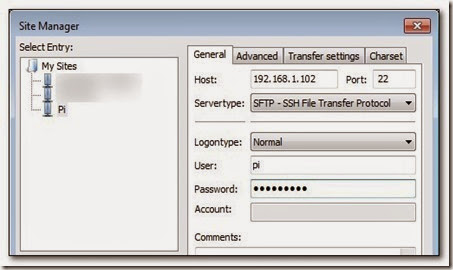
Finally, make sure to set the port to 22 and the Servertype to SFTP – SSH File Transfer Protocol. Click connect at the bottom and you’ll be treated to a view similar to this one:
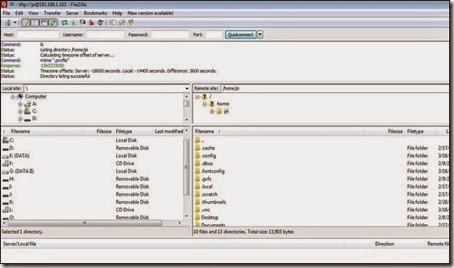
Your local directories are in the left-hand pane and the remote directories on the Pi are in the right-hand pane. Moving files between the two is as simple as drag and dropping them.
Taking advantage of the existing SSH file transfer is the easiest way to get at the files on the Pi with no additional configuration necessary but if you want to configure your Pi to receive and share files without the remote user requiring any fancy tools (like an SCP capable FTP client such as FileZilla), we highly recommend checking out the Samba configuration portion of our guide:How to Turn a Raspberry Pi into a Low-Power Network Storage Device. Reading over that will familiarize you with setting up a basic Samba share on Pi to create a shared folder easily accessible by just about anyone on your network without any additional tools.
You’ve configured SSH, you’ve configured VNC, and you’ve set up simple SFTP and/or Samba access to your Pi—at this point you can boot down your Raspberry Pi, strip away the monitor, keyboard, and mouse, and tuck it away as a silent and headless machine.
Have an idea for Raspberry Pi project and you’re dying for us to write a tutorial for it? Sound off in the comments or shoot us an email at tips@howtogeek.com and we’ll do our best to help.
Taken From: http://www.howtogeek.com/141157/how-to-configure-your-raspberry-pi-for-remote-shell-desktop-and-file-transfer/all/