Showing posts with label router. Show all posts

Tuesday, January 3, 2017

Finding Your Public IP with Telnet (CLI)

Her I’m going to show you a little trick off a way to get you public IP when you just have a command line interface.

This can be done in any equipment with telnet like a:

  • Router
  • Switch
  • Linux Server
  • etc


How To Do It – Site: Check IP

The webpage:

gives out you public IP on a Browser, so what we are going to do is to open the Web Page on the HTTP Port (Port 80), and get a response from the webpage with you Public IP.

This Web Page does not need you to send HTML to pretend that your telnet is a Web Browser (like the IP Echo Website bellow)

To do it:

telnet checkip.dyndns.org 80

or

telnet 216.146.38.70 80

if you don’t have DNS configured, and then do as soon as it connects press:

  • ENTER (one or two times)

and it will give you the output bellow.

image


How To Do It – Site: IP Echo 

The webpage:

gives out you public IP on a Browser, so what we are going to do is to open the Web Page on the HTTP Port (Port 80), and then send some HTML code to pretend that your telnet is a Web Browser to get the HTML response from the webpage with you Public IP.

To do it:

telnet ipecho.net 80

or

telnet 146.255.36.1 80

if you don’t have DNS configured, and then paste the following HTML code

GET / HTTP/1.1
Host: ipecho.net
User-Agent: Mozilla/4.0 (compatible; MSIE 7.0; Windows NT 5.1)

and press Enter, and you get this:

01

rigth here you can see you IP.


See Public IP on a Browser

In both methods/sites if you want, you can see the IP in a more pretty way, just copy the HTML code the Web Page returned (this output is from the IP Echo site):

02

to a text file with the “.html” extension in the computer you are using, I named mine index.html

03

save it and double click in the index.html which will open on your default browser, and show the HTML you copied from the command line:

04

Thursday, August 20, 2015

Cisco - Router / Switch as an HTTP Server

You can use your Cisco router / switch as a Web server, Cisco IOS routers have HTTP interface since IOS 11.2, in IOS 12.2(15)T it was enhanced with HTTP 1.1 Web server that offers Secure Socket Layer (SSL) Version 3.

Let’s test it out, I actually did this on a switch (cisco 3560)


First let’s check current root folder for the HTTP server, in order to get a reference to restore the HTTP root path later:

DSw1#show ip http server status
HTTP server status: Enabled
HTTP server port: 80
HTTP server authentication method: enable
HTTP server access class: 0
HTTP server base path: flash:/c3560-ipservicesk9-mz.150-1.SE/html
HTTP server help root:
Maximum number of concurrent server connections allowed: 16
Server idle time-out: 180 seconds
Server life time-out: 180 seconds
Maximum number of requests allowed on a connection: 25
HTTP server active session modules: ALL
HTTP secure server capability: Present
HTTP secure server status: Enabled
HTTP secure server port: 443
HTTP secure server ciphersuite: 3des-ede-cbc-sha des-cbc-sha rc4-128-md5 rc4-128-sha
HTTP secure server client authentication: Disabled
HTTP secure server trustpoint:
HTTP secure server active session modules: ALL

To transfer the web page we are going to use TFTP, for the server just run TFPT32 / TFTP64 in your computer, and point it to the folder where you have the web page you want to transfer to your router / switch.

1

On router / switch copy the web page from the TFTP server (your PC) to your router / switch:

DSw1#copy tftp://192.168.1.52/index.html flash://index.html
Destination filename [index.html]?
Accessing tftp://192.168.1.52/index.html...
Loading index.html from 192.168.1.52 (via Vlan99): !
[OK - 15772 bytes]

 
DSw1#show flash
Directory of flash:/
     2  -rwx       15772   Mar 1 1993 00:26:36 +00:00  index.html
      3  -rwx          1276   Mar 1 1993 00:00:40 +00:00  vlan.dat
  363  drwx         256   Mar 1 1993 00:39:23 +00:00  c3560-ipservicesk9-mz.150-1.SE
  487  -rwx        4189   Mar 1 1993 00:19:41 +00:00  config.text

Now in the golbal configuration mode lets enable the HTTP server, set the path to root folder of the HTTP server, and activate local authentication, and a local user and password (if you don’t already don’t have one)

ip http server
ip http path flash://
ip http authentication local

username admin privilege 15 password 0 cisco  (the user level must be 15)

you can also have HTTPS (secure) server using by adding the following command:

ip http secure-server

Here's a list of important commands you should know. These commands are in global configuration mode and have the format “ip http xxxxx”.

  • access-class: This restricts access to your Web server using an access list.
  • authentication: This sets the authentication for login to the Web server to either local, enable, or tacacs.
  • path: This establishes the root path where the Web server begins looking for files.
  • port: This allows you to change the port number for the Web server from 80 to another port.
  • server: This enables and disables the Web server.
  • secure-server: This enables and disables the SSL Web server.
          

Let’s check the new root folder for the HTTP server:
   
DSw1#show ip http server status
HTTP server status: Enabled
HTTP server port: 80
HTTP server authentication method: local
HTTP server access class: 0
HTTP server base path: flash:/
HTTP server help root:
Maximum number of concurrent server connections allowed: 16
Server idle time-out: 180 seconds
Server life time-out: 180 seconds
Maximum number of requests allowed on a connection: 25
HTTP server active session modules: ALL
HTTP secure server capability: Present
HTTP secure server status: Enabled
HTTP secure server port: 443
HTTP secure server ciphersuite: 3des-ede-cbc-sha des-cbc-sha rc4-128-md5 rc4-128-sha
HTTP secure server client authentication: Disabled
HTTP secure server trustpoint:
HTTP secure server active session modules: ALL


Now open your browser, and type:

http://<your_router_or_switch_ip_address>

03

you will be prompted for a local user and password, and you should get you web page shown:
    02

Based On: http://www.techrepublic.com/article/take-advantage-of-the-cisco-ios-web-server-on-your-router/

Saturday, June 6, 2015

Huawei - Router: Traffic Shapping

How to Configure Traffic Shaping for Huawei AR Routers?

Applicability

This example applies to all versions and Huawei AR routers.


Networking Requirements

As shown in the below figure, the LAN of an enterprise connects to Eth2/0/0 of RouterA through Switch. RouterA connects to the WAN through GE3/0/0. The voice, video, and data services are deployed on the LAN.

Packets of different services are identified by 802.1p priorities on the LAN. RouterA sends service packets to queues based on 802.1p priorities. When packets reach the WAN through GE3/0/0, jitter may occur. To prevent jitter and ensure bandwidth for services, perform the following configuration:

  • Set the CIR on each interface to 8000 kbit/s.
  • Set the CIR for voice service packets to 256 kbit/s and the CBS to 6400 bytes.
  • Set the CIR for video service packets to 4000 kbit/s and the CBS to 100000 bytes.
  • Set the CIR for data service packets to 2000 kbit/s and the CBS to 50000 bytes.


clip_image001

Traffic shaping networking diagram

Procedure

Configure RouterA.

sysname RouterA
#
vlan batch 10

# Create a queue profile qp1.
qos queue-profile qp1

# Set the CIR for queue 2 to 2000 kbit/s and the CBS to 50000 bytes.                
queue 2 gts cir 2000 cbs 50000

# Set the CIR for queue 5 to 4000 kbit/s and the CBS to 100000 bytes.
queue 5 gts cir 4000 cbs 100000

# Set the CIR for queue 6 to 256 kbit/s and the CBS to 6400 bytes.
queue 6 gts cir 256 cbs 6400

# Set the scheduling mode to queues 0 to 5 to weighted fair
# queuing (WFQ), and set the scheduling mode for queue 6 and
# queue 7 to priority queuing (PQ).

schedule wfq 0 to 5 pq 6 to 7


interface Vlanif10
ip address 192.168.1.1 255.255.255.0


interface Ethernet2/0/0
# Set the link type of the interface to trunk.
port link-type trunk
 
# Add the trunk interface to VLAN 10.
port trunk allow-pass vlan 10
 
# Trust 802.1p priorities of packets on the interface.
trust 8021p


interface GigabitEthernet3/0/0
ip address 192.168.4.1 255.255.255.0 

# Apply the queue profile qp1 to the interface.
qos queue-profile qp1 

# Set CIR for the interface to 8000 kbit/s and the CBS to 200000 bytes.
qos gts cir 8000 cbs 200000  

Verify the configuration

Run the display qos queue statistics interface gigabitethernet 3/0/0 command on RouterA to check packet statistics in queues on GE3/0/0. You can see that the output rate of each queue is within the configured limit. When a queue is full, excess packets are discarded.


Configuration Notes

Configure the interface of the switch connected to RouterA as a trunk interface and add the interface to service VLANs.

Configure RouterB to ensure that it can communicate with RouterA.

The traffic shaping CIR value configured on an interface must be larger than or equal to the sum of CIR values of all queues on the interface. Otherwise, packets in high-priority queues may fail to be scheduled.

The more information about technical support you can consult with our engineer – Bill, and his e-mail address is as below:

bill@huanetwork.com

Taken From: http://www.huanetwork.com/blog/how-to-configure-traffic-shaping-for-huawei-ar-routers/

Huawei - Router: Password Recovery - BootROM (aka ROMmon)

How do I Log into the Device Using BootROM If I Forget the Console Login Password?
The console interface on RouterA connects to the PC and the console login password is forgotten. It is required that BootROM (aka ROMmon) be used to log in to the device. This example applies to V200R003C00 and later versions, and all Huawei AR routers.

clip_image001Figure 1 - Networking for login through BootROM when the console login password is forgotten

Log in to the router through the console port.

NOTE: When performing operations, ensure that users on the serial port are kept online.
Restart RouterA. Press Ctrl+B to enter the BootROM menu when the following information is displayed:

BIOS Creation Date : Nov 10 2011, 14:41:12                                   
DDR DRAM init : OK                                                           
Start Memory Test ? (‘t’ or ‘T’ is test):skip                                 
Copying Data : Done                                                           
Uncompressing : Done                                                           
USB2 Host Stack Initialized.                                                 
USB Hub Driver Initialized                                                   
USBD Wind River Systems, Inc. 562 Initialized                               
Octeon Host Controller Initialize……Done.                                 

Press Ctrl+B to break auto startup … 3   

After pressing Ctrl+B, you need to enter the password

  • Versions earlier than V200R005C00: huawei,
  • V200R005C00 and later versions: Admin@huawei

to enter the BootROM menu.


In general the default user and password are:

in new equipments or with a updated image the password is “Password2”.


Select choice 7 to enter the Password Manager menu.

Main Menu 
1. Default Startup                                                         
2. Serial Menu                                                           
3. Network Menu                                                           
4. Startup Select                                                         
5. File Manager                                                           
6. Reboot                                                                 
7. Password Manager

Enter your choice(1-6):7                                                     
Select choice 2 to delete the console login password.

PassWord Menu                                                         
1. Modify the menu password                                               
2. Clear the console login password                                       
3. Return                                                                 
Enter your choice(0-1):2

Clear the console login password Succeed!

PassWord Menu                                                         
1. Modify the menu password                                               
2. Clear the console login password                                       
3. Return
           
Enter your choice(0-1):0
Select 1 and wait for a while. Then you can log in to the device.

Main Menu                                                             
1. Default Startup                                                         
2. Serial Menu                                                           
3. Network Menu                                                           
4. Startup Select                                                         
5. File Manager                                                           
6. Reboot                                                                 
7. Password Manager

Enter your choice(1-6):1

The more information about technical support you can consult with our engineer the e-mail address is as below:

support@huanetwork.com


Taken From: http://www.huanetwork.com/blog/how-do-i-log-into-the-device-using-bootrom-if-i-forget-the-console-login-password/

Sunday, March 29, 2015

Cisco – Router as a DNS Server

As many didn’t know (me included) you can configure cisco router as DNS server.

A cisco router can:

  • Reply to requests for locally defined DNS entries.
  • Forward the request the public DNS servers (max 6)

In the cenario bellow we are going setup and test this.

Topology2


Configs

-- R1 --

interface FastEthernet0/0
description *** LAN ***
ip address 192.168.1.254 255.255.255.0
no shutdown

interface FastEthernet0/1
description *** WAN ***
ip address 200.0.0.2 255.255.255.252
no shutdown
 
ip route 0.0.0.0 0.0.0.0 200.0.0.1 name DefaultRoute
 
!!!!!!!!!!!!!!!!!!!!!!!!!!!!!!!!!!!!!!!!!!!!!!!!!!!!!!!!!!!!!!!!!!!!
! Enable the router as a DNS server
! and domain lookup on the router
!!!!!!!!!!!!!!!!!!!!!!!!!!!!!!!!!!!!!!!!!!!!!!!!!!!!!!!!!!!!!!!!!!!!
ip dns server
ip domain-lookup

!!!!!!!!!!!!!!!!!!!!!!!!!!!!!!!!!!!!!!!!!!!!!!!!!!!!!!!!!!!!!!!!!!!!
! Public name-servers, for the router to query
! the names it doesn't know
! Maximum 6x DNS servers
!!!!!!!!!!!!!!!!!!!!!!!!!!!!!!!!!!!!!!!!!!!!!!!!!!!!!!!!!!!!!!!!!!!!
ip name-server 4.2.2.5
ip name-server 4.2.2.6

!!!!!!!!!!!!!!!!!!!!!!!!!!!!!!!!!!!!!!!!!!!!!!!!!!!!!!!!!!!!!!!!!!!!
! Local DNS Entries
!!!!!!!!!!!!!!!!!!!!!!!!!!!!!!!!!!!!!!!!!!!!!!!!!!!!!!!!!!!!!!!!!!!!
ip host PC1 192.168.1.1
ip host PC2 192.168.1.2
ip host PC3 192.168.1.3

The big secret here is the “ip dns server”, because the rest of the config you could have it to solve name locally on the router.

With the “ip dns server” you extend the router’s local name resolution, to the hosts on the network.


-- PC1 --

PCx

The PCs on my topology are actually routers so here is my config:

-- PC1 (Router) --
interface FastEthernet0/0
ip address 192.168.1.1 255.255.255.0
no shutdown

ip route 0.0.0.0 0.0.0.0 192.168.1.254 name GW

ip domain-lookup
ip name-server 192.168.1.254


-- PC2 (Router) --
interface FastEthernet0/0
ip address 192.168.1.2 255.255.255.0
no shutdown
 
ip route 0.0.0.0 0.0.0.0 192.168.1.254 name GW

ip domain-lookup
ip name-server 192.168.1.254


-- PC3 (Router) --
interface FastEthernet0/0
ip address 192.168.1.3 255.255.255.0
no shutdown

ip route 0.0.0.0 0.0.0.0 192.168.1.254 name GW

ip domain-lookup
ip name-server 192.168.1.254


Tests

-- Test the Local Entries for The PCs on the LAN --

PC1#ping PC2
Translating "PC2"...domain server (192.168.1.254) [OK]

Type escape sequence to abort.
Sending 5, 100-byte ICMP Echos to 192.168.1.2, timeout is 2 seconds:
.!!!!
Success rate is 80 percent (4/5), round-trip min/avg/max = 1/1/1 ms

PC1#ping PC3
Translating "PC3"...domain server (192.168.1.254) [OK]

Type escape sequence to abort.
Sending 5, 100-byte ICMP Echos to 192.168.1.3, timeout is 2 seconds:
!!!!!
Success rate is 100 percent (5/5), round-trip min/avg/max = 1/1/5 ms
PC1#

-- Test Forwarding Request to Public DNS Servers--

PC1#ping www.google.com

Translating "www.google.com"...domain server (192.168.1.254) [OK]

Type escape sequence to abort.
Sending 5, 100-byte ICMP Echos to 216.58.208.4, timeout is 2 seconds:
!!!!!
Success rate is 100 percent (5/5), round-trip min/avg/max = 52/69/84 ms


Related Links:

Monday, October 27, 2014

Huawei – Router on a Stick (Router and Switch Config)

How to Configure Huawei router-on-a-stick

Requirements: The range on the host broadcast domain of communication can be reduced by VLAN configuration to the switch on the LAN. You can use a router that supports 802.1Q to realize interoperability of VLAN on the condition that part of the hosts need to communicate among VLAN while the switches doesn’t support the huawei three-layer switch, which requires the establishment of a sub-interface on the Ethernet port, assignment of the IP address as the related VLAN gateway, and start 802.1Q at the same time.

Networking: Connect E0 port of the router with uplink trunk port (24th ports) of the switch on the router, and divide 3 VLAN on switch downward port with several hosts.

Router Config

interface Ethernet0/0/4
ip address 10.0.0.1 255.255.255.0

interface Ethernet0/0/4.1           
  ip address 172.16.1.1 255.255.255.0
  vlan-type dot1q vid 1

Specify the Ethernet sub-interfaces belonging to VLAN1, and this command is applied to the Ethernet sub-interface. Only this command is configured, the Ethernet sub-interface will be embedded VLAN tag in the Ethernet frame header according to the configuration of the VLAN ID number so that the switch port connected to the switch interface can deal with the received frame correctly only the command has been configured.             

interface Ethernet0/0/4.2                     
ip address 172.16.2.1 255.255.255.0
dot1q termination vid 2

interface Ethernet0/0/4.3
  ip address 172.16.3.1 255.255.255.0

  dot1q termination vid 3

interface Ethernet0/0/4
  undo shut
% Interface Ethernet0/0/4 is up

Connect the E0 port with the 24th port of S3026 with the network cable                             
%19:46:32: Interface Ethernet0/0/4 changed state to UP
%19:46:32: Line protocol ip on interface Ethernet0/0/4, changed state to UP
%19:46:32: Line protocol ip on interface Ethernet0/0/4.1, changed state to UP
%19:46:32: Line protocol ip on interface Ethernet0/0/4.2, changed state to UP
%19:46:32: Line protocol ip on interface Ethernet0/0/4.3, changed state to UP


Switch Config

vlan 1

vlan 2
interface eth 0/17
interface eth 0/18
interface eth 0/19
interface eth 0/22

vlan 3
interface eth 0/21

interface eth 0/24
port link-type trunk
port trunk permit vlan all

Check out the TRUNK port configuration
display port trunk    
Now, the following trunking ports exist:
Ethernet0/24

Check out the VLAN2 configuration
display vlan 2     
VLAN ID: 2
VLAN Type: static
Route Interface: not configured
Description: VLAN 0002

Tagged Ports:
Ethernet0/24

Untagged Ports:
Ethernet0/17 Ethernet0/18 Ethernet0/19 Ethernet0/22

Check out the VLAN3 configuration
display vlan 3     
VLAN ID: 3
VLAN Type: static

Route Interface: not configured
Description: VLAN 0003

Tagged Ports:
Ethernet0/24

Untagged Ports:
Ethernet0/21

Check the network connectivity on the workstation. This workstation is connected to the 21st port of S3026, belonging to VLAN2.

C:\Documents and Settings\Administrator>ipconfig
windows 2000 IP Configuration
Ethernet adapter             Local connection:
Connection-specific DNS Suffix . :
IP Address. . . . . . . . . . . . : 172.16.2.22
Subnet Mask . . . . . . . . . . . : 255.255.255.0
Default Gateway . . . . . . . . . : 172.16.2.1


C:\Documents and Settings\Administrator>ping 172.16.3.1

Pinging 172.16.3.1 with 32 bytes of data:

Reply from 172.16.3.1: bytes=32 time<10ms TTL=255

Ping statistics for 172.16.3.1:
Packets: Sent = 4, Received = 4, Lost = 0 (0% loss),
Approximate round trip times in milli-seconds:
Minimum = 0ms, Maximum = 0ms, Average = 0ms

View the routing table on the Huawei router, can be found, as each of the network segments on the 172.16 are connected to the router directly, so the communication between the VLAN can be realized without starting the routing protocols or static routing.

[Router]display ip routing-table

Routing Tables:

Destination/Mask Proto Pref Metric Nexthop Interface

10.0.0.0/24 Direct 0 0 10.0.0.1 Ethernet0
10.0.0.1/32 Direct 0 0 127.0.0.1LoopBack0
127.0.0.0/8 Direct 0 0 127.0.0.1 LoopBack0
127.0.0.1/32 Direct 0 0 127.0.0.1 LoopBack0
172.16.1.0/24 Direct 0 0 172.16.1.1 Ethernet0.1
172.16.1.1/32 Direct 0 0 127.0.0.1 LoopBack0
172.16.2.0/24 Direct 0 0 172.16.2.1 Ethernet0.2
172.16.2.1/32 Direct 0 0 127.0.0.1 LoopBack0
172.16.3.0/24 Direct 0 0 172.16.3.1 Ethernet0.3
172.16.3.1/32 Direct 0 0 127.0.0.1 LoopBack0

Based On:

Related Links:

Saturday, August 17, 2013

Cisco VLC Multicast Streaming Demo – PIM Sparse Mode

Topology

[Multicast-realdemo.jpg]

Howto

Configurations

This is the how to for this lab: here
R1
!
ip multicast-routing
!
!
interface Loopback0
ip address 1.1.1.1 255.255.255.255
ip pim sparse-mode
!
interface FastEthernet1/0
description wan
ip address 10.0.12.1 255.255.255.0
ip pim sparse-mode
duplex auto
speed auto
!
interface FastEthernet2/0
description lan
ip address 192.168.1.1 255.255.255.0
ip pim sparse-mode
duplex auto
speed auto
!
router ospf 1
router-id 1.1.1.1
log-adjacency-changes
network 1.1.1.1 0.0.0.0 area 1
network 10.0.12.0 0.0.0.255 area 0
network 10.0.13.0 0.0.0.255 area 0
network 192.168.1.0 0.0.0.255 area 1
!
!Define this router as a RP
ip pim rp-candidate Loopback0
!


R2

ip multicast-routing
!
interface Loopback0
ip address 2.2.2.2 255.255.255.255
ip pim sparse-mode
!
!
interface FastEthernet1/0
description wan
ip address 10.0.12.2 255.255.255.0
ip pim sparse-mode
duplex auto
speed auto
!
interface FastEthernet1/1
description lan
ip address 192.168.2.2 255.255.255.0
ip pim sparse-mode
duplex auto
speed auto
!
router ospf 1
router-id 2.2.2.2
log-adjacency-changes
network 2.2.2.2 0.0.0.0 area 2
network 10.0.12.0 0.0.0.255 area 0
network 192.168.2.0 0.0.0.255 area 2
!
!Define router as a Bootstrap Router Candidate
ip pim bsr-candidate Loopback0 0

!

Note:
ip pim bsr-candidate and ip pim rp-candidate can both be added to the same router if you wish. Therefore in this lab we could of defines both on R1 and left R2 with only ip pim sparseon its interfaces.
Here are the batch files used in VLC:
StartMulticast.bat:

"C:\Program Files\VideoLAN\VLC\vlc.exe" -vvv test.m4v :sout=#transcode{vcodec=h264,vb=800,scale=1,acodec=mp4a,ab=128,channels=2,samplerate=44100}:std{access=udp,mux=ts,dst=239.0.0.1:1234} --ttl 12

StartVideo.bat

call "C:\Program Files\VideoLAN\VLC\vlc.exe" -vvv udp://@239.0.0.1:1234

Taken From: http://roggyblog.blogspot.pt/2009/10/multicast-lab-with-vlc-howto.html

For info on setting up VLC via the graphical interface check out this post: http://myhowtosandprojects.blogspot.pt/2013/08/vlc-multicast-streaming.html

Tuesday, August 21, 2012

Forward Ports on Your Router From a Desktop (UPnP)

clip_image002

UPnP is a convenient way for programs to forward ports without you having to pull up your router’s web interface and forward ports manually. Unfortunately, some programs that require port forwarding don’t support UPnP – that’s where UPnP PortMapper comes in.

This application takes care of port forwarding for you, right from your desktop. If your IP address changes, you don’t need to log into your router and change your port forwarding rules – you can have the application update them for you.

If you visit a friend’s house and join their network, you don’t have to ask for their router’s password to forward ports – just fire up the application and activate your preset rules.

Installation

UPnP Port Mapper is written in Java, so you’ll need the free Java Runtime Environmentinstalled to run it. After installing Java, you can download UPnP Port Mapper from SourceForge. In addition to Windows, this application also works on Mac OS X and Linux.

UPnP Port Mapper communicates with your router with the UPnP protocol, so you’ll also need a router with UPnP enabled to use this application. If UPnP is disabled on your network’s router, this program can’t do anything.

After downloading UPnP Port Mapper, double-click the .jar file to launch it.

clip_image004

Forwarding Ports

To get started, click the Connect button in UPnP Port Mapper. If you see a Windows Firewall pop-up window, click the Unblock button. You may have to allow Java network access in the Windows firewall pop-up that appears.

If UPnP PortMapper informs you that it can’t find your router, click the Connect button again unblocking the application in the Windows firewall.

clip_image006

If it worked, you’ll see a list of UPnP port mappings in the top pane (this list will be empty by default), as well as your router’s external IP address on the Internet and its IP address on your local network.

To create a new port forwarding preset, click the Create button.

clip_image008

Enter a description for your port forwarding rule and provide a list of one or more ports to forward. You can specify port ranges or forward a list of ports using a single preset.

You can also specify a specific remote host. If you enter an IP address, only traffic from that IP address will be forwarded to your computer from your router. For example, you can use this feature to only allow connections from a friend’s IP address on the Internet.

The Use local host box is checked by default, making it easy to forward ports without having to double-check your computer’s local IP address. However, you could also use this application to forward ports to multiple different computers on your network.

clip_image010

Port forwarding presets you specify will appear  in the Port mapping presets box. Select a preset and click the Use button to activate it.

Clicking this button forwards the ports on your router – they’ll appear in the Port mappings box at the top of the window. You can remove port mappings by selecting them and clicking the Remove button.

clip_image012

The port mappings will be saved on your router until its UPnP data is cleared – depending on your router, this may happen when your router is restarted. If you open UPnP Port Mapper later and click the Connect button, you’ll see your active port mappings.

You will also need to reapply port mapping settings if your computer’s local IP address changes.

With your presets, you can quickly and easily apply these port mapping settings on any network with a router that supports UPnP – this can be convenient if you move around and need to forward ports for gaming, servers, or other purposes.

Taken From: http://www.howtogeek.com/122227/how-to-quickly-forward-ports-on-your-router-from-a-desktop-application/

Wednesday, June 27, 2012

Howto use a dd-wrt Router's Internal Serial Port (Serial/TCP)

By Andrew Hazelden, January 17, 2010 7:51 pm
clip_image001
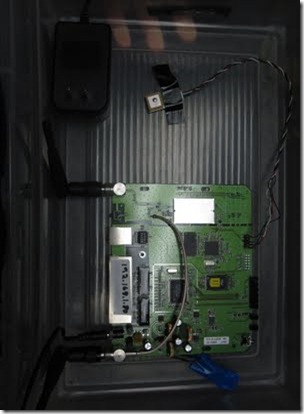
This is Andrew's Guide to DD-WRT network serial ports.
A Linksys WRT54G / WRT54GS router makes a great wireless network serial port. In the following guide I will go over the techniques I use to allow TCP or UDP connections. This tutorial covers how to do this with the DD-WRT firmware. The WRT54GS has two serial ports. The first one is connected as a serial console at startup. The second one can be used easily for connecting GPS units, microcontrollers, weather stations or any other serial device.
DD-WRT Homepage
http://www.dd-wrt.com/site/index
Rod Whitby has an article that explains how to solder the required header pins onto your WRT54GS router.
http://www.rwhitby.net/projects/wrt54gs
Using the pinout from Ron Whitby's site you can either hook up a 3.3 Volt serial device directly to your WRT54GS router or, with additional work, you could make / get a voltage converter board to allow true rs-232 serial voltage levels to be converted to 3.3 Volt TTL levels. This type of converter board device would use a Maxim-IC MAX3233E chip. A 10 pin IDC connector ribbon cable can run from your voltage converter board to your header pins soldered onto the WRT54GS. The converter board can draw its power off the router terminal pins through the ICD connector.
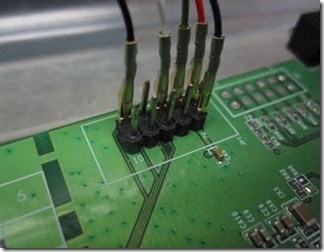
Note: Crimping standard servo terminal type connectors onto your serial device's cable will make wiring up the serial port connections to the Linksys WRT54GS easy during prototyping. This type of connection is shown in the two pictures below:
clip_image001[1]
clip_image002
Requirements:
3.3 Volt Locosys GPS (NG Hobbies sells the Locosys LS20033 10 Hz model)
Locosys GPS cable with 5 position 0.1" connector (Also at NG Hobbies )
Linksys WRT54G / WRT54GS router
DD-WRT firmware (v24 suggested)
0.1” 10 pin header

clip_image003
2.54mm Pin Header Strip
The header pins are called either:
  • Double Row Male 2x40 Pin Header Strip 2.54mm ( eBay )
  • 0.1" Break Away Header Pins
  • CONN HDR BRKWAY .100 80POS VERT  ( Digi-Key )
The 2x5 pin header was made by snapping off a piece from standard 0.1” (2.54mm) PCB Male Header Pins  (2 row x 40). You can find these at Digi-Key, or on eBay.
SSH Client Software:
Putty or Terminal
Optional:
WinSCP
I have packaged up the utilities you require for this project into a ZIP archive:
http://www.andrewhazelden.com/files/2010/January/dd-wrt_serial_TCP.zip
This archive will allow you to set up a network TCP/IP connection on your DD-WRT router using the /dev/tts/1 serial port. The archive dd-wrt_serial_TCP.zip has the following programs:
libncurses_5.6-1_mipsel.ipk
netcat_0.7.1-1_mipsel.ipk
ser2net_2.3-1_mipsel.ipk
---------------------------------------------------------------------------------------------------------------------------------
Step 1. Solder on a 10 pin header
Follow Ron Whitby’s instructions and solder the 10 pin header onto your linksys router.
http://www.rwhitby.net/projects/wrt54gs
Step 2. Install the dd-wrt v24 firmware on your WRT54G / WRT54GS Linksys router.
Step 3. Check your dd-wrt network settings
Set up your network and wireless settings. I recommend setting the router up with a fixed IP address. I use 192.168.1.80 for the wireless router. You will have to decide if you will use either client bridged or client routed modes for the Linksys router or you might even make it an access point.
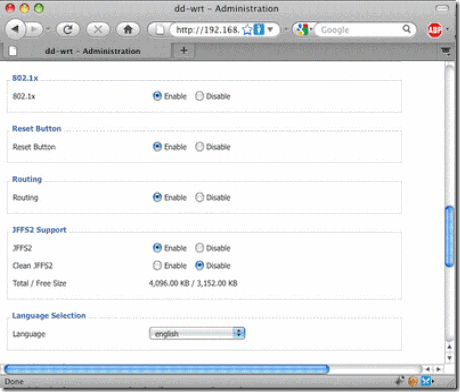
Step 4. Enable JFFS2 Support on your router.
You must compete this step if you want the process to work!
To do this go to the Administration > management section in the dd-wrt user inteface.
Scroll down to the JFFS2 Support section. Enable the JFFS2 and Clean JFFS2 options.
Click Apply.
Now reboot the router.
This will allocate storage in the flash memory where you will save the programs on your router. I find you have to reboot your router once after enabling JFFS2 Support for it to work properly.
clip_image005
Step 5. SSH into the router. ( You could also use telnet.)
On Windows I recommend the PUTTY program as an SSH Client:
http://www.chiark.greenend.org.uk/~sgtatham/putty/
On Mac OS X I recommend using the Terminal application found in your
/Applications/Utilities folder.
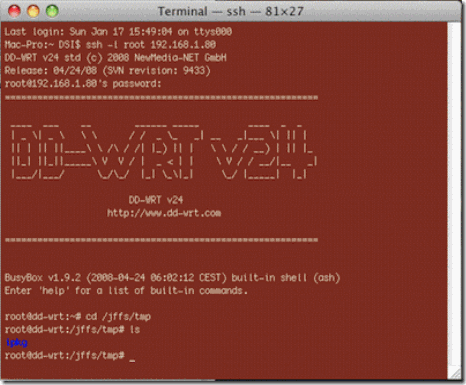
Assuming your router’s IP address is 192.168.1.80 and your dd-wrt username is root, use the following command:
ssh -l root 192.168.1.80
The default password is admin
clip_image007
Last login: Sun Jan 17 15:40:52 on ttys000
Mac-Pro:~ DSI$ ssh -l root 192.168.1.80
DD-WRT v24 std (c) 2008 NewMedia-NET GmbH
Release: 04/24/08 (SVN revision: 9433)
root@192.168.1.80's password:
==========================================================
____  ___    __        ______ _____         ____  _  _
| _ \| _ \   \ \      / /  _ \_   _| __   _|___ \| || |
|| | || ||____\ \ /\ / /| |_) || |   \ \ / / __) | || |_
||_| ||_||_____\ V  V / |  _  | |     \ V / / __/|__   _|
|___/|___/      \_/\_/  |_| \_\|_|     \_/ |_____|  |_|
DD-WRT v24
http://www.dd-wrt.com
==========================================================
BusyBox v1.9.2 (2008-04-24 06:02:12 CEST) built-in shell (ash)
Enter 'help' for a list of built-in commands.
root@dd-wrt:~#
Step 6. Download the files to your dd-wrt.
The technique I use is to download the files using the wget command on the dd-wrt router.
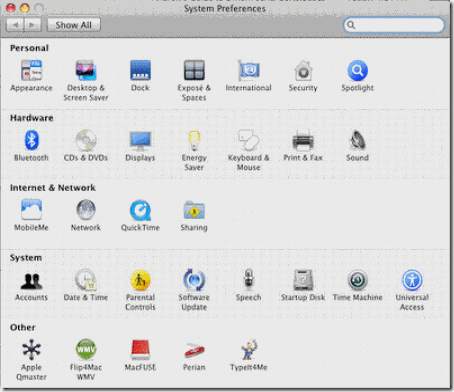
On Mac OS X you can enable web sharing in your System Preferences Control Panel.
clip_image009
Click on the Sharing Option.
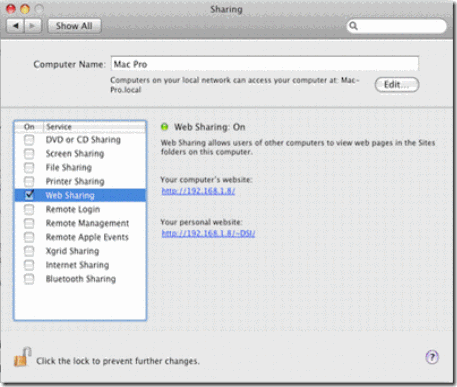
In the Sharing section enable Web Sharing.
clip_image011
This enables the Apache based HTTP web server built into your Mac. You can place files either in the computer's sharing folder or in your user account’s sharing folder.
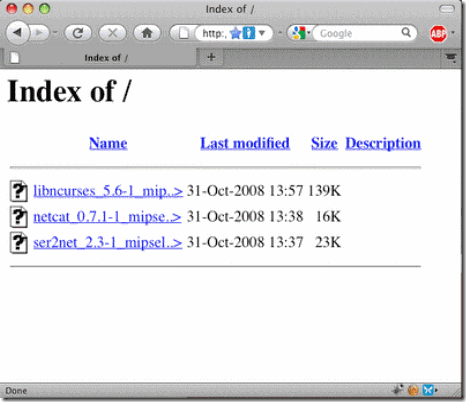
If you type your computer's IP address in your favorite web browser you will see a directory listing. For example, my computer's local IP address is 192.168.1.8 so I would type the following in the address bar:
http://192.168.1.8
clip_image013
The local path to your computer’s web-sharing folder is:
/Library/WebServer/Documents/
Step 7.
Installing TCP serial software using Mac OS X:

The local IP address of my desktop computer is 192.168.1.8 . You should substitute your IP address where you see 192.168.1.8 in the following examples.
Type the following into your ssh session window:
cd /jffs/tmp
If there is no /jffs/tmp directory that would likely indicate the you need to enable JFFS2 support. See Step 4.
To download the software to the dd-wrt:
wget http://192.168.1.8/libncurses_5.6-1_mipsel.ipk
wget http://192.168.1.8/netcat_0.7.1-1_mipsel.ipk
wget http://192.168.1.8/ser2net_2.3-1_mipsel.ipk

To install the software packages using the IPKG installer:
ipkg install libncurses_5.6-1_mipsel.ipk
ipkg install ser2net_2.3-1_mipsel.ipk
ipkg install netcat_0.7.1-1_mipsel.ipk

Installing TCP serial software using Windows:
On Windows I recommend the PUTTY program as an SSH Client:
http://www.chiark.greenend.org.uk/~sgtatham/putty/
WinSCP is a great Windows program for copying files onto your dd-wrt router using the SCP protocol:
http://winscp.net/eng/download.php
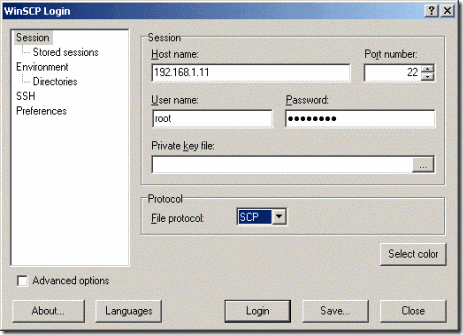
clip_image015
Using WinSCP login to the router using SCP. The default username is root.
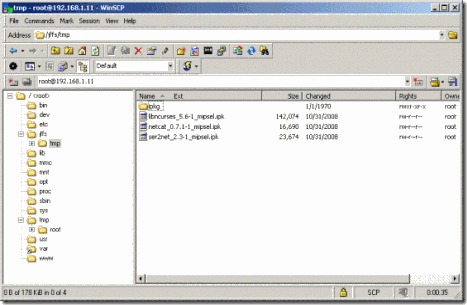
clip_image017
Unzip the dd-wrt TCP serial software on your desktop and copy the .ipk fliles using WinSCP to the router's /jffs/tmp folder.
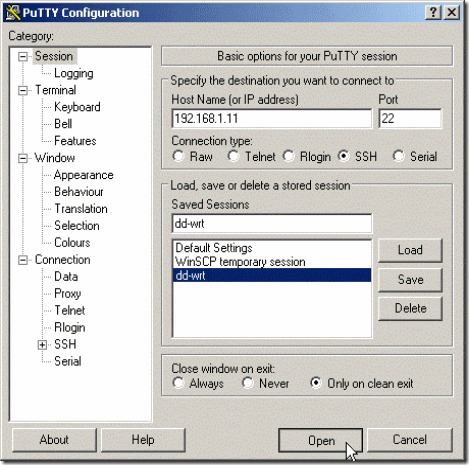
clip_image019
Connect to the router using PuTTY and SSH.
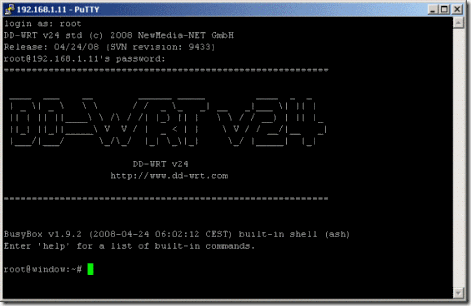
clip_image021
Login to your dd-wrt router with SSH
clip_image023
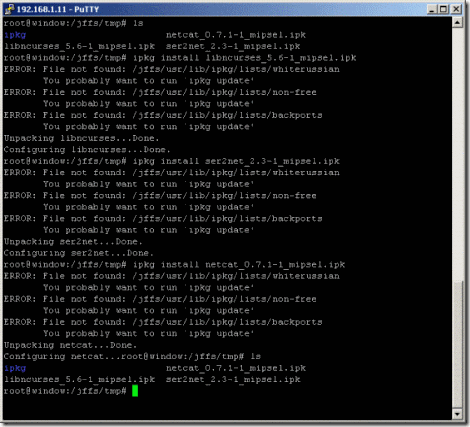
Using SSH install the three .ipk files located at /jffs/tmp you copied via WinSCP.
To install the software packages using the IPKG installer:
ipkg install libncurses_5.6-1_mipsel.ipk
ipkg install ser2net_2.3-1_mipsel.ipk
ipkg install netcat_0.7.1-1_mipsel.ipk

Step 8. Test Ser2net
Connect your serial device to the dd-wrt. This example expects that your serial device is connected to TTS/1. I am using a Lococsys 10 Hz GPS connected at 38,400 baud. I set up the serial device to output data on TCP port 3001 but any other port number could be used. The ser2net program only allows a single TCP connection to the serial port at a time.
In the SSH session window type in:
ser2net -C "3001:raw:600:/dev/tts/1:38400 NONE 1STOPBIT 8DATABITS -XONXOFF -LOCAL -RTSCTS"
If you copy the above text, make sure your web browser didn't convert the quotes into smart quotes as this will give an error in your SSH terminal program.
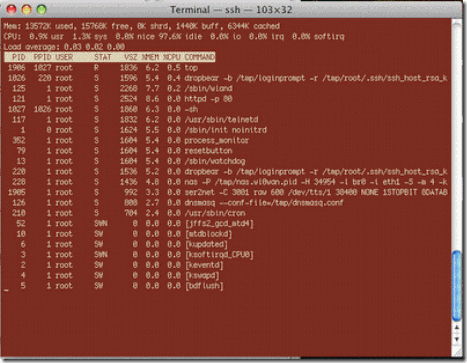
To check if the program is installed properly and running, type in:
top
This shows the currently running programs on the dd-wrt router. In the right hand column labeled COMMAND you should see ser2net listed part way down. Press Control-C to quit top.
clip_image025
Step 9.  Set up the startup script.
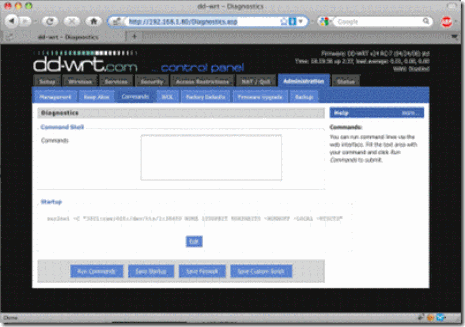
To make the serial software ser2net start at boot time we will make it a startup script. Connect to the Linksys router. In my case, I will connect to http://192.168.1.80/Diagnostics.asp
This will load up the Administration / Commands section in the dd-wrt software.
Paste the following text into the Command Shell section of the web-gui of the dd-wrt router firmware control panel:

ser2net -C "3001:raw:600:/dev/tts/1:38400 NONE 1STOPBIT 8DATABITS -XONXOFF -LOCAL -RTSCTS"
If you copy the above text, make sure your web browser didn't convert the quotes into smart quotes as this will give an error in your SSH terminal program.
Click the Save Startup button.
clip_image027
Reboot the router.
Step 10. Let’s now test if everything is working!
Open a new terminal window.
On Mac OS X and Linux there is a handy Unix tool called Netcat. Netcat is also known as “nc” for short. It allows you to easily test UDP and TCP network connections. If you search on Google there are also pre-compiled versions of Netcat for windows.
Type the following into your terminal window:
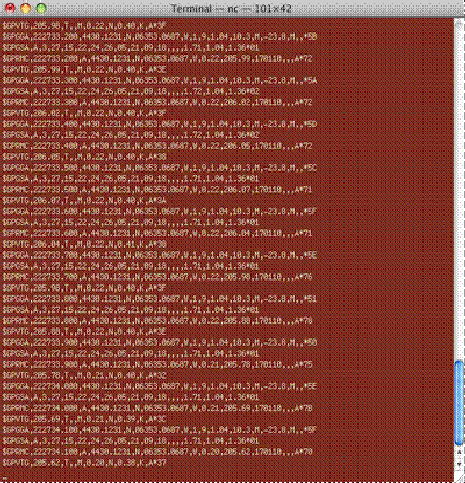
nc 192.168.1.80 3001
This tells Netcat to connect to the Linksys router on port 3001 using the TCP protocol.
If your serial device is properly connected you should see data scrolling by in the terminal window.
clip_image029
Step 11. Conclusions
You can now access the serial port on a dd-wrt either through the Ethernet port on the router or wirelessly using WIFI.
On Mac OS X it is possible to use BSD Sockets to connect and transfer data between desktop software and the remote network serial port.
On Windows you can either use a TCP socket and connect directly or you can use virtual serial port software that will make the network TCP data look like it is coming in on a Windows COM port.
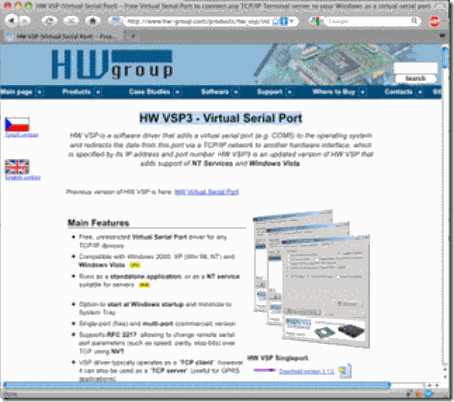
A free program for Windows that maps the TCP serial data to a virtual serial port is:
HW VSP3 - Virtual Serial Port
http://www.hw-group.com/products/hw_vsp/index_en.html
clip_image031
Some people like to use Python scripting for its easy network socket programming.
http://www.python.org/
Another way to access the network TCP serial data is to use the Simple Directmedia Layer "SDL" with the SDL_net cross-platform networking library. This works equally well on Mac / Windows / Linux platforms.
http://www.libsdl.org/
http://www.libsdl.org/projects/SDL_net/

clip_image033
Step 12.
And additional step is that you could setup your serial port enhanced dd-wrt router to be a wireless repeater. Wireless repeater bridge mode allows your dd-wrt router to connect to a wireless access point for internet access and also allows clients to connect directly to your dd-wrt. Another handy thing about this mode is that you can place this router a long way away from your access point and you don't have to run any Ethernet cable to hook it up. With a properly setup grid or patch antenna the dd-wrt wireless repeater router could even be a kilometer or more away. As well you can connect to the dd-wrt with an device like an iPod to check the settings. I have a Terminal app on my iPod so I can even log in to the router with SSH and change settings.
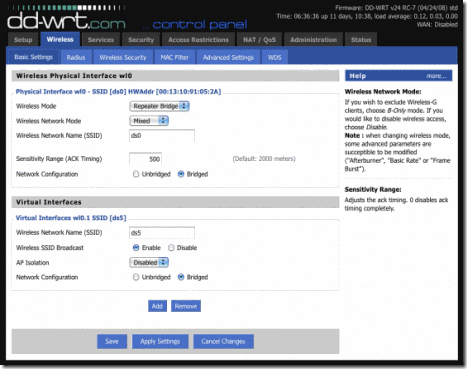
clip_image035
You might find that enabling the dd-wrt repeater bridge mode is just what your project needs.
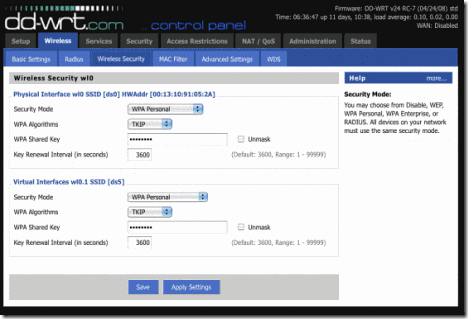
clip_image037
You can define two separate wireless security passwords for your router. One for the physical interface and one for the virtual interface.
You have now completed part 1 of this tutorial on setting up network serial ports using a Linksys router. Part 2 of this tutorial covers setting up a UDP based network serial port on your Linksys WRT54G router using a custom build of busybox and netcat.
Installing Ser2net Without JFFS2 Support
A blog reader named Matt sent me a tip from the DD-WRT forums on how you can install ser2net on routers without JFFS2 support. The technique uses an http server to host a gzipped copy of ser2net.  The file is downloaded using wget, expanded with tar xzf, and then ser2net is run from the command line with the appropriate arguments.
cd /tmp
wget http://[your-webserver-ip/folder-name]/ser2net-2.5-mips.tar.gz
tar xzf ser2net-2.5-mips.tar.gz
cd ser2net-2.5
./ser2net -C "1024:raw:600:/dev/tts/1:38400 NONE 1STOPBIT 8DATABITS -XONXOFF -LOCAL -RTSCTS"

Note: If you make this a startup script on the router the HTTP webserver URL has to be accessible from the router at boot time for this to work. This means you might have to store the file on your local LAN. You can download a copy of the file ser2net-2.4-mips.tar.gz here.
This also applies to the Asus WL-520gu and many other DDWrt routers (except for the pinout part).
Taken From: http://www.andrewhazelden.com/blog/2010/01/how-to-use-the-serial-ports-on-a-linksys-wrt54gs-with-dd-wrt-v24/
Check out Part 2, Wich is the same but via UDP: http://www.andrewhazelden.com/blog/2012/03/setting-up-a-udp-based-network-serial-port-on-a-linksys-wrt54g-router/

Monday, April 23, 2012

Configurações 3G e MMS (Portugal)

Abaixo têm as configurações da internet 3G e MMS extraidas de telemoveis android (http://www.androidpt.info/index.php?title=Categoria:APN).

Com estas é possivel configurar Internet e MMS em vários telemoveis desbloqueados, adicionalmente servem também para configurar PENs 3G desbloqueadas ou ligadas a um router Wifi.

TMN – Internet e MMS

Internet

Name: tmn internet
APN: internet
Dial Number: *99#
Authentication Mode: PAP
Proxy: not set
Port: not set
Username: not set
Password: not set
Server: *
MMSC: not set
MMS proxy: not set
MMS port: not set
MCC: 268
MNC: 06
APN type: default

MMS

Name: mms tmn
APN: mmsc.tmn.pt
Proxy: not set
Port: not set
Username: tmn
Password: tmnnet
Server: *
MMSC: http://mmsc
MMS proxy: 010.111.002.016
MMS port: 8080
MCC: 268
MNC: 06
APN type: mms


Optimus - Internet e MMS

Internet

Name: Optimus;
APN: myconnection; or umts;
Dial Number: *99#; or *99***1#;
Authentication Mode: ???
Proxy: 62.169.66.5;
Port: 8799;
Username: Deixar em branco;
Password: Deixar em branco;
Server: umts;
MMSC: portal.optimus.pt;
MMS Proxy: Deixar em branco;
MMS Port: Deixar em branco;
MCC: 268;
MNC: 03;
APN type: nenhuma;
Prima tecla de Menu;
Seleccione Save.
Desligue e volte a ligar o aparelho.


MMS

Nota: configuração deverá ser efectuada em letra minúscula.
Prima tecla de Menu;
Settings;
Wireless Controls;
Mobile Networks;
Access Point Names;
Prima tecla de Menu;
Seleccione New APN;
Name: Optimus MMS;
APN: umts;
Proxy: 62.169.66.5;
Port: 8799;
Username: Deixar em branco;
Password: Deixar em branco;
Server: umts;
MMSC: mmsc:10021/mmsc;
MMS Proxy: 62.169.66.5;
MMS Port: 8799;
MCC: 268;
MNC: 03;
APN Type: nenhuma;
Prima tecla de Menu;
Seleccione Save;
Desligue e volte a ligar o aparelho.
Envie a primeira MMS para activar recepção.

Existem 3 APN kanguru:
kanguru-portatil - tarifários móveis
kangurufixo - tarifários fixos
kanguru-tempo - tarifários pré-pagos 
  
  
Vodafone - Internet e MMS

Internet

Name: Vodafone Internet
APN: net2.vodafone.pt (ou internet.vodafone.pt)
Dial Number: *99#
Authentication Mode: CHAP
Proxy: not set
Port: not set
Username: vodafone
Password: vodafone
Server: *
MMSC: not set
MMS proxy: not set
MMS port: not set
MCC: 268
MNC: 01
APN type: default


MMS

Name: Vodafone MMS
APN: vas.vodafone.pt
Proxy: not set
Port: not set
Username: vas
Password: vas
Server: *
MMSC: http://mms/servlets/mms
MMS proxy: 213.030.027.063
MMS port: 8799
MCC: 268
MNC: 01
APN type: mms

Nota: Os Magic vendidos pela Vodafone PT têm configurado como APN net2.vodafone.pt.
Definição alternativa de APN
A seguinte configuração também é válida.

Name: Vodafone Net2
APN: net2.vodafone.pt
Proxy: iproxy.vodafone.pt
Port: 80
Username: vodafone
Password: vodafone
Server: <Not set>
MMSC: http://mms.vodafone.pt/servlets/mms
MMS proxy: iproxy.vodafone.pt
MMS port: 80
MCC: 268 MNC: 01
Authentication type: <Not set>
APN type: default,supl,mms


Zon Mobile - Internet e MMS

NOTA: Se estas configurações não funcionarem, aconselhamos a que experimente as APNs da Vodafone. Várias fontes indicam que essa configuração funciona para os cartões ZON.

Internet

Name: Zon Internet
APN: internet.zon.pt
Dial Number: *99#
Authentication Mode: CHAP
Proxy: not set
Port: not set
Username: vas
Password: vas
Server: *
MMSC: not set
MMS proxy: not set
MMS port: not set
MCC: 268
MMNC: 01
APN type: default

MMS

Name: Zon MMS
APN: vas.zon.pt
Proxy: not set
Port: not set
Username: vas
Password: vas
Server: *
MMSC: http://mms/servlets/mms
MMS proxy: 213.030.027.063
MMS port: 8799
MCC: 268
MNC: 01
APN type: mms

Baseado em: http://www.androidpt.info/index.php?title=Categoria:APN

Monday, March 19, 2012

DNS with a DD-WRT Router

Setup Local/Internal DNS with a DD-WRT Router

I’ve talked about some features of the DD-WRT router before, and one of the things I’ve been playing around with lately is DNSMasq. There’s a good chance you haven’t noticed this setting in DD-WRT because it’s not something most people would ever think to use. Plus DNSMasq can be found in two different areas within DD-WRT since it can be used for both DHCP assignments as well as internal/local DNS management. What I will be focusing on is the local DNS aspect.

When is using DNSMasq useful for controlling DNS? Here are some examples as to why you may want to use it:


  • You have DNS pointing to something that is hosted on your home network and it is also accessible from outside your network. For example, you may have a security camera that has a domain attached to it (e.g. camera.example.com), and it’s accessed from both on and off your network. Using DNSMasq on your router you can make the domain, camera.example.com, point to the internal IP of the camera so that anyone who accesses that camera from within your network won’t have to rely on external DNS getting resolved. You should see at least a slight performance boost that way.


  • You want to override public DNS entries, such as google.com. You can obviously pull off some great pranks by directing traffic to sites like google.com or facebook.com to some custom site you create, but there are other reasons this is legitimately useful. Maybe you are testing a new version of your own website, but want to make sure it will work fine with the live domain. DNSMasq can help you accomplish that.


  • You want to create DNS for a site that is accessible using only a single word, such as intranet. Companies do this kind of thing all the time where an internal-only website can be reached without needing or wanting a publicly-accessible URL.


I know what you may be thinking… why wouldn’t you just update the HOSTS file on your local machine? Well, you could, but not all devices support that feature. By using DNSMasq the DNS change will work for anything connecting to your router, including mobile devices such as phones and tablets.

So what do you have to change in DD-WRT? Here’s what you need to do:

  1. Go to the Services tab once you’ve logged into the administration interface.
  2. Find the section labeled DNSMasq, and make sure the DNSMasq option is enabled.
  3. This is the fun part. In the Additional DNSMasq Options box type out your local DNS configurations in the format of one entry per line:
    • address=/machine_or_domain_name/ip_address – where machine_or_domain_name is what you want to create/change DNS for (e.g. camera.example.com, google.com, intranet) and ip_address is the new IP address you want it to point to.
  4. Apply the settings to DD-WRT, and you should be all set.

This is an example of what your DNSMasq settings may look like:

Ddwrt dnsmasq

If your devices don’t see the changes after they’ve been made you may need to try restarting them since that is often the simplest way to clear the DNS cache.

Taken From: http://cybernetnews.com/local-internal-dns-ddwrt/

Tuesday, February 14, 2012

Cisco TSHOOT – Top 10 Show Commands

Cisco Router Tips
Top 10 'show' Commands by Tom Lancaster
clip_image002

One of the most important abilities a network administrator can have is the know-how to get information out of his network devices so he can find out what's going on with the network. In most networks, the staple of information gathering has been the "show" commands. Here are my top ten commands to know and love:

  1. show version: Start simple; this command gives uptime, info about your software and hardware and a few other details.
  2. show ip interface brief: This command is great for showing up/down status of your IP interfaces, as well as what the IP address is of each interface. It's mostly useful for displaying critical info about a lot of interfaces on one easy to read page.
  3. show interface: This is the more popular version of the command that shows detailed output of each interface. You'll usually want to specify a single interface or you'll have to hit 'page down' a lot. This command is useful because it shows traffic counters and also detailed info about duplex and other link-specific goodies.
  4. show ip interface: This often overlooked command is great for all the configuration options that are set. These include the switching mode, ACLs, header compression, ICMP redirection, accounting, NAT, policy routing, security level, etc. Basically, this command tells you how the interface is behaving.
  5. show ip route: This indispensable command shows your routing table, which is usually the primary purpose of the box. Get to know the options on this command.
  6. show arp: Can't ping a neighbor? Make sure you're getting an arp entry.
  7. show running-config: This is an easy one. It tells you how the box is configured right now. Also, "show startup-config" will tell you how the router will be configured after the next reboot.
  8. show port: Similar to the show interface command on routers, this command gives you the status of ports on a switch.
  9. show vlan: With the trend toward having lots of VLANs, check this command to make sure your ports are in the VLANs you think they are. Its output is very well designed.
  10. show tech-support: This command is great for collecting a lot of info. It basically runs a whole bunch of other show commands, and spits out dozens of pages of detailed output, designed to be sent to technical support. But, it's also useful for other purposes.

Taken From: http://www.thenetworkadministrator.com/ciscoroutertips.htm