Showing posts with label usb. Show all posts

Monday, June 20, 2016

GRUB - Rescue BootLoader on a USB Flash Drive

My goal is to just have a GRUB bootloader (without a Linux instalation) on a USB Flash Drive to:

  • Boot OS with Bootloaders without entering the BIOS
  • Boot OS with Broken Boot Loaders
  • Boot Linux Live CDs


Installing the GRUB Boot Loader

Run a live CD like Ubuntu, a boot i without installing it.

First list your disks in order to identify you USB Flash Drive

    sudo fdisk -l

if you have trouble identifying you USB Flash Drive just run the command above without the USB Flash Drive, the insert it and list again, compare the outputs, and the extra disk is you USB Flash Drive.

My USB Flash Drive is “sdb1” (b=second HD | 1=first partition), now let’s make a folder to mount the usb flash drive (my Flash Drive was formated with the ext4 filesystem), and mount it:

    sudo mkdir /mnt/USB
    sudo mount /dev/sdb1 /mnt/USB

Now let’s just install the the bootloader

    sudo grub-install --force --removable --boot-directory=/mnt/USB/boot /dev/sdb

boot code goes on /dev/sdb and grub files on /mnt/USB/boot.


Set Up the Grub Configuration FIle

Now just create/edit the grub config file

    nano /mnt/USB/boot/grub/grub.cfg

and input the following configuration:

grub.cfg
_____________________________________________

set timeout=10
set default=0

menuentry "#### Boot OS with Bootloaders without entering the BIOS ####" {set root=(hd1)}

menuentry "HD0 (First HD – This USB Flash Drive)" {
set root=(hd0)
chainloader +1
}

menuentry "HD1 (Second HD)" {
set root=(hd1)
chainloader +1
}

menuentry "HD2 (Third HD)" {
set root=(hd2)
chainloader +1
}

menuentry "HD3 (Fourth HD)" {
set root=(hd3)
chainloader +1
}


menuentry "#### Boot OS with Broken Boot Loaders ####" {set root=(hd1)}

menuentry "Ubuntu 16.04 (HD1 - First HD)"  {

    insmod part_msdos
    insmod ext2
    set root=(hd1,msdos1)

    echo 'Loading Linux Kernel...'
    linux /boot/vmlinuz-4.4.0-24-generic root=/dev/sda1
       
    echo 'Loading Initial Ramdisk ...'
    initrd /boot/initrd.img-4.4.0-24-generic
    boot
}

menuentry "Windows XP/7/10 (HD1 - First HD)"  {

    insmod part_msdos
    insmod ntfs
    set root=(hd1,msdos1)

    drivemap -s (hd0) ${root}
    chainloader +1
}


menuentry "#### Boot Linux Live CDs ####" {set root=(hd1)}
   
menuentry "Ubuntu 16.04 ISO (On This USB PEN Drive)" {

    set isofile="/ubuntu-16.04-desktop-amd64.iso"
    loopback loop (hd0,msdos1)$isofile
    linux (loop)/casper/vmlinuz.efi boot=casper iso-scan/filename=$isofile noprompt noeject
    initrd (loop)/casper/initrd.lz
}

This is what it looks like:

image

You migth need to adjust some things if you have more disks, partitions or diferent linux distro. To make it easyer I have put the things you migth need to change in bold.

The above config was for the following setup

  • One USB Flash Drive (with Grub Installed)
    • hd0,msdos1 - First HD | First Partition – MBR Geometry
    • This is was my USB Flash Drive
  • One Hard Drive for OS
    • hd1,msdos1 – Second HD | First Partition – MBR Geometry
    • This is the Disk with the OS

If you have trouble Identifying you disks and partion you can press ‘c’, on the grub menu, to get the GRUB command line and run “ls” :

image

this was very hepfull, specially identifying the the name for the MBR partitions aka “msdos” .

Related Links

Saturday, November 1, 2014

How to Create Bootable USB Drives and SD Cards For Every Operating System

How to Create Bootable USB Drives and SD Cards For Every Operating System

clip_image001

Creating installation media for your operating system of choice used to be simple. Just download an ISO and burn it to CD or DVD. Now we’re using USB drives, and the process is a little different for each operating system.

You can’t just copy files form an ISO disc image directly onto your USB drive. The USB drive’s data partition needs to be made bootable, for one thing. This process will usually wipe your USB drive or SD card.

From a Linux ISO

Ubuntu recommends the Universal USB Installer for creating bootable Linux USB drives on Windows. This tool can create bootable disc images for many different Linux distributions.UNetbootin is another popular alternative.

Download the Linux distribution you want to use in .ISO form. Run the tool, select your desired distribution, browse to your downloaded ISO file, and choose the USB drive you want to use. The tool will do the rest.

clip_image002

You can use similar tools on Linux. For example, Ubuntu includes a Startup Disk Creator tool for creating bootable Ubuntu USB drives. UNetbootin also runs on Linux, so you can use that too.

clip_image003

From an IMG File

Some operating system projects provide an IMG file instead of an ISO file. An IMG file is a raw disk image that needs to be written directly to a USB drive.

Use Win32 Disk Imager to write an IMG file to a USB drive or SD card. Provide a downloaded IMG file and the tool will write it directly to your drive, erasing its current contents. You can also use this tool to create IMG files from USB drives and SD cards.

clip_image004

Linux users can use the dd command to directly write an IMG file’s contents to a removable media device. Insert the removable media and run the following command on Ubuntu:

sudo dd if=/home/user/file.img of=/dev/sdX bs=1M

Replace /home/user/file.img with the path to the IMG file on your file system and /dev/sdX with the path to your USB or SD card device. Be very careful to specify the correct disk path here — if you specify the path to your system drive instead, you’ll write the contents of the image to your operating system drive and corrupt it

clip_image005

From a Windows 7 ISO

Provide the ISO file and a USB flash drive and the tool will create a bootable drive.

clip_image006

From a Windows 8 or 8.1 Product Key

If you have a Windows 8 or Windows 8.1 product key, you can download installation media directly from Microsoft and create a USB drive all at once. Download the appropriate tool from the Upgrade Windows with only a product key page. Run it, provide your product key, and tell the wizard you want to create a bootable USB drive.

Note that Windows 8 and Windows 8.1 have different product keys, so you’ll need to jump through hoops if you want to install Windows 8.1 with a Windows 8 product key. You may just want to install Windows 8 and upgrade to Windows 8.1 from within Windows 8 — that’s Microsoft’s officially supported method.

clip_image007

From a Windows 8 or 8.1 ISO

If you already have a Windows 8 or 8.1 ISO file and you want to create installation media without redownloading anything, you can actually use the Windows 7 USB/DVD download tool for this.

Just provide the Windows 8 or 8.1 ISO file when prompted. The tool will happily create Windows 8 or 8.1 installation media if you provide the appropriate ISO file.

clip_image008

If you need to boot into DOS to use a low-level firmware upgrade, BIOS update, or system tool that still requires DOS for some reason, you can use the Rufus tool to create a bootable DOS USB drive.

Rufus uses FreeDOS, an open-source implementation of DOS that should run whatever DOS program you need to use.

clip_image009

From Mac OS X Installation Files

You can create a bootable drive with Mac OS X on it by downloading the latest version of OS X from the Mac App Store. Use Apple’s included “createinstallmedia” tool in a terminal or by run the third-party DiskMaker X tool.

The Mac OS X drive can be used to install OS X on other Macs or upgrade them to the latest version without any long downloads.

clip_image011

From a Windows ISO for Mac

If you plan on installing Windows on a Mac via Boot Camp, don’t bother creating a bootable USB drive in the usual way. Use your Mac’s Boot Camp tool to start setting things up and it will walk you through creating a bootable Windows installation drive with Apple’s drivers and Boot Camp utilities integrated.

You can use this drive to install Windows on multiple Macs, but don’t use it to install Windows on non-Apple PCs.

clip_image012

Some of these tools overlap — for example, Rufus can also be used to create bootable drives from Linux ISOs, IMG files, and even Windows ISO Files. We suggested the most popular, widely recommended tools for each task here.

Image Credit: USBMemoryDirect on Flickr

Taken From: http://www.howtogeek.com/191054/how-to-create-bootable-usb-drives-and-sd-cards-for-every-operating-system/

Thursday, January 16, 2014

Homemade Dropbox with Raspberry Pi and BTSync

Clone Dropbox with a Raspberry Pi and BTSync

clip_image001

After constantly hitting my Dropbox space limit, I decided to build my own distributed backup tool. What I ended up with was an external hard drive with a dedicated Raspberry Pi that keeps in sync with my laptop over the internet using BitTorrent Sync. This new BTSync folder fully replaced my Dropbox folder, and allowed me to streamline my large media backups. I've explained every step of the build below.

Recommended Hardware

These are the items you'll need if you want to duplicate what I've built. If you're building more than 1 node, I highly recommend you buy different brand external hard drives (eg. 1 Western Digital, 1 Seagate, etc). Even different models should be sufficient. If it turns out one goes bad after a year, chances are the second won't die as well.

Install Raspbian

Grab the latest version of NOOBS (New Out of Box Software). NOOBS makes it easy to get the Raspbian OS up and running on your Raspberry Pi, along with setting some basic config options. Once you have it downloaded, copy the contents of the zip onto a freshly formatted SD card (FAT filesystem).

Once you boot up your Raspberry Pi with this SD card and install Raspbian, you'll be given a few more options. These are the settings I usually change, but you should also look around yourself to see what's available.

  • Enable SSH
  • Set the overclocking level to mild
  • Configure a unique hostname

For more detailed setup instructions, check out the installation readme included in the downloaded zip archive.

Fix the Keyboard Layout

If you're using a USB keyboard, you may notice that some of the characters aren't being entered correctly. To switch your keyboard layout from the default of English (UK) to English (US), you can follow the simple instructions after running this command.

sudo dpkg-reconfigure keyboard-configuration

Connect to WiFi

Assuming you've turned on your Raspberry Pi with the wifi dongle inserted, you can move onto configuring the wifi connection. You may want to give it a fixed IP address to make connecting to it from another machine easier. You'll find it is much quicker to SSH into the device rather than hook up a keyboard and monitor every time you want to tweak something.

Connect the External Drive

I haven't had any issues with disks formatted using ext3 or ext4, so using one of those for your external disk is recommended. You can use sudo fdisk -l to find the path of the disk (probably /dev/sda1), which you'll need for mounting. Here's how to mount it. Don't forget to change ext4 below to whatever you used.

sudo mkdir /media/external_disk

sudo mount -t ext4 /dev/sda1 /media/external_disk

Once you verify that works and you can access your files on the disk (if any), you should be able to add the disk to /etc/fstab by adding a new line like this

/dev/sda1 /media/external_disk ext4 defaults 0 0

Now when you boot your Raspberry Pi, the external drive should automatically mount.

Install BTSync

Finally you'll want to download and install BTSync. Be sure to also follow the instructions to make BTSync start on startup too, so you don't need to manually start it every time. Once it's installed and running, you should be able to configure it from any machine by pointing the browser to the Raspberry Pi's IP and port 8888 (eg http://10.0.0.12:8888). It is a good idea to go into the options and set a password for this page.

Lots of Data

The reason I started this project in the first place was because I had over 1TB of pictures and videos I wanted to keep synced across 2 hard drives in 2 different cities. While creating two nodes has done the job, I am still working on the best way to access the data without disconnecting the drive from the Raspberry Pi every time I want to add/remove something. I think my next step will be to run a samba server on each device as well, so I can treat them as network drives and access everything. FTP is also an option. What are your thoughts?

Taken From: http://reustle.io/blog/btsync-pi

Thursday, January 2, 2014

Universal Tablet USB Charging Adapter (DIY)

DIY Universal USB Charging Adapter (Step-By-Step w/Pics)


This DIY is based upon work done by ericlmccormick.
*DIY means DIAYOR (Do It At Your Own Risk). I'm not responsible if you break/bend/mutilate/damage/fold/crater/molest/etc. your tablet as a result of following these instructions.


If you're running Pershoot's kernel, you don't need to do this. You can enable Anycharge through the kernel. See here.

Thanks to MRBR7 for testing and confirming this also works for the GTab 7.7 6800gt.

Thanks to m_1000rr6 for testing and confirming this also works for the GTab 8.9 LTE.

Thanks to NRGZ28 for testing and confirming this also works for the Original Verizon GTab 7.


TOOLS
(Left to Right)
- Something to hold the tiny pieces together while you solder
- Wire snips
- Solder
- Pliers
- Soldering Iron

clip_image001

PARTS
(Left to Right)
- Male USB Connector
- Female USB Connector
- One 33K Resistor
- One 10k Resistor
clip_image002
I ripped my USB connectors out of a USB extension cable.
clip_image003
Cleaned them up a bit.
clip_image004
IMPORTANT
Pay constant attention to the orientation of the USB connectors to each other and which pins are GND and +5V. You could damage your Tab if you end up switching GND and +5V by mistake.You could also end up with a non-working adapter if you flip the resister locations.
clip_image005
clip_image006
clip_image007
STEP 1
Place the resisters side by side and solder their leads together on one side. Then solder them to the D pins of the female USB connector. Make sure the 10K resistor is on the D pin closest to GND! Keep the trimmed resistor leads for use in Step 4.

clip_image008
STEP 2
Angle the non-soldered ends of the two resistors away from each other so they line up with the GND and +5V pins of the male USB connector. Make sure the USB connectors are aligned so their respective GND and +5V pins are on the same sides! Solder.
clip_image009
STEP 3
Now clip the resistor leads that were bent back towards the female USB connector and solder them to its GND and +5V pins. Double check that the USB connectors are aligned so their respective GND and +5V pins are on the same sides! BE PARANOID.
clip_image010
STEP 4
Use the trimmed resistor lead you kept from Step 1 to solder the chassis of the USB connectors together.
clip_image011
STEP 5
Take 5 minutes to admire your handiwork.
clip_image012
STEP 6 (IMPORTANT - DO NOT SKIP)
Take 10 minutes to check the following
(1) USB connectors are lined up correctly. GND & +5V are not crossed.
(2) 10K resistor comes from GND and 33K resistor comes from +5V. Adapter won't work otherwise.
(3) There are not short circuits / crossed / touching wires. Many bad things could happen.
clip_image013
clip_image014
STEP 7 (TEST)
Without adapter. @$%#!
clip_image015
With adapter. Success!
clip_image016
NEVER CONNECT YOUR TAB TO A USB PORT THAT SUPPLIES MORE THAN 2A - BE PARANOID.
STEP 8
Reinforcing and packaging (paperclips & electrical tape).
clip_image017
clip_image018
clip_image019
STEP 9
Thank me (hit that button over there clip_image021
Hope you found this post useful and informative.

Taken From: http://forum.xda-developers.com/showthread.php?t=1675042

Tuesday, December 10, 2013

How to Setup a USB 3G Modem – Linux / Raspberry Pi

How to setup a USB 3G Modem on Raspberry PI using usb_modeswitch and wvdial

clip_image001 
Setting up a USB 3G/4G modem on a Raspberry Pi is not a simple task. There are many guides available using the now defunctsakis3g script, but getting my modem to work required a bit more understanding.

The main problem is that most USB modems act as two devices - a USB storage device and a USB modem. When plugged in to the Raspberry PI the device is usually in USB storage mode. There is a program calledusb_modeswitch that we can use to do the switching

The other missing part is a way to connect to the cellular network with the USB modem from the Raspberry. For this we will use the classic pppand wvdial programs.
Requirements

  • Raspberry PI computer
  • Raspbian OS installed
  • USB 3G Modem
  • 5V 1A power supply for the Raspberry PI
    ________________________________________

1. Install required software

  • Connect your Raspberry PI to the internet via LAN or Wifi
  • Open a terminal window and enter:

sudo apt-get update
sudo apt-get install ppp wvdial
sudo aptitude install usb-modeswitch

2. Get the USB switching codes

  • We need to get the codes of the USB device in USB storage mode and USB modem mode.
  • Connect your USB modem and reboot the Raspberry PI without LAN or Wifi connection
  • Once rebooted open a terminal window and enter:

lsusb

  • The output will look similar to the screenshot below. Your modem should be listed as one of the USB devices. Note the numbers underlined. These are the device vendor and product codes.

clip_image002[5]

  • Make a note of these numbers. In this case it is 19d2:2000
  • This value will later be used in the DefaultProduct value
  • Then we need to soft reboot the Rapberry PI with the modem connected.
  • Open a terminal window and enter:

sudo reboot

  • Once rebooted open a terminal window and enter:

lsusb

  • The output will look similar to the screenshot below. Your modem should be listed and if you are lucky the second set of numbers would have changed. This is usb_modeswitch doing it's job and switching the device to USB modem mode.

clip_image002

  • Make a note of the new numbers. In this case it is 19d2:2002
  • This value will be used later in the TargetProduct value

3. Create custom usb_modeswitch config file

  • We need to create a custom config file for usb_modeswitch on the Raspberry PI because on a cold boot the device is not always active yet when usb_modeswitch runs on startup and the device is left in USB storage mode.
  • We will extract some more information for our usb_modeswitch config file so that we can do the switching manually.
  • Open a terminal window and enter the following replacing the codes 19d2 and 2000 with the codes you noted in step 2. Also note the added backslash.

cd /tmp
tar -xzvf /usr/share/usb_modeswitch/configPack.tar.gz 19d2\:2000

  • Now open the extracted file with a text editor like leafpad replacing the codes noted in step 2.

nano 19d2:2000

  • The content of the file should look something similar to the screenshot below.
  • The parts we are interested in are shown in blue.

clip_image002[7]

  • Now open the /etc/usb_modeswitch.conf file and add the information obtained above to the file.
  • Open a terminal window and enter:

sudo nano /etc/usb_modeswitch.conf

  • Then add the following replacing the codes and MessageContent values with those of your device and save.

DefaultVendor=0x19d2
DefaultProduct=0x2000

TargetVendor=0x19d2
TargetProduct=0x2002

MessageContent="5553424312345678000000000000061e000000000000000000000000000000"
MessageContent2="5553424312345679000000000000061b000000020000000000000000000000"
MessageContent3="55534243123456702000000080000c85010101180101010101000000000000"

4. Create the wvdial config file

  • The next step is to create a config file for wvdial so you can connect to your service provider.
  • Open a terminal window and enter:

sudo nano /etc/wvdial.conf

  • Replace the content of the file with the following.

[Dialer 3gconnect]
Init1 = ATZ
Init2 = ATQ0 V1 E1 S0=0 &C1 &D2 +FCLASS=0
Init3 = AT+CGDCONT=1,"IP","internet"
Stupid Mode = 1
Modem Type = Analog Modem
ISDN = 0
Phone = *99#
Modem = /dev/gsmmodem
Username = { }
Password = { }
Baud = 460800

For the portuguese mobile operators configurations just check: http://myhowtosandprojects.blogspot.pt/2012/04/configuracoes-3g-e-mms-portugal.html 

  • Replace internet with your service provider's APN
  • Replace the Phone number if you need to dial a different code to connect.
  • Replace Username and Password if needed. To leave the username and password as blank use { }

5. Connect to the internet

  • To connect we need to make sure the device is in modem mode.
  • First get the actual modem state (CD-ROM):

lsusb

Bus 001 Device 002: ID 0424:9512 Standard Microsystems Corp.
Bus 001 Device 001: ID 1d6b:0002 Linux Foundation 2.0 root hub
Bus 001 Device 003: ID 0424:ec00 Standard Microsystems Corp.
Bus 001 Device 004: ID 19d2:2000 ZTE WCDMA Technologies MSM MF627/MF628/MF628+/MF636+ HSDPA/HSUPA

  • Open a terminal and enter:

sudo usb_modeswitch -c /etc/usb_modeswitch.conf

to change the from the CD-ROM mode to the modem mode

Now check that the mode switch occured:

lsusb

Bus 001 Device 002: ID 0424:9512 Standard Microsystems Corp.
Bus 001 Device 001: ID 1d6b:0002 Linux Foundation 2.0 root hub
Bus 001 Device 003: ID 0424:ec00 Standard Microsystems Corp.
Bus 001 Device 005: ID 19d2:0031 ZTE WCDMA Technologies MSM MF110/MF627/MF636

  • Then connect to the internet with:

wvdial 3gconnect

6. Problems

If you have problems with the “wvdial”, you shoul run

wvdialconf

this will scan your system for modems, if it finds one, it will do some tests to determine your modem’s parameters, and write them to a template config in /etc/wvdial.conf :

Editing `/etc/wvdial.conf'.

Scanning your serial ports for a modem.

ttyUSB0<*1>: ATQ0 V1 E1 -- failed with 2400 baud, next try: 9600 baud
ttyUSB0<*1>: ATQ0 V1 E1 -- failed with 9600 baud, next try: 9600 baud
ttyUSB0<*1>: ATQ0 V1 E1 -- and failed too at 115200, giving up.
ttyUSB1<*1>: ATQ0 V1 E1 -- OK
ttyUSB1<*1>: ATQ0 V1 E1 Z -- OK
ttyUSB1<*1>: ATQ0 V1 E1 S0=0 -- ERROR
ttyUSB1<*1>: ATQ0 V1 E1 &C1 -- ERROR
ttyUSB1<*1>: ATQ0 V1 E1 &D2 -- ERROR
ttyUSB1<*1>: ATQ0 V1 E1 +FCLASS=0 -- OK
ttyUSB1<*1>: Modem Identifier: ATI -- Manufacturer: ZTE INCORPORATED
ttyUSB1<*1>: Speed 9600: AT -- OK
ttyUSB1<*1>: Max speed is 9600; that should be safe.
ttyUSB1<*1>: ATQ0 V1 E1 +FCLASS=0 -- OK
ttyUSB2<*1>: ATQ0 V1 E1 -- OK
ttyUSB2<*1>: ATQ0 V1 E1 Z -- OK
ttyUSB2<*1>: ATQ0 V1 E1 S0=0 -- ERROR
ttyUSB2<*1>: ATQ0 V1 E1 &C1 -- ERROR
ttyUSB2<*1>: ATQ0 V1 E1 &D2 -- ERROR
ttyUSB2<*1>: ATQ0 V1 E1 +FCLASS=0 -- OK
ttyUSB2<*1>: Modem Identifier: ATI -- Manufacturer: ZTE INCORPORATED
ttyUSB2<*1>: Speed 9600: AT -- OK
ttyUSB2<*1>: Max speed is 9600; that should be safe.
ttyUSB2<*1>: ATQ0 V1 E1 +FCLASS=0 -- OK

Found a modem on /dev/ttyUSB1.
Modem configuration written to /etc/wvdial.conf.

ttyUSB1<Info>: Speed 9600; init "ATQ0 V1 E1 +FCLASS=0"
ttyUSB2<Info>: Speed 9600; init "ATQ0 V1 E1 +FCLASS=0"

You config template should look something like this:

[Dialer Defaults]
Init1 = ATZ
Init2 = ATQ0 V1 E1 +FCLASS=0
Modem Type = Analog Modem
; Phone = <Target Phone Number>
ISDN = 0
; Password = <Your Password>
; Username = <Your Login Name>
Modem = /dev/ttyUSB1
Baud = 9600

go to step 4 and change:

[Dialer 3gconnect]
Init1 = ATZ

Init2 = ATQ0 V1 E1 +FCLASS=0
Init3 = AT+CGDCONT=1,"ip","internet"
Stupid Mode = 1
Modem Type = Analog Modem
ISDN = 0
Phone = *99#
Modem = /dev/ttyUSB1
Username = tmn
Password = tmn
Baud =
9600

and then try again:

wvdial 3gconnect

Base on: http://www.thefanclub.co.za/how-to/how-setup-usb-3g-modem-raspberry-pi-using-usbmodeswitch-and-wvdial

Related Info:

Saturday, December 7, 2013

Setting up Wifi via the Command Line – Linux/Raspberry Pi (WPA aka WPA1)

Setting up Wifi with the Command Line

Created by Simon Monk

This tutorial works best if your router is broadcasting the SSID. Make sure you have "Broadcast SSID" set up on your router! This may not work with "private" SSID setups

Setting up WiFi in Occidentalis, is also pretty straight forward. You just need to add the name of your wireless network (its SSID) and your password to a configuration file.

Step 1.

Boot the Raspberry Pi without the WiFi adapter plugged in.

Step 2.

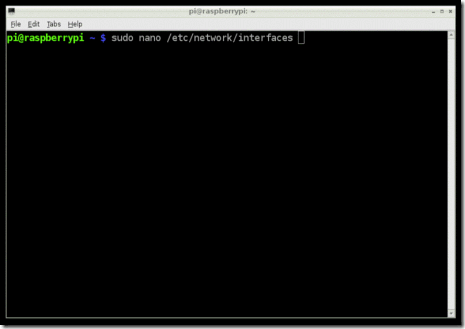
Open a Terminal session by clicking on the LXTerminal icon, and enter the following command into it:

Copy Code

1. sudo nano /etc/network/interfaces

clip_image002

    auto lo

    iface lo inet loopback
    iface eth0 inet dhcp

    allow-hotplug wlan0
    auto wlan0

    iface wlan0 inet dhcp
    wpa-ssid "ssid"
    wpa-psk "password"

If you are using a 'hidden' SSID, try the following (hat-tip to http://www.dafinga.net/2013/01/how-to-setup-raspberry-pi-with-hidden.html)

    auto lo

    iface lo inet loopback
    iface eth0 inet dhcp

    auto wlan0
    allow-hotplug wlan0
    iface wlan0 inet dhcp
    wpa-scan-ssid 1
    wpa-ap-scan 1
    wpa-key-mgmt WPA-PSK
    wpa-proto RSN WPA
    wpa-pairwise CCMP TKIP
    wpa-group CCMP TKIP
    wpa-ssid "My Secret SSID"
    wpa-psk "My SSID PSK"

    iface default inet dhcp

Step 3.

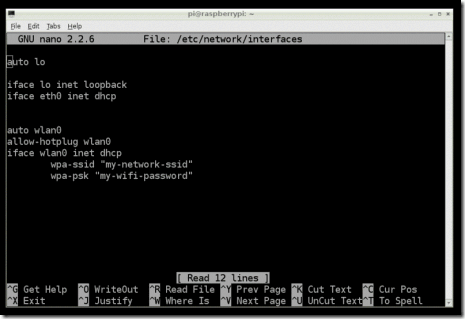
This opens an editor screen of the wifi configuration file you need to change.

clip_image004

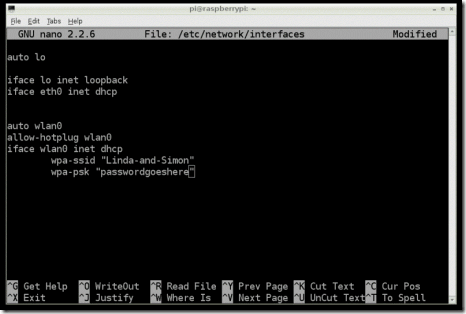
The two places where you need to make a change are on the last two lines. Change the file so that it looks like this:

clip_image006

Of course, you should put in your network and password! Note that you need to keep the double-quote characters around your wireless network name and password.

This kind of editor does not let you use the mouse. Instead, use the cursor keys to move around the file.

Step 4.

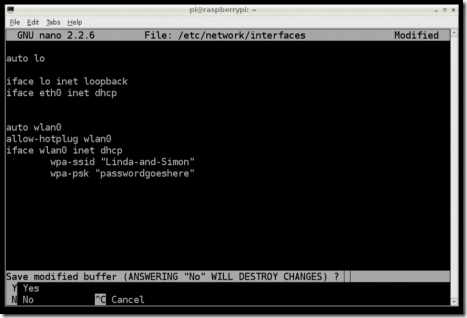
When you have finished press [ctrl]x. This will ask if you want to save the modified files.

clip_image008

Press 'Y' and then Return to save the file with the same name.

Step 5.

Shut down your Raspberry Pi, plug the WiFi adapter in and start it up again. You should find that the Raspberry Pi connects using the WiFi adapter as it boots up.

Taken From: http://learn.adafruit.com/adafruits-raspberry-pi-lesson-3-network-setup/setting-up-wifi-with-occidentalis

Thursday, October 31, 2013

How to Create a Windows 8 Portable (USB Stick)

 How to Create a Portable Version of Windows 8 Without Extra Software

clip_image002

For a long time Linux users have been able to install their OS onto a portable USB drive, but Windows just caught up. Read on to find out how you can install Windows 8 onto a USB drive so you can take it wherever you go.

Note: This was written on the RTM version of Windows 8 Enterprise and you will need to have an RTM build of the Enterprise edition to complete the steps in this article.

Using Windows To Go to Create a Portable Workspace

Press the Win + X keyboard combination and select Control Panel from the context menu.

clip_image004

You will need to change your Control Panel view to the Small Icons view.

clip_image006

You should now see Windows To Go near the bottom of the Control Panel, click on it.

clip_image008

You will now need to select the USB drive you would like to turn into a portable workspace, then click next.

clip_image010

The wizard will automatically scan your CD\DVD and Removable drives for valid Windows installation files, once you have selected a version of Windows click next.

Note: If you store your installation files elsewhere you will need to add it as a search location.

clip_image012

You can optionally set a BitLocker password, but we’ll pass on this option for now.

clip_image014

Once you have reached the end of the wizard, you will be warned that your USB drive will be formatted. You can then click on create to kick of the creation process.

clip_image016

That’s all there is to it, you now have a bootable USB with Windows on it.

clip_image018

Note: Your portable USB will not show up in Explorer, this leaves us with a problem later on when you don’t need to use it as a Portable Workspace anymore.

How To Reformat Your Windows To Go USB Drive

If you’re done using Windows on a drive, you can reformat the drive, but you’ll need to open a command prompt and type diskpart, then press enter.

clip_image020

Once you enter Diskpart you will need to find out which drive is the one you need to format, the list disk command will show you all the drive currently connected to your system. Take note of your drive number because we will need it in the next step.

clip_image022

We now need to select the disk, you can simply use the select disk command along with your drive number from the previous step.

clip_image024

Now that the disk is selected we can go ahead and wipe it.

Note: Clean is a ruthless command that will wipe all the file systems off your drive without any warnings, if you have selected the wrong drive previously this will result is a loss of data so make sure you have the right drive selected.

clip_image026

We can now use the Win + R keyboard combination to bring up the run box  and open Disk Management.

clip_image028

As soon as the Management console opens you will need to initialize the disk.

clip_image030

Then you can go ahead and create your drives partition.

clip_image032

That’s all there is to it.

Taken From: http://www.howtogeek.com/121322/how-to-create-a-portable-version-of-windows-8-without-extra-software/