Showing posts with label vnc. Show all posts

Monday, September 11, 2017

Raspberry - Remote Desktop via The Cloud (Real VNC)


Login via SSH

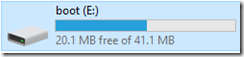
On your PC access the SD card with Raspbian installed:

image

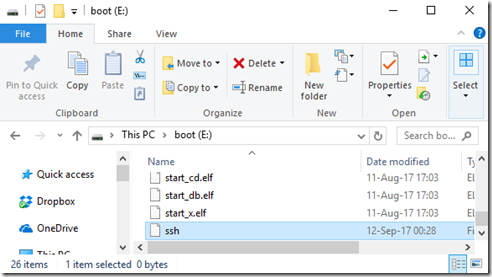
create a file named ssh with no content:

image

this will signal the Raspberry Pi to start the SSH server.

Put the SD card on the raspberry and start it.


Start VNC Server

Now on the cli via SSH:

sudo raspi-config


### ADJUST RESOLUTION ###

7 Advanced Options

A5 Resolution

DTM Mode 16 1024x768 60 Hz 4:3


### ENABLE REAL VNC SERVER ###

Interfacing Options

P3 VNC –Yes  (ENTER TO ENABLE)
    
  Now it will install a bunch of packages


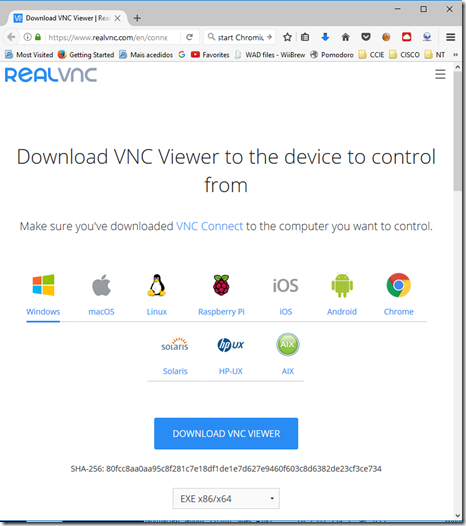
Install the Real VNC Client on a PC

Get the Real VNC Server here:

https://www.realvnc.com/en/connect/download/viewer/

image


Access the Raspberry Pi via VNC

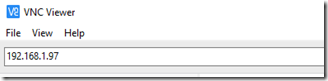
Get the Raspberry PI IP from you router or by connecting a HDMI screen to it:

image

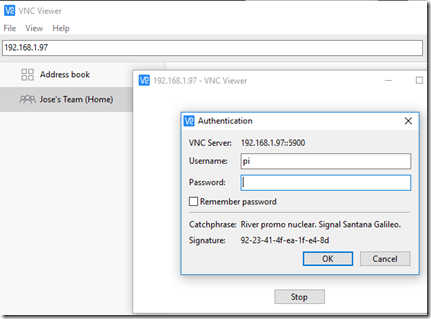
authenticate using a local user and password (the default is: pi / raspberry)

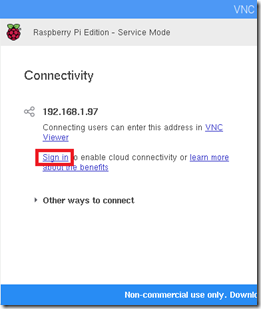
image


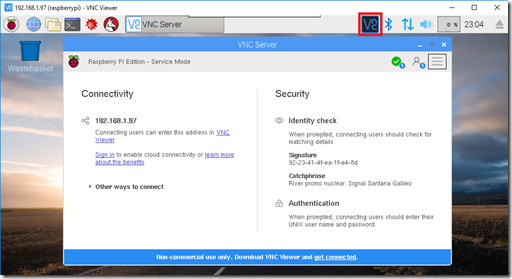
image


Creating a Cloud Account

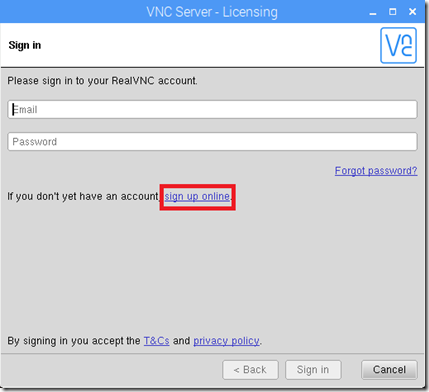
image

image

if it does not open a browser, click on this link:

https://www.realvnc.com/en/raspberrypi/#sign-up

now create an account, and login into to the above window.

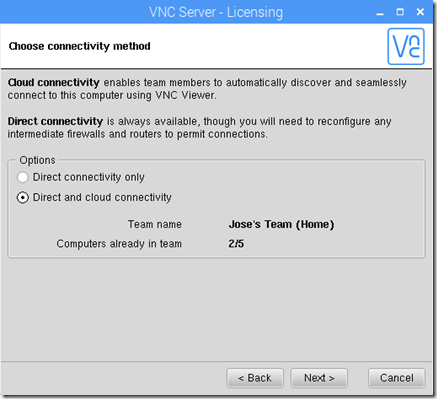
image

hit next and you are done.

You can have up to 5 devices with this free account.


Logging in to the Cloud

Now logging in the window above with the created account:

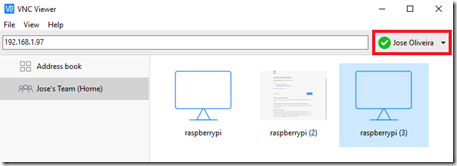
image

and it will show all your devices. Now you can just click on a device and with no port forwarding it will access it via the Real VNC Cloud:

image

Sunday, November 23, 2014

Raspberry Pi (Linux) – TigthVNC Server + File Transfer

How to Configure Your Raspberry Pi for Remote Shell, Desktop, and File Transfer

So you have a Raspberry Pi and you would like to maximize its tiny footprint by turning into a totally stand alone box—no monitor, keyboard, or other input peripherals. Read on as we show you how to set up remote shell, desktop, and file transfer access on your Pi.

Why Do I Want to Do This?

The Pi, even clad in a sturdy case, is a tiny computer. It’s perfect for tucking somewhere out of sight without a gaggle of wires sticking off of it—for many projects you simply don’t need a permanent monitor and peripheral accompaniment.

That doesn’t mean, however, that you won’t need to connect to the box to make changes, update things, transfer files, and so on. A perfect example of this is the cool little rain indicator we built as part of our Build an LED Indicator with a Raspberry Pi (for Email, Weather, or Anything) article. It doesn’t need all that stuff attached right to it, but we still would like the ability to hop onto the device and easily make changes or try out a new experiments with the LED module without having to drag it back into the workshop, and hook it up to a monitor, keyboard, mouse, etc. By configuring it for remote shell, remote desktop, and remote file transfer, we make it super simple to always interact with our Pi unit from the comfort of our desktop computer as if we’ve hooked the unit up to a full work station.

What Do I Need?

If you’re brand new to working with the Raspberry Pi, we strongly suggest checking out The HTG Guide to Getting Started with Raspberry Pi to get a handle on the basics of the device and get up to speed.

For this tutorial you will need the following things:

  • A Raspberry Pi running Raspbian.
  • A desktop or laptop computer.
  • A local Wi-Fi or wired network to connect the Pi and your computer.

First, most of the steps in this tutorial should work with other Linux-based Pi distributions butwe’re going to be using Raspbian. You should have little trouble adapting the tutorial to other distributions.

Second, we’re using a Windows machine as our networked computer to interact with the Raspberry Pi unit as the remote head/interface. When appropriate, we’ll do our best to link to tutorials and suggested reading regarding performing parallel tasks and tools on OS X and Linux.

Setting Up and Connecting to the SSH Server
clip_image002

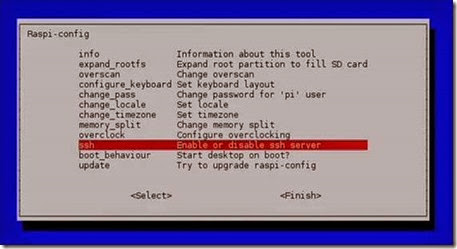
Remote command line access to your Raspbian installation is about the handiest little tweak you can make to your system, and it’s down right simple to enable.

Open up the terminal in Rasbian, the shortcut is LXTerminal on the desktop, and type in the following command:

sudo raspi-config

Navigate down to ssh and hit enter. When prompted about the SSH server, select Enable and hit enter again. You will be returned to the Raspi-config panel; navigate down to Finish and hit enter to close out the configuration tool. That’s all you need to do to turn on SSH access to your Pi. The default SSH login and password is pi and raspberry, respectively.

While you’re still sitting at the command line, now is a great time to check the IP of your Raspberry Pi unit on the local network. Type ifconfig at the prompt and then look at the output of the command. If you’re using the Ethernet port you want to look for the init addr in the eth0section; if you’re using Wi-Fi, you want to look for the init addr in the wlan0 section. In addition to checking and noting the IP address, this is also a great time to set up a static IP entry in your router so you don’t have to hunt for the IP in the future.

Now that we have the SSH server enabled, we know the login, and we know the IP address of the machine, it’s time to connect in via SSH and test it out. To do so from Linux and OS X you can simply use the ssh command at the terminal. Windows users, however, will need an SSH client like PuTTY.

Since we’re using a Windows box to remotely manage our Pi, PuTTY it is. Install a copy of PuTTY or extract the portable version and fire it up. There are a lot of settings you can mess with in PuTTY, but we only need to worry about a single thing to connect to our Pi. On the main Session interface, just type in the IP address of your Pi and select SSH below it:
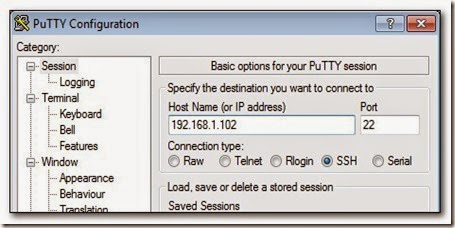
clip_image003

Hit Open at the bottom and PuTTY will launch a terminal window for you, connect to your Pi, and prompt you to log in. Go ahead and log in with pi / raspberry:
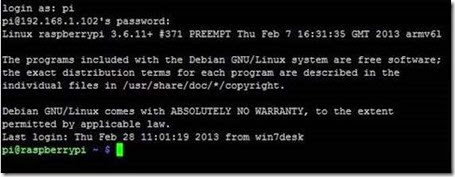
clip_image005

Once your SSH connection is functional, you could technically complete the rest of this tutorial remotely from the comfort of your desk—although we’d advise leaving the head and keyboard on your system until you have finish the whole project and have everything running smoothly.

Before we move on, there’s some extra functionality we can squeeze out of SSH. In addition to managing the command line remotely, you can also remotely transfer files using Secure Copy. It’s command line intensive and not particularly convenient for transferring a large number of files sourced from multiple directories, but for a one-off configuration file transfer or other small dump, it’s pretty handy. Check out our guide to copying files over SSH using the SCP command here.

We’re going to be looking closer more user-friendly/GUI-based file transfer techniques later in the tutorial.

Setting Up and Configuring Your Remote Desktop
clip_image006

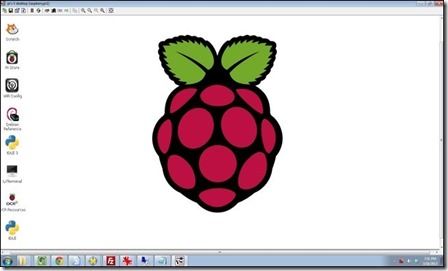
Remote command line access is awesome, but so is having access to the desktop for GUI-focused activities. Let’s bring the powers of the command line and the powers of the desktop together.

Although we’ve been referring to it as “remote desktop” to this point, the tool we’re actually installing is known as Virtual Network Computing (VNC)—iterations of which many are familiar with such as RealVNC and TightVNC. For this tutorial, we’ll be installing TightVNC on the Pi. In order to access the Pi-based TightVNC session, you will need a remote client such as:

Grab a copy now, and we’ll be trotting it out later in this section. For now, let’s get down to installing the TightVNC server on your Raspberry Pi. Open up the terminal. Enter the following command to get started:

sudo apt-get install tightvncserver

This will download and unpack the installation files; when prompted to continue press Y. After the installation is complete, you’ll be returned to the prompt.  You can start the VNC one of two ways. Simply running the command for the server like so:

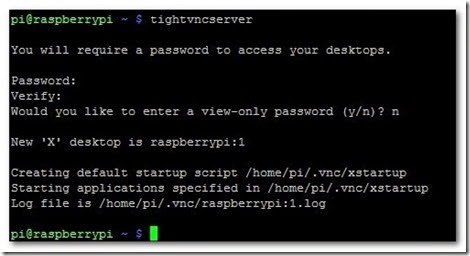
tightvncserver
clip_image007

Will prompt you enter a password to access your VNC desktop—as seen in the screenshot above. The password needs to be 4-8 characters long. Once you confirm the password, you will be prompted to set a view-only password (you can opt out of the step, as we did).


Continue reading to learn how to configure your server and setup file transfer tools.

Alternatively, you can use a much more precise, albeit longer to type out, command that gives you more control over how the remote computer will see the desktop—most importantly, what resolution the desktop will display so you can enjoy a full screen view on the remote computer. To specify the resolution of the VNC desktop, use the following command, swapping out the resolution value (the fourth item in the command) for the resolution of the remote desktop:

vncserver :1 -geometry 1600×900 -depth 16 -pixelformat rgb565:

If at any point you make a mistake in setting up your VNC server instance and/or you want to shut down the VNC server, simply enter the following (changing the number after the colon to the number of the VNC instance you want to kill):

vncserver –kill :1

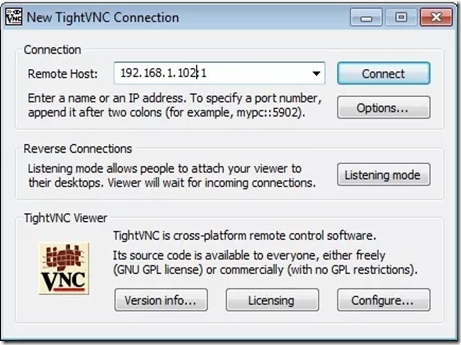
Now that we have the VNC server up and running, let’s connect into it from our remote desktop. Fire up TightVNC viewer on your computer and plug in the IP address of the Raspberry Pi unit followed by :1 like so:
clip_image008

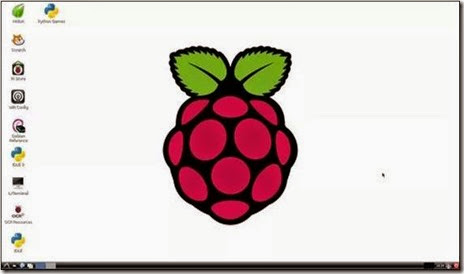
And here’s our reward for successfully configuring our VNC server—a nice full screen view of our remote Raspberry Pi unit:
clip_image010

There’s a known issue with TightVNC and Rasbian that, thanks to a wonky permission change, will cause trouble with the actual monitor-is-attached desktop (while leaving the remote desktop interface provided by the VNC server untouched).  To fix this issue before it even becomes a problem for you, head right to the command line and enter the following command:

sudo chown pi /home/pi/.Xauthority

This command changes the ownership of the .Xauthority file back to the user pi—for the curious, the .Xauthority file is used by the X-windows system in Rasbian and something during the TightVNC server installation and configuration process causes that little permissions hiccup.

With that little minor detour out the way, let’s get back to finishing our remote desktop configuration.

Now that we have full command line and desktop access to the Raspberry Pi, there’s one not-so-trivial tweak we need to make. The Raspi-config tool set the SSH server to automatically start on boot for us, but the VNC server is not yet configured in such a fashion. You can skip this step and manually start the server at the command line via SSH when you need it, but we’re trying to make this as fuss-free as possible for future use. Let’s take a minute now and create a startup file for the VNC server.

In order to automatically start the VNC server, we need to set up an init, or initialization, file that Raspbian will use to cleanly start and shut down the server during the boot and shut down process. Let’s create the init file now. At the command line type in the following command:

sudo nano /etc/init.d/tightvnc

This will create a file in the initialization directory called “tightvnc” and open the nano editor so we can paste in our script. In the nano editor, paste the following code (make sure to change the 1600×900 resolution value to match the screen of your remote computer:

#!/bin/sh
### BEGIN INIT INFO
# Provides: tightvncserver
# Required-Start:
# Required-Stop:
# Default-Start: 2 3 4 5
# Default-Stop: 0 1 6
# Short-Description: start vnc server
# Description:
### END INIT INFO

case “$1″ in
start)
su pi -c ‘vncserver :1 -geometry 1600×900 -depth 16 -pixelformat rgb565:’
echo “VNC Started”
;;
stop)
pkill Xtightvnc
echo “VNC Terminated”
;;
*)
echo “Usage: /etc/init.d/tightvnc {start|stop}”
exit 1
;;
esac

In addition to modifying the screen resolution portion of the script, there is one other thing you can modify. In line 14 you can change the command “su pi -c” to any other user account besides “pi” if you wish to VNC to the specific desktop for that account.

Once you have pasted and modified the code, it’s time to save it. Press CTRL+X to exit and save your work in nano. Once you are back at the command line, we need to make a few quick changes to the permissions of the file:

sudo chmod 755 /etc/init.d/tightvnc

Now the initialization file is executable. We can test it from the prompt:

sudo /etc/init.d/tightvnc start

sudo /etc/init.d/tightvnc stop

The last change we’re going to make is to update the rc.d file (which tracks which initilization scripts are in the /init.d/ folder):

sudo update-rc.d tightvnc defaults

After you enter that command, you’ll get a confirmation that the file was updated. Now it’s time for the real test: does the file load properly after reboot? Enter the following at the command line to reboot and be prepared with your VNC client to test the connection in a moment:

sudo reboot

Once the system has finished rebooting, log in with your VNC client. If your VNC session fails, visit the command prompt and run the tightvnc start command (from the test portion above) again to double check that the file is executable and that the password was saved properly.

At this point, we’re even further along in our mission to totally remote-control our Raspberry Pi unit. With remote command line access via SSH and remote desktop access via VNC under our belts, let’s move on to simplifying the process of transferring files between our Pi and desktop computer.


Setting Up and Configuring File Transfer Tools
clip_image012

Since we already have SSH set up, the easiest way to set up dead simple file transfer between our Pi and remote computers is to piggy back a GUI interface on the SSH connection. Remember how we talked about using SCP over SSH earlier in the tutorial? Running it from the command line gets real tedious, real fast. With a GUI wrapper, we’ll be able to spend more time moving files and playing with our Pi and less time pecking at the keyboard.

While there are a variety of GUI wrappers for the SCP command, we’re going to go with a cross-platform tool that many people already know, have, and love (and may even be unaware that it does SCP transfers): FileZilla. It’s available for Windows, OS X, and Linux—you can grab a copy here.

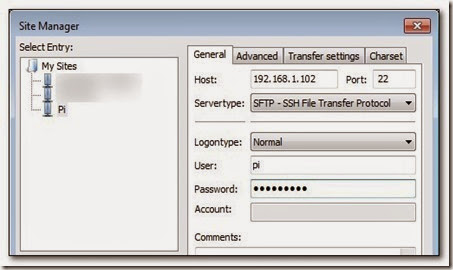
Once you have installed FileZilla, fire it up and go to File –> Site Manager. Create a new site entry, name it, and plug in user name and password for your Pi.
clip_image013

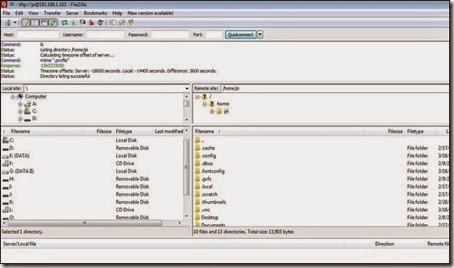
Finally, make sure to set the port to 22 and the Servertype to SFTP – SSH File Transfer Protocol. Click connect at the bottom and you’ll be treated to a view similar to this one:
clip_image014

Your local directories are in the left-hand pane and the remote directories on the Pi are in the right-hand pane. Moving files between the two is as simple as drag and dropping them.

Taking advantage of the existing SSH file transfer is the easiest way to get at the files on the Pi with no additional configuration necessary but if you want to configure your Pi to receive and share files without the remote user requiring any fancy tools (like an SCP capable FTP client such as FileZilla), we highly recommend checking out the Samba configuration portion of our guide:How to Turn a Raspberry Pi into a Low-Power Network Storage Device. Reading over that will familiarize you with setting up a basic Samba share on Pi to create a shared folder easily accessible by just about anyone on your network without any additional tools.

You’ve configured SSH, you’ve configured VNC, and you’ve set up simple SFTP and/or Samba access to your Pi—at this point you can boot down your Raspberry Pi, strip away the monitor, keyboard, and mouse, and tuck it away as a silent and headless machine.

Have an idea for Raspberry Pi project and you’re dying for us to write a tutorial for it? Sound off in the comments or shoot us an email at tips@howtogeek.com and we’ll do our best to help.

Taken From: http://www.howtogeek.com/141157/how-to-configure-your-raspberry-pi-for-remote-shell-desktop-and-file-transfer/all/
Saturday, November 30, 2013

Raspberry Pi Remote Desktop - via VNC (TightVNC)

So you’ve got your Raspberry Pi setup, but what if you don’t have a dedicated monitor to use with it (for example, mine’s connected to my TV). How can you use it without disrupting your setup? VNC (Virtual Network Computing) allows you to see your Pi’s desktop and control it remotely using another computer running Mac OS X, Windows or Linux (and other devices too).

The VNC server software runs on your RPi, access it by running VNC client software on your other device.

The VNC Server

There are various guides for this online, most suggest using the TightVNC server software, here’s my summarised need to know version, run all commands from the command line:

  1. Install tight VNC: “sudo apt-get install tightvncserver
  2. Run the program: “tightvncserver”, and it will start a new session with 1024x728 and 24 bit colour:

pi@raspberrypi ~ $ sudo tightvncserver

New 'X' desktop is raspberrypi:1

Starting applications specified in /root/.vnc/xstartup
Log file is /root/.vnc/raspberrypi:1.log

the :1 (aka session number) means port 5901

      • If you  run the program: “tightvncserver” again, and it will start a another session with 1024x728 and 24 bit colour:

pi@raspberrypi ~ $ sudo tightvncserver

New 'X' desktop is raspberrypi:2

Starting applications specified in /root/.vnc/xstartup
Log file is /root/.vnc/raspberrypi:2.log

the :2 (aka session number) means port 5902

      • If you  want to start a custom VNC session:vncserver :3 -geometry 640x480 -depth 24

vncserver :3 -geometry 640x480 -depth 24

New 'X' desktop is raspberrypi:3

Starting applications specified in /home/pi/.vnc/xstartup
Log file is /home/pi/.vnc/raspberrypi:3.log

the :3 (aka session number) means port 5903

Notes:

  • Configure the session’s resolution after the -geometry argument. In the above 1024x768 is used. The RPi is capable of full HD so you could try 1920x1080.
  • Colour depth is specified by the -depth argument. In the above exampe, 24-bit colour depth is used. You could use 16-bit instead to reduce network traffic.
  • You can start more than one VNC session by running subsequent vncserver commands, just increment the first digit: e.g “vncserver :2 …” for a second, ”vncserver :3 …” for a third (I don’t know how many the RPi could handle).
  • You can set this to run at start up, see the eLinux wiki tutorial, or look for a later post on this blog on automatic login which can start the VNC session with less effort.

The VNC Server (Connect To Your Raspberry PI)

There are lots of VNC clients you can use, depending on your platform. I’m using Apple’s Remote Desktop software which is incredibly powerful (especially when administering Macs) but is overkill if you are just using it with your RPi. TightVNC has a free client application, there’s a native Windows version and a surprisingly good (but limited) Java version, which should run on any desktop/laptop system. A Google search should find you a suitable app for your own system.

To connect to your RPi:

  1. Get your RPi’s IP address by running “ip addr show” or “ifconfig”. The IP address with be shown as highlighted in the image below.
  2. Connect your client to the IP address obtained from 1.
  3. Use port “590x”, where “x” is the session number seen in the previous section. If this doesn’t work, enter the IP address followed by “:x”, e.g. “192.168.1.50:1” (works on TigthVNC).

clip_image002

Based On: http://gettingstartedwithraspberrypi.tumblr.com/post/24142374137/setting-up-a-vnc-server

Wednesday, October 15, 2008

Secured Remote Desktop/Application Sessions

Run graphical applications from afar, securely.

There are many different ways to control a Linux system over a network, and many reasons you might want to do so. When covering remote control in past columns, I've tended to focus on server-oriented usage scenarios and tools, which is to say, on administering servers via text-based applications, such as OpenSSH. But, what about GUI-based applications and remote desktops?

Remote desktop sessions can be very useful for technical support, surveillance and remote control of desktop applications. But, it isn't always necessary to access an entire desktop; you may need to run only one or two specific graphical applications.

In this month's column, I describe how to use VNC (Virtual Network Computing) for remote desktop sessions and OpenSSH with X forwarding for remote access to specific applications. Our focus here, of course, is on using these tools securely, and I include a healthy dose of opinion as to the relative merits of each.

Remote Desktops vs. Remote Applications

So, which approach should you use, remote desktops or remote applications? If you've come to Linux from the Microsoft world, you may be tempted to assume that because Terminal Services in Windows is so useful, you have to have some sort of remote desktop access in Linux too. But, that may not be the case.

Linux and most other UNIX-based operating systems use the X Window System as the basis for their various graphical environments. And, the X Window System was designed to be run over networks. In fact, it treats your local system as a self-contained network over which different parts of the X Window System communicate.

Accordingly, it's not only possible but easy to run individual X Window System applications over TCP/IP networks—that is, to display the output (window) of a remotely executed graphical application on your local system. Because the X Window System's use of networks isn't terribly secure (the X Window System has no native support whatsoever for any kind of encryption), nowadays we usually tunnel X Window System application windows over the Secure Shell (SSH), especially OpenSSH.

The advantage of tunneling individual application windows is that it's faster and generally more secure than running the entire desktop remotely. The disadvantages are that OpenSSH has a history of security vulnerabilities, and for many Linux newcomers, forwarding graphical applications via commands entered in a shell session is counterintuitive. And besides, as I mentioned earlier, remote desktop control (or even just viewing) can be very useful for technical support and for security surveillance.

Using OpenSSH with X Window System Forwarding

Having said all that, tunneling X Window System applications over OpenSSH may be a lot easier than you imagine. All you need is a client system running an X server (for example, a Linux desktop system or a Windows system running the Cygwin X server) and a destination system running the OpenSSH dæmon (sshd).

Note that I didn't say “a destination system running sshd and an X server”. This is because X servers, oddly enough, don't actually run or control X Window System applications; they merely display their output. Therefore, if you're running an X Window System application on a remote system, you need to run an X server on your local system, not on the remote system. The application will execute on the remote system and send its output to your local X server's display.

Suppose you've got two systems, mylaptop and remotebox, and you want to monitor system resources on remotebox with the GNOME System Monitor. Suppose further you're running the X Window System on mylaptop and sshd on remotebox.

First, from a terminal window or xterm on mylaptop, you'd open an SSH session like this:

mick@mylaptop:~$ ssh -X admin-slave@remotebox
admin-slave@remotebox's password: **********
Last login: Wed Jun 11 21:50:19 2008 from dtcla00b674986d
admin-slave@remotebox:~$

Note the -X flag in my ssh command. This enables X Window System forwarding for the SSH session. In order for that to work, sshd on the remote system must be configured with X11Forwarding set to yes in its /etc/ssh/sshd.conf file. On many distributions, yes is the default setting, but check yours to be sure.

Next, to run the GNOME System Monitor on remotebox, such that its output (window) is displayed on mylaptop, simply execute it from within the same SSH session:

admin-slave@remotebox:~$ gnome-system-monitor &

The trailing ampersand (&) causes this command to run in the background, so you can initiate other commands from the same shell session. Without this, the cursor won't reappear in your shell window until you kill the command you just started.

At this point, the GNOME System Monitor window should appear on mylaptop's screen, displaying system performance information for remotebox. And, that really is all there is to it.

This technique works for practically any X Window System application installed on the remote system. The only catch is that you need to know the name of anything you want to run in this way—that is, the actual name of the executable file.

If you're accustomed to starting your X Window System applications from a menu on your desktop, you may not know the names of their corresponding executables. One quick way to find out is to open your desktop manager's menu editor, and then view the properties screen for the application in question.

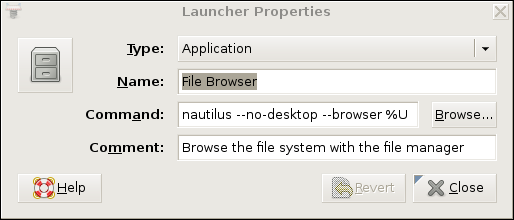
For example, on a GNOME desktop, you would right-click on the Applications menu button, select Edit Menus, scroll down to System/Administration, right-click on System Monitor and select Properties. This pops up a window whose Command field shows the name gnome-system-monitor.

Figure 1 shows the Launcher Properties, not for the GNOME System Monitor, but instead for the GNOME File Browser, which is a better example, because its launcher entry includes some command-line options. Obviously, all such options also can be used when starting X applications over SSH.

Figure 1. Launcher Properties for the GNOME File Browser (Nautilus)

If this sounds like too much trouble, or if you're worried about accidentally messing up your desktop menus, you simply can run the application in question, issue the command ps auxw in a terminal window, and find the entry that corresponds to your application. The last field in each row of the output from ps is the executable's name plus the command-line options with which it was invoked.

Once you've finished running your remote X Window System application, you can close it the usual way (selecting Exit from its File menu, clicking the x button in the upper right-hand corner of its window and so forth). Don't forget to close your SSH session too, by issuing the command exit in the terminal window where you're running SSH.

Virtual Network Computing (VNC)

Now that I've shown you the preferred way to run remote X Window System applications, let's discuss how to control an entire remote desktop. In the Linux/UNIX world, the most popular tool for this is Virtual Network Computing, or VNC.

Originally a project of the Olivetti Research Laboratory (which was subsequently acquired by Oracle and then AT&T before being shut down), VNC uses a protocol called Remote Frame Buffer (RFB). The original creators of VNC now maintain the application suite RealVNC, which is available in free and commercial versions, but TightVNC, UltraVNC and GNOME's vino VNC server and vinagre VNC client also are popular.

VNC's strengths are its simplicity, ubiquity and portability—it runs on many different operating systems. Because it runs over a single TCP port (usually TCP 5900), it's also firewall-friendly and easy to tunnel.

Its security, however, is somewhat problematic. VNC authentication uses a DES-based transaction that, if eavesdropped-on, is vulnerable to optimized brute-force (password-guessing) attacks. This vulnerability is exacerbated by the fact that many versions of VNC support only eight-character passwords.

Furthermore, VNC session data usually is transmitted unencrypted. Only a couple flavors of VNC support TLS encryption of RFB streams, and it isn't clear how securely TLS has been implemented even in those. Thus, an attacker using a trivially hacked VNC client may be able to reconstruct and view eavesdropped VNC streams.

Luckily, as it operates over a single TCP port, VNC is easy to tunnel through SSH, through Virtual Private Network (VPN) sessions and through TLS/SSL wrappers, such as stunnel. Let's look at a simple VNC-over-SSH example.

Tunneling VNC over SSH

To tunnel VNC over SSH, your remote system must be running an SSH dæmon (sshd) and a VNC server application. Your local system must have an SSH client (ssh) and a VNC client application.

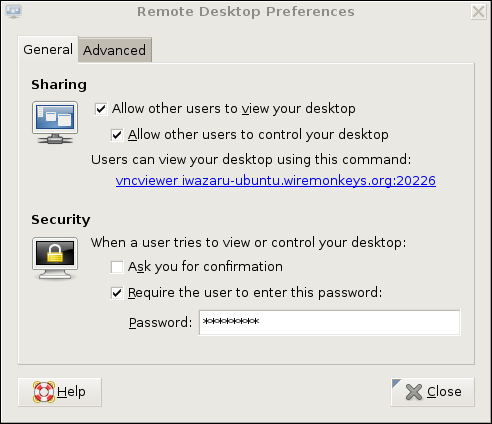
Our example remote system, remotebox, already is running sshd. Suppose it also has vino, which is also known as the GNOME Remote Desktop Preferences applet (on Ubuntu systems, it's located in the System menu's Preferences section). First, presumably from remotebox's local console, you need to open that applet and enable remote desktop sharing. Figure 2 shows vino's General settings.

Figure 2. General Settings in GNOME Remote Desktop Preferences (vino)

If you want to view only this system's remote desktop without controlling it, uncheck Allow other users to control your desktop. If you don't want to have to confirm remote connections explicitly (for example, because you want to connect to this system when it's unattended), you can uncheck the Ask you for confirmation box. Any time you leave yourself logged in to an unattended system, be sure to use a password-protected screensaver!

vino is limited in this way. Because vino is loaded only after you log in, you can use it only to connect to a fully logged-in GNOME session in progress—not, for example, to a gdm (GNOME login) prompt. Unlike vino, other versions of VNC can be invoked as needed from xinetd or inetd. That technique is out of the scope of this article, but see Resources for a link to a how-to for doing so in Ubuntu, or simply Google the string “vnc xinetd”.

Continuing with our vino example, don't close that Remote Desktop Preferences applet yet. Be sure to check the Require the user to enter this password box and to select a difficult-to-guess password. Remember, vino runs in an already-logged-in desktop session, so unless you set a password here, you'll run the risk of allowing completely unauthenticated sessions (depending on whether a password-protected screensaver is running).

If your remote system will be run logged in but unattended, you probably will want to uncheck Ask you for confirmation. Again, don't forget that locked screensaver.

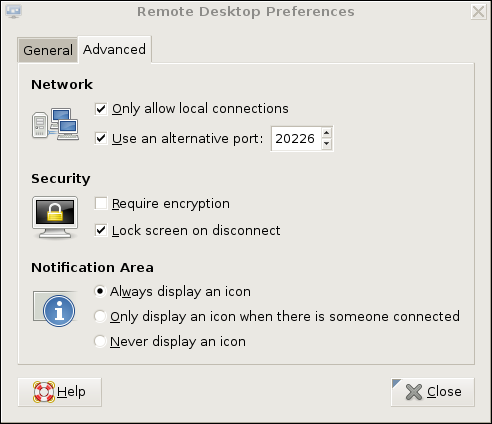
We're not done setting up vino on remotebox yet. Figure 3 shows the Advanced Settings tab.

Figure 3. Advanced Settings in GNOME Remote Desktop Preferences (vino)

Several advanced settings are particularly noteworthy. First, you should check Only allow local connections, after which remote connections still will be possible, but only via a port-forwarder like SSH or stunnel. Second, you may want to set a custom TCP port for vino to listen on via the Use an alternative port option. In this example, I've chosen 20226. This is an instance of useful security-through-obscurity; if our other (more meaningful) security controls fail, at least we won't be running VNC on the obvious default port.

Also, you should check the box next to Lock screen on disconnect, but you probably should not check Require encryption, as SSH will provide our session encryption, and adding redundant (and not-necessarily-known-good) encryption will only increase vino's already-significant latency. If you think there's only a moderate level of risk of eavesdropping in the environment in which you want to use vino—for example, on a small, private, local-area network inaccessible from the Internet—vino's TLS implementation may be good enough for you. In that case, you may opt to check the Require encryption box and skip the SSH tunneling.

(If any of you know more about TLS in vino than I was able to divine from the Internet, please write in. During my research for this article, I found no documentation or on-line discussions of vino's TLS design details whatsoever—beyond people commenting that the soundness of TLS in vino is unknown.)

This month, I seem to be offering you more “opt-out” opportunities in my examples than usual. Perhaps I'm becoming less dogmatic with age. Regardless, let's assume you've followed my advice to forego vino's encryption in favor of SSH.

At this point, you're done with the server-side settings. You won't have to change those again. If you restart your GNOME session on remotebox, vino will restart as well, with the options you just set. The following steps, however, are necessary each time you want to initiate a VNC/SSH session.

On mylaptop (the system from which you want to connect to remotebox), open a terminal window, and type this command:

mick@mylaptop:~$ ssh -L 20226:remotebox:20226 admin-slave@remotebox

OpenSSH's -L option sets up a local port-forwarder. In this example, connections to mylaptop's TCP port 20226 will be forwarded to the same port on remotebox. The syntax for this option is “-L [localport]:[remote IP or hostname]:[remoteport]”. You can use any available local TCP port you like (higher than 1024, unless you're running SSH as root), but the remote port must correspond to the alternative port you set vino to listen on (20226 in our example), or if you didn't set an alternative port, it should be VNC's default of 5900.

That's it for the SSH session. You'll be prompted for a password and then given a bash prompt on remotebox. But, you won't need it except to enter exit when your VNC session is finished. It's time to fire up your VNC client.

vino's companion client, vinagre (also known as the GNOME Remote Desktop Viewer) is good enough for our purposes here. On Ubuntu systems, it's located in the Applications menu in the Internet section. In Figure 4, I've opened the Remote Desktop Viewer and clicked the Connect button. As you can see, rather than remotebox, I've entered localhost as the hostname. I've also entered port number 20226.

Figure 4. Using vinagre to Connect to an SSH-Forwarded Local Port

When I click the Connect button, vinagre connects to mylaptop's local TCP port 20226, which actually is being listened on by my local SSH process. SSH forwards this connection attempt through its encrypted connection to TCP 20226 on remotebox, which is being listened on by remotebox's vino process.

At this point, I'm prompted for remotebox's vino password (shown in Figure 2). On successful authentication, I'll have full access to my active desktop session on remotebox.

To end the session, I close the Remote Desktop Viewer's session, and then enter exit in my SSH session to remotebox—that's all there is to it.

This technique is easy to adapt to other versions of VNC servers and clients, and probably also to other versions of SSH—there are commercial alternatives to OpenSSH, including Windows versions. I mentioned that VNC client applications are available for a wide variety of platforms; on any such platform, you can use this technique, so long as you also have an SSH client that supports port forwarding.

Conclusion

Thus ends my crash course on how to control graphical applications over networks. I hope my examples of both techniques, SSH with X forwarding and VNC over SSH, help you get started with whatever particular distribution and software packages you prefer. Be safe!

Mick Bauer (darth.elmo@wiremonkeys.org) is Network Security Architect for one of the US's largest banks. He is the author of the O'Reilly book Linux Server Security, 2nd edition (formerly called Building Secure Servers With Linux), an occasional presenter at information security conferences and composer of the “Network Engineering Polka”.

Taken From: Linux Journal Contents #173, September 2008

Wednesday, June 27, 2007

SSH Tunneling Tested With VNC

In order to connect to a VNC server (or any other server) via ssh, first you need to create an ssh tunel. A tunel specifies that the given port on the local (client) host is to be forwarded to the given host and port on the remote side (with -R you have the inverse, remote port forwarded to local).

You can create a tunel by tiping the folowing command:


# ssh -L local_port:127.0.0.1:remote_port you_login_on_remote_host@remote_host_ip


now you will have to input your ssh password, wich is your password on the remote host.
With this tunel when you connect a VNC client (or any other client) to your "local_port"
on the localhost (127.0.0.1) the data the client generated is sent through the tunel
to the "remote_port" on the remote host which is the VNC server port (or any other server).

To connect your VNC client through the tunel (assuming you use vncviewer), type the folowing comand:


# vncviewer 127.0.0.1:local_port


now input the vnc password, and that's it, you sould see a window with the remote desktop.

Note: the data in the tunel on the network is encripted, so an ssh tunel provides you security on the network, you can have a tunel that goes through the internet and no one will see what you are transfering, because all of the data is encripted.