Friday, April 17, 2026

Windows 11 - Local Account

If you dont want to put your email on windows and create a local account like in previous wondows version just follow this:


 - Install windows 11 up to this screen   

   "Is this the rigth country or region ?"

 - Shift + F10

 - Command line (CLI) will show 

 - Click a bit on the Window

 - Type on CLI 

   > oobe\bypassnro


 - The machine will reboot and will get

   back to up to this screen:

   "Is this the rigth country or region ?"

 - Shift + F10

 - Command line (CLI) will show  

 - Type on CLI:

   > ipconfig /release

   disconnects the machin from the network

  - Close CLI


- Continue... Next... 

 - Install windows 11 up to this screen:

   "Let´s connect you to a network"

   select:

   "I dont have Internet"

   then:

   "Continue with limited setup"

 - And it will go the local account setup


 - Now its business as usual... Next... Next...

Friday, November 8, 2024

NVIDIA TESLA P100 - Windows and VMWare (Software Versions)

 The NVIDIA Tesla P100 is a server GPU, thas has become afordable recently, you can use it on Windows directly or as a GRID GPU on VMWARE ESXi (shared between VMs). 

As this is an older GPU it's not supported on the latest drivers in Windows or the latest VMWARE ESXi (it's well supported on Proxmox).


Windows

You can get the windows drivers here:

https://cloud.google.com/compute/docs/gpus/grid-drivers-table?hl=pt-br#windows_drivers

the latest driver that will support the P100 is:

        538.33

from example version 551.61 does not support the P100:


VMware ESXi
The latest version of ESXi that suports the P100 as a Grid GPU is ESXi 6.7.
On later versions of VMWare you can only do Passthrough to one VM.


Hope this helps someone to avoid losing as much time as I did trying finding the rigth versions of software that support the NVIDIA Tesla P100.

Monday, June 3, 2024

VMWare ESXi (VSphere) - How to Downgrade VM Hardware (example 7U3 to 6.7)

Upgrading the hardware on a VM is easy just rigth click on the mouse and chose "Upgrade VM Compatibility".

The inverse, which downgrading VM Hardware, there is no official way of doing it.


To downgrade from ESXI 7U3 to 6.7 I did it like this (should work for other versions):


  • Enable SSH on ESXI7
  • WinSCP to ESXI7
  • Clone the .vmx to save it before changing it
  • Change original .vmx to ESXI 6.7 (hardware version 14):

            virtualHW.version = "14"


            You can find other harware versions at:

            https://knowledge.broadcom.com/external/article?legacyId=1003746

                VMware products and their virtual hardware version


  • Unregister the VM
  • Register VM using the modified .vmx


Sunday, June 2, 2024

Ansible - Setup on Linux ( +cisco devices )


Ansible Installation

On the ubuntu shell run:

sudo apt update
sudo apt upgrade -y


# PYTHON

sudo apt-get install python3

sudo apt install python3-pip


# ANSIBLE

sudo apt install -y software-properties-common

sudo apt install -y ansible


# ANSIBLE COMMON MODULES / LIBRARIES (OPTIONAL)

ansible-galaxy collection install cisco.ios

sudo apt-get install python3-dnspython

sudo pip install ansible-pylibssh

sudo pip install pexpect

sudo pip install paramiko

sudo apt-get install sshpass


SSH Host Key Checking

If you want to avoid issues on connecting via SSH because the the keys are not added, go to:  

sudo nano /etc/ansible/ansible.cfg

and uncoment the "host_key_checking" line:

[defaults]
host_key_checking = False

Verification

WSL

Win+r ubuntu


PYTHON

python3


ANSIBLE

ansible-playbook --version


Wednesday, May 18, 2022

Ansible - Setup on Windows WSL ( +cisco devices )

Enable Windows Features for WSL (Windows Subsistem for Linux - aka Linux on Windows)

Run on powershell

dism.exe /online /enable-feature /featurename:Microsoft-Windows-Subsystem-Linux /all /norestart

dism.exe /online /enable-feature /featurename:VirtualMachinePlatform /all /norestart


Download and Install WSL2 Patch

https://wslstorestorage.blob.core.windows.net/wslblob/wsl_update_x64.msi

Set Default Version to Version 2

Run on powershell

wsl --set-default-version 2

Ubuntu WSL Download - Without Using Windows Store - Online Method

Open windows CMD and run:

wsl --list --online
The following is a list of valid distributions that can be installed.
Install using 'wsl --install -d <Distro>'.

NAME FRIENDLY NAME
Ubuntu Ubuntu
Debian Debian GNU/Linux
kali-linux Kali Linux Rolling
openSUSE-42 openSUSE Leap 42
SLES-12 SUSE Linux Enterprise Server v12
Ubuntu-16.04 Ubuntu 16.04 LTS
Ubuntu-18.04 Ubuntu 18.04 LTS
Ubuntu-20.04 Ubuntu 20.04 LTS


wsl --install --distribution Ubuntu

Ubuntu WSL Download - Without Using Windows Store - Offline Method

Open windows powershell and run:

Invoke-WebRequest -Uri https://aka.ms/wslubuntu2004 -OutFile Ubuntu.appx

Add-AppxPackage .\Ubuntu.appx


First Run and Installation

Win+r Ubuntu

Set WSL DNS to Google DNS (default is a Windows generated, which doesn't always work)

Change the DNS to Google's DNS

sudo nano /etc/resolv.conf


# This file was automatically generated by WSL. To stop automatic generation of this file, add the following entry to /etc/wsl.conf:
# [network]
# generateResolvConf = false
nameserver 8.8.8.8

Avoid windows from changing the DNS server again:

sudo nano /etc/wsl.conf 


[network]
generateResolvConf = false

Ansible Installation

On the ubuntu shell run:

sudo apt update
sudo apt upgrade -y


# PYTHON

sudo apt-get install python3

sudo apt install python3-pip


# ANSIBLE

sudo apt install -y software-properties-common

sudo apt install -y ansible


# ANSIBLE COMMON MODULES / LIBRARIES (OPTIONAL)

ansible-galaxy collection install cisco.ios

sudo apt-get install python3-dnspython

sudo pip install ansible-pylibssh

sudo pip install pexpect

sudo pip install paramiko

sudo apt-get install sshpass


SSH Host Key Checking

If you want to avoid issues on connecting via SSH because the the keys are not added, go to:  

sudo nano /etc/ansible/ansible.cfg

and uncoment the "host_key_checking" line:

[defaults]
host_key_checking = False

Extra - Convert Install Machines to WSL2

If you already had WSL installed and some distros and want to convert then, first check your distros and versions:

wsl --list -v
NAME STATE VERSION
Ubuntu Running 1

then change it to version two and windows will start the conversion:

wsl --set-version Ubuntu 2

Verification

WSL

Win+r ubuntu


PYTHON

python3


ANSIBLE

ansible-playbook --version


Monday, October 8, 2018

Nvidia Shield - NAS Server (SMBv1)


Configuring The Nvidia Shield (v8.0.0)

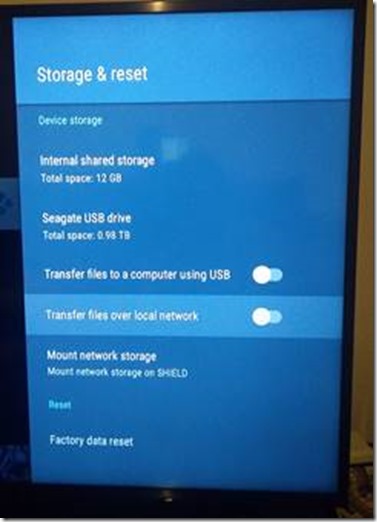
Go to Settings > Storage & reset > Transfer files over network, to turn this feature on.

clip_image002

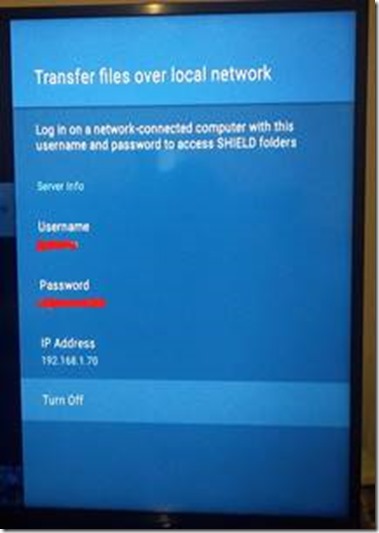
You'll be presented with a

  • User name - the Nvidia Shield generates it but you can change it
  • Password - the Nvidia Shield generates the password not you

that you can use on a networked PC to access SHIELD folders.

clip_image004

Make sure your PC is on the same network as your SHIELD.


Activate SMB1 Client on Windows 10

This is a legacy protocol and it´s client is disabled by default, to enable it:

  1. Open Control Panel.
  2. Click on Programs.
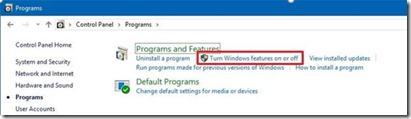
  3. Click on Turn Windows features on or off link.

clip_image006

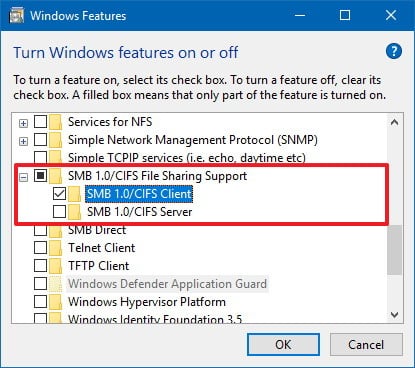
  1. Expand the SMB 1.0/CIFS File Sharing Support option.
  2. Check the SMB 1.0/CIFS Client option.

clip_image007

  1. Click the OK button.
  2. Click the Restart now button.

After completing these steps, you'll once again be able to see and connect to network devices running the old protocol on your local network from your Windows 10 computer.


Accessing The Nvidia Shield Shared Folder

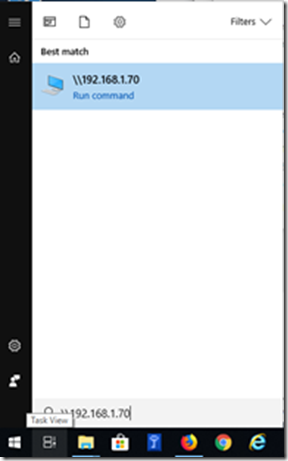
On windows start menu run the following command:

image

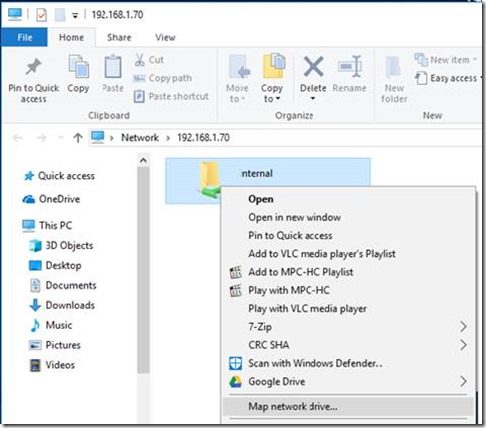
You can also permanently map your SHIELD as a network drive by right-clicking on "Network" in File Explorer and selecting "Map Network Drive". Select an unused Drive letter.

clip_image011


Based On:

https://nvidia.custhelp.com/app/answers/detail/a_id/4172/~/how-do-i-share-shield-tv-folders-with-a-pc

Sunday, December 10, 2017

Raspberry Pi/Linux - Installing Webmin

Today I’m going to show you how to install webmin on you Raspberry Pi or other linux machines. I tested this on a Raspberry Pi.


On The Cli

On the CLI of the machine you want to install Webmin, just do.

sudo apt-get install perl libnet-ssleay-perl openssl libauthen-pam-perl libpam-runtime libio-pty-perl apt-show-versions python

wget https://downloads.sourceforge.net/project/webadmin/webmin/1.870/webmin_1.870_all.deb

sudo dpkg -i webmin_1.870_all.deb

now Webmin should be installed and running.


On a Browser

Let’s access Webmin, just swap the 192.168.10.20 IP with the IP where you installed webmin, and access it on the browser like this:

https://192.168.10.20:10000

and login to webmin:

image

the user and pasword are you machines’s local linux users and passwords.

Now you start managing you linux from a Gui :)

image

My main goal personally was to have a Gui to manage DNS (Bind), which becomes quite easy with webmin.:

image