Showing posts with label filesystem. Show all posts

Friday, June 12, 2009

Backup Files With Rsync and Grsync

There are, of course, numerous backup solutions you can use, from the simple and free to the complex and expensive, as well as everything in between. The technology behind most backup systems, however, tends to be much more limited. Using classic tools, such as tar and gzip, to back up and compress is still very common under the surface of much more complex tools. This is true even when using network resources. In the end, you are backing up from one machine to another. Many people I know, including those with small businesses, do this for their regular backups. Machine A backs to machine B, which backs to C, which backs to A. The machines, and their drives, are all part of a network. Hey, instant cloud, and you probably didn't know you had one.

This is where rsync, another popular backup tool, shows its worth. As the name implies, rsyncs keep a backup copy of your data, in sync with the original. It can do it locally, from one physical drive to another, or across your network. Because only those files that have been modified are transferred, the process can be very quick. You can do this with single files, whole directories and subdirectories, while maintaining file ownership and permissions, links, symbolic links and so on. rsync has its own transport, or you can use OpenSSH to secure the transfer, and (of course) there are some great front-end, graphical tools to make the process a little slicker.

You can find rsync at rsync.samba.org, but you probably don't even have to look that far. Many distributions load it when you install your system. If not, check your installation disks or simply pick it up from your distribution's repositories. Before I explain how to rsync your data to your own personal cloud, let me show you how easy it is to create a synchronized backup of your data from one directory to another (or one drive to another):

rsync -av important_stuff/ is_backup

In the above example, rsync copies everything in the directory important_stuff into another directory (or folder) called is_backup. Most of you will have figured out that the -v means verbose copy. The -a option hides some amount of complexity in that it is the same as using the -rlptgoD flags. In order, this means that rsync should do a recursive copy; copy symbolic links; preserve permissions, modification times and group and owner information; and, with the final D, copy special files (device and block). When you press Enter, files go scrolling by, after which you see something like this:

sending incremental file list
./
CookingJul08.tgz
CookingJul2008_albums.odt
CookingJul2008_albums.txt
igal_page.png
montage.png
shalbum.png
zenphoto_comment.png
zenphoto_go.png
zenphoto_login.png
zenphoto_makepass.png
zenphoto_setup.png
zenphoto_theming_comment.png
zenphoto_upload_photos.png
zenphoto_view_album.png
. . . .

sent 46059880 bytes received 2753 bytes 6141684.40 bytes/sec
total size is 46044132 speedup is 1.00

One other thing that rsync should be able to do in order to be completely useful is delete files. If you are mirroring files and directories, it stands to reason that you want the mirror to represent exactly what is on the original. If files have been deleted, you want them deleted on the backup server as well. This is where the --delete parameter comes into play. Using the earlier example, let's delete that tgz file from the original, then relaunch the command:

$ rsync -av --delete important_stuff/ is_backup
sending incremental file list
./
deleting CookingJul08.tgz

sent 4164 bytes received 25 bytes 8378.00 bytes/sec
total size is 41911050 speedup is 10005.03

From here on, both directories will always be in sync. When doing network backups, this magic synchronization of files and directories is done using a client and server setup. At least one machine must play the role of server (although nothing is stopping you from running an rsync dæmon on every one of your machines). The server gets its information about who can access what from a configuration file called rsyncd.conf. You'll find that it probably lives in the /etc directory. The following partial listing is from one of my rsync servers:

hosts allow = 192.168.1.0/24
use chroot = no
max connections = 10
log file = /var/log/rsyncd.log
gid = nogroup
uid = nobody

[marcel]
path = /media/bigdrive/backups/marcel
read only = no
comment = Marcel's files
[francois]
path = /media/bigdrive/backups/francois
read only = no
comment = Files for the waiter

This configuration file is quite simple once you get the hang of it. Backup areas are identified by a name in square brackets (marcel, website, francois and so on). The chief bits of information there include the path to the disk area and some kind of comment. Notice that I specified read only = no, but I could just as easily have added that to the top section (the one without a name in square brackets). That's the global section. Anything put up there applies to all other sections, but it can be overridden. Pay particular attention to the gid and uid values; these are the group ID and user ID to which the file transfer takes place. The default is nobody, but you need to make sure that is correct for your system. One of my servers does not have a nobody group, but has a nogroup group instead.

The hosts allow section identifies my local subnet as being the only set of addresses from which transfers can take place. The log file line identifies a file to log information from the dæmon. You also can specify a maximum number of connections, specific users who are allowed to transfer files (auth users) and a whole lot more. Run man rsyncd.conf for the full details. When your configuration is set, you can launch the rsync dæmon, which, interestingly enough, is exactly the same program as the rsync command itself. Just do the following:

rsync --daemon

That's it. Now, it's time to put this setup to use. You might want to test your rsync connection by issuing the command:

rsync remote_host::

Note the double colon at the end of the server's name. The result should be something like this, assuming a server called thevault:

$ rsync thevault::
website All our websites
francois Files for the waiter
marcel Backup area for Marcel

Now, pretend I am on the server where my Web site files live. Using the following command, I can launch rsync to back up this entire area:

rsync -av /var/www thevault::website/

building file list ...

The format of the rsync command is rsync options source destination, which means I also could start the command from thevault, assuming my Web site machine also was running an rsync dæmon. The result would look more like this:

rsync -av localbackupdir websitemachine.dom::websites

All this work at the command line is great, but there are some tools for making the process easier, particularly if you will be creating a number of rsync backups or if you want to get into more complex requirements, such as scheduled backups. A friendly graphical front end on your desktop also may be a greater incentive to perform regular backups or take a quick backup when you've added important data and a “right now” backup is desirable. The first tool I want to show you is Piero Orsoni's grsync (Figure 1).
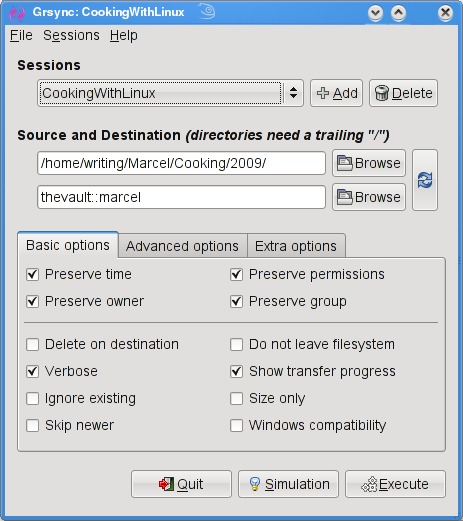
Figure 1. grsync provides an easy-to-use interface with every rsync option you could want.

While providing a great front end to rsync, grsync also works as a teaching tool for the command-line version of the program, or at least it helps as a memory aid. Almost any command-line option available to rsync is covered in one of these three tabs: Basic options, Advanced options and Extra options. What makes it a learning tool is that if you pause over any of those check boxes with your mouse, a tooltip appears showing the command-line option with a brief description of its function.

To start, click the Add button next to the session drop-down dialog and enter a name for your backup. You can define many different rsync backups here, and then launch them again at a later time. Clicking the Browse button brings up the standard Gtk2 file browser window from which you can select your local and destination folders. Unfortunately, you can't browse remote systems, but if you've already set up an rsync server, have no fear. You can enter it manually in the format I showed you earlier (for example, thevault::marcel/). When you are happy with the various options, click Execute. If you only think you are happy, click the Simulation button. (Chef Marcel loves a program with a sense of humor.) When you do click Execute, the program switches to a progress window (Figure 2), so you can see where you are in the process.
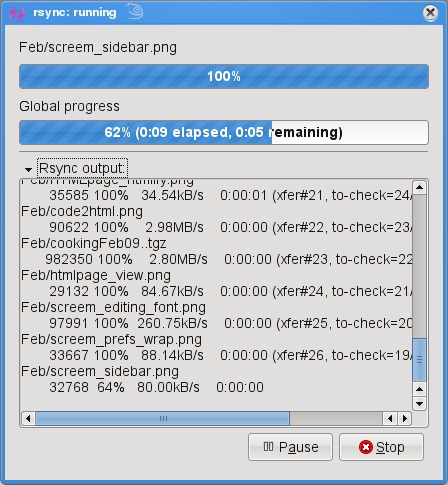
Figure 2. Once your grsync backup begins, it switches to a progress report view.

The next item on our rsync menu is Magnus Loef's GAdmin-Rsync. GAdmin-Rsync makes every aspect of creating an rsync backup a matter of filling in the blanks. What's more, the program creates backups using SSH by default, which means you can set up rsync backups to any machine to which you have secure shell access. This also means you don't actually need to have an rsync dæmon running on the remote machine if you have SSH access. Let me show you how it works.

When you start the program for the first time, you'll be asked for a name to give your new backup (Figure 3). You could back up the entire system or select specific folders of filesystems. Choose a name that makes sense to you based on what you want to back up. Enter a name, then click Apply to continue.
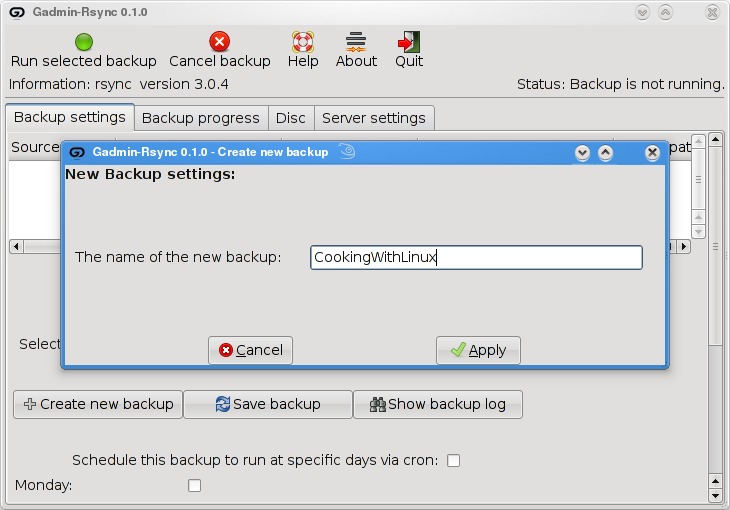
Figure 3. GAdmin-Rsync lets you define numerous backup configurations, each with its own identifier.

As you saw when we did this at the command line, rsync backups can be local, to a remote system or from a remote system. The next window looks for that very information (Figure 4). By default, local backup is checked. To back up to a remote server, select Local to remote backup. Because you can swap source and destination easily when using rsync, there's that third option. I routinely use a remote to local backup for my Web sites and remote systems. Click Forward to continue.

Figure 4. Your next step is to define the location of the backup.

Assuming you chose to back up to your cloud, your next step is to enter the server information (Figure 5). This includes the backup path on your networked server as well as your SSH key type and length. When you have entered this information, click Forward.
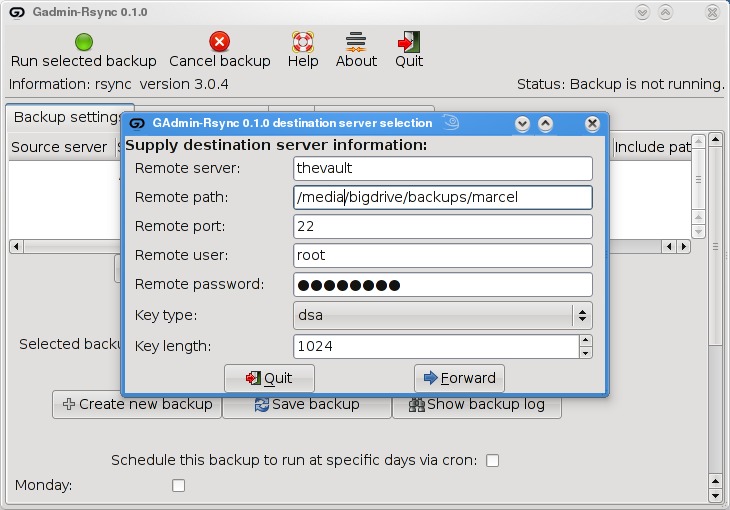
Figure 5. For remote backups, GAdmin-Rsync uses SSH/SCP for secure transfers.

Now you're ready to start the rsync backup. Click the Backup Progress tab to watch all the action.

What is nice about this program is that you can (as with grsync) store a number of backup definitions, so you can choose to back up your documents, music or digital photographs when it suits you. GAdmin-Rsync goes further though. If you take a look down at the bottom of the window on the Backup settings tab, you'll notice the words “Schedule this backup to run at specific days via cron” and a check box (Figure 6). Check the box, then scroll down to choose the days you want the backup to run. A little further down, you can specify the time as well.
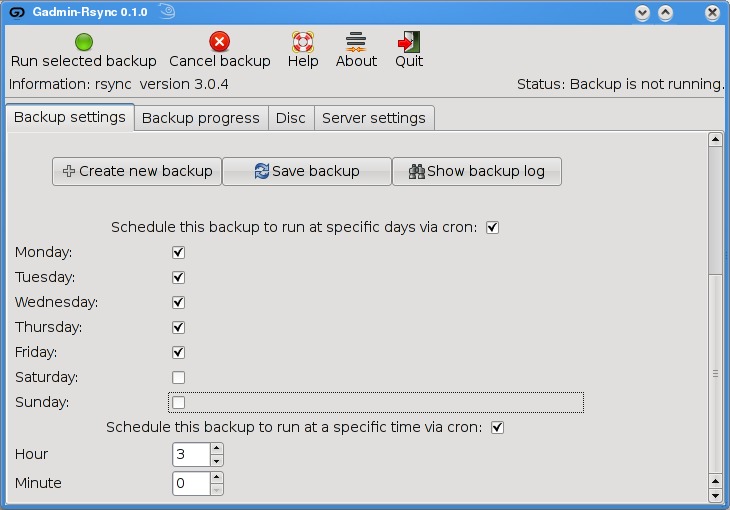
Figure 6. GAdmin-Rsync also provides an easy way to schedule your backups with cron.

Well, mes amis, closing time has caught up to us, and at least for now, time is one thing we can't back up. Despite the hour, I am quite sure we can convince François to refill our glasses one final time before we go our separate ways. Please, mes amis, raise your glasses and let us all drink to one another's health. A votre santé! Bon appétit!

Marcel Gagné is an award-winning writer living in Waterloo, Ontario. He is the author of the Moving to Linux series of books from Addison-Wesley. Marcel is also a pilot, a past Top-40 disc jockey, writes science fiction and fantasy, and folds a mean Origami T-Rex. He can be reached via e-mail at marcel@marcelgagne.com. You can discover lots of other things (including great Wine links) from his Web sites at www.marcelgagne.com and www.cookingwithlinux.com.


Taken From: Linux Journal Contents #180, April 2009

http://www.linuxjournal.com/article/10409

Saturday, April 11, 2009

Recovering Data From Disks With Bad Sectors

Hack and / - When Disaster Strikes: Hard Drive Crashes


All is not necessarily lost when your hard drive starts the click of death. Learn how to create a rescue image of a failing drive while it still has some life left in it.


The following is the beginning of a series of columns on Linux disasters and how to recover from them, inspired in part by a Halloween Linux Journal Live episode titled “Horror Stories”. You can watch the original episode at www.linuxjournal.com/video/linux-journal-live-horror-stories.

Nothing teaches you about Linux like a good disaster. Whether it's a hard drive crash, a wayward rm -rf command or fdisk mistakes, there are any number of ways your normal day as a Linux user can turn into a nightmare. Now, with that nightmare comes great opportunity: I've learned more about how Linux works by accidentally breaking it and then having to fix it again, than I ever have learned when everything was running smoothly. Believe me when I say that the following series of articles on system recovery is hard-earned knowledge.

Treated well, computer equipment is pretty reliable. Although I've experienced failures in just about every major computer part over the years, the fact is, I've had more computers outlast their usefulness than not. That being said, there's one computer component you can almost count on to fail at some point—the hard drive. You can blame it on the fast-moving parts, the vibration and heat inside a computer system or even a mistake on a forklift at the factory, but when your hard drive fails prematurely, no five-year warranty is going to make you feel better about all that lost data you forgot to back up.

The most important thing you can do to protect yourself from a hard drive crash (or really most Linux disasters) is back up your data. Back up your data! Not even a good RAID system can protect you from all hard drive failures (plus RAID doesn't protect you if you delete a file accidentally), so if the data is important, be sure to back it up. Testing your backups is just as important as backing up in the first place. You have not truly backed up anything if you haven't tested restoring the backup. The methods I list below for recovering data from a crashed hard drive are much more time consuming than restoring from a backup, so if at all possible, back up your data.

Now that I'm done with my lecture, let's assume that for some reason, one of your hard drives crashed and you did not have a backup. All is not necessarily lost. There are many different kinds of hard drive failure. Now, in a true hard drive crash, the head of the hard drive actually will crash into the platter as it spins at high speed. I've seen platters after a head crash that are translucent in sections as the head scraped off all of the magnetic coating. If this has happened to you, no command I list here will help you. Your only recourse will be one of the forensics firms out there that specialize in hard drive recovery. When most people say their hard drive has crashed, they are talking about a less extreme failure. Often, what has happened is that the hard drive has developed a number of bad blocks—so many that you cannot mount the filesystem—or in other cases, there is some different failure that results in I/O errors when you try to read from the hard drive. In many of these circumstances, you can recover at least some, if not most, of the data. I've been able to recover data from drives that sounded horrible and other people had completely written off, and it took only a few commands and a little patience.

Create a Recovery Image

Hard drive recovery works on the assumption that not all of the data on the drive is bad. Generally speaking, if you have bad blocks on a hard drive, they often are clustered together. The rest of the data on the drive could be fine if you could only access it. When hard drives start to die, they often do it in phases, so you want to recover as much data as quickly as possible. If a hard drive has I/O errors, you sometimes can damage the data further if you run filesystem checks or other repairs on the device itself. Instead, what you want to do is create a complete image of the drive, stored on good media, and then work with that image.

A number of imaging tools are available for Linux—from the classic dd program to advanced GUI tools—but the problem with most of them is that they are designed to image healthy drives. The problem with unhealthy drives is that when you attempt to read from a bad block, you will get an I/O error, and most standard imaging tools will fail in some way when they get an error. Although you can tell dd to ignore errors, it happily will skip to the next block and write nothing for the block it can't read, so you can end up with an image that's smaller than your drive. When you image an unhealthy drive, you want a tool designed for the job. For Linux, that tool is ddrescue.

ddrescue or dd_rescue

To make things a little confusing, there are two similar tools with almost identical names. dd_rescue (with an underscore) is an older rescue tool that still does the job, but it works in a fairly basic manner. It starts at the beginning of the drive, and when it encounters errors, it retries a number of times and then moves to the next block. Eventually (usually after a few days), it reaches the end of the drive. Often bad blocks are clustered together, and in the case when all of the bad blocks are near the beginning of the drive, you could waste a lot of time trying to read them instead of recovering all of the good blocks.

The ddrescue tool (no underscore) is part of the GNU Project and takes the basic algorithm of dd_rescue further. ddrescue tries to recover all of the good data from the device first and then divides and conquers the remaining bad blocks until it has tried to recover the entire drive. Another added feature of ddrescue is that it optionally can maintain a log file of what it already has recovered, so you can stop the program and then resume later right where you left off. This is useful when you believe ddrescue has recovered the bulk of the good data. You can stop the program and make a copy of the mostly complete image, so you can attempt to repair it, and then start ddrescue again to complete the image.

Prepare to Image

The first thing you will need when creating an image of your failed drive is another drive of equal or greater size to store the image. If you plan to use the second drive as a replacement, you probably will want to image directly from one device to the next. However, if you just want to mount the image and recover particular files, or want to store the image on an already-formatted partition or want to recover from another computer, you likely will create the image as a file. If you do want to image to a file, your job will be simpler if you image one partition from the drive at a time. That way, it will be easier to mount and fsck the image later.

The ddrescue program is available as a package (ddrescue in Debian and Ubuntu), or you can download and install it from the project page. Note that if you are trying to recover the main disk of a system, you clearly will need to recover either using a second system or find a rescue disk that has ddrescue or can install it live (Knoppix fits the bill, for instance).

Run ddrescue

Once ddrescue is installed, it is relatively simple to run. The first argument is the device you want to image. The second argument is the device or file to which you want to image. The optional third argument is the path to a log file ddrescue can maintain so that it can resume. For our example, let's say I have a failing hard drive at /dev/sda and have mounted a large partition to store the image at /mnt/recovery/. I would run the following command to rescue the first partition on /dev/sda:

$ sudo ddrescue /dev/sda1 /mnt/recovery/sda1_image.img
/mnt/recovery/logfile
Press Ctrl-C to interrupt
Initial status (read from logfile)
rescued: 0 B, errsize: 0 B, errors: 0
Current status
rescued: 349372 kB, errsize: 0 B, current rate: 19398 kB/s
ipos: 349372 kB, errors: 0, average rate: 16162 kB/s
opos: 349372 kB

Note that you need to run ddrescue with root privileges. Also notice that I specified /dev/sda1 as the source device, as I wanted to image to a file. If I were going to output to another hard drive device (like /dev/sdb), I would have specified /dev/sda instead. If there were more than one partition on this drive that I wanted to recover, I would repeat this command for each partition and save each as its own image.

As you can see, a great thing about ddrescue is that it gives you constantly updating output, so you can gauge your progress as you rescue the partition. In fact, in some circumstances, I prefer using ddrescue over dd for regular imaging as well, just for the progress output. Having constant progress output additionally is useful when considering how long it can take to rescue a failing drive. In some circumstances, it even can take a few days, depending on the size of the drive, so it's good to know how far along you are.

Repair the Image Filesystem

Once you have a complete image of your drive or partition, the next step is to repair the filesystem. Presumably, there were bad blocks and areas that ddrescue could not recover, so the goal here is to attempt to repair enough of the filesystem so you at least can mount it. Now, if you had imaged to another hard drive, you would run the fsck against individual partitions on the drive. In my case, I created an image file, so I can run fsck directly against the file:

$ sudo fsck -y /mnt/recovery/sda1_image.img

I'm assuming I will encounter errors on the filesystem, so I added the -y option, which will make fsck go ahead and attempt to repair all of the errors without prompting me.

Mount the Image

Once the fsck has completed, I can attempt to mount the filesystem and recover my important files. If you imaged to a complete hard drive and want to try to boot from it, after you fsck each partition, you would try to mount them individually and see whether you can read from them, and then swap the drive into your original computer and try to boot from it. In my example here, I just want to try to recover some important files from this image, so I would mount the image file loopback:

$ sudo mount -o loop /mnt/recovery/sda1_image.img /mnt/image

Now I can browse through /mnt/image and hope that my important files weren't among the corrupted blocks.

Method of Last Resort

Unfortunately in some cases, a hard drive has far too many errors for fsck to correct. In these situations, you might not even be able to mount the filesystem at all. If this happens, you aren't necessarily completely out of luck. Depending on what type of files you want to recover, you may be able to pull the information you need directly from the image. If, for instance, you have a critical term paper or other document you need to retrieve from the machine, simply run the strings command on the image and output to a second file:

$ sudo strings /mnt/recovery/sda1_image.img >
/mnt/recovery/sda1_strings.txt

The sda1_strings.txt file will contain all of the text from the image (which might turn out to be a lot of data) from man page entries to config files to output within program binaries. It's a lot of data to sift through, but if you know a keyword in your term paper, you can open up this text file in less, and then press the / key and type your keyword in to see whether it can be found. Alternatively, you can grep through the strings file for your keyword and the surrounding lines. For instance, if you were writing a term paper on dolphins, you could run:

$ sudo grep -C 1000 dolphin /mnt/recovery/sda1_strings.txt >
/mnt/recovery/dolphin_paper.txt

This would not only pull out any lines containing the word dolphin, it also would pull out the surrounding 1,000 lines. Then, you can just browse through the dolphin_paper.txt file and remove lines that aren't part of your paper. You might need to tweak the -C argument in grep so that it grabs even more lines.

In conclusion, when your hard drive starts to make funny noises and won't mount, it isn't necessarily the end of the world. Although ddrescue is no replacement for a good, tested backup, it still can save the day when disaster strikes your hard drive. Also note that ddrescue will work on just about any device, so you can use it to attempt recovery on those scratched CD-ROM discs too.

Kyle Rankin is a Senior Systems Administrator in the San Francisco Bay Area and the author of a number of books, including Knoppix Hacks and Ubuntu Hacks for O'Reilly Media. He is currently the president of the North Bay Linux Users' Group.


Taken From: Linux Journal, Issue 179, March 2009 - Hack and / - When Disaster Strikes: Hard Drive Crashes

Wednesday, July 23, 2008

List Partitions Information

List Partitions Information


[root@laptop ~]# sudo /sbin/fdisk -lu

Disk /dev/hda: 60.0 GB, 60011642880 bytes
255 heads, 63 sectors/track, 7296 cylinders, total 117210240 sectors
Units = sectors of 1 * 512 = 512 bytes

Device Boot Start End Blocks Id System
/dev/hda1 * 63 20482874 10241406 7 HPFS/NTFS
/dev/hda2 20482875 117065654 48291390 f W95 Ext'd (LBA)
/dev/hda5 20482938 102414374 40965718+ c W95 FAT32 (LBA)
/dev/hda6 115523478 117065654 771088+ 82 Linux swap / Solaris
/dev/hda7 102414438 115523414 6554488+ 83 Linux

Partition table entries are not in disk order