Showing posts with label grub4dos. Show all posts

Monday, June 20, 2016

GRUB - Rescue BootLoader on a USB Flash Drive

My goal is to just have a GRUB bootloader (without a Linux instalation) on a USB Flash Drive to:

  • Boot OS with Bootloaders without entering the BIOS
  • Boot OS with Broken Boot Loaders
  • Boot Linux Live CDs


Installing the GRUB Boot Loader

Run a live CD like Ubuntu, a boot i without installing it.

First list your disks in order to identify you USB Flash Drive

    sudo fdisk -l

if you have trouble identifying you USB Flash Drive just run the command above without the USB Flash Drive, the insert it and list again, compare the outputs, and the extra disk is you USB Flash Drive.

My USB Flash Drive is “sdb1” (b=second HD | 1=first partition), now let’s make a folder to mount the usb flash drive (my Flash Drive was formated with the ext4 filesystem), and mount it:

    sudo mkdir /mnt/USB
    sudo mount /dev/sdb1 /mnt/USB

Now let’s just install the the bootloader

    sudo grub-install --force --removable --boot-directory=/mnt/USB/boot /dev/sdb

boot code goes on /dev/sdb and grub files on /mnt/USB/boot.


Set Up the Grub Configuration FIle

Now just create/edit the grub config file

    nano /mnt/USB/boot/grub/grub.cfg

and input the following configuration:

grub.cfg
_____________________________________________

set timeout=10
set default=0

menuentry "#### Boot OS with Bootloaders without entering the BIOS ####" {set root=(hd1)}

menuentry "HD0 (First HD – This USB Flash Drive)" {
set root=(hd0)
chainloader +1
}

menuentry "HD1 (Second HD)" {
set root=(hd1)
chainloader +1
}

menuentry "HD2 (Third HD)" {
set root=(hd2)
chainloader +1
}

menuentry "HD3 (Fourth HD)" {
set root=(hd3)
chainloader +1
}


menuentry "#### Boot OS with Broken Boot Loaders ####" {set root=(hd1)}

menuentry "Ubuntu 16.04 (HD1 - First HD)"  {

    insmod part_msdos
    insmod ext2
    set root=(hd1,msdos1)

    echo 'Loading Linux Kernel...'
    linux /boot/vmlinuz-4.4.0-24-generic root=/dev/sda1
       
    echo 'Loading Initial Ramdisk ...'
    initrd /boot/initrd.img-4.4.0-24-generic
    boot
}

menuentry "Windows XP/7/10 (HD1 - First HD)"  {

    insmod part_msdos
    insmod ntfs
    set root=(hd1,msdos1)

    drivemap -s (hd0) ${root}
    chainloader +1
}


menuentry "#### Boot Linux Live CDs ####" {set root=(hd1)}
   
menuentry "Ubuntu 16.04 ISO (On This USB PEN Drive)" {

    set isofile="/ubuntu-16.04-desktop-amd64.iso"
    loopback loop (hd0,msdos1)$isofile
    linux (loop)/casper/vmlinuz.efi boot=casper iso-scan/filename=$isofile noprompt noeject
    initrd (loop)/casper/initrd.lz
}

This is what it looks like:

image

You migth need to adjust some things if you have more disks, partitions or diferent linux distro. To make it easyer I have put the things you migth need to change in bold.

The above config was for the following setup

  • One USB Flash Drive (with Grub Installed)
    • hd0,msdos1 - First HD | First Partition – MBR Geometry
    • This is was my USB Flash Drive
  • One Hard Drive for OS
    • hd1,msdos1 – Second HD | First Partition – MBR Geometry
    • This is the Disk with the OS

If you have trouble Identifying you disks and partion you can press ‘c’, on the grub menu, to get the GRUB command line and run “ls” :

image

this was very hepfull, specially identifying the the name for the MBR partitions aka “msdos” .

Related Links

Wednesday, June 10, 2009

Booting ISOs From a USB Flash Drive With Grub4Dos

Introduction
Section 1 - Installing Grub4DOS
Section 2 - Setup Booting an ISO File (Acronis ISO)
Additional Notes


Introduction

Grub4DOS is a boot manager that can be easily installed to a flashdrive or hard drive. It allows booting multiple operating systems directly as well as booting into bootable partitions.

For the purpose of this guide, Grub4DOS will be used to setup a flashdrive to boot the Acronis Resuce Media. This can be done by booting to the partition on the flashdrive (as setup by the Acronis Media Builder program) or by directly booting the Acronis ISO file. When you use the ISO method, you can put as many Acronis ISO images as required on the same flashdrive. This allows you to easily be able to boot into True Image Home 9, 10, 11, 2009, Echo Workstation, etc. by just selecting the desired menu entry.

Tip: It is highly recommended that you read through the entire instructions before you begin this procedure.
Note: Either of these methods work equally well on USB hard drives or internal drives too as long as another boot manager (such as BootIt NG) is not installed on the drive

While it is always recommended to have backups of any important data before making any changes to your drives, installing Grub4DOS is not a destructive procedure. Existing partitions and data on the flashdrive should not be erased or corrupted in any way.


Section 1 - Installing Grub4DOS

Before Grub4DOS can be installed, several files need to be downloaded and unzipped. One is the Grub4DOS program and the other is the Installer. Click on the links below to download the files. Save them to a known location (My Downloads, for example) so they're easy to find.


Tip: For those interested, more information on Grub4Dos can be found at the following locations:
Grub4Dos Main Page
Grub4Dos Tutorial
Grub4Dos Guide (hosted by boot-land.net)
Grub4Dos GUI Installer Downloads


Extract the downloaded zip files into separate folders. For example, you may unzip Grub4DOS to C:\Grub4DOS and the Installer to C:\Grub4DOS-Installer. You may also choose to unzip them into a folder named after the zip file's name.

If your flashdrive is not already plugged into the computer, plug it in now.

The next step is to run the Grub4DOS Installer on the flashdrive. Browse to the Installer's unzipped folder using Windows Explorer.
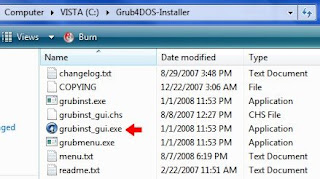


In Windows XP, just run the grubinst_gui.exe program.

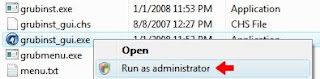
In Vista, you'll need to run grubinst_gui.exe in Administrator mode. Right-click on the program file and select Run as administrator from the pop-up menu.


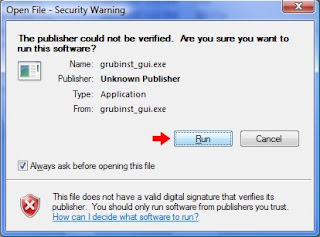
You may get a security pop-up window asking if you want to run the program. Select Run to start the program.


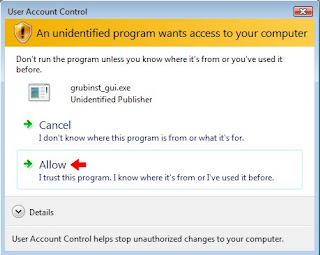
In Vista, if you have UAC turned on (the default setting), you'll get another warning. Select Allow to let the program start.


Once the program is started, select the Disk option, then click the Disk Refresh button and then select your flashdrive from the dropdown box.
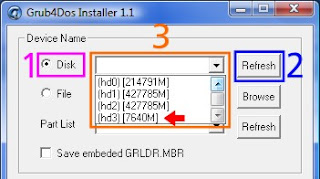


You should be able to tell which disk is your flashdrive by the size shown for each drive. In this example, my 8GB flashdrive is easy to pick out.
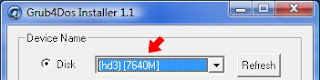


IMPORTANT: Make sure you select your flashdrive from the dropdown list and not a different drive (if installing to a USB hard drive or an internal drive, make sure it's the correct one). If you accidentally select the wrong drive, you may not be able to boot your system without doing a boot repair.

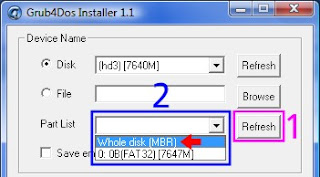
Now click the Part List Refresh button, then the dropdown box and finally select the Whole disk (MBR) option.


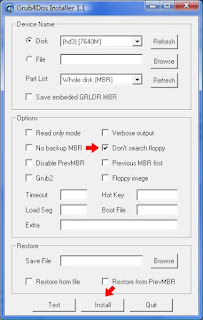
Check the Don't search floppy option, leave all the other options unchecked and cleared and then click the Install button to install Grub4DOS to the MBR of the flashdrive.


Hopefully, you'll get the message that the installation was successful.
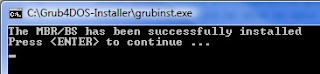


Press Enter to close the Command Prompt window. The Grub4DOS MBR and booting code is now installed on the flashdrive.

The next step is to copy the grldr file to the flashdrive's root folder. Using Windows Explorer, browse to the folder where you unzipped the Grub4DOS program and copy the file to the flashdrive.
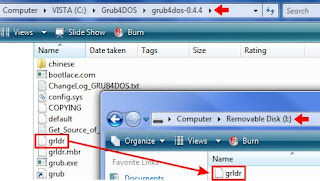


Grub4DOS is now installed on the flashdrive. Next we will show howt to boot an ISO from Grub4DOS.


Section 2 - Setup Booting an ISO File (Acronis ISO)

The ability to boot ISO files directly is one of the newer features of Grub4DOS. It is still a work in progress and has problems with some types of ISO files. However, in my use and testing, it hasn't had any problems with the Acronis ISO files.

The flexibility allowed by being able to boot the ISO file directly makes keeping multiple versions and/or different builds on the same flashdrive an easy task. Adding them is as simple as putting the ISO file on the flashdrive and adding the menu entry to boot it.

As with the partition method, there are only two steps needed to use your Grub4DOS flashdrive in this fashion.

First, run the Acronis Media Builder. However, instead of specifying the flashdrive as the destination device, select to create an ISO file. You can save the ISO file directly to the flashdrive if you wish.

Second, create the Grub4DOS menu.lst file with the entry to start the Acronis Media. The menu.lst file is a plain text file created using the Windows Notepad program. This file must be located in the root folder of the flashdrive. Start the Notepad program and type (or copy and paste) in the following text:


timeout 10
default 0

title Acronis True Image Home 2009 (9,615)
map (hd0,0)/ti-12-9615.iso (hd32)
map --hook
chainloader (hd32)
boot

title CommandLine
commandline

title Reboot
reboot

title Halt
halt
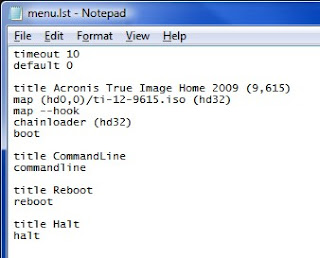


Note: In this example, I've used Acronis True Image Home 2009 (9,615) as the menu entry's title for the Acronis Media. Feel free to use whatever name you want. Also note that I used ti-12-9615.iso for the ISO filename. You can use whatever name is appropriate, however I would recommend you don't put spaces into the ISO's filename.

Save the file to the root folder of the flashdrive with the name: menu.lst

Tip: If Notepad appends a ".txt" to the filename, just rename the file to menu.lst using Windows Explorer

If you have the Windows Explorer option set to hide filename extensions for known file types, you may need to disable it. Otherwise, explorer may display menu.lst when the actual filename is menu.lst.txt. Click here for instructions.
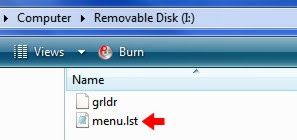


A sample menu.lst file can be downloaded below. If you use it, make sure to rename it to menu.lst once it's on the flashdrive. You will also need to edit it as necessary for your ISO's filename.


Download
Sample menu.lst file

To update this flashdrive to a different version or build of the Acronis Media, just rerun the Media Builder program and save the new ISO file to the flashdrive. If you are replacing an existing ISO file, no other changes are needed. If you are adding an ISO file, edit the menu.lst file and add the new menu entry. For example: If you want to add your True Image Home 10 build 4,942 ISO (ti-10-4942.iso) to the flashdrive, you would put the ISO file on the flashdrive and add the following menu entry:

title Acronis True Image Home 10 (4,942)
map (hd0,0)/ti-10-4942.iso (hd32)
map --hook
chainloader (hd32)
boot


Additional Notes
  • In these instructions, the timout value for booting the default Grub4DOS menu entry is 10 seconds. If you want a shorter or longer time, change the value.
  • If you setup to boot the ISO files, you can place the ISO files into folders instead of having them in the root folder. For example: If you want all of your Acronis ISO files to be in the \acronis folder, just modify the entry in the menu.lst file to include the folder in the path to the ISO file: map (hd0,0)/acronis/ti-12-9615.iso (hd32)

Taken From: http://themudcrab.com/acronis_grub4dos.php

An alternative method, to boot an ISO from a USB Flash Disk (PEN), can be found in this Blog here

Saturday, April 21, 2007

Bootable DOS USB Flash Drive + Booting ISOs with Grub 4 Dos

Tagged: usb tutorials hardware
Introduction

So you just got your new computer from Dell, HP, etc. and for some reason who knows what you need to boot from a boot disk. AHHHH WTF!!! They didn’t install a floppy drive on my computer. That is ok because you have come to the right place. I am going to show you how to turn your USB Flash Drive into a boot disk (they come with many new computers instead of floppy drives)
Get the Stuff

For this tutorial there are some things you will need to have:
USB Flash Drive
HP USB Flash Drive Format Tool Mirror 1 Mirror 2 (Password for mirrors is "pasta")
Win98 Boot Disk or the Files -> You can use the ones from Windows Millenium also.
Some of these Programs (makes the disk more useful)

Getting it Ready
After downloading the HP Format Tool install it. Get your boot disk or the downloadable files and copy/extract them to a folder on your HD. Make sure anything on your USB Drive is backed up because we are going to format it...
Make it Bootable
Open the HP Format ToolStart/Programs/Hewlett-Packard Company/HP USB Disk Storage Format Tool

It should automatically select your USB Drive.
Select FAT32 or FAT Under File System.
Select Create a DOS startup disk
Select using DOS system files located at and point to the folder containing the boot disk files.
Then click Start

Now you have a USB PEN that works like a "DOS floppy startup disk", like the ones created by Windows 98 and Windows ME, were you could execute several, dos tools, basically disaster recovery tools.


Add Some More Stuff
As is your new boot disk can’t do much other than boot the computer to DOS so you need to add other programs to make it more useful. I put a small list of files and programs together it is located at http://www.cfists.com/usb.htm.


Booting ISOs from Your USB Flash Drive - by Adding Grub4Dos

A very usefull program to use with this is Grub for DOS (Grub4Dos), with this you can boot anything from your usb pen, like:

- Your Hard drive (to when you ruin your hardrive's MBR)
- Isos on pen/hardrive
...

by configuring the menu.lst an execute grub.exe, or just execute grub.exe and input there the comands instead of puting them in the menu.lst file.

Now I'm going to show you how to use the bootable usb flash drive created before, to boot an iso from it, by adding grub4dos to the flash drive.

#1 - Download Grub4Dos #####

You can get it here, you just google for "Grub 4 Dos".
The file I downloaded was grub4dos-0.4.4.zip.
Now just extract it, and it should create a folder "grub4dos-0.4.4" were all of it's files are.


#2 - Adding Grub4Dos to the Bootable USB Flash Drive #####

Just copy the file "grub.exe", in the folder "grub4dos-0.4.4", to the flash drive.
And create an empty file named "menu.lst" in the flash drive, this file is the menu that grub presents, which you can configure it to have an option, to boot you hardrive (window, linux, ...), to boot ISOs, etc.

#3 - Making Grub4Dos BOOT an ISO #####

In order to make Grub boot an ISO you have to configure this option on grub's menu file "menu.lst", like this:

timeout 10
default 0

title Hirens Boot CD(9,615)
map (hd0,0)/hirensbootcd95.iso (hd32)
map --hook
chainloader (hd32)
boot

title Windows 7
map (hd0,0)/Windows7.iso (hd32)
map --hook
chainloader (hd32)
boot


title CommandLine
commandline

title Reboot
reboot

title Halt
halt


In this example have configured the "menu.lst", to have two isos to boot, one is the hiresns boot cd iso (hirensbootcd95.iso), and the other is the recently released Windows 7 (Windows7.iso), as you can see you can easly add more ISOs, whith a little copy paste and changing the ISOs name.

#4 - Adding the ISOs to the Flash Drive #####

As you can see in "menu.lst" on "map (hd0,0)/xxx.iso", the ISOs aren't in any folder, then just send the ISOs to the flash drive.

The flash drives files list should look like this:

menu.lst
grub.exe
hirensbootcd95.iso
Windows7.iso

And that's it you ISO booting flash drive is ready to be tested.

In order to do that your bios, must suport booting from a usb flash drive, and must have the correct boot sequence. In the boot sequence just put the "Removable Devices" to boot before you hardrive, like this it will try first to boot from your flash drive, otherwise It would boot your hard drive and would never boot the flash drive.


#5 - Testing It #####

Reboot/Start your PC with the flash drive conected, it will boot it up and stop at a DOS comand line. Here to execute Grub4Dos, just type:

> grub

this will execute grub and present it's menu, that should have the following options:


Hirens Boot CD(9,615)
Windows 7
CommandLine
Reboot
Halt


the first two as you can guess are the ISOs, just select the one you want and it sould boot up, and that's it.


Note: the ISOs in order to boot should, be made from bootable CDs or DVDs.

Booting ISOs is still an experimental feature in Grub4Dos, and sometimes It migth not work deppending on how the ISO was created.


An alternative method, to boot an ISO from a USB Flash Disk (PEN), can be found in this Blog here