Showing posts with label ip. Show all posts

Wednesday, August 19, 2015

Cisco - DMVPN Explained + GNS3 Lab

DMVPN (dynamic multipoint virtual private network) is a design approach that allows full mesh connectivity with the use of multipoint GRE tunnels. DMVPN itself is not a protocol but rather it is a design approach that consists of the following technologies:

  1. NHRP (next-hop resolution protocol)
  2. mGRE(multipoint GRE)
  3. Routing protocol
  4. IP sec encryption (optional)

Most of these technologies are familiar to networking professionals, except for the NHRP protocol. NHRP is a resolution protocol that behaves like ARP. In an NHRP environment, there are two roles, the NHS (next-hop server) and the NHC (next-hop client). The NHCs register themselves with the NHS and provide information, such as their logical VPN IP addresses and the physical NBMA mapping. The NHCs also request information from the NHS about how to reach the other NHCs by learning the logical IP to NBMA mapping information. NHRP was used before in the legacy overlay VPN environment particularly in building frame-relay SVCs (switched virtual circuits). Today the protocol is used in the DMVPN environment as well using the same behavior.

DMVPN is typically deployed using MPLS and Internet services because DMVPN has the capability to build dynamic tunnels to other spokes or branches without going through the hub site. This makes efficient use of the full mesh topologies mentioned above. If DMVPN is deployed using the Internet, the hub router requires a static public IP address as this will be configured in the NHC routers as the NHS IP address. The spokes don’t require a static public IP address as a tunnel source because they will report their physical IP to logical mappings to the NHS or the hub. In an MPLS environment, using the IP address of the Loopback is an acceptable design. DMVPN provides zero-touch configuration on the hub router if a new spoke is added.

DMVPN has so far three phases of evolution: Phase 1 had only hub-and-spoke, in Phase 2 direct spoke-to-spoke capability for DMVPN was added, and Phase 3 has features that help a hierarchical DMVPN design scale better through the use of NHRP Shortcut and other enhancements. Our lab will focus on more on Phase 2.

In this GNS3 Lab, we will have the following tasks below. Verification will be done for each of the steps.

  1. Configure DMVPN on the hub router R1.
  2. Configure spokes R2, R3 and R4.
  3. Configure EIGRP as the routing protocol and enable spoke-to-spoke tunnels. Add Loopback10 to each of the routers and announce it in EIGRP.
  4. Configure encryption.

Below are the physical and logical diagrams.

clip_image001

Figure 1. Network Topology

clip_image002

Figure 2. DMVPN Topology


Task 1: Configure DMVPN on the Hub Router R1

The MPLS router in the GNS3 topology has already been pre-configured to peer with all the routers using BGP. The routers in this topology are already announcing their Loopback0s through BGP. Before proceeding with the configuration, let’s check if we can see the loopback IP addresses of all the routers from R1.

R1#sh ip bgp
BGP table version is 5, local router ID is 1.1.1.1
Status codes: s suppressed, d damped, h history, * valid, > best, i - internal,
r RIB-failure, S Stale
Origin codes: i - IGP, e - EGP, ? - incomplete

Network Next Hop Metric LocPrf Weight Path
*> 1.1.1.1/32 0.0.0.0 0 32768 i
*> 2.2.2.2/32 15.15.15.5 0 65000 65002 i
*> 3.3.3.3/32 15.15.15.5 0 65000 65003 i
*> 4.4.4.4/32 15.15.15.5 0 65000 65004 i


Then we configure Tunnel100 with the DMVPN configuration for hub routers.

R1(config)#int tun100
R1(config-if)#ip add 10.1.1.1 255.255.255.0
R1(config-if)#ip nhrp map multicast dynamic
R1(config-if)#ip nhrp authentication cisco
R1(config-if)#ip nhrp network-id 100
R1(config-if)#tunnel source Loopback0
R1(config-if)#tunnel mode gre multipoint
R1(config-if)#tunnel key 100


Let’s break down the commands one by one.

  • ip nhrp map multicast dynamic: Normally this is configured in the hub routers to allow NHRP to automatically add routers to the multicast NHRP mappings so a static mapping is not required any more for each of the spokes. This command also enables routing protocols to work over the mGRE.
  • ip nhrp authentication <string>: This is an optional command. All the routers with NHRP within the same DMVPN network must have the same string or password.
  • ip nhrp network-id <number>: This is a required command to start NHRP. All routers in the same NHRP network should have the same network-id. This can also be used along with the “tunnel key” command to segregate different DMVPN networks using the same interface/ IP address as the tunnel source.
  • tunnel source Loopback0: This is the “physical” or real IP address which the tunnel should be sourced from. In the typical GRE configuration, a tunnel destination is required, but in DMVPN the tunnel destination is resolved through NHRP.
  • tunnel mode gre multipoint: Sets the GRE tunnel to behave as a multipoint tunnel.
  • tunnel key <number>” Like “ip nhrp network-id,” this allows separation of DMVPN networks using the same interface/ IP address as the source of the tunnel. This was mandatory in the previous IOS versions but, for the most recent ones, the DMVPN tunnel can come up without this command.


Task 2: Configure Spokes R2, R3 and R4

Let’s proceed to configure DMVPN on the spokes and explain each command later. The spokes will have a different command set than that of the hub.

R2(config)#interface Tunnel100
R2(config-if)# ip address 10.1.1.2 255.255.255.0
R2(config-if)# ip nhrp map multicast 1.1.1.1
R2(config-if)# ip nhrp map 10.1.1.1 1.1.1.1
R2(config-if)# ip nhrp nhs 10.1.1.1
R2(config-if)# ip nhrp network-id 100
R2(config-if)# ip nhrp registration timeout 60
R2(config-if)# ip nhrp holdtime 120
R2(config-if)# ip nhrp authentication cisco
R2(config-if)# tunnel source Loopback0
R2(config-if)# tunnel mode gre multipoint
R2(config-if)# tunnel key 100


R3(config)#interface Tunnel100
R3(config-if)# ip address 10.1.1.3 255.255.255.0
R3(config-if)# ip nhrp map multicast 1.1.1.1
R3(config-if)# ip nhrp map 10.1.1.1 1.1.1.1
R3(config-if)# ip nhrp nhs 10.1.1.1
R3(config-if)# ip nhrp network-id 100
R3(config-if)# ip nhrp registration timeout 60
R3(config-if)# ip nhrp holdtime 120
R3(config-if)# ip nhrp authentication cisco
R3(config-if)# tunnel source Loopback0
R3(config-if)# tunnel mode gre multipoint
R3(config-if)# tunnel key 100


R4(config)#interface Tunnel100
R4(config-if)# ip address 10.1.1.4 255.255.255.0
R4(config-if)# ip nhrp map multicast 1.1.1.1
R4(config-if)# ip nhrp map 10.1.1.1 1.1.1.1
R4(config-if)# ip nhrp nhs 10.1.1.1
R4(config-if)# ip nhrp network-id 100
R4(config-if)# ip nhrp registration timeout 60
R4(config-if)# ip nhrp holdtime 120
R4(config-if)# ip nhrp authentication cisco
R4(config-if)# tunnel source Loopback0
R4(config-if)# tunnel mode gre multipoint
R4(config-if)# tunnel key 100

Let’s break down and discuss each of the commands.

  • ip nhrp map multicast <1.1.1.1>: To put it simply, this command adds the NBMA address, in our case the loopback address of R1, to be a recipient of multicast/broadcast traffic coming from this spoke. The source IP address of the hub router’s DMVPN tunnel is configured as well as the other hub IP address if the design should go for multiple hubs.
  • ip nhrp map <10.1.1.1> <1.1.1.1>: To put it simply, this command states that 1.1.1.1 is the NBMA or real IP address of R1’s tunnel IP address of 10.1.1.1.
  • ip nhrp nhs <10.1.1.1>: This basically tells the router that the NHS is 10.1.1.1. This is the tunnel IP address of the hub router R1 in our example. The router will know who to consult to if it wishes to form a spoke-to-spoke tunnel. Multiple NHS configurations can be made if there are multiple hubs in the DMVPN network.

The rest of the NHRP commands are self-explanatory. The network-id and tunnel key in the spokes should match what is configured in the hub router.


Task 3: Configure EIGRP as the routing protocol and enable spoke-to-spoke tunnels. Add Loopback10 to each of the routers and announce it in EIGRP.

Let’s enable EIGRP and announce the DMVPN network. Any routing protocol can be used, but EIGRP or OSPF are favorable in most designs. One thing to look out for is that for DMVPN spoke-to-spoke to work and bypass the hub, the next-hop IP address of the route should be unchanged, meaning it should not be the IP address of the hub’s tunnel but should be the corresponding spoke tunnel IP address. In OSPF, changing the interface network type to “broadcast” is the solution. EIGRP requires split-horizon to be disabled and next-hop-self on the hub router.

R1(config-if)#interface Loopback10
R1(config-if)#ip address 11.11.11.11 255.255.255.255
!
R1(config)#router eigrp 100
R1(config-router)#no auto-summary
R1(config-router)#network 10.1.1.0 0.0.0.255
R1(config-router)#network 11.11.11.11 0.0.0.0.
!
R1(config-if)#int tun100
R1(config-if)#no ip split-horizon eigrp 100
R1(config-if)#no ip next-hop-self eigrp 100


R2(config)#int lo10
R2(config-if)#ip address 22.22.22.22 255.255.255.255
!
R2(config-if)#router eigrp 100
R2(config-router)#network 10.1.1.0 0.0.0.255
R2(config-router)#network 22.22.22.22 0.0.0.0


R3(config-if)#int l10
R3(config-router)#network 10.1.1.0 0.0.0.255
R3(config-if)#ip address 33.33.33.33 255.255.255.255
!
R3(config-if)#router eigrp 100
R3(config-router)#network 33.33.33.33 0.0.0.0


R4(config-if)#int l10
R4(config-router)#network 10.1.1.0 0.0.0.255
R4(config-if)#ip address 44.44.44.44 255.255.255.255
!
R4(config-if)#router eigrp 100
R4(config-router)#network 44.44.44.44 0.0.0.0


Let’s check and verify EIGRP neighbor adjacencies and routes:

R1#sh ip eigrp ne
IP-EIGRP neighbors for process 100
H Address Interface Hold Uptime SRTT RTO Q Seq
(sec) (ms) Cnt Num
2 10.1.1.4 Tu100 14 00:03:18 79 474 0 7
1 10.1.1.3 Tu100 12 00:04:42 76 456 0 6
0 10.1.1.2 Tu100 14 00:04:42 66 396 0 5

R1#sh ip route eigrp
33.0.0.0/32 is subnetted, 1 subnets
D 33.33.33.33 [90/14208000] via 10.1.1.3, 00:01:24, Tunnel100
22.0.0.0/32 is subnetted, 1 subnets
D 22.22.22.22 [90/14208000] via 10.1.1.2, 00:02:58, Tunnel100
44.0.0.0/32 is subnetted, 1 subnets
D 44.44.44.44 [90/14208000] via 10.1.1.4, 00:00:44, Tunnel100

Let’s check how many NHRP entries before we ping 44.44.44.44 from R2, using 22.22.22.22 as source. We will only see one static mapping which is going to R1, the NHS.

R2#sh ip nhrp
10.1.1.1/32 via 10.1.1.1, Tunnel100 created 00:12:55, never expire
Type: static, Flags: authoritative used
NBMA address: 1.1.1.1

We will now test if spoke-to-spoke is possible. Let’s trace from R2 to R4. Take note that in some cases the trace will go to R1 for the initial traffic. The succeeding packets will go directly to R4. The reason for this is that. when the initial traffic is sent, R2 is still in the process of getting information about how to reach R4 directly through NHRP.

R2#traceroute 44.44.44.44 source 22.22.22.22
Type escape sequence to abort.
Tracing the route to 44.44.44.44

1 10.1.1.4 36 msec 36 msec 36 msec

R2#sh ip route 44.44.44.44
Routing entry for 44.44.44.44/32
Known via "eigrp 100", distance 90, metric 27008000, type internal
Redistributing via eigrp 100
Last update from 10.1.1.4 on Tunnel100, 00:02:20 ago
Routing Descriptor Blocks:
* 10.1.1.4, from 10.1.1.1, 00:02:20 ago, via Tunnel100
Route metric is 27008000, traffic share count is 1
Total delay is 1005000 microseconds, minimum bandwidth is 2000 Kbit
Reliability 255/255, minimum MTU 1200 bytes
Loading 1/255, Hops 2

R2#sh ip nhrp
10.1.1.1/32 via 10.1.1.1, Tunnel100 created 00:14:45, never expire
Type: static, Flags: authoritative used
NBMA address: 1.1.1.1
10.1.1.4/32 via 10.1.1.4, Tunnel100 created 00:00:04, expire 00:01:14
Type: dynamic, Flags: router used
NBMA address: 4.4.4.4

The traceroute above shows that the path taken was directly to the tunnel IP address of R4. The “show ip nhrp” command showed as well that the R2 built a direct spoke-to-spoke to R4 and traffic did not pass through R1.


Task 4: Configure Encryption

A good network design includes a way to secure traffic. This is a must, given that DMVPN is deployed into shared topologies like internet and MPLS. Let’s proceed to configure IP sec encryption. We will begin with configuration of the IP sec policy, SA, and profiles.

On All Routers:

crypto isakmp policy 5
encr aes 256
group 2
authentication pre-share
!
crypto isakmp key 0 cisco address 0.0.0.0 0.0.0.0
!
crypto isakmp invalid-spi-recovery
crypto isakmp keepalive 10
!
crypto ipsec security-association lifetime kilobytes 536870912
crypto ipsec security-association replay disable
!
crypto ipsec transform-set DMVPN esp-aes 256 esp-sha-hmac comp-lzs
crypto ipsec df-bit clear
!
crypto ipsec profile DMVPN
set transform-set DMVPN

Then let’s apply the crypto IP sec profile as tunnel protection mode on the tunnels for each router.

R1(ipsec-profile)#int Tunnel100
R1(config-if)# tunnel protection ipsec profile DMVPN
R1(config-if)#end

R1#
*Mar 1 00:25:45.115: %CRYPTO-6-ISAKMP_ON_OFF: ISAKMP is ON
*Mar 1 00:25:45.191: %SYS-5-CONFIG_I: Configured from console by console
R1#
*Mar 1 00:25:45.731: %CRYPTO-4-RECVD_PKT_NOT_IPSEC: Rec'd packet not an IPSEC packet.
(ip) vrf/dest_addr= /1.1.1.1, src_addr= 2.2.2.2, prot= 47


R2(ipsec-profile)#int Tunnel100
R2(config-if)# tunnel protection ipsec profile DMVPN


R3(ipsec-profile)#int Tunnel100
R3(config-if)# tunnel protection ipsec profile DMVPN


R4(config)#int Tunnel100
R4(config-if)# tunnel protection ipsec profile DMVPN

The network adjacencies will be lost and will only recover until the configurations are complete for each router. Now, let’s verify if traffic is encrypted and network connectivity is still up.

R1#ping 22.22.22.22 source 11.11.11.11
Type escape sequence to abort.
Sending 5, 100-byte ICMP Echos to 22.22.22.22, timeout is 2 seconds:
Packet sent with a source address of 11.11.11.11
!!!!!
Success rate is 100 percent (5/5), round-trip min/avg/max = 52/62/76 ms

R1#ping 33.33.33.33 source 11.11.11.11
Type escape sequence to abort.
Sending 5, 100-byte ICMP Echos to 33.33.33.33, timeout is 2 seconds:
Packet sent with a source address of 11.11.11.11
!!!!!
Success rate is 100 percent (5/5), round-trip min/avg/max = 40/52/64 ms

R1#ping 44.44.44.44 source 11.11.11.11
Type escape sequence to abort.
Sending 5, 100-byte ICMP Echos to 44.44.44.44, timeout is 2 seconds:
Packet sent with a source address of 11.11.11.11
!!!!!
Success rate is 100 percent (5/5), round-trip min/avg/max = 64/80/100 ms

R1#sh crypto isakmp sa
dst src state conn-id slot status
1.1.1.1 3.3.3.3 QM_IDLE 2 0 ACTIVE
1.1.1.1 2.2.2.2 QM_IDLE 1 0 ACTIVE
1.1.1.1 4.4.4.4 QM_IDLE 3 0 ACTIVE

The “QM_IDLE” means that IP sec is working properly. EIGRP adjacencies are restored. Now we have successfully created a secure and encrypted DMVPN network.

References


Based On:

Tuesday, June 30, 2015

Cisco - NAT Overload on the Loopback (exit with different Public IP)

The Loopback Interfaces are very usefull to troubleshoot, it allows you to do test without using physical interfaces that may or may not be up. You can even shutdown manually / administratively a physical interface and enter it’s IP addresses on a loopback, and do your tests (like anouncing network via a dynamic routing protocol)

You can take the loopback interfaces and take them one step further, and make them part of the solution, and avoid having an extra routers, this is possible because the traffic goes in and out like it was entering and exiting another router.

In this example I will show you how to do NAT Overload to an IP different from the one in the WAN interface, this means that you will exit to the Internet with diferent Public IP from the one in the WAN interface. This is usefull for example when you want your guest wifi users to exit to the Internet with an Public IP that is different from the one the employes use.

Without NAT Overload on the Loopback (NAT Outside) you would have to implement a cenário like this:NO_NAT_LOOPBACK

where you need an extra router (R0) to do the NAT Overload to the Public IP (100.0.0.1). Besides the aditional router you spend four Public IPs in the interconection between R0 and R1.

With NAT Overload on the Loopback interface you only need a cenário like this:NAT_LOOPBACK_PLUS

Below I will show you how to accomplish this in two ways:

  • PBR with Set Next Hop – You also spend four Public IPs like in the cenario with a real router
  • PBR with Set Inteface – You only spend one Public IP (the 100.0.0.1)

we use PBR to force the traffic we want to NAT with a different Public IP through to the Loopback Interface in order to get Nated. You could point the default route to the Loopback Interface, but when the traffic returned it wouldn’t be sent out through the WAN Interface (Fa0/1 on R1), It would be sent again to the Loopback.


NAT Overload on the Loopback - PBR with Set Next Hop 

In this cenario we have a /30 Public IP in the Loopback this implies the following network:

  • One IP for the network – 100.0.0.0
  • One IP for R1 Loopback Interface  (NAT Target) – 100.0.0.1
  • One IP for the Next Hop (wich does not exist) - 100.0.0.2
  • Once IP for Broadcast - 100.0.0.2

the IP for the Next Hop (100.0.0.2) at first glance look quite unuseful, but if you look PBR route map we use this IP even though it does not exist, because this forces the traffic to go out the Loopback (100.0.0.1) because it’s directly connected to the netwok (10.0.0.0/30) of the next hop set in the PBR route map.

## PC1 ###########################
hostname PC1

interface FastEthernet0/0
ip address 10.0.0.1 255.255.255.0
no shutdown

ip route 0.0.0.0 0.0.0.0 10.0.0.254

 
## ISP ###########################
hostname ISP

interface FastEthernet0/1
ip address 200.0.0.2 255.255.255.252
no shutdown
 
ip route 0.0.0.0 0.0.0.0 200.0.0.1

 
## R1 ############################
interface loopback 111
ip address 100.0.0.1 255.255.255.252
ip nat outside
no shutdown
 
interface FastEthernet 0/0
description *** LAN ***
ip address 10.0.0.254 255.255.255.0
ip nat inside
ip policy route-map Nat-Loopback
no shutdown

interface FastEthernet 0/1
description *** WAN ***
ip address 200.0.0.1 255.255.255.252
ip nat outside
no shutdown

access-list 102 remark *** Traffic for NAT Overload on The Loopback ***
access-list 102 permit ip 10.0.0.0 0.0.0.255 any
 
ip nat inside source list 102 interface loopback 111 overload
ip route 0.0.0.0 0.0.0.0 200.0.0.2
 
route-map Nat-Loopback permit 10
match ip address 102
 set ip next-hop 100.0.0.2

 
## TEST ##########################
ISP# debug ip icmp
ISP# terminal monitor


PC1#ping 200.0.0.2
Type escape sequence to abort.
Sending 5, 100-byte ICMP Echos to 200.0.0.2, timeout is 2 seconds:
!!!!!
Success rate is 100 percent (5/5), round-trip min/avg/max = 112/160/220 ms
PC1#


ISP#
*Mar  1 00:28:33.051: ICMP: echo reply sent, src 200.0.0.2, dst 100.0.0.1
*Mar  1 00:28:33.255: ICMP: echo reply sent, src 200.0.0.2, dst 100.0.0.1
*Mar  1 00:28:33.387: ICMP: echo reply sent, src 200.0.0.2, dst 100.0.0.1
*Mar  1 00:28:33.551: ICMP: echo reply sent, src 200.0.0.2, dst 100.0.0.1
*Mar  1 00:28:33.671: ICMP: echo reply sent, src 200.0.0.2, dst 100.0.0.1


NAT Overload on the Loopback - PBR with Set Interface

In this cenario we have a /32 Public IP in the Loopback this implies the following network:

  • One IP for R1 Loopback Interface  (NAT Target) – 100.0.0.1

this achives the same result but using only one IP, and saving the other three for other usages.


In RED you have the changes from the previous cenario (PBR with Set Next Hop )

## PC1 ###########################
hostname PC1

interface FastEthernet0/0
ip address 10.0.0.1 255.255.255.0
no shutdown

ip route 0.0.0.0 0.0.0.0 10.0.0.254

 
## ISP ###########################
hostname ISP

interface FastEthernet0/1
ip address 200.0.0.2 255.255.255.252
no shutdown
 
ip route 0.0.0.0 0.0.0.0 200.0.0.1

 
## R1 ############################

interface loopback 111
ip address 100.0.0.1 255.255.255.255
ip nat outside
no shutdown
 
interface FastEthernet 0/0
description *** LAN ***
ip address 10.0.0.254 255.255.255.0
ip nat inside
ip policy route-map Nat-Loopback
no shutdown

interface FastEthernet 0/1
description *** WAN ***
ip address 200.0.0.1 255.255.255.252
ip nat outside
no shutdown

access-list 102 remark *** Traffic for NAT Overload on The Loopback ***
access-list 102 permit ip 10.0.0.0 0.0.0.255 any
 
ip nat inside source list 102 interface loopback 111 overload
ip route 0.0.0.0 0.0.0.0 200.0.0.2
 
route-map Nat-Loopback permit 10
match ip address 102
set interface loopback 111
%Warning:Use P2P interface for routemap set
                interface clause

 
## TEST ##########################
ISP# debug ip icmp
ISP# terminal monitor


PC1#ping 200.0.0.2
Type escape sequence to abort.
Sending 5, 100-byte ICMP Echos to 200.0.0.2, timeout is 2 seconds:
!!!!!
Success rate is 100 percent (5/5), round-trip min/avg/max = 112/160/220 ms
PC1#


ISP#
*Mar  1 00:28:33.051: ICMP: echo reply sent, src 200.0.0.2, dst 100.0.0.1
*Mar  1 00:28:33.255: ICMP: echo reply sent, src 200.0.0.2, dst 100.0.0.1
*Mar  1 00:28:33.387: ICMP: echo reply sent, src 200.0.0.2, dst 100.0.0.1
*Mar  1 00:28:33.551: ICMP: echo reply sent, src 200.0.0.2, dst 100.0.0.1
*Mar  1 00:28:33.671: ICMP: echo reply sent, src 200.0.0.2, dst 100.0.0.1

Friday, April 3, 2015

Arduino – EPLUG: Ethernet Controlled Power Plug

When I started  preparing for my CCNP SWITCH exam I bought some switches and set them up in my basement. After a couple of labs I realized I did a lot of trips to the basement to start / stop / restart the equipments. That’s when I started searching for remote controlled PDU, like this:

image

these are great but are very expensive for personal use (normally used in datacenters).

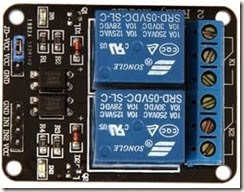
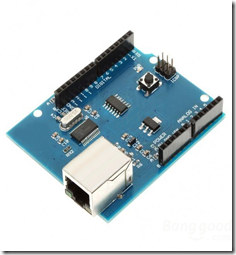
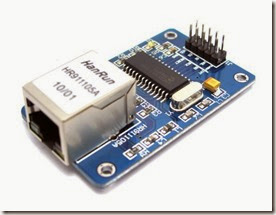
I already had an Arduino, so I started searching for a relay and cheap Ethernet NIC (the one on the arduino store was way to expensive), and I found the components below.

I put the components together and started programing the EPLUG program.

EPLUG is basically a small telnet Command Line Interface (CLI) that you can use to control multiple relays atached to Power Plugs. With this you can turn ON and OFF just about any electronic appliance you own from any device with telnet (PC, SmartPhone, Tablet, etc), using your Home Network or the Internet.
 
EPLUG was built as a framework that can be used for other projects. You can easily change the commands syntax by changing the text on the command patterns and add new commands by adding a new "else if(..){...}" statements on the "loop()" function.


Components

Relay Model: SRD-05VDC-SL-C

clip_image002

This relay board uses opto-couplers / opto-isolators to drive the relays, these isolate your Arduino from the relays, protecting it from voltage spikes. For more information check these videos:

Ethernet NIC Model: HR911105A

Shield Version

image

Breakout Board Version

ENC28J60_1

when i bought these components i did some basic tutorials on wich we are going to build upon, so you should check them out for more details or to test each component individually:


EPLUG Prototype

The complete build looks like this:

2015.04.04_Diagrama_Final

for the prototype I replaced the POWER CORD with an LED for testing:

image

my prototype looked like this:

image

The next step is to add the IP stack (uIP) for the Ethernet NIC (HR911105A).

You basically download the uIP IP stack here:

extract it, and put it on the arduino libraries folder

image


EPLUG as a Framework

The EPLUG program a simple and flexible Command Line Interface (CLI):

image

it receives the command on the function:

  • rcv_cmd(cmd, cmd_len)

 and matches them against the predefined patterns:

image

using the following functions:

  • cmd_equals (pattern,command) - exact match
  • cmd_startswith_l (pattern,command) - partial match, allow the commands to have a option (in this case the pin number)

and when it finds a match it executes an the function/actions for the corresponding command, as you can see below:

image

the structure above makes EPLUG very flexible, so that it’s easy to:

  • Change the current commands text
  • Add more commands (just add an else if (..){...} line)

my goal was to build EPLUG as a Framework for future projects.

For example if you want to do a program to set LEDs ON/OFF LEDs, you just need to change the patterns and the action functions and in 10 minutes or less your program is done.


Available Pins for Relays

There are some pins that that you should not use:

image

so you should only use the following pins:

  • Pin 2
  • Pin 3
  • Pin 4
  • Pin 5
  • Pin 6
  • Pin 7
  • Pin 8 I used this PIN
  • Pin 9

you can basically plug up to 8 relays to an Arduino UNO and controll them with the EPLUG program.


Loading EPLUG

Get the EPLUG code here:

Open the EPLUG code on the Arduino IDE:

image

To upload the program to Arduino just press:

image

after compiling and uploading the IDE show the program size, and it should be 25.xxx bytes.

Problem: I found out that, for some reason, if the program is a bit over 26.000 bytes the Ethernet NIC doesn’t work properly. The maximum on the Arduino UNO is 32.256 bytes so this shouldn`t happen.


Testing EPLUG

First you need to find the IP of the Arduino NIC and make sure it’s on the correct network (your LAN network), you can do that here:

image

now telnet to it:

image

press ENTER to start the CLI and show the options:

image

to set the “relay” (for now the LED) on you type:

image

you should get something like this:

Prototype1

Problem: After some time (1-3 min) the LED goes off for no aparent reason. After some research I found that this behavior is the the Arduino’s In System Programer (ISP) checking  if you want to reprogram Arduino from your PC (basically resets Arduino). The solution is very simple, you just don’t power the Arduino from your PC, you use a power supply.

to show the “relay” (LED) current state, you type:

image

to show all the “relays” (LEDs) current state, you type:

image

to set off the “relay” (LED), you type:

image

to show info about EPLUG, you type:

image

to close the telnet session, you type:

image


Putting It All Together

Now we can replace the LED with the POWER CORD, and use/test EPLUG in the real world.

2015.04.04_Diagrama_Final

In this diagram the POWER CORD starts OFF, if you want it to start ON just change the wire on the relay from NO (normally open) to NC (normally closed).

My build looked like this:

REAL1

image

image

now you can test/use it in the real world, check out my test video:

EPLUG Test

Next Steps

  • Add an internal USB power supply
  • Make it a lot smaller/cheaper (microntroller + breakout board)
  • Make a version with GSM aka GPLUG (SMS or GPRS)
  • Make a version with Radio modules aka RPLUG
  • Map relays to numbers different from the PINs
  • Save the pins state to a non-volatile memory (EEPROM)
  • Add a current sensor

Check out my makers community at:

Friday, December 5, 2014

Cisco – IP SLA Basics

IP SLA BASICS

MAY 6, 2011 TONY MATTKE

IP SLA is a function of Cisco’s IOS enabling you to analyze a Service Level Agreement (SLA) for an IP application or service. IP SLAs use active traffic-monitoring to continuously monitor traffic across the network. This is very different from SNMP or Netflow data which give you more volume oriented statistics. Many different metrics can be analyzed using IP SLA, here is a break down of a few.

  • UDP Jitter – Probably the most used operation in all of IP SLA. This IP SLA generates UDP traffic and measures Round-trip Delay, One-way Delay, One-way Jitter, One-way Packet Loss, and overall Connectivity.
  • ICMP Path Jitter – Hop-by-hop Jitter, Packet Loss, and Delay.
  • UDP Jitter for VoIP – Enhanced test for VoIP monitoring. It can simulate various codecs and spits out voice quality scores (MOS, and ICPIF). Also shows us Round-trip Delay, One-way Delay, One-way Jitter, and One-way Packet Loss.
  • UDP Echo – Round-trip Delay for UDP traffic.
  • ICMP Echo – Round-trip Delay, full path.
  • ICMP Path Echo – Round-trip Delay and Hop-by-hop round trip delay.
  • HTTP – Round-trip time using simulated http traffic.
  • TCP Connect – Allows us to sample the time to connect to a target using TCP.
  • FTP – Round-trip time for file transfers.
  • DHCP – Round-trip time for dynamic host configuration.
  • Frame-Relay –Round-trip Delay, and the Frame Delivery Ratio. Mostly used for circuit availability.

IP SLA Configuration

There are 2 parts to the IP SLA configuration. Our testing source, and the responder. Typically our responder is a device local to the data center, while the test host is device at a remote site. The test host sends data to the responder and the responder sends a reply back. The configuration for the responder is nothing but really, really simple…

ip sla responder

Seriously. Now lets take a look at the configuration of the testing source. Any questions I don’t answer here should be easily available via IOS context help… Here is an example I’m using in production.

ip sla 10 ! New IP SLA Instance #10
udp-jitter 10.1.1.1 16800 source-ip 10.2.2.2 codec g711ulaw ! udp jitter w/Voice codec
tos 184 ! TOS bit, using EF here
frequency 300 ! testing interval

ip sla schedule 10 life forever start-time now ! start now, never stop

So, what does this get us? Here are the stats output by our IP SLA source..

Router#sh ip sla statistics 10 ! Omit the # to view all SLA stats.
IPSLAs Latest Operation Statistics

IPSLA operation id: 10
Type of operation: udp-jitter
    Latest RTT: 42 milliseconds
Latest operation start time: 18:28:06.603 UTC Thu May 5 2011
Latest operation return code: OK

RTT Values:
    Number Of RTT: 1000 RTT Min/Avg/Max: 39/42/154 milliseconds
   
Latency one-way time:
    Number of Latency one-way Samples: 1000
    Source to Destination Latency one way Min/Avg/Max: 25/26/41 milliseconds
    Destination to Source Latency one way Min/Avg/Max: 13/15/127 milliseconds

Jitter Time:
    Number of SD Jitter Samples: 999
    Number of DS Jitter Samples: 999
    Source to Destination Jitter Min/Avg/Max: 0/2/15 milliseconds
    Destination to Source Jitter Min/Avg/Max: 0/2/90 milliseconds

Packet Loss Values:
    Loss Source to Destination: 0 Loss Destination to Source: 0
    Out Of Sequence: 0 Tail Drop: 0
    Packet Late Arrival: 0 Packet Skipped: 0
   
Voice Score Values:
Calculated Planning Impairment Factor (ICPIF): 1

MOS score: 4.34
Number of successes: 7
Number of failures: 0

Operation time to live: Forever

Conclusion

Cisco’s IP SLA features can be a huge benefit to any engineer trying to track down issues on the network. Using IP SLA in combination with a SNMP management suite, or even an EEM script can provide real time alerting for adverse network conditions, allowing you to respond faster and perform better.

Author: Tony Mattke

Taken From: http://routerjockey.com/2011/05/06/ip-sla-basics/?subscribe=success#blog_subscription-3

Tuesday, July 7, 2009

Setting up a dial-up VPN on the Juniper NetScreen Remote (client)

Note: I tried the tutorial on a Juniper SSG350M, with FW 6.0.0r4.0, and it worked althoug it's not the equipement on the tutorial


Note: To see the pictures at full quality just click on them.


This article was graciously contributed by mwdmeyer which was originally posted on his site here.

I've been getting lots of hits to the post about a site to site VPN setup with a netscreen. So I've decided to do one for a dial-up VPN user connecting to a netscreen.

A dial-up user is anyone who needs access into the network and has a dynamic ip address. We don't wish to be able to access them (the dial-up user) from within the network. This is how we setup most connections at work. This allows people to access file shares and outlook (without the need to setup RPC over HTTP).

Background

  • Netscreen 5GT running ScreenOS 5.4.0r1 (Should be the same process for any netscreen running ScreenOS 5.x)
  • Netscreen Remote 8.7 (The Windows VPN client)
  • Local Network (the one in which the vpn users want to access) of 10.0.0.0/22 (10.0.0.0 - 10.0.3.255)
  • External Address of 59.167.253.89

Setting up the Netscreen

1) First we need to create a user. This can be found in Objects -> Users -> Local (Note: Follow the screen shot below, you don't need a password here, you do need the IKE User info though)


So we have our user, Test.User

2) Create Phase 1 of the VPN tunnel. This can be found in VPNs -> AutoKey Advanced -> Gateway (Note: Security level is set to custom, password for VPN is entered here, Outgoing interface is your untrust interface).


3) Now we'll modify the advanced settings. Click Advanced (Note: We're using DES and MD5 here. Mode is set to Aggressive)


Now click return and okay to save your settings.

4) Now we'll create the Phase 2 information. This can be found in VPNs -> AutoKey IKE (Note: Security level is set to custom, Remote Gateway is set to "Test.UserP1")


5) Now we'll modify the advanced settings. Click Advanced (Note: We're using DES and MD5 here. Replay Protection is on)


Now click return and okay to save your settings.

6) Now we'll need to create a policy. This will go from untrust to trust. This can be found in Policies.


Click new (Note: Source Address is Any-IPv4 or just Any if IPv6 is disabled, Destination Address is your local subnet, tunnel the connection though the VPN user "Test.UserP2")


Now the Netscreen has been setup.

Setting up Netscreen Remote

1) Open the policy editor in Netscreen Remote

NetScreen Remote 1

2) Create a new connection (Note: Type in the remote subnet details and set the secure gateway to your netscreens external address)


3) Now we'll setup the login details (Note: The Certificate is None, The ID Type is Domain Name and the value is "Test.User")


4) Now click Pre-Shared Key (Note: Type in the password you used when setting up the connection in the netscreen)


5) Now we'll set the connection to aggressive (Note: Enable PFS, DH is Group 2 and Enable Replay Dection)


6) Now we'll setup the Phase 1 details (Note: We're using DES and MD5 here. SA Life is 28800 seconds)


7) Now we'll setup the Phase 2 details (Note: The SA Life here is 3600 Seconds)


8) Save the settings and Test!

That should be all you need to do.

Notes

  • The VPN may not work behind some NAT routers. You can try turning on NAT-T within the netscreen, although I find it doesn't normally work.
  • Make sure the details in the Netscreen and Netscreen Remote Match (i.e Phase 1 policies etc)
  • You can check the logs from both Netscreen and Netscreen Remote
  • You cannot connect to the VPN while within the local subnet
  • Netscreen Remote should be disabled when you're directly connected to the network
  • Only traffic for the subnet is passed over the VPN.


Taken From:
http://www.juniperforum.com/index.php?page=20
Added minor correction in te policy source that has to be "Dial Up"

Wednesday, July 23, 2008

Configure a Linux DNS Server - Cache and Private DNS

Configure a Linux DNS Server - Part I (Caching Name Server)


Not everybody's a Linux hacker straight out of the womb. For those who need a solid example or just want a little advice--no heckling involved--here's another how-to to get you going. We've helped you set up your home web server, so now let's get DNS working so you can have your very own domain.


How to set up a home DNS server
by Shannon Hughes


Domain Name System

The Domain Name System (DNS) is the crucial glue that keeps computer networks in harmony by converting human-friendly hostnames to the numerical IP addresses computers require to communicate with each other. DNS is one of the largest and most important distributed databases the world depends on by serving billions of DNS requests daily for public IP addresses. Most public DNS servers today are run by larger ISPs and commercial companies but private DNS servers can also be useful for private home networks. This article will explore some advantages of setting up various types of DNS servers in the home network.


Why set up a private DNS server?

This question is valid and the answer may vary depending on your home network environment. Maintaining a host file on each client with IP/hostname mappings in a home network that contains a router and a few machines may be sufficient for most users. If your network contains more than a few machines, then adding a private DNS server may be more attractive and worth the setup effort. Some advantages may include:

*

Maintenance: keeping track of the host file for every client in your network can be tedious. In fact, it may not even be feasible for roaming DHCP laptops or your occasional LAN party guests. Maintaining host information in one central area and allowing DNS to manage host names is more efficient.
*

Cache performance: DNS servers can cache DNS information, allowing your clients to acquire DNS information internally without the need to access public nameservers. This performance improvement can add up for tasks such as web browsing.
*

Prototyping: A private internal DNS server is an excellent first step to eventually setting up a public accessible DNS server to access a web server or other services hosted on your internal network. Learning from mistakes on an internal network can help prevent duplicate errors on a public DNS server that could result in loss of service for external users. Note: Some ISPs require customers to have a static IP or business subscription when hosting services in a home network environment.
*

Cool factor: Ok, I may be stretching it, but the "cool" factor did have some influence when I set up my first home network DNS server. Creating an internal domain that reflects an individual's personality without paying a domain registrar and issuing hostnames to your clients is cool. The cool factor doubles when your customized hostname glows from your friend's laptop screen.

Let's start out simply by setting up a caching-only nameserver to handle client DNS requests. A caching-only nameserver won't allow references to internal clients by hostname, but it does allow clients to take advantage of frequently requested domains that are cached.
Caching nameserver

Fortunately, setting up a caching nameserver is easy using RHEL (Red Hat Enterprise Linux) or Fedora RPMs. The following RPMs need to be installed on the machine acting as the nameserver (use rpm -q to determine if these packages are installed):

*

bind (includes DNS server, named)
*

bind-utils (utilities for querying DNS servers about host information)
*

bind-libs (libraries used by the bind server and utils package)
*

bind-chroot (tree of files which can be used as a chroot jail for bind)
*

caching-nameserver (config files for a simple caching nameserver)

A caching nameserver forwards queries to an upstream nameserver and caches the results. Open the file /var/named/chroot/etc/named.conf and add the following lines to the global options section:


forwarders { xxx.xxx.xxx.xxx; xxx.xxx.xxx.xxx; }; #IP of upstream ISP nameserver(s)
forward only; #rely completely on our upstream nameservers


The block above will cause the caching name server to forward DNS requests it can't resolve to your ISP nameserver. Save the named.conf file and then assign 644 permissions:

$ chmod 644 named.conf

Check the syntax using the named-checkconf utility provided by the bind RPM:
named-checkconf named.conf
Correct any syntax errors (watch those semicolons) named-checkconf reports. Monitoring the /var/log/messages file may also be helpful in debugging any errors.


We now need to set the local resolver to point to itself for DNS resolution. Modify the /etc/resolv.conf file to the following:

nameserver 127.0.0.1

If you are running a DHCP server on your router make sure your /etc/resolv.conf file does not get overwritten whenever your DHCP lease is renewed. To prevent this from happening, modify /etc/sysconfig/network-scripts/ifcfg-eth0 (replace eth0 with your network interface if different) and make sure the following settings are set:


BOOTPROTO=dhcp
PEERDNS=no
TYPE=Ethernet


Go ahead and start the nameserver as root and configure to start in runlevels 2-5:

service named start
chkconfig named on
Testing

The bind-utils RPM contains tools we can use to test our caching nameserver. Test your nameserver using host or dig and querying redhat.com:

dig redhat.com
.
.
;; Query time: 42 msec
;; SERVER: 127.0.0.1#53(127.0.0.1)


From the above dig query you can see it took 42 msec to receive the DNS request. Now test out the caching ability of your nameserver by running dig again on the redhat.com domain:

dig redhat.com
.
.
;; Query time: 1 msec
;; SERVER: 127.0.0.1#53(127.0.0.1)


We dropped from 42 msec to 1 msec after the previous DNS query was cached. Caching is working! Let's now put the cache to work by configuring the clients to use the new caching nameserver.
Client Configuration

For Linux and Windows clients you may have a couple of options for your resolver configuration depending on your network environment:

1.

If you have a router and your client's IP address is assigned via DHCP from the router, then you can use the router to assign the primary nameserver during the DHCP lease requested from the client. Log in to your router and make sure your primary nameserver points to your caching nameserver IP address in the router DHCP settings.


2.

For Linux clients, you can set up the resolver in the same procedure as the nameserver by modifying the /etc/resolv.conf file. For Windows clients you will need to set the nameserver IP address in the Control Panel -> Network Connections -> TCP/IP -> Properties -> Use the DNS Server Address option. NOTE: The Windows DNS server option may vary depending on your version.

Test your new client configuration(s) using dig. You can use the nslookup command for Windows clients. Your DNS requests should have similar response times as we saw earlier when testing the nameserver directly.

NOTE: If you are running a firewall on the nameserver system, make sure clients have access to port 53. An example iptables rule for the 192.168.15.0/24 subnet would be:
iptables -A INPUT -s 192.168.15.0/24 -p udp --dport 53 -j ACCEPT
service iptables save


Summary

Your new caching nameserver offers a performance improvement with a minimal amount of set up effort. Clients can now ask the caching nameserver for DNS information, and it only needs to ask the upstream ISP nameserver for cache misses. In the next issue we will setup a master nameserver that is responsible for the authoritative information for our internal client hostnames. An authoritative nameserver also caches by default but additionally allows managing both static and DHCP clients using personalized hostnames set up in zone files. In the meantime, enjoy your new caching nameserver and be thinking about a creative domain and hostname theme for your future authoritative nameserver.


Configure a Linux DNS Server - Part II (Private DNS Server)


Welcome back
In the first part of this series on the Domain Name System (DNS), we set up a caching nameserver that allowed our clients to take advantage of faster network operations by caching frequently requested DNS queries. In this article, we will extend our caching nameserver to a master nameserver that is responsible for managing the authoritative information for our internal client hostnames.


Overview

As with our caching-only nameserver, we will see that BIND RPMS packaged by Red Hat® Enterprise Linux® and Fedora ease the process of configuring our master nameserver. Adding authoritative responsibility to the caching-only nameserver only requires us to add two more files and modify the existing named.conf file. For the purpose of this article we will assume the following:


* The BIND 9.x RPMS discussed in Part 1 are installed on the machine that will serve as a nameserver.
* Our internal network is in the 192.168.15.0/24 subnet. You will need to substitute your subnet if different.
* The master nameserver will only allow DNS queries from internal clients in the 192.168.15.0/24 subnet.
* The master nameserver will continue to forward any DNS requests it can't answer to your upstream ISP nameserver(s).
* We will use the domain hughes.lan as our internal domain name.


You might notice that we selected a mock top-level domain (sometimes referred as a TLD) named lan. Our internal domain name can be as creative as we wish since the domain is only known inside our home network. The naming convention for a public nameserver is not as relaxed, since we would need to follow certain rules that would allow our nameserver to respond to other nameservers requesting host information from around the world.


Zones

Nameservers store information about a domain namespace in files called zone data files. A zone data file contains all the resource records that describe the domain represented in the zone. The resource records further describe all the hosts in the zone. We will need to modify our existing named.conf to reference two zone files for our domain name:

* Forward zone definitions that map hostnames to IP addresses.
* Reverse zone definitions that map IP addresses to hostnames.

Open /var/named/chroot/etc/named.conf and add the following forward and reverse zone file directives:

# Forward Zone for hughes.lan domain
zone "hughes.lan" IN {
type master;
file "hughes.lan.zone";
};

# Reverse Zone for hughes.lan domain
zone "15.168.192.in-addr.arpa" IN {
type master;
file "192.168.15.zone";
};

Both the forward and reverse zones contain the type master indicating that our nameserver is the master or primary nameserver for the hughes.lan domain. The file keyword indicates which zone file contains the resource records for the corresponding zone. Note that the reverse zone contains a special domain named in-addr-arpa. DNS uses this special domain to support IP to hostname mappings. Reverse lookups are backwards since the name is read from the leaf to the root (imagine a domain name as a tree structure) so the resultant domain name has the topmost element at the right-hand side. For a home network the reverse lookup zones can be considered optional but we will include them for completeness.

Included with the BIND RPMs is a root zone nameservers use when a query is unresolvable by any other configured zones. The root zone directive is named ".", has a type of hint and references a file named named.ca that contains a list of 13 root name servers located around the world. We will not directly use the root servers since we are forwarding any unresolvable queries to our ISP nameservers.

We need to modify the named.conf global options to allow our internal clients to query the nameserver. Modify the existing global options block to the following:

acl hughes-lan { 192.168.15.0/24; 127.0/8; };
options {
directory "/var/named";
allow-query { hughes-lan; };
forwarders { xxx.xxx.xxx.xxx; xxx.xxx.xxx.xxx; }; # ISP primary/secondary
forward-only; # Rely completely on ISP for cache misses
};

The acl statement above sets up a range of IP addresses we can reference throughout the named.conf file. The allow-query specifies IP addresses of hosts that can query our nameserver. The forwarders statement tells our nameserver to forward any unresolvable queries to our upstream nameservers. The forward-only statement restricts our nameserver to only rely on our ISP nameservers and not contact other nameservers to find information that our ISP can not provide. It's very rare for a primary and secondary ISP nameserver to be down at the same time but you can comment forward-only if you want your nameserver to try the root nameservers when the upstream ISP nameservers cannot resolve a hostname.


Zone files

We are now ready to start defining our hostname mappings in the zone files we referenced in the named.conf configuration. Zone files need to be placed in the /var/named/chroot/var/named directory, have 644 permissions with an owner and group of named:

$ cd /var/named/chroot/var/named
$ touch hughes.lan.zone
$ chown named:named hughes.lan.zone
$ chmod 644 hughes.lan.zone

Let's take a look at an example zone file for the hughes.lan forward zone and then dive into the various parts:

$TTL 1D

hughes.lan. IN SOA velma.hughes.lan. foo.bar.tld. (
200612060 ; serial
2H ; refresh slaves
5M ; retry
1W ; expire
1M ; Negative TTL
)

@ IN NS velma.hughes.lan.

velma.hughes.lan. IN A 192.168.15.10 ; RHEL server
fred.hughes.lan. IN A 192.168.15.1 ; router
scooby.hughes.lan. IN A 192.168.15.2 ; upstairs WAP
shaggy.hughes.lan. IN A 192.168.15.3 ; downstairs WAP
scooby-dum.hughes.lan. IN A 192.168.15.4 ; Fedora desktop
daphne.hughes.lan. IN A 192.168.15.5 ; network printer
mysterymachine IN A 192.168.15.6 ; mail server
scrappy IN A 192.168.15.7 ; Windows box
; aliases
www IN CNAME velma.hughes.lan. ; WWW server
virtual IN CNAME velma ; virtual WWW tests
mail IN CNAME mysterymachine ; sendmail host

; DHCP Clients
dhcp01.hughes.lan. IN A 192.168.15.100
dhcp02.hughes.lan. IN A 192.168.15.101
dhcp03.hughes.lan. IN A 192.168.15.102
dhcp04.hughes.lan. IN A 192.168.15.103
dhcp05.hughes.lan. IN A 192.168.15.104

@ IN MX 10 mail.hughes.lan.

The very first line in the hughes.lan.zone contains the TTL (Time To Live) value and is set to one day. TTL is used by nameservers to know how long to cache nameserver responses. This value would have more meaning if our nameserver was public and had other external nameservers depending on our domain information. Notice the 'D' in the TTL value stands for Day. Bind also uses 'W' for weeks, 'H' for hours, and 'M' for minutes.

The first resource record is the SOA (Start Of Authority) Record which indicates that this nameserver is the best authoritative resource for the hughes.lan domain. The IN stands for Internet Class and is optional. The first hostname after the SOA is the name of our master or primary nameserver. The second name, "foo.bar.tld.", is the email address for the person in charge of this zone. Notice the '@' is replaced with a '.' and also ends with a '.'. The third value is the serial number that indicates the current revision, typically in the YYYYMMDD format with a single digit at the end indicating the revision number for that day. The fourth, fifth, sixth, and seventh values can be ignored for the purposes of this article.

The NS record lists each authoritative nameserver for the current zone. Notice the first '@' character in this line. The '@' character is a short-hand way to reference the domain, hughes.lan, that was referenced in the named.conf configuration file for this zone.

The next block of A records contains our hostname to address mappings. The CNAME records act as aliases to previously defined A records. Notice how fully qualified domains end with a '.'. If the '.' is omitted then the domain, hughes.lan, is appended to the hostname. In our example the hostname, scrappy, will become scrappy.hughes.lan

If you want to reference an internal mail server, then add a MX record that specifies a mail exchanger. The MX value "10" in our example indicates the preference value (number between 0 and 65535) for this mail exchanger's priority. Clients try the highest priorty exchanger first.

The reverse zone file, 192.168.15.zone, is similar to our forward zone but contains PTR records instead of A records:


$TTL 1D

@ IN SOA velma.hughes.lan. foo.bar.tld. (
200612060 ; serial
2H ; refresh slaves
5M ; retry
1W ; expire
1M ; Negative TTL
)

IN NS velma.hughes.lan.
10 IN PTR velma.hughes.lan.
1 IN PTR fred.hughes.lan.
2 IN PTR scooby.hughes.lan.
3 IN PTR shaggy.hughes.lan.
4 IN PTR scooby-dum.hughes.lan.
5 IN PTR daphne.hughes.lan.
6 IN PTR mysterymachine.hughes.lan.
7 IN PTR scrappy.hughes.lan.

100 IN PTR dhcp01.hughes.lan.
101 IN PTR dhcp02.hughes.lan.
102 IN PTR dhcp03.hughes.lan.
103 IN PTR dhcp04.hughes.lan.
104 IN PTR dhcp05.hughes.lan.


Testing

Save your zone files, make sure you have the correct permissions and check the syntax using named-checkzone:

named-checkzone hughes.lan hughes.lan.zone
named-checkzone 15.168.192.in-addr.arpa 192.168.15.zone

Correct any syntax errors reported by named-checkzone.


Restart the nameserver:

service named restart

Browse through the tail of the /var/log/messages file and confirm the domain loaded successfully.


Make the following DNS queries (substituting your domain):

dig scooby.hughes.lan
dig -x 192.168.15.2


Your output should be similar to the following:

.
.
.

;; QUESTION SECTION:
;scooby.hughes.lan. IN A

;; ANSWER SECTION:
scooby.hughes.lan. 86400 IN A 192.168.15.2

;; AUTHORITY SECTION:
hughes.lan. 86400 IN NS velma.hughes.lan.

;; ADDITIONAL SECTION:
velma.hughes.lan. 86400 IN A 192.168.15.10
.
.
.

Continue to test each host you added to the zone file and then enjoy your new master nameserver.


Conclusion

The goal of this series of DNS articles was to pick the high-level features DNS can offer to improve the efficiency and management of the home network. In addition to the performance improvement we saw with the caching nameserver, the master nameserver helps manage both static and dynamic clients using human-friendly hostnames instead of IP addresses. For readers interested in learning more about DNS or expanding the nameservers discussed in this series, checkout the following resources:

* BIND user documenation located in /usr/share/doc/bind-9.x.x
* DNS and BIND (5th Edition)


About the author

Shannon Hughes is a Red Hat Network (RHN) engineer who enjoys using open source software to solve the most demanding software projects. When he is not cranking out code, tweaking servers, or coming up with new RHN projects, you can find him trying to squeeze in yet another plant in the yard/garden with his wife, watching Scooby Doo reruns with his two kids and dog, or incorporating the latest open source projects for his church.

Copyright © 2006 Red Hat, Inc. All rights reserved.
Privacy Policy : Terms of Use : Patent promise : Company : Contact
Log in to Your Account


Taken From: http://www.redhat.com/magazine/025nov06/features/dns/
http://www.redhat.com/magazine/026dec06/features/dns/


A much more complete howto can be found at: http://www.aboutdebian.com/dns.htm