Showing posts with label partition. Show all posts

Monday, March 28, 2016

Linux - Parted the CLI Disk Management Tool

Parted is a famous command line tool that allows you to easily manage hard disk partitions. It can help you add, delete, shrink and extend disk partitions along with the file systems located on them. Parted has gone a long way from when it first came out. Some of it’s functions have been removed, others have been added.

In this tutorial you will learn the basics of parted and we will show you some practical examples. If you don’t have any previous experience with parted, please be aware that parted writes the changes immediately to your disk, so be careful if you try to modify your disk partitions.

If you plan on testing parted, the better option would be to simply use a virtual machine or old computer/laptop without any valuable information on it. To make modifications on a disk partition it must not be in use. If you need to work on primary partition, you may boot into rescue mode.

Note: You will need to have root access to the machine you will be working on in order to use parted.


How to Install Parted on Linux

On many Linux distributions, parted comes pre-installed. If it is not included in your distro, you can install it with:

$ sudo apt-get install parted        [On Debian/Ubuntu systems]
# yum install parted                    [On RHEL/CentOS and Fedora]
# dnf install parted                      [On Fedora 22+ versions]

Once you have make sure that parted is installed, you can proceed further to check out some real world examples of parted command in the rest of this article.


1. Check Parted Version

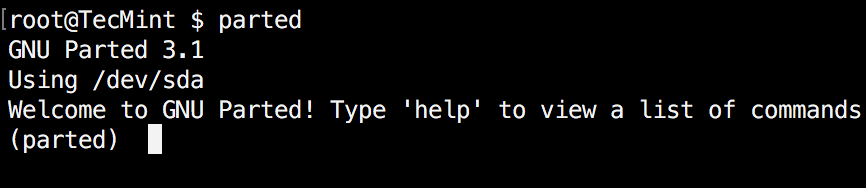
Run the following command, you see message similar to the one shown on the image below. Don’t worry if your parted version is different. Unless specified otherwise, parted will use your primary drive, which in most cases will be/dev/sda.

$ parted
clip_image001

Check Parted Command Version

If you want to exit parted, simply type:

$ quit


2. List Linux Disk Partitions

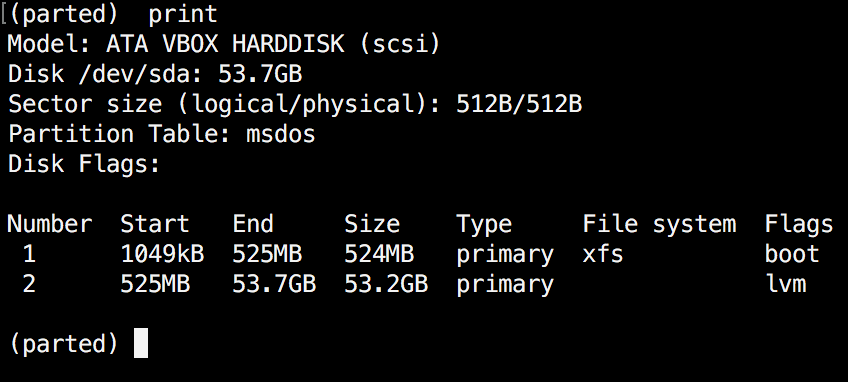
Now that parted is started, let’s list the partitions of the selected hard disk. As mentioned earlier, parted chooses your first drive by default. To see the disk partitions run print.

(parted) print
clip_image002

Check Linux Partitions

When running print, it will also display the hard disk information and model. Here is example from a real hard disk (not virtual as shown on the image above) :

(parted) print

Model: ATA TOSHIBA MQ01ACF0 (scsi)
Disk /dev/sda: 320GB
Sector size (logical/physical): 512B/4096B
Partition Table: msdos

Number  Start   End    Size   Type      File system  Flags

1      1049kB  256MB  255MB  primary   ext2         boot
2      257MB   320GB  320GB  extended
5      257MB   320GB  320GB  logical                    lvm

sector size and partition table.


3. List or Switch to Different Disk

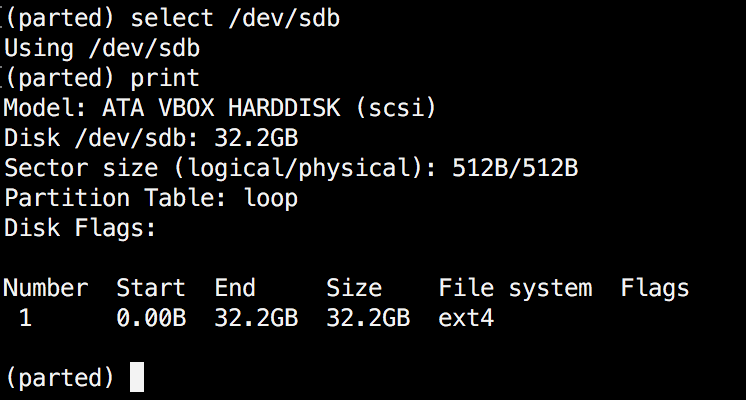
If you have more than one hard disk, you can easily switch between disks, by using the “select” command. In the example below, I will switch from /dev/sda to/dev/sdb which is a secondary drive on my system.

To easily switch between disks you can use:

(parted) select /dev/sdX
clip_image003

Select Different Disk

Change "X" with the letter of the disk to which you wish to switch.


4. Create Primary or Logical Partition in Linux

Parted can be used to create primary and logical disk partitions. In this example, I will show you how to create primary partition, but the steps are the same for logical partitions.

To create new partition, parted uses “mkpart“. You can give it additional parameters like "primary" or "logical" depending on the partition type that you wish to create.

Before you start creating partitions, it’s important to make sure that you are using (you have selected) the right disk.

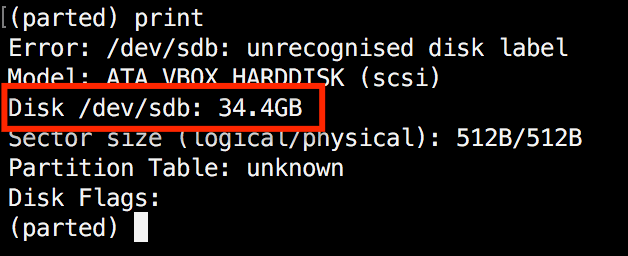
Start by using print:

(parted) print
clip_image004

Show Current Linux Disk

As shown on the above image, we are using a virtual drive of 34 GB. First we will give the new disk a label and then create a partition and set a file system on it.

Now the first step is to give the new disk a label name with:

(parted) mklabel msdos

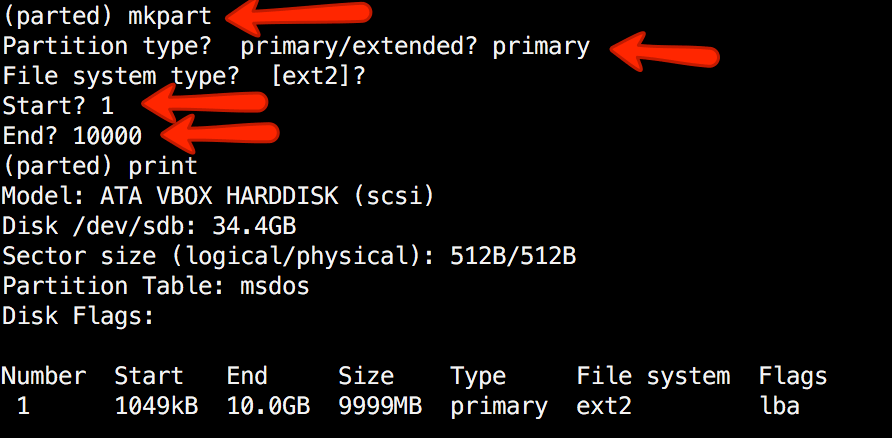
Now create the new partition with  mkpart. The listed units are in megabytes (MB). We will create a 10 GB partition starting from 1 to 10000:

(parted) mkpart

Partition type?  primary/extended? primary
File system type?  [ext2]?
Start? 1
End? 10000
(parted) print
Model: ATA VBOX HARDDISK (scsi)
Disk /dev/sdb: 34.4GB
Sector size (logical/physical): 512B/512B
Partition Table: msdos
Disk Flags:
Number  Start   End     Size    Type     File system  Flags
1      1049kB  10.0GB  9999MB  primary   ext2         lba
clip_image005

Create Primary or Logical Linux Partitions

Next,  exit parted with "quit" command. We will format our new partition in ext4 file system using mkfs. To make this happen run the following command:

# mkfs.ext4 /dev/sdb1

Note: It’s important to select the right disk and partition when executing the above command!

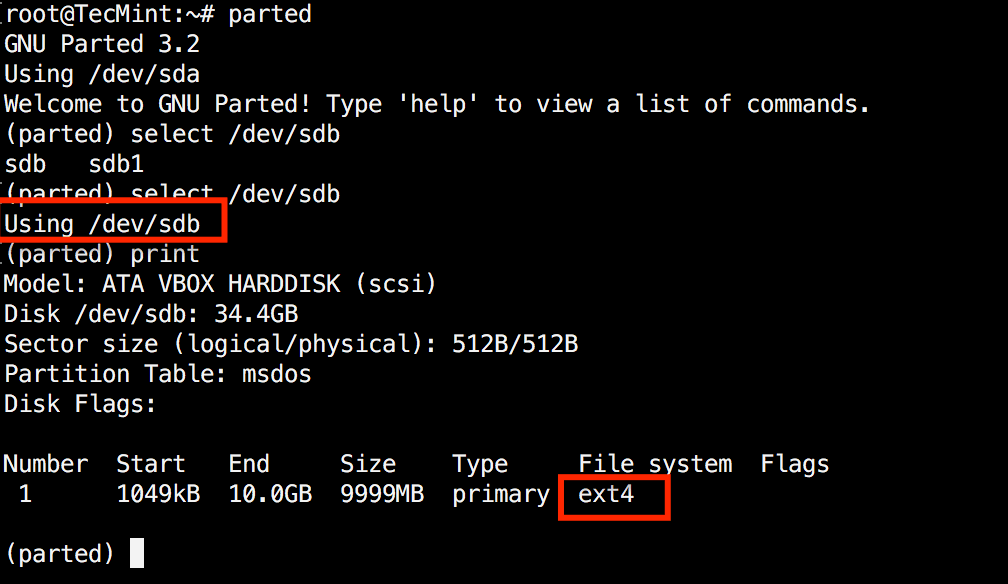
Now let’s verify our results, by printing the partition table on our secondary disk. Under file system column, you should see ext4 or the file system type that you have decided to use for your partition:
clip_image006

Verify Disk Partition Filesystem


5. Resize Linux Disk Partition

Parted includes multiple useful functions and one of them is "resizepart". As you have probably figured this out by now, "resizepart" helps you resize a partition.

In the example below, you will see how to resize an existing partition. For the purpose of this example, we will be using the earlier created partition.

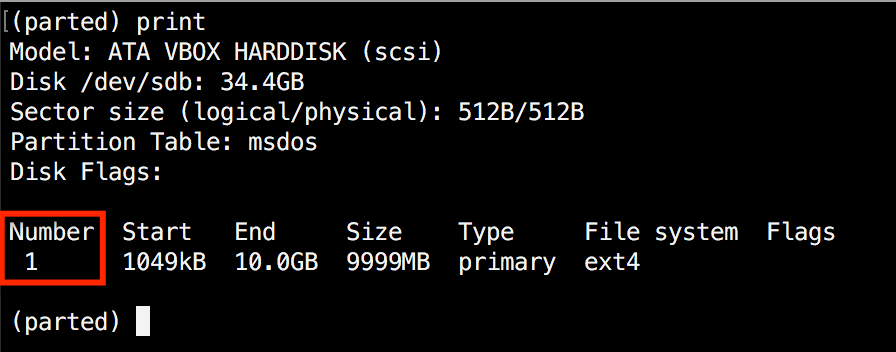
First you will need to know the number of the partition that you will be resizing. This can be easily found by using "print":

(parted) print
clip_image007

Find Linux Partition Number

In our example, the partition number is "1". Now run the resizepart command:

(parted) resizepart

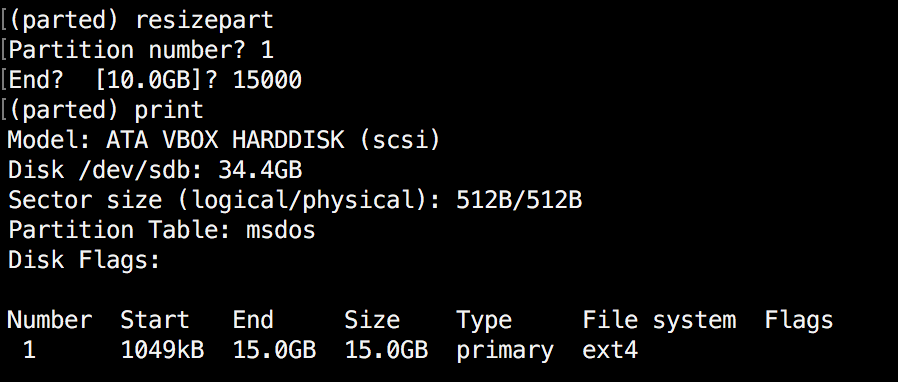
You will be asked for the number of the partition that you will resize. Enter it’s number. After that, you will be asked to set the new ending point for this partition. Remember that by default the units are in MB. In our example, we have set the new partition size to 15 GB:

(parted) resizepart
Partition number? 1
End?  [10.0GB]? 15000
Now verify the results with "print":
(parted) print
clip_image008

Verify Linux Resize Partition


6. Delete Linux Partition

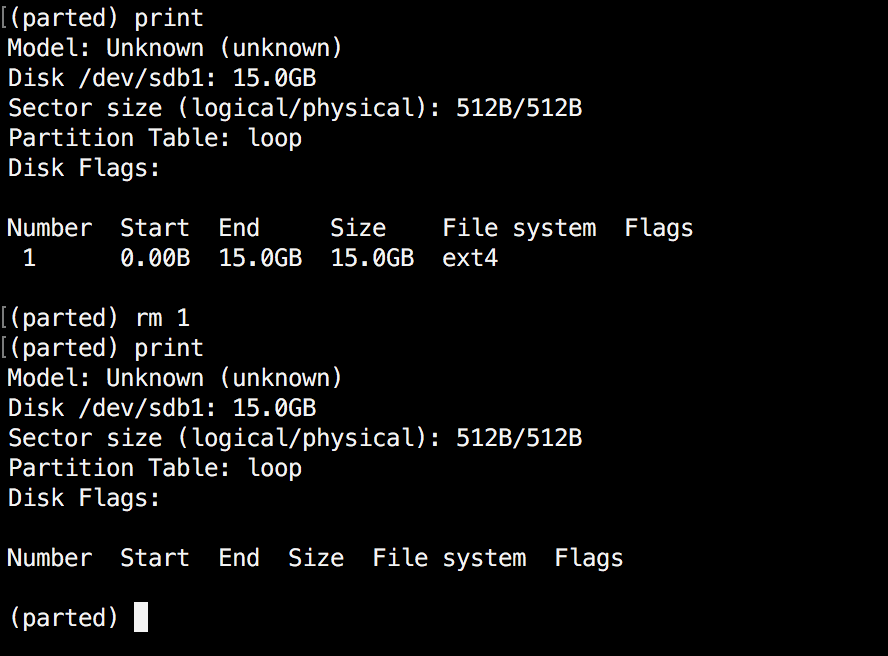
The next thing you will learn is how to delete a partition from your hard drive. To do this, you will need to use the "rm" command within parted. To delete a disk partition you will need to know it’s number.

As mentioned earlier, you can easily obtain this number by using "print". In our example, we will delete the partition with number 1 from our secondary drive/dev/sdb1:

(parted) rm 1

Verify the results by printing the partitions table:
clip_image009

Delete a Linux Partition


7. Rescue Linux Disk Partition

Parted supports a “rescue" utility that helps you recover a lost partition between a starting and ending point. If a partition is found within that range, it will attempt to restore it.

Here is an example:

(parted) rescue
Start? 1
End? 15000
(parted) print
Model: Unknown (unknown)
Disk /dev/sdb1: 15.0GB
Sector size (logical/physical): 512B/512B
Partition Table: loop
Disk Flags:

Number Start End Size File system Flags
1 0.00B 15.0GB 15.0GB ext4


8 Change Linux Partition Flag

Using parted, you can change the state of a flag for disk partitions. The supported flags are:

  • boot
  • root
  • swap
  • hidden
  • raid
  • lvm
  • lba
  • legacy_boot
  • irst
  • esp
  • palo

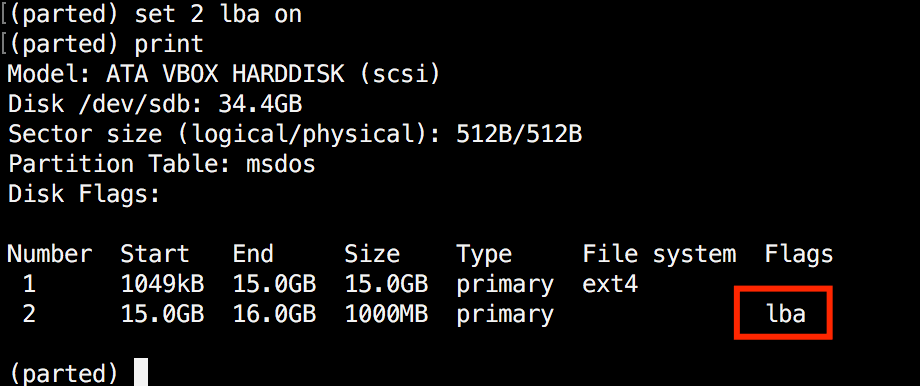
The states can be either "on" or "off". To change a flag simply run "set"command within parted:

(parted) set 2 lba on

The above command sets lba flag to on for second partition. Verify the results with print:
clip_image010

Change Partition Flag


Conclusion

Parted is a useful and powerful utility that can help you manage your disk partitions in Linux systems. As always, when working with disk partitions you need to be extra careful. It is strongly recommend to go through parted man pages to learn how you can customize it’s output and find more information about its capabilities.

If you have any questions or comments, please do not hesitate to use the comment section below.


Taken From: http://www.tecmint.com/parted-command-to-create-resize-rescue-linux-disk-partitions/

Monday, November 4, 2013

Linux Swap Space – All You Need to Know

All about Linux swap space

By Gary Sims

Linux divides its physical RAM (random access memory) into chucks of memory called pages. Swapping is the process whereby a page of memory is copied to the preconfigured space on the hard disk, called swap space, to free up that page of memory. The combined sizes of the physical memory and the swap space is the amount of virtual memory available.

Swapping is necessary for two important reasons. First, when the system requires more memory than is physically available, the kernel swaps out less used pages and gives memory to the current application (process) that needs the memory immediately. Second, a significant number of the pages used by an application during its startup phase may only be used for initialization and then never used again. The system can swap out those pages and free the memory for other applications or even for the disk cache.

However, swapping does have a downside. Compared to memory, disks are very slow. Memory speeds can be measured in nanoseconds, while disks are measured in milliseconds, so accessing the disk can be tens of thousands times slower than accessing physical memory. The more swapping that occurs, the slower your system will be. Sometimes excessive swapping or thrashing occurs where a page is swapped out and then very soon swapped in and then swapped out again and so on. In such situations the system is struggling to find free memory and keep applications running at the same time. In this case only adding more RAM will help.

Linux has two forms of swap space: the swap partition and the swap file. The swap partition is an independent section of the hard disk used solely for swapping; no other files can reside there. The swap file is a special file in the filesystem that resides amongst your system and data files.

To see what swap space you have, use the command swapon -s. The output will look something like this:

Filename Type Size Used Priority

/dev/sda5 partition 859436 0 -1

Each line lists a separate swap space being used by the system. Here, the 'Type' field indicates that this swap space is a partition rather than a file, and from 'Filename' we see that it is on the disk sda5. The 'Size' is listed in kilobytes, and the 'Used' field tells us how many kilobytes of swap space has been used (in this case none). 'Priority' tells Linux which swap space to use first. One great thing about the Linux swapping subsystem is that if you mount two (or more) swap spaces (preferably on two different devices) with the same priority, Linux will interleave its swapping activity between them, which can greatly increase swapping performance.

To add an extra swap partition to your system, you first need to prepare it. Step one is to ensure that the partition is marked as a swap partition and step two is to make the swap filesystem. To check that the partition is marked for swap, run as root:

fdisk -l /dev/hdb

Replace /dev/hdb with the device of the hard disk on your system with the swap partition on it. You should see output that looks like this:

Device Boot Start End Blocks Id System

/dev/hdb1 2328 2434 859446 82 Linux swap / Solaris

If the partition isn't marked as swap you will need to alter it by running fdisk and using the 't' menu option. Be careful when working with partitions -- you don't want to delete important partitions by mistake or change the id of your system partition to swap by mistake. All data on a swap partition will be lost, so double-check every change you make. Also note that Solaris uses the same ID as Linux swap space for its partitions, so be careful not to kill your Solaris partitions by mistake.

Once a partition is marked as swap, you need to prepare it using the mkswap (make swap) command as root:

mkswap /dev/hdb1

If you see no errors, your swap space is ready to use. To activate it immediately, type:

swapon /dev/hdb1

You can verify that it is being used by running swapon -s. To mount the swap space automatically at boot time, you must add an entry to the /etc/fstab file, which contains a list of filesystems and swap spaces that need to be mounted at boot up. The format of each line is:

Since swap space is a special type of filesystem, many of these parameters aren't applicable. For swap space, add:

/dev/hdb1 none swap sw 0 0

where /dev/hdb1 is the swap partition. It doesn't have a specific mount point, hence none. It is of type swapwith options of sw, and the last two parameters aren't used so they are entered as 0.

To check that your swap space is being automatically mounted without having to reboot, you can run the swapoff -a command (which turns off all swap spaces) and then swapon -a (which mounts all swap spaces listed in the /etc/fstab file) and then check it with swapon -s.

Swap file

As well as the swap partition, Linux also supports a swap file that you can create, prepare, and mount in a fashion similar to that of a swap partition. The advantage of swap files is that you don't need to find an empty partition or repartition a disk to add additional swap space.

To create a swap file, use the dd command to create an empty file. To create a 1GB file, type:

dd if=/dev/zero of=/swapfile bs=1024 count=1048576

/swapfile is the name of the swap file, and the count of 1048576 is the size in kilobytes (i.e. 1GB).

Prepare the swap file using mkswap just as you would a partition, but this time use the name of the swap file:

mkswap /swapfile

And similarly, mount it using the swapon command: swapon /swapfile.

The /etc/fstab entry for a swap file would look like this:

/swapfile none swap sw 0 0

How big should my swap space be?

It is possible to run a Linux system without a swap space, and the system will run well if you have a large amount of memory -- but if you run out of physical memory then the system will crash, as it has nothing else it can do, so it is advisable to have a swap space, especially since disk space is relatively cheap.

The key question is how much? Older versions of Unix-type operating systems (such as Sun OS and Ultrix) demanded a swap space of two to three times that of physical memory. Modern implementations (such as Linux) don't require that much, but they can use it if you configure it. A rule of thumb is as follows: 1) for a desktop system, use a swap space of double system memory, as it will allow you to run a large number of applications (many of which may will be idle and easily swapped), making more RAM available for the active applications; 2) for a server, have a smaller amount of swap available (say half of physical memory) so that you have some flexibility for swapping when needed, but monitor the amount of swap space used and upgrade your RAM if necessary; 3) for older desktop machines (with say only 128MB), use as much swap space as you can spare, even up to 1GB.

The Linux 2.6 kernel added a new kernel parameter called swappiness to let administrators tweak the way Linux swaps. It is a number from 0 to 100. In essence, higher values lead to more pages being swapped, and lower values lead to more applications being kept in memory, even if they are idle. Kernel maintainer Andrew Morton has said that he runs his desktop machines with a swappiness of 100, stating that "My point is that decreasing the tendency of the kernel to swap stuff out is wrong. You really don't want hundreds of megabytes of BloatyApp's untouched memory floating about in the machine. Get it out on the disk, use the memory for something useful."

One downside to Morton's idea is that if memory is swapped out too quickly then application response time drops, because when the application's window is clicked the system has to swap the application back into memory, which will make it feel slow.

The default value for swappiness is 60. You can alter it temporarily (until you next reboot) by typing as root:

echo 50 > /proc/sys/vm/swappiness

If you want to alter it permanently then you need to change the vm.swappiness parameter in the /etc/sysctl.conf file.

Conclusion

Managing swap space is an essential aspect of system administration. With good planning and proper use swapping can provide many benefits. Don't be afraid to experiment, and always monitor your system to ensure you are getting the results you need.

Taken From: http://www.linux.com/news/software/applications/8208-all-about-linux-swap-space

Saturday, October 5, 2013

Expand Android Internal Memory with link2SD

In most of the Android phones internal memory remains low which is between 200-400MB. And in most of the cases generally the apps get installed in the internal memory so it take spaces and finally when internal memory becomes full your phone get slow or hanged. Though there is chance to install the apps in SD card but in most of the cases they get installed in the internal memory in default. So to get release from this problem the best solution is to use link2SD which let you install the apps in a separate partition of your SD card.

clip_image002

Let me show the way to expand internal memory with link2SD.

Requirements:

1. Your phone must be rooted. Rooting of your phone varies on your phone model.

2. There should have two partitions and you should backup files from the SD card.

3. Remove your micro SD card from the phone and using a SD card adapter, connect it to you computer, either directly our using an SD card reader (normaly USB)

Step 1: Create partition on SD card:

There are two ways to create partition. I recommend you to use Mini Partition Wizard Home Edition, it’s free. Linux fans use GParted.

I’m going to use Mini Partition Wizard Home Edition, but if you ruin your SD card and windows / Mini Partition, does not recognize it, use the GParted Live CD (miracle worker), if you don’t have linux installed.

Using the Mini Partition Wizard create the following partitions:

  • Primary Fat32 Partition – Your normal SD card partition (with most of the sd cards space)

  • Primary Ext2 Partition – The partition that will hold the Apps that you move from the phone’s internal memory. Mine was 1.5 GB, but it all depends on you needs and you sd card size.

  • Primary Linux Swap – Used by linux for ram extension (something like windows pagefile), it should be at least as big as you phone’s RAM, mine is 512 MB.

Note: I used primary partitions but it’s possible that extended partitions migth work (didn’t test).

image

Now that we have completed creating partition now its time to configure link2SD.

Step 2 - Configuring link2SD:

· At first download link2SD

clip_image009

· Now install the app and launch it.

clip_image011

· When you launch the app it will ask to get superuser access.

· Allow the request

clip_image012

· Now it will as you to select the file system of your SD card’s second partition, select ext2 and tap OK.

clip_image013

· Now it will ask you to restart the phone, just tap OK to restart.

· After restarting your phone launch the link2SD app again.

clip_image014

· It will show you a dialogue, tap OK

clip_image015

· Now tap on the icon which you see in the screenshot and choose multi-select to select all.

clip_image016

· In this step go to Actions menu and select Create link then tick all the 3 options and tap OK

clip_image017

clip_image018

clip_image019

· Now configure the settings to create auto link in future.

clip_image020

clip_image021

· To do this go to Menu>Setting and Auto link and tick all the 3 options.

· Now exit the apps and forget about internal memory.

clip_image022

· To check memory status, launch link2SD and go to Storage Info.

Read more: http://www.androidever.com/expand-android-internal-memory-with-link2sd/#ixzz2gtFe3TfL


Based On: http://www.androidever.com/expand-android-internal-memory-with-link2sd/

Monday, June 1, 2009

Adding Disk - Storage To VMWare ESX

In VMWare ESX, in order to be able to use a disk, this should be first in VMWare's own file system format, which is "vmfs3", other will it will not recognize the disk and, you wont be able for example store you virtual machines there.

This is quite is one a big diference between VMWare ESX and the VMWare desktop, version.
So in the next few line I'm going to show how prepare and add a disk to VMWare ESX.

Step #1 Run fdisk -l and find the disk that you want to format with VMFS3.

$ su

# fdisk -l | grep Disk
Disk /dev/sda: 32.2 GB, 32212254720 bytes
Disk /dev/sdb: 53.6 GB, 53687091200 bytes
Disk /dev/sdc: 32.2 GB, 32212254720 bytes
Disk /dev/sdd: 53.6 GB, 53687091200 bytes
Disk /dev/sde: 32.2 GB, 32212254720 bytes
Disk /dev/sdf: 10.7 GB, 10737418240 bytes
Disk /dev/sdg: 32.2 GB, 32212254720 bytes
Disk /dev/sdh: 32.2 GB, 32212254720 bytes
Disk /dev/sdi: 32.2 GB, 32212254720 bytes
Disk /dev/sdj: 21.4 GB, 21474836480 bytes
Disk /dev/sdk: 214.7 GB, 214748364800 bytes Disk /dev/cciss/c0d0: 73.3 GB, 73372631040 bytes


Note: The /dev/sdk is the one I will be adding to VMWare ESX


# fdisk -l /dev/sdk

Disk /dev/sdk: 214.7 GB, 214748364800 bytes
255 heads, 63 sectors/track, 26108 cylinders
Units = cylinders of 16065 * 512 = 8225280 bytes

Device Boot Start End Blocks Id System


Has you can see, sdk doesen't have any partitions,
so we must create one to later on format in the "vmf3" format.

Step #2 Creating a Partition (to format later on in "vmf3")

Note: the partition in this examples, ocupies all of the disk.

First we will create the partition (n) then change the type (t) to fb. Then (w) save the changes. Check fdisk /dev/sda again and list partitions (p) - it should list as fb.


# fdisk /dev/sdk

The number of cylinders for this disk is set to 26108.
There is nothing wrong with that, but this is larger than 1024,
and could in certain setups cause problems with:
1) software that runs at boot time (e.g., old versions of LILO)
2) booting and partitioning software from other OSs
(e.g., DOS FDISK, OS/2 FDISK)

Command (m for help): n
Command action
e extended
p primary partition (1-4)
p

Partition number (1-4): 1
First cylinder (1-26108, default 1):
Using default value 1
Last cylinder or +size or +sizeM or +sizeK (1-26108, default 26108):
Using default value 26108

Command (m for help): t
Selected partition 1
Hex code (type L to list codes): fb
Changed system type of partition 1 to fb (Unknown)

Command (m for help): w
The partition table has been altered!

Calling ioctl() to re-read partition table.
Syncing disks.


Note: I tried to create an extended partition, but it didn't work, fdisk didn't let met change the type to "fb".


Step #3 Then run esxcfg-vmhbadevs -m to see which vmhba devices is mapped to the partion in step #1

# esxcfg-vmhbadevs -m

vmhba1:0:4:1 /dev/sdd1 4866618b-6a9fda41-fba6-00565aa64ffa
vmhba1:0:1:1 /dev/sda1 486660ea-fe9d98aa-8010-00565aa64ffa
vmhba1:0:3:1 /dev/sdc1 48666166-5068fbcd-dfcd-00565aa64ffa
vmhba1:0:2:1 /dev/sdb1 48666146-f15b8e96-2c49-00565aa64ffa
vmhba1:0:6:1 /dev/sdf1 486661b9-4da3f066-3017-00565aa64ffa
vmhba1:0:5:1 /dev/sde1 486661a4-9d3c1b7d-3ec6-00565aa64ffa
vmhba1:0:8:1 /dev/sdh1 486661e5-84ce84f3-acd2-00565aa64ffa
vmhba0:0:0:3 /dev/cciss/c0d0p3 48666bff-9ed64a25-636c-00215aa65f04
vmhba1:0:10:1 /dev/sdj1 4866620f-939412da-7ede-00565aa64ffa
vmhba1:0:7:1 /dev/sdg1 486661d0-debeffc1-9e08-00565aa64ffa
vmhba1:0:9:1 /dev/sdi1 486661f9-4cff8fab-57a6-00565aa64ffa


Because it has no partition, starting with "sdk" (ex: vmhba1:0:9:1 /dev/sdk1) , which is the disks name, let's try to list only the disks to see if VMWare ESX detects it,

# esxcfg-vmhbadevs
vmhba0:0:0 /dev/cciss/c0d0
vmhba1:0:1 /dev/sda
vmhba1:0:2 /dev/sdb
vmhba1:0:3 /dev/sdc
vmhba1:0:4 /dev/sdd
vmhba1:0:5 /dev/sde
vmhba1:0:6 /dev/sdf
vmhba1:0:7 /dev/sdg
vmhba1:0:8 /dev/sdh
vmhba1:0:9 /dev/sdi
vmhba1:0:10 /dev/sdj
vmhba1:0:11 /dev/sdk

The disk is the but there's no partition, we will create it later on.


Step #4 Formating the Previously Created Partition in "vmfs3"

Basicly we will run vmkfstools -C vmfs3 -S "volume name" vmhba#_from_step#3


In the step before we noted that VMWare detected sdk and that it had the id "vmhba1:0:11", but there was no partition, and that by comparing the results from "esxcfg-vmhbadevs -m" (list partitions) and "esxcfg-vmhbadevs" (list disks), in the previous step the id of the partition sdk1 should be "vmhba1:0:11:1", so this is the id we will be using in the format command below.

# vmkfstools -C vmfs3 -S "ESX03" vmhba1:0:11:1

Creating vmfs3 file system on "vmhba1:0:11:1" with blockSize 1048576 and volume label "ESX03".
Successfully created new volume: 4a23df5c-41c0dac6-a39f-00215aa64ffa


Now you have the disk ready ready to add to VMWare ESX,

Step #5 Add the storage to a Blade (fisical PC) in VMWARE ESX,

Just click on one blade "Configuration | Add Storage",
and selectct "Disk/Lun", and Next in following windows.


Note: I think if you add the disk to one blade it, will be added to all the other blades.
I tried to add to a second blade and it didn't allowed me to do that.

Step #7 Create Virtual Machines, ande select the DataStorage previously created

Friday, May 18, 2007

Save a partition directly to a compressed file

To save a partion directly to a compressed file in linux is very easy regardless of the filesytem, you can save for example a NTFS (Windows NT File System) whith this.

To save the partition and later restore it, we are going to use three programs the first is 'dd' the which is used to make exact copies of partitions and restore them and the others are 'bzip2' which is used to compress and 'bunzip' to uncompress.

In order to save a partition to a compress a partition to a compress file, just do:


# dd if=/dev/hda2 bs=10M | bzip2 > /.../hda2_save.bz2


Where '/.../' must be replaced with the path to the dir where you want your partition compress save to be.

Has you can see above 'dd' has no 'of' (output file) so it's output will be the standart output (the shell), wich we redirect with '|' (pipe) to 'bzip2' standart input (which if not redirected is the keyboard), buzip2 will continuously compress the stream of data coming from 'dd', and that's it.


In order to save a partition to a compress a partition to a compress file, just do


# bunzip2 /.../hda2_save.bz2 --stdout | dd of=/dev/hda2


Where '/.../' must be replaced with the path to the dir where you want your partition compress save is.

Has you can see above 'bunzip2' has the option '--stdout' wich means that it will uncompress the file to the standart output (the shell) wich we redirect with '|' (pipe) to 'dd' standart input (which if not redirected is the keyboard).