In order to get a router to copy the running-config to startup-config, for example every Sunday at 23:00, complete these steps:
1 - Create a kron policy list—This is the script that lists what commands the router should run at the scheduled time.
Router#enable
Router#configure terminal
Router(config)#kron policy-list Backup
Router(config-kron-policy)#cli show startup-config | redirect tftp://192.168.1.252/test.cfg
Router(config-kron-policy)#exit
cli—Specifies EXEC CLI commands within a Command Scheduler policy list.
policy-list—Specifies the policy list associated with a Command Scheduler occurrence.
Note: The reason why write was used rather than copy running-config startup-config is because kron does not support interactive prompts and the copy running-config startup-config command requires interaction. It is important to remember this when you create commands. Also, note that kron does not support configuration commands.
2 - Create a kron occurrence—This informs the router when and how often the policy should run.
Router(config)#kron occurrence SaveConfigSchedule at 23:00 Sun recurring
Router(config-kron-occurrence)#policy-list Backup
SaveConfigSchedule—This is the name of occurrence. Length of occurrence-name is from 1 to 31 characters. If the occurrence-name is new, an occurrence structure will be created. If the occurrence-name is not new, the existing occurrence will be edited.
at—Identifies that the occurrence is to run at a specified calendar date and time.
recurring—Identifies that the occurrence is to run on a recurring basis.
3 - Verify the kron configuration by using the show command.
Router#show kron schedule
Kron Occurrence Schedule
SaveConfigSchedule inactive, will run again in 1 days 12:37:47 at 23:00 on Sun
inactive—Means that kron is not running the command(s) at present.
active—Means that kron is running the current command(s).
Router#show running-configuration
...
kron occurrence SaveConfigSchedule at 23:00 Sun recurring
policy-list Backup
!
kron policy-list Backup
cli show startup-config | redirect tftp://192.168.1.252/test.cfg
...
Note: You can use this to schedule other things, just change the the policy-list, to what you want.
Based On: http://www.cisco.com/en/US/products/sw/iosswrel/ps1835/products_tech_note09186a008020260d.shtml
Showing posts with label save. Show all posts
Showing posts with label save. Show all posts
Saturday, December 24, 2011


Friday, December 23, 2011
Backup a Cisco Config Automatically – Changes ( Archive Method )
Cisco IOS has the ability to save it’s configuration when you run the write memory command.
Here is how:
R1#enable
R1#configure terminal
R1(config)#archive
R1(config-archive)#path tftp://172.16.10.61/sw3725/sw3725.cfg
R1(config-archive)#write-memory
R1(config-archive)#exit
R1(config)#exit
The “write-memory” option means that when the running-config is saved to the startup-config a copy will also be saved on the tftp server, thus backing up the startup-config every time it’s changed.
In this example, we’ve configured the switch to save to the configuration file to the sw3725 sub-directory of a ttp server.
To test the setup, run the “write memory” command.
R1#enable
R1#write memory
or
R1#copy running-config startup-config
Looking on the sw3725 on the tftp server, we see a configuration file was uploaded:
sw3725.cfg-1
if you save the running-config a couple more times you wil get something like this:
sw3725.cfg-1
sw3725.cfg-2
sw3725.cfg-3
like you see the number at the end of the file name is incremented, every time you save the running-config
Based On: http://www.rainingpackets.com/configuring-cisco-ios-automatically-save-running-configuration-tftp-server-save
More Info at:
Friday, June 12, 2009
Save, Guess and Restore the Master Boot Record (MBR)
The Master Boot Record is an amazing little section of disk that you almost never notice—until it's gone. When that happens, read below to find out how to bring it back.
Taken From: Linux Journal Contents #180, April 2009
http://www.linuxjournal.com/article/10385
The following is a continuation of a series of columns on Linux disasters and how to recover from them, inspired in part by a Halloween Linux Journal Live episode titled “Horror Stories”. You can watch the original episode at www.linuxjournal.com/video/linux-journal-live-horror-stories.
I have to admit, I've learned more about how Linux works by breaking it and fixing it, than I have by any other method. There really is nothing quite like the prospect of losing valuable data, or the idea that your only computer won't boot, to motivate you to learn more about your system. In this month's installment of “When Disaster Strikes”, I discuss a surprisingly small part of your computer that plays a surprisingly large role in booting and using it—the Master Boot Record, or MBR for short. I cover some of my favorite ways to destroy an MBR and a few ways to restore it once you have.
Before you can fully understand how to restore the MBR, you should have a good idea of what it actually is. The MBR comprises the first 512 bytes of a hard drive. Now that's bytes, not megabytes or even kilobytes. In our terabyte age, it's hard to appreciate how very small that is, but to give you an idea, at this point in the column, I've already written about three MBRs worth of text.
This 512-byte space then is split up into two smaller sections. The first 446 bytes of the MBR contain the boot code—code like the first stage of GRUB that allows you to load an operating system. The final 66 bytes contain a 64-byte partition table and a 2-byte signature at the very end. That partition table is full of information about the primary and extended partitions on a disk, such as at which cylinder they start, at which cylinder they end, what type of partition they are and other useful data you typically don't think much about after a disk is set up—at least, until it's gone.
This is the part of the column where I repeat some of the best disaster recovery advice I know—make backups. In this case, we are talking about MBR disasters, so here are a few ways to back up your MBR. After all, it's only 512 bytes; there's no reason why you can't afford to back it up. Heck, it's small enough to tattoo on your arm, except I guarantee once you do you'll end up migrating to a new system or changing the partition layout.
The best tool to back up the MBR is coincidentally the best tool at destroying it (more on that later), dd. In fact, dd is one of those ancient, powerful and blunt UNIX tools that blindly does whatever you tell it to, and it's adept at destroying all sorts of valuable data (more precisely, it's adept at following your explicit orders to destroy your valuable data). The following command backs up the MBR on the /dev/sda disk to a file named mbr_backup:
$ sudo dd if=/dev/sda of=mbr_backup bs=512 count=1
Basically, this tells dd to read from /dev/sda 512 bytes at a time and output the result into mbr_backup, but to do only one 512-byte read. Now you can copy mbr_backup to another system or print it out and do the tattoo thing I mentioned before. Later on, if you were to wipe out your MBR, you could restore it (likely from some sort of rescue disk) with a slight twist on the above command. Simply swap the input and output sources:
$ sudo dd if=mbr_backup of=/dev/sda bs=512 count=1
There are a number of elaborate ways you can destroy some or all of your MBR. Please be careful with this first command. It actually deletes your MBR at the very least, and with a typo, it potentially could delete the entire disk, so step lightly. Let's start with the most blunt, dd:
$ sudo dd if=/dev/zero of=/dev/sda bs=512 count=1
This command basically blanks out your MBR by overwriting it with zeros. Now, unless you are masochistic, or you are like me and used this in a demonstration of MBR recovery tools, you probably wouldn't ever run this command. Most people end up destroying part of their MBR in one of two ways: mistakes with bootloaders and mistakes with fdisk or other partitioning tools.
Mistakes with partitioning tools probably are the most common way people break their MBRs, or more specifically, their partition tables. It could be that you ran fdisk on sda when you meant to run it on sdb. It could be that you just made a mistake when resizing a partition, and after a reboot, it wouldn't mount. The important thing to keep in mind is that when you use partitioning tools, they typically update only the partition table on the drive. Even if you resize a drive, unless you tell a partitioning tool to reformat the drive with a fresh filesystem, the actual data on the drive doesn't change. All that has changed are those 64 bytes at the beginning of the drive that say where the partitions begin and end. So, if you make a partitioning mistake, your data is fine. You just have to reconstruct that partition table.
It would figure that the first time I really destroyed my MBR, it was through the second, less-common way—mistakes with bootloaders. In my case, it was a number of years ago, and I was struggling to get an early version of GRUB installed on a disk. After the standard command-line commands didn't work, I had the bright idea that maybe I could use the GRUB boot floppy image. After all, it was 512 bytes and so was my MBR, right? Well, it sort of worked. GRUB did appear; however, what I didn't realize was that in addition to writing GRUB over the first 446 bytes of my MBR, I also wrote over the last 66 bytes, my partition table. So although GRUB worked, it didn't see any partitions on the drive.
I had at least used Linux long enough that after I made my mistake, I realized my actual data was still there and that there must be some way to restore the partition table. This was when I first came across the wonderful tool called gpart.
gpart is short for Guess Partition, and that is exactly what it does. When you run the gpart command, it scans through a disk looking for signs of partitions. If it finds what appears to be the beginning of a Windows FAT32 partition, for instance, it jots it down and continues until eventually it sees what appears to be the end. Once the tool has scanned the entire drive, it outputs its results to the screen for you to check and edit. It also optionally can write this reconstructed partition table back to the disk.
gpart has been around for quite some time and is packaged by all of the major distributions, so you should be able to install it with your standard package manager. Don't confuse it with gparted, which is a graphical partitioning tool. Of course, if your main system is the one with the problem, you need to find a rescue disk that has it. Knoppix and a number of other rescue-focused disks all include gpart out of the box.
To use gpart, run it with root privileges and give it the disk device to scan as an argument. Here's gpart's output from a scan of my laptop's drive:
greenfly@minimus:~$ sudo gpart /dev/sda

Begin scan...
Possible partition(Linux ext2), size(9773mb), offset(0mb)
Possible partition(Linux swap), size(980mb), offset(9773mb)
Possible partition(SGI XFS filesystem), size(20463mb), offset(10754mb)
End scan.

Checking partitions...
Partition(Linux ext2 filesystem): primary
Partition(Linux swap or Solaris/x86): primary
Partition(Linux ext2 filesystem): primary
Ok.
Guessed primary partition table:
Primary partition(1)
type: 131(0x83)(Linux ext2 filesystem)
size: 9773mb #s(20016920) s(63-20016982)
chs:  (0/1/1)-(1023/254/63)d (0/1/1)-(1245/254/56)r

Primary partition(2)
type: 130(0x82)(Linux swap or Solaris/x86)
size: 980mb #s(2008120) s(20016990-22025109)
chs:  (1023/254/63)-(1023/254/63)d (1246/0/1)-(1370/254/58)r

Primary partition(3)
type: 131(0x83)(Linux ext2 filesystem)
size: 20463mb #s(41909120) s(22025115-63934234)
chs:  (1023/254/63)-(1023/254/63)d (1371/0/1)-(3979/184/8)r

Primary partition(4)
type: 000(0x00)(unused)
size: 0mb #s(0) s(0-0)
chs:  (0/0/0)-(0/0/0)d (0/0/0)-(0/0/0)r
To hammer home the point about how easy it is to back up the MBR, now I have an extra backup of my laptop partition table—in this magazine.
As you can see, it correctly identified the two primary partitions (/ and /home) and the swap partition on my laptop and noted that the fourth primary partition was unused. Now, after reviewing this, if I decided that I wanted gpart to write its data to the drive, I would run:
$ sudo gpart -W /dev/sda /dev/sda
That isn't a typo; the -W argument tells gpart to which disk to write the partition table, but you still need to tell it which drive to scan. gpart potentially could scan one drive and write the partition table to another. Once you specify the -W option, gpart gives you some warnings to accept, but it also prompts you to edit the results from within gpart itself. Personally, I've always found it a bit more difficult to do it that way than it needs to be, so I skip the editor, have it write to the disk, and then use a tool like fdisk or cfdisk to examine the drive afterward and make tweaks if necessary.
gpart is a great tool and has saved me a number of times, but it does have some limitations. For one, although gpart works very well with primary partitions, it is much more difficult for it to locate extended partitions, depending on which tool actually created them. Second, take gpart results with a grain of salt. It does its best to reconstruct drives, but you always should give its results a sanity check. For instance, I've seen where it has identified the end of a partition one or two megabytes short from the actual end. Typically, when we partition drives, we put one partition immediately after another, so these sorts of errors are pretty easy to find.
Now, if you have destroyed only the partition table, you hopefully should be restored at this point. If you managed to destroy the boot code as well, you need to restore it too. These days, most Linux distributions use GRUB, so with your restored partition table, if you are currently booted into the affected system, run:
$ sudo grub-install --recheck /dev/sda
Replace /dev/sda with the path to your primary boot device. If you use an Ubuntu system, you optionally could use the update-grub tool instead. If you are currently booted in to a rescue disk, you first need to mount your root partition at, say, /mnt/sda1, and then use chroot to run grub-install within it:
$ sudo mkdir /mnt/sda1
$ sudo mount /dev/sda1 /mnt/sda1
$ sudo chroot /mnt/sda1 /usr/sbin/grub-install
↪--recheck /dev/sda
If the chrooted grub-install doesn't work, you typically can use your rescue disk's grub-install with the --root-directory option:
$ sudo /usr/sbin/grub-install --recheck
↪--root-directory /mnt/sda1 /dev/sda
Well hopefully, if you didn't have a profound respect for those 512 bytes at the beginning of your hard drive, you do now. The MBR is like many things in life that you don't miss until they are gone, but at least in this case, when it's gone, you might be able to bring it back.
Taken From: Linux Journal Contents #180, April 2009
http://www.linuxjournal.com/article/10385
Backup Files With Rsync and Grsync
There are, of course, numerous backup solutions you can use, from the simple and free to the complex and expensive, as well as everything in between. The technology behind most backup systems, however, tends to be much more limited. Using classic tools, such as tar and gzip, to back up and compress is still very common under the surface of much more complex tools. This is true even when using network resources. In the end, you are backing up from one machine to another. Many people I know, including those with small businesses, do this for their regular backups. Machine A backs to machine B, which backs to C, which backs to A. The machines, and their drives, are all part of a network. Hey, instant cloud, and you probably didn't know you had one. 


This is where rsync, another popular backup tool, shows its worth. As the name implies, rsyncs keep a backup copy of your data, in sync with the original. It can do it locally, from one physical drive to another, or across your network. Because only those files that have been modified are transferred, the process can be very quick. You can do this with single files, whole directories and subdirectories, while maintaining file ownership and permissions, links, symbolic links and so on. rsync has its own transport, or you can use OpenSSH to secure the transfer, and (of course) there are some great front-end, graphical tools to make the process a little slicker.
You can find rsync at rsync.samba.org, but you probably don't even have to look that far. Many distributions load it when you install your system. If not, check your installation disks or simply pick it up from your distribution's repositories. Before I explain how to rsync your data to your own personal cloud, let me show you how easy it is to create a synchronized backup of your data from one directory to another (or one drive to another):
rsync -av important_stuff/ is_backup
In the above example, rsync copies everything in the directory important_stuff into another directory (or folder) called is_backup. Most of you will have figured out that the -v means verbose copy. The -a option hides some amount of complexity in that it is the same as using the -rlptgoD flags. In order, this means that rsync should do a recursive copy; copy symbolic links; preserve permissions, modification times and group and owner information; and, with the final D, copy special files (device and block). When you press Enter, files go scrolling by, after which you see something like this:
sending incremental file list
./
CookingJul08.tgz
CookingJul2008_albums.odt
CookingJul2008_albums.txt
igal_page.png
montage.png
shalbum.png
zenphoto_comment.png
zenphoto_go.png
zenphoto_login.png
zenphoto_makepass.png
zenphoto_setup.png
zenphoto_theming_comment.png
zenphoto_upload_photos.png
zenphoto_view_album.png
. . . .

sent 46059880 bytes  received 2753 bytes  6141684.40 bytes/sec
total size is 46044132  speedup is 1.00
One other thing that rsync should be able to do in order to be completely useful is delete files. If you are mirroring files and directories, it stands to reason that you want the mirror to represent exactly what is on the original. If files have been deleted, you want them deleted on the backup server as well. This is where the --delete parameter comes into play. Using the earlier example, let's delete that tgz file from the original, then relaunch the command:
$ rsync -av --delete important_stuff/ is_backup
sending incremental file list
./
deleting CookingJul08.tgz

sent 4164 bytes  received 25 bytes  8378.00 bytes/sec
total size is 41911050  speedup is 10005.03
From here on, both directories will always be in sync. When doing network backups, this magic synchronization of files and directories is done using a client and server setup. At least one machine must play the role of server (although nothing is stopping you from running an rsync dæmon on every one of your machines). The server gets its information about who can access what from a configuration file called rsyncd.conf. You'll find that it probably lives in the /etc directory. The following partial listing is from one of my rsync servers:
hosts allow = 192.168.1.0/24
use chroot = no
max connections = 10
log file = /var/log/rsyncd.log
gid = nogroup
uid = nobody

[marcel]
  path = /media/bigdrive/backups/marcel
  read only = no
  comment = Marcel's files
[francois]
  path = /media/bigdrive/backups/francois
  read only = no
  comment = Files for the waiter
This configuration file is quite simple once you get the hang of it. Backup areas are identified by a name in square brackets (marcel, website, francois and so on). The chief bits of information there include the path to the disk area and some kind of comment. Notice that I specified read only = no, but I could just as easily have added that to the top section (the one without a name in square brackets). That's the global section. Anything put up there applies to all other sections, but it can be overridden. Pay particular attention to the gid and uid values; these are the group ID and user ID to which the file transfer takes place. The default is nobody, but you need to make sure that is correct for your system. One of my servers does not have a nobody group, but has a nogroup group instead.
The hosts allow section identifies my local subnet as being the only set of addresses from which transfers can take place. The log file line identifies a file to log information from the dæmon. You also can specify a maximum number of connections, specific users who are allowed to transfer files (auth users) and a whole lot more. Run man rsyncd.conf for the full details. When your configuration is set, you can launch the rsync dæmon, which, interestingly enough, is exactly the same program as the rsync command itself. Just do the following:
rsync --daemon
That's it. Now, it's time to put this setup to use. You might want to test your rsync connection by issuing the command:
rsync remote_host::
Note the double colon at the end of the server's name. The result should be something like this, assuming a server called thevault:
$ rsync thevault::
website     All our websites
francois    Files for the waiter
marcel      Backup area for Marcel
Now, pretend I am on the server where my Web site files live. Using the following command, I can launch rsync to back up this entire area:
rsync -av /var/www thevault::website/

building file list ...
The format of the rsync command is rsync options source destination, which means I also could start the command from thevault, assuming my Web site machine also was running an rsync dæmon. The result would look more like this:
rsync -av localbackupdir websitemachine.dom::websites
All this work at the command line is great, but there are some tools for making the process easier, particularly if you will be creating a number of rsync backups or if you want to get into more complex requirements, such as scheduled backups. A friendly graphical front end on your desktop also may be a greater incentive to perform regular backups or take a quick backup when you've added important data and a “right now” backup is desirable. The first tool I want to show you is Piero Orsoni's grsync (Figure 1).
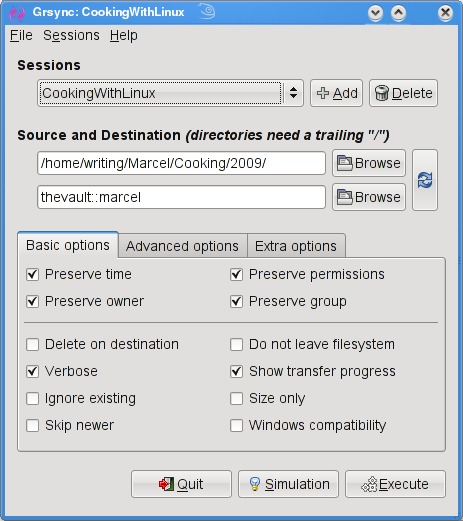
Figure 1. grsync provides an easy-to-use interface with every rsync option you could want.
While providing a great front end to rsync, grsync also works as a teaching tool for the command-line version of the program, or at least it helps as a memory aid. Almost any command-line option available to rsync is covered in one of these three tabs: Basic options, Advanced options and Extra options. What makes it a learning tool is that if you pause over any of those check boxes with your mouse, a tooltip appears showing the command-line option with a brief description of its function.
To start, click the Add button next to the session drop-down dialog and enter a name for your backup. You can define many different rsync backups here, and then launch them again at a later time. Clicking the Browse button brings up the standard Gtk2 file browser window from which you can select your local and destination folders. Unfortunately, you can't browse remote systems, but if you've already set up an rsync server, have no fear. You can enter it manually in the format I showed you earlier (for example, thevault::marcel/). When you are happy with the various options, click Execute. If you only think you are happy, click the Simulation button. (Chef Marcel loves a program with a sense of humor.) When you do click Execute, the program switches to a progress window (Figure 2), so you can see where you are in the process.
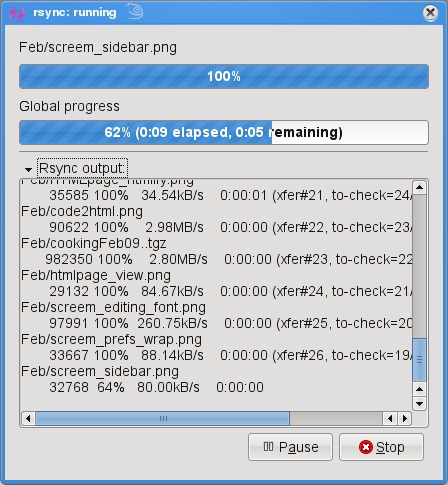
Figure 2. Once your grsync backup begins, it switches to a progress report view.
The next item on our rsync menu is Magnus Loef's GAdmin-Rsync. GAdmin-Rsync makes every aspect of creating an rsync backup a matter of filling in the blanks. What's more, the program creates backups using SSH by default, which means you can set up rsync backups to any machine to which you have secure shell access. This also means you don't actually need to have an rsync dæmon running on the remote machine if you have SSH access. Let me show you how it works.
When you start the program for the first time, you'll be asked for a name to give your new backup (Figure 3). You could back up the entire system or select specific folders of filesystems. Choose a name that makes sense to you based on what you want to back up. Enter a name, then click Apply to continue.
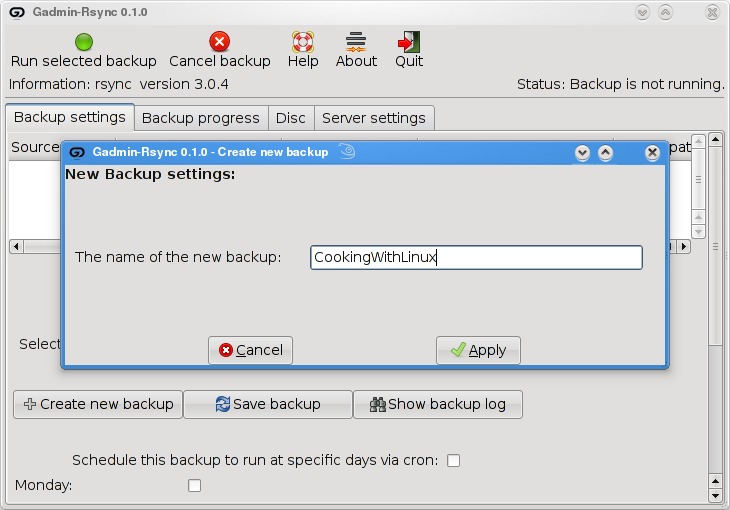
Figure 3. GAdmin-Rsync lets you define numerous backup configurations, each with its own identifier.
As you saw when we did this at the command line, rsync backups can be local, to a remote system or from a remote system. The next window looks for that very information (Figure 4). By default, local backup is checked. To back up to a remote server, select Local to remote backup. Because you can swap source and destination easily when using rsync, there's that third option. I routinely use a remote to local backup for my Web sites and remote systems. Click Forward to continue.
Figure 4. Your next step is to define the location of the backup.
Assuming you chose to back up to your cloud, your next step is to enter the server information (Figure 5). This includes the backup path on your networked server as well as your SSH key type and length. When you have entered this information, click Forward.
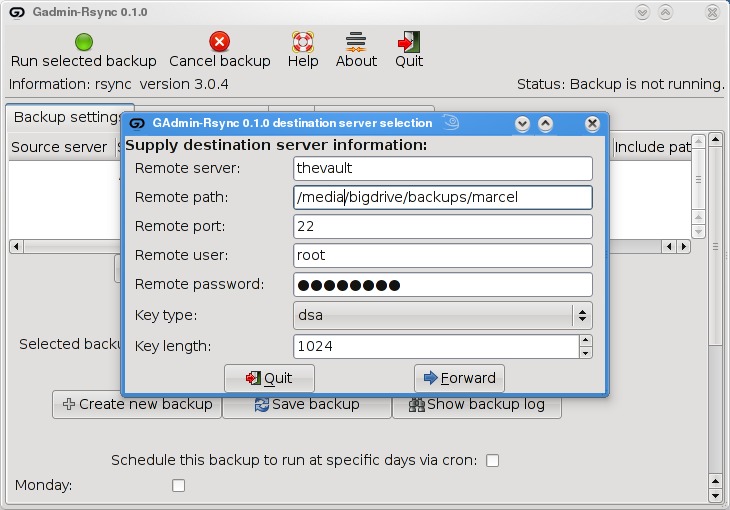
Figure 5. For remote backups, GAdmin-Rsync uses SSH/SCP for secure transfers.
Now you're ready to start the rsync backup. Click the Backup Progress tab to watch all the action.
What is nice about this program is that you can (as with grsync) store a number of backup definitions, so you can choose to back up your documents, music or digital photographs when it suits you. GAdmin-Rsync goes further though. If you take a look down at the bottom of the window on the Backup settings tab, you'll notice the words “Schedule this backup to run at specific days via cron” and a check box (Figure 6). Check the box, then scroll down to choose the days you want the backup to run. A little further down, you can specify the time as well.
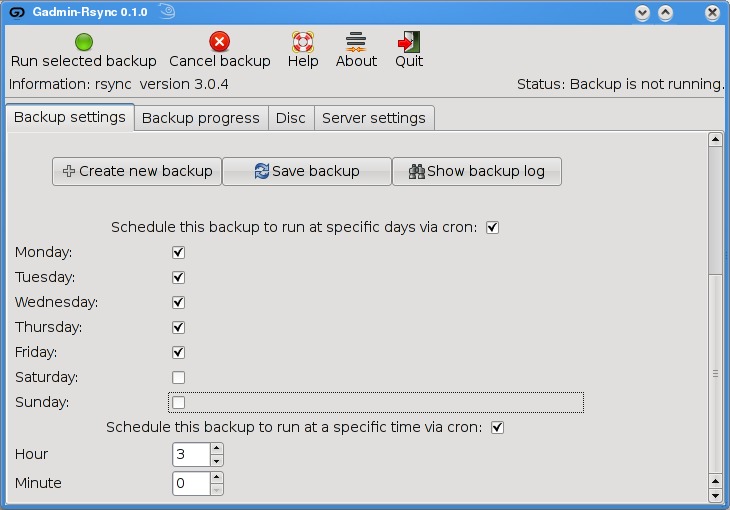
Figure 6. GAdmin-Rsync also provides an easy way to schedule your backups with cron.
Well, mes amis, closing time has caught up to us, and at least for now, time is one thing we can't back up. Despite the hour, I am quite sure we can convince François to refill our glasses one final time before we go our separate ways. Please, mes amis, raise your glasses and let us all drink to one another's health. A votre santé! Bon appétit!
Friday, May 18, 2007
Save a partition directly to a compressed file
To save a partion directly to a compressed file in linux is very easy regardless of the filesytem, you can save for example a NTFS (Windows NT File System) whith this.
To save the partition and later restore it, we are going to use three programs the first is 'dd' the which is used to make exact copies of partitions and restore them and the others are 'bzip2' which is used to compress and 'bunzip' to uncompress.
In order to save a partition to a compress a partition to a compress file, just do:
# dd if=/dev/hda2 bs=10M | bzip2 > /.../hda2_save.bz2
Where '/.../' must be replaced with the path to the dir where you want your partition compress save to be.
Has you can see above 'dd' has no 'of' (output file) so it's output will be the standart output (the shell), wich we redirect with '|' (pipe) to 'bzip2' standart input (which if not redirected is the keyboard), buzip2 will continuously compress the stream of data coming from 'dd', and that's it.
In order to save a partition to a compress a partition to a compress file, just do
# bunzip2 /.../hda2_save.bz2 --stdout | dd of=/dev/hda2
Where '/.../' must be replaced with the path to the dir where you want your partition compress save is.
Has you can see above 'bunzip2' has the option '--stdout' wich means that it will uncompress the file to the standart output (the shell) wich we redirect with '|' (pipe) to 'dd' standart input (which if not redirected is the keyboard).
To save the partition and later restore it, we are going to use three programs the first is 'dd' the which is used to make exact copies of partitions and restore them and the others are 'bzip2' which is used to compress and 'bunzip' to uncompress.
In order to save a partition to a compress a partition to a compress file, just do:
# dd if=/dev/hda2 bs=10M | bzip2 > /.../hda2_save.bz2
Where '/.../' must be replaced with the path to the dir where you want your partition compress save to be.
Has you can see above 'dd' has no 'of' (output file) so it's output will be the standart output (the shell), wich we redirect with '|' (pipe) to 'bzip2' standart input (which if not redirected is the keyboard), buzip2 will continuously compress the stream of data coming from 'dd', and that's it.
In order to save a partition to a compress a partition to a compress file, just do
# bunzip2 /.../hda2_save.bz2 --stdout | dd of=/dev/hda2
Where '/.../' must be replaced with the path to the dir where you want your partition compress save is.
Has you can see above 'bunzip2' has the option '--stdout' wich means that it will uncompress the file to the standart output (the shell) wich we redirect with '|' (pipe) to 'dd' standart input (which if not redirected is the keyboard).
Subscribe to:
Posts (Atom)