Showing posts with label disk. Show all posts

Sunday, December 11, 2016

Raspberry Pi/PC - NAS: OpenMediaVault

Today I’m going to show you how to install and configure OpenMediaVault which is a very cool platform that allow you to make a NAS out of a Raspberry Pi or a PC and add a lot of services on top of that, these are either already builtin ou added via the many plugins that you can install with just a click.

Index

  • Install - PC / VM
  • Install - Raspberry Pi
  • Log In
  • System Basic SetUp
  • Storage SetUp
  • Users SetUp
  • Service SetUp – SMB/CIFS
  • Service SetUp – Other Services (Compact)


NOTE

On the Web Interface every change needs to be:

SAVED and APPLIED

or else the changes don't take efect


Install – PC / VM


Installing OMV

Go to:

    https://sourceforge.net/projects/openmediavault/files/3.0beta/

and get the iso, in my case i got this:

    openmediavault_3.0.36-amd64.iso   
   
for a real PC you must burn it to a CD and put it in the CD Drive and for a VM you just select
the ISO image.

Now start you PC/VM and boot the CD/ISO, then series of BLUE SCREENS will show and you should  configure it to your specific location, bellow  you have the default values OMV gives you.
   
Use Tab and Arrow Keys to move arround in
each screen

    ## BLUE SCREENS ##

  • Select Language | English
  • Select your location | United States
  • Keymap to use | American English
  • Configure the Network | Hostname: openmediavault
  • Configure the Network | Domain name: local
  • Set up users and passwords | Root password:********
  • Set up users and passwords | Re-enter password to verify:********
  • Configure the clock | Select your time zone: Eastern


    Wait...

  • Configure the package manager | Debian archive mirror country: United States
  • Configure the package manager | Debian archive mirror: ftp.us.debian.org  
  • Configure the package manager | HTTP proxy information: <blank>

    Wait...

  • Install the GRUB boot loader on a hard disk | Device for boot loader installation: /dev/sda

    Wait...

  •     Configuring resolvconf | Installation complete: <Continue>

    Now it boot up and starts OpenMediaVault showing you the CLI


Installing OMV Extras

The OMV Extras plugins adds multiple plugins repositories that make installing additional plugins very easy.

Download the plugin OMV Extras plugin here:

    http://omv-extras.org/joomla/index.php/guides

download the .deb for you version:
 
     For OMV 2.x (stoneburner) - openmediavault-omvextrasorg_latest_all.deb
     For OMV 3.x (erasmus) (STILL BETA) - openmediavault-omvextrasorg_latest_all3.deb

First find the IP your OpenMediaVault obtained via DHCP on the CLI

    openmediavault login: root
    Password: ********

    ifconfig

     eth0
     ...
     inet addr: 192.168.1.99    !--> OMV_IP
     ...

Now do the following steps:

  • On a Browser: http://<OMV_IP>
  • Go to the plugin tab in OMV's web interface
  • Upload the file.
  • Select the newly uploaded plugin openmediavault-omvextrasorg
  • Click on Install. Refresh page.
  • Go to the plugin tab and click Check.

 
from here on the PC version is indistinguishable from the Raspberry Pi version.

If you had any trouble check the following video, it has the procedure above and more:


Install - Raspberry Pi

Go to:

and download an image, then you install it with Win32 Disk Imager on your Raspberry Pi SD Card, like every other raspberry Pi Image.

00


Log In

The IP was assigned via DHCP, I found the IP on my internet router on the DHCP section  (the name associated with the IP was “raspberry” / “OMV3”)

01.1

WEB INTERFACE:
- username = admin
- password = openmediavault

CONSOLE/SSH:
- username = root
- password = openmediavault


System Basic Setup

First lets change the Web Interface password:

01

This does not change the SSH password, if want to change it you need to access it via SSH with a client like Putty

root@raspberrypi:~# passwd root
Enter new UNIX password:
Retype new UNIX password:
passwd: password updated successfully

Bellow I activate the HTTPS option, and force it to be the only available web access, to garante a secure access (this step is optional).

Enabling HTTPs requires a certificate, so first we will have to create it:

02

Creating a certificate:

03

Enable HTTPS and force HTTPS to be the only option (“Force secure connection only”) :

03.1

Set time with via NTP server (this step is optional):

04

Change Hostname (this step is optional):

05

SetUp a private IP Adress (this step is optional):

06

07


Storage Setup

First lets wipe the Disk clean if it already has a filesystem (mine is a USB Flash Disk) :

08

Now let’s create a filesystem (disk with an EXT4 partition):

09

Now we mount the filesystem we created above:

10


Users Setup

Now we setup a user to use with the services we are going to configure later:

11

This user is automatically put in the users Group:

12


Service Setup – SMB/CIFS

Here we are going to setup the SMB/CISFS service (aka Windows Shared Folders).

First we add a folder to the filesystem:

13

Next we make this folder available via SMB/CIFS.

First we enable the service:

14

and next we add the previously created folder to SMB/CIFS:

15

the final step is to setup the access permissions to the folder:

16

Now let’s test the access via SMB/CIFS to the created folder.

17

18

19


Service SetUp – Other Services (Compact)

The setup of other the services is very similar to the setup of SMB/CIFS above, so lets take a more compact aproach

### FTP Service (Built In) ###
Services >> FTP >> Settings | Enable                   !--> Activate Service
Services >> FTP >> Shares | (v)                            !--> Add Folder to Service
Services >> FTP >> Shares | (Magnifying Glass)   !--> Define permissions


### TFTP Service (Built In) ###
Services >> TFTP >> Settings | Enable                   !--> Activate Service
Services >> TFTP >> Shares | (v)                            !--> Add Folder to Service
Services >> TFTP >> Shares | (Magnifying Glass)   !--> Define permissions
Services >> TFTP >> Allow new files                     !--> Allow new files creation


### RSync Server (Built In) ###
Rsync >> Server | Enable                                            !--> Activate Service
Rsync >> Server >> Modules >> Shared Folder | (v)   !--> Add Folder (Source)
Rsync >> Server >> Modules >> Shared Folder | (Magnifying Glass) !--> Define user permitions

!-- Syncing with the OMV Rsync Server – Remote to Local Folder --
rsync -avz -e ssh remoteuser@remotehost:/remote/ /local   

!-- Syncing with the OMV Rsync Server – Local to Remote Folder --  
rsync -avz /local/ -e ssh remoteuser@remotehost:/remote     


### BitTorrent Client (PlugIn) ###
Download your torrents directly to you OpenMediaVault and access them via the
other services (ex: SMB/CIFS | MiniDlna | Plex | etc).

System >> Network >> Plugins                                             !--> Install Plugin
- Section: Downloaders
- Plugin : openmediavault-transmissionbt 3.0.9
- Select Plugin + Install

Services >> BitTorrent >> Settings | Enable                          !--> Activate Service
Services >> BitTorrent >> Files and Locations | Download   !--> Add+Enable Done Folder

Services >> BitTorrent >> RPC | Enable                                !--> Enable Web Client
Services >> BitTorrent >> RPC | Port: 9091                            !--> Web Client TCP Port
Services >> BitTorrent >> RPC | Username                           !--> Web Client Username
Services >> BitTorrent >> RPC | Password                            !--> Web Client Password


To use the BitTorrent WebClient just go to:


### MINI DLNA (PlugIn) ###
This allows you to access/stream you
media files to you TV or Mobile device

System >> Network >> Plugins                               !--> Install Plugin
- Section: Multimedia
- Plugin : openmediavault-minidlna 3.3.4
- Select Plugin + Install

Services >> DLNA >> Settings | Enable                   !--> Activate Service
Services >> DLNA >> Shares | (v)                            !--> Add Folder to Service
Services >> DLNA >> Shares | (Magnifying Glass)   !--> Define permitions


### Plex Media Server (PlugIn) ###

!-- Install and Configure --
System >> OMV-Extras | Plexmediaserver: Edit+Enable              !--> Activate Repository

System >> Network >> Plugins                                                    !--> Install Plugin
- Section: Multimedia
- Plugin : openmediavault-plexmediaserver 3.7
- Select Plugin + Install

Services >> Plex Media Server >> Settings | Enable                   !--> Activate Plex Server
Services >> Plex Media Server >> Settings | Database Volume  !--> Pick Filesystem
Services >> Plex Media Server >> Plex Web Client                    !--> Local Plex Client

The Local Plex Client allow you to play you
media on you browser locally on you LAN, but
if you want to make it available on the internet
just create an account at:

    https://www.plex.tv/

Clic on the message at the top of the
Local Plex Client:

    "An unclaimed media server has been found on your network. Claim it now"

and click on "Claim Server"
 
If this message dos not show, just go to:

   Settings >> Server >> Claim Server

and add the user and password of the account
you created online
 
Now you can play the media on you disk from
anywer in the internet

!-- Play Media - On The internet --
https://www.plex.tv/ + LAUNCH

!-- Play Media - On The LAN --
Services >> Plex Media Server >> Plex Web Client


### Remote Desktop - RDP (PlugIn) ###
Remote desktop plugin for OpenMediaVault. Installs xfce4 minimal desktop environment
and rdp server.

System >> Network >> Plugins                                        !--> Install Plugin
- Section: Network
- Plugin : openmediavault-remotedesktop 3.6
- Select Plugin + Install

Services >> Remote Desktop >> Port: 3389                      !--> Default Port
Services >> Remote Desktop >> Encription Level: Low   !--> Default Encription


### USB Backup (PlugIn) ###
The new plugin ‘USB Backup’ can be used to automatically synchronise a shared
folder to an external USB storage device when the USB stick is plugged in.

System >> Network >> Plugins                                                   !--> Install Plugin
- Section: Multimedia
- Plugin : openmediavault-usbbackup 3.2.12
- Select Plugin + Install

Services >> USB Backup >> Settings | +Add                               !--> Add Job
Services >> USB Backup >> Settings | Enable                             !--> Activate Service
Services >> USB Backup >> Shared Folder | (v)                          !--> Add Folder (Source)
Services >> USB Backup >> Shared Folder | (Magnifying Glass) !--> Define user permitions
Services >> USB Backup >> Device                                             !--> Select USB Flash (Destination)


### OpenVPN (PlugIn) - UNTESTED ###
This is AWSOME OpenMediaVault can even have
a VPN Server in it's services for remote/secure
access to you files

This is AWSOME OpenMediaVault can even
have a VPN Server in it's services for
remote/secure access to you files

System >> Network >> Plugins                                                      !--> Install Plugin
- Section: Remote
- Plugin : openmediavault-openvpn 3.0.4
- Select Plugin + Install

Services >> OpenVPN >> Settings | Enable                                    !--> Activate OpenVPN
Services >> OpenVPN >> Settings | Public address: <Pub IP>       !--> Your Public IP
Services >> OpenVPN >> Settings | DNS servers(s): <IP1>;<IP2>   !—> DNS Server


### Shell In a Box (SSH via Web UI) ###
Web based SSH client to the local Open Media Vault

System >> Network >> Plugins
- Section: Administration
- Plugin : openmediavault-shellinabox 3.4
- Select Plugin + Install

Services >> Shellinabox >> Enable


To use the Web SSH Shell:

Services >> Shellinabox >> Web Client
 
or

 http://<Your_OpenMediaVault_IP>:4200
 

### Wake On Lan (WOL) ###
Plugin to send WAKE-ON-LAN magic
to wake a system at using rtcwake
and wakeonlan.

System >> Network >> Plugins
- Section: Administration
- Plugin : openmediavault-wol 3.1
- Select Plugin + Install

Services >> WOL >> System | +Add                            !--> Add Machine
- Name            : <Machine Name>
- MAC Address    : <Machine MAC>
- IP Address    : <Machine IP - Optional>

To use the Web SSH Shell:

Services >> WOL >> System | Select Machine +Send

Enjoy Smile

Related links:

- OpenMediaVault on VMWARE: https://www.youtube.com/watch?v=ox69xQaOfXM

Monday, March 28, 2016

Linux - Parted the CLI Disk Management Tool

Parted is a famous command line tool that allows you to easily manage hard disk partitions. It can help you add, delete, shrink and extend disk partitions along with the file systems located on them. Parted has gone a long way from when it first came out. Some of it’s functions have been removed, others have been added.

In this tutorial you will learn the basics of parted and we will show you some practical examples. If you don’t have any previous experience with parted, please be aware that parted writes the changes immediately to your disk, so be careful if you try to modify your disk partitions.

If you plan on testing parted, the better option would be to simply use a virtual machine or old computer/laptop without any valuable information on it. To make modifications on a disk partition it must not be in use. If you need to work on primary partition, you may boot into rescue mode.

Note: You will need to have root access to the machine you will be working on in order to use parted.


How to Install Parted on Linux

On many Linux distributions, parted comes pre-installed. If it is not included in your distro, you can install it with:

$ sudo apt-get install parted        [On Debian/Ubuntu systems]
# yum install parted                    [On RHEL/CentOS and Fedora]
# dnf install parted                      [On Fedora 22+ versions]

Once you have make sure that parted is installed, you can proceed further to check out some real world examples of parted command in the rest of this article.


1. Check Parted Version

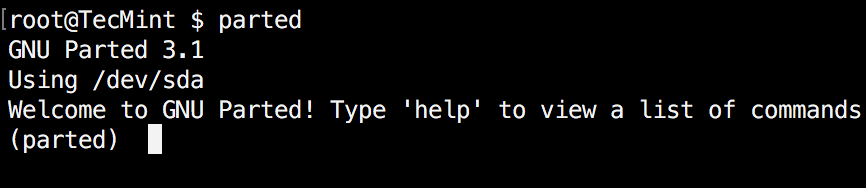
Run the following command, you see message similar to the one shown on the image below. Don’t worry if your parted version is different. Unless specified otherwise, parted will use your primary drive, which in most cases will be/dev/sda.

$ parted

clip_image001

Check Parted Command Version

If you want to exit parted, simply type:

$ quit


2. List Linux Disk Partitions

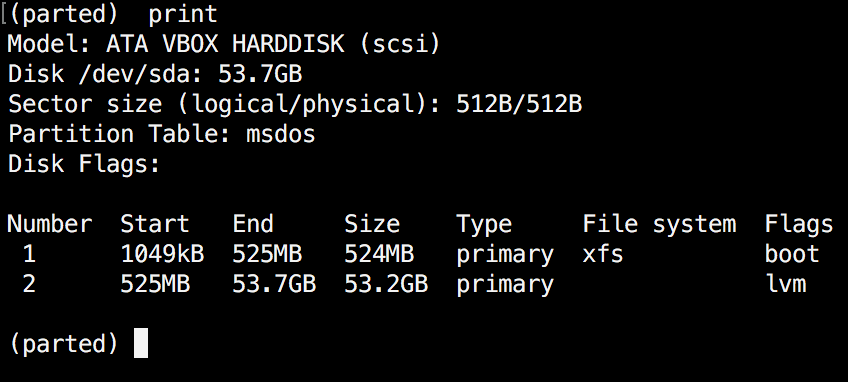
Now that parted is started, let’s list the partitions of the selected hard disk. As mentioned earlier, parted chooses your first drive by default. To see the disk partitions run print.

(parted) print

clip_image002

Check Linux Partitions

When running print, it will also display the hard disk information and model. Here is example from a real hard disk (not virtual as shown on the image above) :

(parted) print

Model: ATA TOSHIBA MQ01ACF0 (scsi)
Disk /dev/sda: 320GB
Sector size (logical/physical): 512B/4096B
Partition Table: msdos

Number  Start   End    Size   Type      File system  Flags

1      1049kB  256MB  255MB  primary   ext2         boot
2      257MB   320GB  320GB  extended
5      257MB   320GB  320GB  logical                    lvm

sector size and partition table.


3. List or Switch to Different Disk

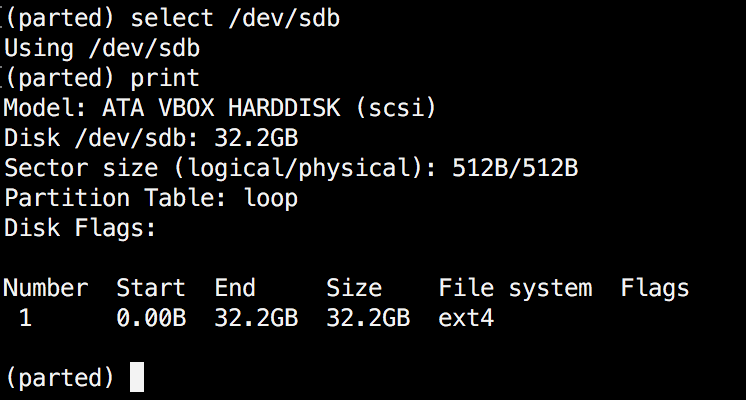
If you have more than one hard disk, you can easily switch between disks, by using the “select” command. In the example below, I will switch from /dev/sda to/dev/sdb which is a secondary drive on my system.

To easily switch between disks you can use:

(parted) select /dev/sdX

clip_image003

Select Different Disk

Change "X" with the letter of the disk to which you wish to switch.


4. Create Primary or Logical Partition in Linux

Parted can be used to create primary and logical disk partitions. In this example, I will show you how to create primary partition, but the steps are the same for logical partitions.

To create new partition, parted uses “mkpart“. You can give it additional parameters like "primary" or "logical" depending on the partition type that you wish to create.

Before you start creating partitions, it’s important to make sure that you are using (you have selected) the right disk.

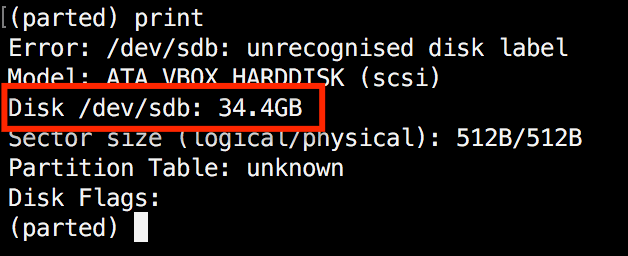
Start by using print:

(parted) print

clip_image004

Show Current Linux Disk

As shown on the above image, we are using a virtual drive of 34 GB. First we will give the new disk a label and then create a partition and set a file system on it.

Now the first step is to give the new disk a label name with:

(parted) mklabel msdos

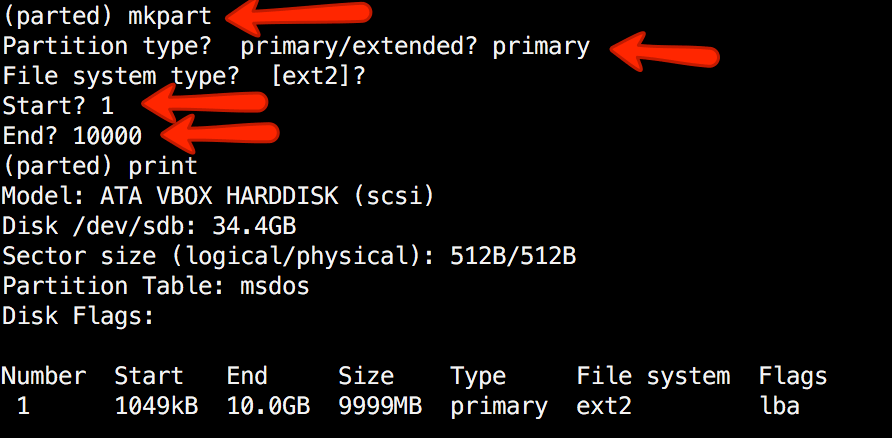
Now create the new partition with  mkpart. The listed units are in megabytes (MB). We will create a 10 GB partition starting from 1 to 10000:

(parted) mkpart

Partition type?  primary/extended? primary
File system type?  [ext2]?
Start? 1
End? 10000
(parted) print
Model: ATA VBOX HARDDISK (scsi)
Disk /dev/sdb: 34.4GB
Sector size (logical/physical): 512B/512B
Partition Table: msdos
Disk Flags:
Number  Start   End     Size    Type     File system  Flags
1      1049kB  10.0GB  9999MB  primary   ext2         lba

clip_image005

Create Primary or Logical Linux Partitions

Next,  exit parted with "quit" command. We will format our new partition in ext4 file system using mkfs. To make this happen run the following command:

# mkfs.ext4 /dev/sdb1

Note: It’s important to select the right disk and partition when executing the above command!

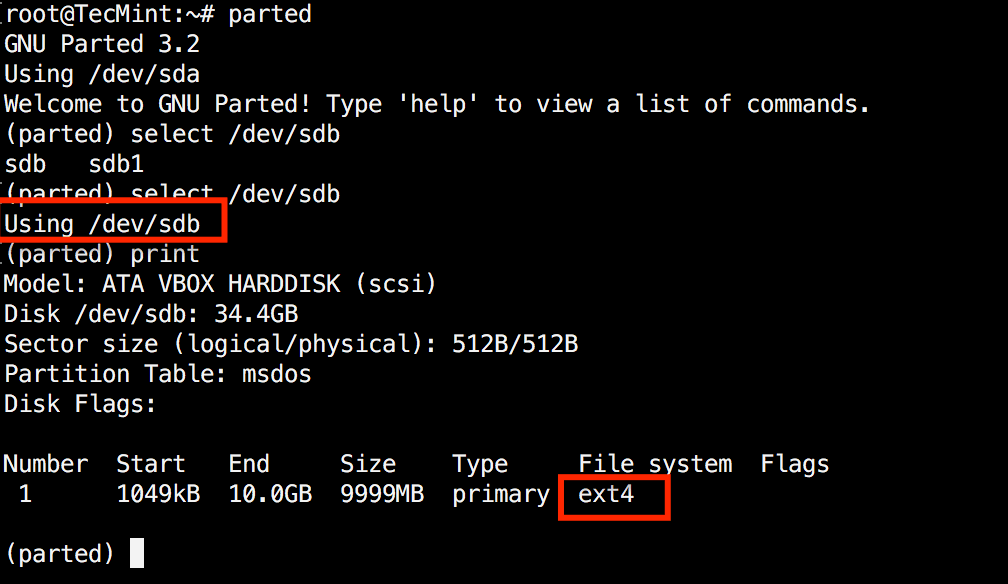
Now let’s verify our results, by printing the partition table on our secondary disk. Under file system column, you should see ext4 or the file system type that you have decided to use for your partition:

clip_image006

Verify Disk Partition Filesystem


5. Resize Linux Disk Partition

Parted includes multiple useful functions and one of them is "resizepart". As you have probably figured this out by now, "resizepart" helps you resize a partition.

In the example below, you will see how to resize an existing partition. For the purpose of this example, we will be using the earlier created partition.

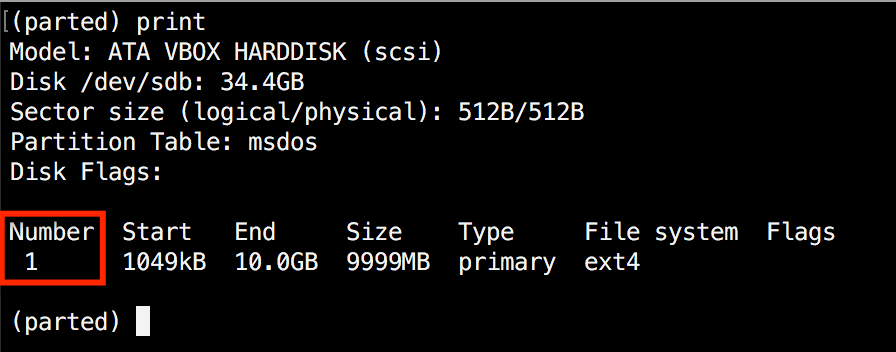
First you will need to know the number of the partition that you will be resizing. This can be easily found by using "print":

(parted) print

clip_image007

Find Linux Partition Number

In our example, the partition number is "1". Now run the resizepart command:

(parted) resizepart

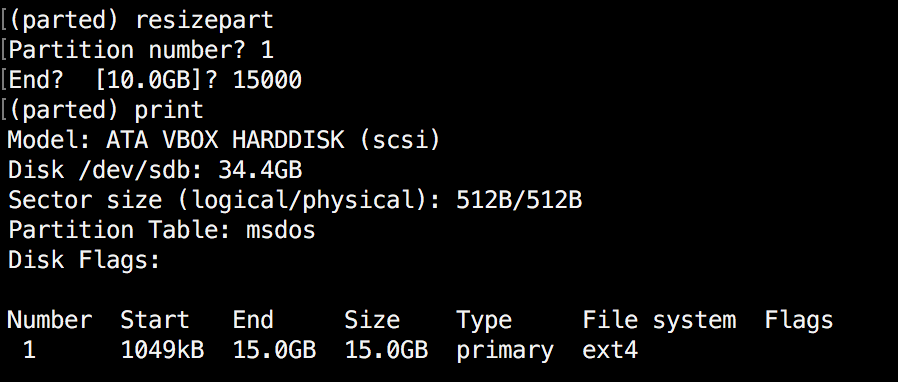
You will be asked for the number of the partition that you will resize. Enter it’s number. After that, you will be asked to set the new ending point for this partition. Remember that by default the units are in MB. In our example, we have set the new partition size to 15 GB:

(parted) resizepart
Partition number? 1
End?  [10.0GB]? 15000
Now verify the results with "print":
(parted) print

clip_image008

Verify Linux Resize Partition


6. Delete Linux Partition

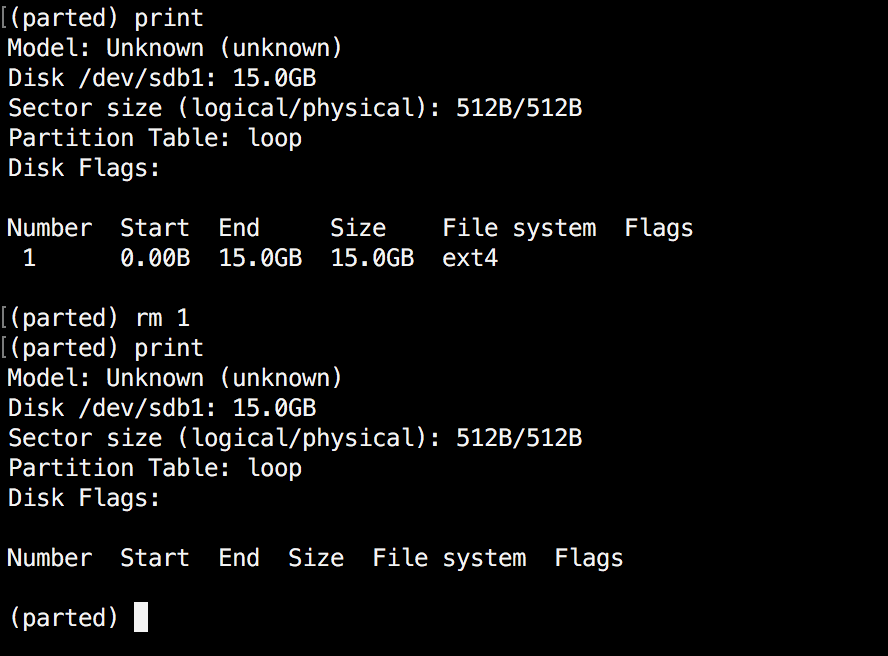
The next thing you will learn is how to delete a partition from your hard drive. To do this, you will need to use the "rm" command within parted. To delete a disk partition you will need to know it’s number.

As mentioned earlier, you can easily obtain this number by using "print". In our example, we will delete the partition with number 1 from our secondary drive/dev/sdb1:

(parted) rm 1

Verify the results by printing the partitions table:

clip_image009

Delete a Linux Partition


7. Rescue Linux Disk Partition

Parted supports a “rescue" utility that helps you recover a lost partition between a starting and ending point. If a partition is found within that range, it will attempt to restore it.

Here is an example:

(parted) rescue
Start? 1
End? 15000
(parted) print
Model: Unknown (unknown)
Disk /dev/sdb1: 15.0GB
Sector size (logical/physical): 512B/512B
Partition Table: loop
Disk Flags:

Number Start End Size File system Flags
1 0.00B 15.0GB 15.0GB ext4


8 Change Linux Partition Flag

Using parted, you can change the state of a flag for disk partitions. The supported flags are:

  • boot
  • root
  • swap
  • hidden
  • raid
  • lvm
  • lba
  • legacy_boot
  • irst
  • esp
  • palo

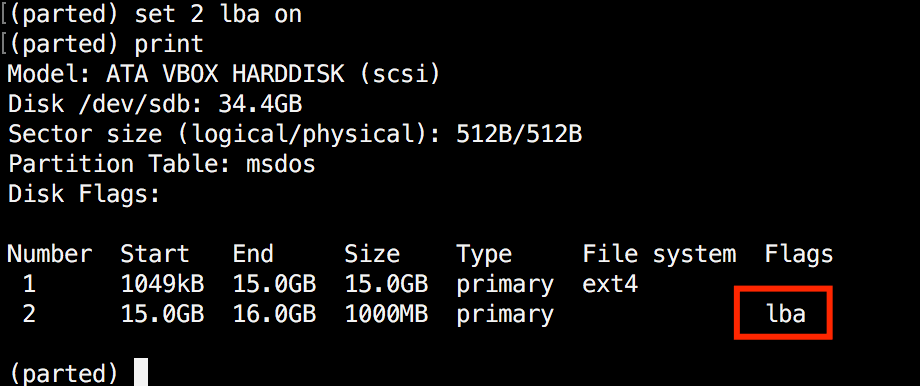
The states can be either "on" or "off". To change a flag simply run "set"command within parted:

(parted) set 2 lba on

The above command sets lba flag to on for second partition. Verify the results with print:

clip_image010

Change Partition Flag


Conclusion

Parted is a useful and powerful utility that can help you manage your disk partitions in Linux systems. As always, when working with disk partitions you need to be extra careful. It is strongly recommend to go through parted man pages to learn how you can customize it’s output and find more information about its capabilities.

If you have any questions or comments, please do not hesitate to use the comment section below.


Taken From: http://www.tecmint.com/parted-command-to-create-resize-rescue-linux-disk-partitions/

Monday, September 29, 2014

Boot Linux ISOs From Hard Drive ( GRUB )

How to Boot Linux ISO Images Directly From Your Hard Drive

Linux’s GRUB2 boot loader can boot Linux ISO files directly from your hard drive. Boot Linux live CDs or even install Linux on another hard drive partition without burning it to disc or booting from a USB drive.

We performed this process on Ubuntu 14.04 — Ubuntu and Ubuntu-based Linux distributions have good support for this. Other Linux distributions should work similarly.

Get a Linux ISO File

How to Configure the GRUB2 Boot Loader’s Settings
Ubuntu and most other Linux distributions now use the GRUB2 boot loader. You can change its settings to select a... [Read Article]

This trick requires you have a Linux system installed on your hard drive. Your computer must be using the GRUB2 boot loader, which is a standard boot loader on most Linux systems. Sorry, you can’t boot a Linux ISO file directly from a Windows system using the Windows boot loader.

Download the ISO files you want to use and store them on your Linux partition. GRUB2 should support most Linux systems. if you want to use them in a live environment without installing them to your hard drive, be sure to download the “live CD” versions of each Linux ISO. Many Linux-based bootable utility discs should also work.

Check the Contents of the ISO File

You may need to look inside the ISO file to determine exactly where specific files are. For example, you can do this by opening the ISO file with the Archive Manager/File Roller graphical application that comes with Ubuntu and other GNOME-based desktop environments. In the Nautilus file manager, right-click the ISO file and select Open with Archive Manager.

Locate the kernel file and the initrd image. If you’re using a Ubuntu ISO file, you’ll find these files inside the casper folder — the vmlinuz file is the Linux kernel and the initrd file is the initrd image. You’ll need to know their location inside the ISO file later.

clip_image002

Determine the Hard Drive Partition’s Path

GRUB uses a different “device name” scheme than Linux does. On a Linux system, /dev/sda0 is the first partition on the first hard disk — a means the first hard disk and 0 means its first partition. In GRUB, (hd0,1) is equivalent to /dev/sda0. The 0 means the first hard disk, while the1 means the first partition on it. In other words, in a GRUB device name, the disk numbers start counting at 0 and the partition num6ers start counting at 1 — yes, it’s unnecessarily confusing. For example, (hd3,6) refers to the sixth partition on the fourth hard disk.

You can use the fdisk -l command to view this information. On Ubuntu, open a Terminal and run the following command:

sudo fdisk -l

You’ll see a list of Linux device paths, which you can convert to GRUB device names on your own. For example, below we can see the system partition is /dev/sda1 — so that’s (hd0,1) for GRUB.

clip_image003

Create the GRUB2 Boot Entry

The easiest way to add a custom boot entry is to edit the /etc/grub.d/40_custom script. This file is designed for user-added custom boot entries. After editing the file, the contents of your /etc/defaults/grub file and the /etc/grub.d/ scripts will be combined to create a /boot/grub/grub.cfg file — you shouldn’t edit this file by hand. It’s designed to be automatically generated from settings you specify in other files.

You’ll need to open the /etc/grub.d/40_custom file for editing with root privileges. On Ubuntu, you can do this by opening a Terminal window and running the following command:

sudo gedit /etc/grub.d/40_custom

Feel free to open the file in your favorite text editor. For example, you could replace “gedit” with “nano” in the command to open the file in the Nano text editor.

Unless you’ve added other custom boot entries, you should see a mostly empty file. You’ll need to add one or more ISO-booting sections to the file below the commented lines.

clip_image004

Here’s how you can boot an Ubuntu or Ubuntu-based distribution from an ISO file. We tested this with Ubuntu 14.04:

menuentry “Ubuntu 14.04 ISO” {
set isofile=”/home/name/Downloads/ubuntu-14.04.1-desktop-amd64.iso
loopback loop (hd0,1)$isofile
linux (loop)/casper/vmlinuz.efi boot=casper iso-scan/filename=${isofile} quiet splash
initrd (loop)/casper/initrd.lz
}

Customize the boot entry to contain your desiredmenu entry name, the correct path to the ISO file on your computer, and the device name of the hard disk and partition containing the ISO file. If the vmlinuz and initrd files have different names or paths, be sure to specify the correct path to those files, too.

(If you have a separate /home/ partition, omit the /home bit, like so: set isofile=”/name/Downloads/${isoname}”).

Important Note: Different Linux distributions require different boot entries with different boot options. The GRUB Live ISO Multiboot project offers a variety of menu entries for different Linux distributions. You should be able to adapt these example menu entries for the ISO file you want to boot. You can also just perform a web search for the name and release number of the Linux distribution you want to boot along with “boot from ISO in GRUB” to find more information.

clip_image005

If you want to add more ISO boot options, add additional sections to the file.

Save the file when you’re done. Return to a Terminal window and run the following command:

sudo update-grub

clip_image006

The next time you boot your computer, you’ll see the ISO boot entry and you can choose it to boot the ISO file. You may have to hold Shift while booting to see the GRUB menu.

If you see an error message or a black screen when you attempt to boot the ISO file, you misconfigured the boot entry somehow. Even if you got the ISO file path and device name right, the paths to the vmlinuz and intird files on the ISO file may not be correct or the Linux system you’re booting may require different options.

Taken From: http://www.howtogeek.com/196933/how-to-boot-linux-iso-images-directly-from-your-hard-drive/

Thursday, January 16, 2014

Homemade Dropbox with Raspberry Pi and BTSync

Clone Dropbox with a Raspberry Pi and BTSync

clip_image001

After constantly hitting my Dropbox space limit, I decided to build my own distributed backup tool. What I ended up with was an external hard drive with a dedicated Raspberry Pi that keeps in sync with my laptop over the internet using BitTorrent Sync. This new BTSync folder fully replaced my Dropbox folder, and allowed me to streamline my large media backups. I've explained every step of the build below.

Recommended Hardware

These are the items you'll need if you want to duplicate what I've built. If you're building more than 1 node, I highly recommend you buy different brand external hard drives (eg. 1 Western Digital, 1 Seagate, etc). Even different models should be sufficient. If it turns out one goes bad after a year, chances are the second won't die as well.

Install Raspbian

Grab the latest version of NOOBS (New Out of Box Software). NOOBS makes it easy to get the Raspbian OS up and running on your Raspberry Pi, along with setting some basic config options. Once you have it downloaded, copy the contents of the zip onto a freshly formatted SD card (FAT filesystem).

Once you boot up your Raspberry Pi with this SD card and install Raspbian, you'll be given a few more options. These are the settings I usually change, but you should also look around yourself to see what's available.

  • Enable SSH
  • Set the overclocking level to mild
  • Configure a unique hostname

For more detailed setup instructions, check out the installation readme included in the downloaded zip archive.

Fix the Keyboard Layout

If you're using a USB keyboard, you may notice that some of the characters aren't being entered correctly. To switch your keyboard layout from the default of English (UK) to English (US), you can follow the simple instructions after running this command.

sudo dpkg-reconfigure keyboard-configuration

Connect to WiFi

Assuming you've turned on your Raspberry Pi with the wifi dongle inserted, you can move onto configuring the wifi connection. You may want to give it a fixed IP address to make connecting to it from another machine easier. You'll find it is much quicker to SSH into the device rather than hook up a keyboard and monitor every time you want to tweak something.

Connect the External Drive

I haven't had any issues with disks formatted using ext3 or ext4, so using one of those for your external disk is recommended. You can use sudo fdisk -l to find the path of the disk (probably /dev/sda1), which you'll need for mounting. Here's how to mount it. Don't forget to change ext4 below to whatever you used.

sudo mkdir /media/external_disk

sudo mount -t ext4 /dev/sda1 /media/external_disk

Once you verify that works and you can access your files on the disk (if any), you should be able to add the disk to /etc/fstab by adding a new line like this

/dev/sda1 /media/external_disk ext4 defaults 0 0

Now when you boot your Raspberry Pi, the external drive should automatically mount.

Install BTSync

Finally you'll want to download and install BTSync. Be sure to also follow the instructions to make BTSync start on startup too, so you don't need to manually start it every time. Once it's installed and running, you should be able to configure it from any machine by pointing the browser to the Raspberry Pi's IP and port 8888 (eg http://10.0.0.12:8888). It is a good idea to go into the options and set a password for this page.

Lots of Data

The reason I started this project in the first place was because I had over 1TB of pictures and videos I wanted to keep synced across 2 hard drives in 2 different cities. While creating two nodes has done the job, I am still working on the best way to access the data without disconnecting the drive from the Raspberry Pi every time I want to add/remove something. I think my next step will be to run a samba server on each device as well, so I can treat them as network drives and access everything. FTP is also an option. What are your thoughts?

Taken From: http://reustle.io/blog/btsync-pi

Tuesday, September 3, 2013

RAM Disks - Explained

Your computer’s RAM is still faster than even modern solid-state drives. RAM disks take advantage of this, using your computer’s RAM as a lightning-fast virtual drive. But you probably don’t want to use a RAM disk, anyway.

RAM disks are easy to sell — all you have to do is hold up performance benchmarks showing how much faster it is to read data from RAM than it is from even a fast SSD. But this isn’t the full picture.

What’s a RAM Disk?

To create a RAM disk, you would install a third-party program that creates a virtual drive in Windows. This program would reserve a section of your RAM — so if you had 4 GB of files in your RAM disk, the disk would take up 4 GB of RAM. All the files on your disk would be stored in your RAM. When you wrote to the disk, you’d just be writing to a different section of your RAM.

Initially, this seems like it could help optimize performance. If you installed programs in a RAM disk, you’d have near-instant load times because their data would already be stored in the fastest memory possible. When you save a file, it would happen almost instantly as it would just be copied to another portion of RAM. This would mean faster application load times and faster file read/write times for files saved in the RAM disk.

clip_image004

Why You Probably Shouldn’t Use One

However, there’s a big problem here. RAM is volatile memory. When your computer loses power, the contents of your RAM will be erased. This means that you can’t store anything important on a RAM disk — if your computer crashed because of lost power, you’d lose all the data in your RAM disk. So saving files to the RAM disk is pointless unless you don’t care that you’d lose the files — but if you didn’t care about the files, why save them in the first place?

Because RAM isn’t persistent, you’d also have to save the contents of your RAM disk to disk when you shut down your computer and load them when you turn it on. For example, let’s say you installed Photoshop to your RAM disk. You’d have to save an copy of your RAM disk to your computer’s hard drive to ensure you wouldn’t lose your Photoshop installation. You may want to do this automatically every few minutes or just at shut down.

When you turn on your computer, the RAM disk program would have to read the RAM disk image from your hard drive and load it back into RAM. In other words, you’re simply getting faster program-load times at the expense of longer boot-up times. Once your computer loads an application or other files form its hard drive, it caches them in RAM anyway — so it’s a bit silly to install an application or game in a RAM disk rather than on your hard drive. Either way, once you load the application, it will stay present in your memory for quick loading later.

clip_image006

RAM disks also reserve a good chunk of your memory, ensuring you can’t use it for anything else. Windows uses unused memory to cache files anyway, and it does it all automatically and in the background. If you need the memory for something, Windows will instantly discard the cached data. With a RAM disk, you’d have to shut it down manually to free up memory.

How You Would Make a RAM Disk

Making a RAM disk is pretty simple. Install a program like DataRAM’s RAMDisk Personal — the free version allows you to create RAM disks up to 4 GB in size — and use it to create a new RAM disk.

You can then install programs to it or move files to it. You’ll want to save a copy of the RAM disk so you won’t lose the data if your computer ever goes down. Of course you’ll have to save a new image every time you update the files on the RAM disk.

clip_image009

There Must Be Some Uses For a RAM Disk, But…

RAM disks aren’t a complete scam like PC cleaning programs and many other “system-optimization” tools are. It’s definitely faster to read and write from RAM rather than to use even a fast SSD. There are likely some good uses for RAM disks if you really know what you’re doing.

However, both of the following would have to be true:

· You’d have to be using a program doesn’t normally use RAM as a cache and instead insists on reading and writing small files to your hard drive.

· You’d have to not care about any of these files and have no problem if you lose them.

This is a high bar to clear — most programs that have a cache you don’t necessarily care about will use RAM, anyway. For example, there’s no point in placing Photoshop’s scratch file on a RAM disk because Photoshop uses RAM as a cache if it’s available. Your web browser will store its cache files in RAM if there’s space, too.

For programs that do write and read data from the hard drive, this data is likely something you don’t want to lose. Using a RAM disk with an important database would be a mistake because you’d lose the database if a crash or power loss occurred.

RAM-Based Solid-State Drives

If you do want to benefit from the speed of RAM, you may want to try investing in a RAM-based solid-state drive. These are solid-state drives that contain RAM instead of typical Flash memory. They’re much faster to read and write to, but also much more expensive because RAM is more expensive than Flash memory.

Such drives contain a battery, so they can maintain the contents of the RAM if the computer loses power. They  have enough battery power to write the data to offline memory, ensuring you won’t lose whatever you stored in their RAM.

Such drives aren’t for the average user — they’re extremely expensive options intended for data centers and other business uses where you want the speed of RAM with the stability of SSDs. But these drives make much more sense than software RAM disks if you really need RAM-like speeds for mission critical purposes.

In summary, RAM disks do work as advertised. But you probably don’t want to use them, anyway. They’re not ideal for running an important database or speeding up game load times.

If you do have a smart use for a RAM disk, leave a comment — we’d like to know what people are actually using them for.

Taken From: http://www.howtogeek.com/171432/ram-disks-explained-what-they-are-and-why-you-probably-shouldnt-use-one/

Monday, November 26, 2012

USB Drives on Nexus 7 and Other Android Devices

How To Use USB Drives With the Nexus 7 and Other Android Devices

clip_image001

The Nexus 7 may not have a lot of storage space – especially the original 8 GB model – but you can connect a USB drive to it if you want to watch videos or access other files.

Unfortunately, Android doesn’t automatically mount USB drives by default. You’ll need to root your device to enable support for USB drives.

What You’ll Need

You’ll need four things to do this:

· A USB OTG adapter cable: One end of this cable plugs into the micro USB connector on your Nexus 7 (or other device) and one end allows you to connect standard USB 2.0 devices, such as USB drives. These cables can be had for less than $1 online. USB OTG stands for USB On-The-Go.

· A rooted Nexus 7 (or other Android tablet or smartphone): We’ve covered using the Nexus Root Toolkit to easily root Nexus devices. If you’ve previously rooted your device and since updated the operating system, it’s just a matter of opening the Nexus Root Toolkit and clicking the Root button again. (The Nexus Root Toolkit currently does not included support for Android 4.2. If you’re using Android 4.2 on your Nexus, select “Any Build” under the device.)

clip_image002

· The StickMount app: StickMount is available for free from Google Play. Note that StickMount only works if your device is rooted.

· ES File Explorer or another file manager app: We’ll be using ES FIle Explorer here, but you can also use another file manager if you prefer it.

Accessing a USB Drive

With your device rooted, plug one end of the USB OTG cable into it and connect the USB drive to the other end of the cable.

clip_image001[1]

You’ll see a StickMount prompt when the drive is connected. Tap OK and StickMount will make the files on the USB device accessible.

clip_image003

You’ll need to grant root access to StickMount. The process will fail here if you aren’t rooted.

clip_image004

If you agree to both dialogs and select the Use by default option in the first dialog, you won’t see any dialogs when you next connect your USB drive – this will all happen automatically.

You’ll see a notification indicating that StickMount successfully mounted the device under /sdcard/usbStorage.

clip_image005

Open the ES File Explorer app on your device and tap the usbStorge folder.

clip_image006

You’ll see at least one folder inside the usbStorage folder. These folders represent the different partitions on your connected devices.

clip_image007

Tap the folder and you’ll see the files inside it. Tap or long-press the files to open them or manipulate them normally.

clip_image008

For example, this is particularly useful for watching video files, which can take up a lot of space on your tablet.

clip_image009

When you’re done, you can tap the StickMount option in your notification tray to unmount (eject) the drive and then disconnect it. This notification also informs you when StickMount has successfully mounted a drive.

clip_image010


While the cable is a tad bit bulky, it’s still convenient for watching videos on an airplane or while sitting around your house. You can also use it to move files around for any other purpose, just as you’d use a USB drive on a computer

Taken From: http://www.howtogeek.com/129800/how-to-use-usb-drives-with-the-nexus-7-and-other-android-devices/