Showing posts with label vpn setup. Show all posts

Saturday, September 26, 2015

Linux - PPTP VPN Server (via GUI on Ubuntu)


How to Setup a “Split Tunnel” VPN (PPTP) Client on Ubuntu 10.04

Sometimes you need to use a VPN connection to grant access to remote network resources and for that you use a VPN, but if you don’t want all of your client traffic to go through the VPN link, you’ll need to setup your VPN to connect in a “split tunnel” mode. Here’s how to do it on Ubuntu.

Note: make sure that you’ve read our article covering how to setup a VPN server for Debian-based Linux, which also covers configuring the Windows client.


Split what the what now?

The “split tunnel” term refers to the fact that the VPN client creates a “tunnel” from the client all the way to the server for “private” communication.

Traditionally the VPN connection is set up to create “the tunnel” and once it is up all the client’s communication is routed through that “tunnel”. this was good back in the day when the VPN connection had a couple of goals that overlapped and complimented each other:

  • The connection was meant to grant access for the road warrior from anywhere.
  • All of  the client’s connections need to be secured by means of  going through the corporate firewall.
  • The client computer must not be able to connect a potentially malicious network with the corporate network.

The way the VPN connection of the time achieved this goal, was to set the “default gateway” or “route” of the client machine to the corporate VPN server.

  • This method, while affective for the above goals has several disadvantages, espeshelly if you are implementing the VPN connection only for the “grant access” point:
  • It will slow down the entire surfing experience of the client computer to the speed of the VPN server’s upload speed, which is usually slow.
  • It will disable access to local resources like other computers in the local network unless they are all connected to the VPN, and even then the access will be slowed down because it has to go all the way to the internet and come back.

To overcome these shortcomings we will create a regular VPN dialer with one note worthy exception, that we will set the system to NOT use it as the “Default Gateway” or “route” when connected.

Doing this will make it so that the client will use the “VPN tunnel” only for the resources behind the VPN server and will access the internet normally for everything else.


Let’s get cracking

The first step is to get into “Network connections” and then “Configure VPN”.

One way you can do this is by clicking the desktop icon for networking as shown in the picture.

clip_image001

Another way is to go to “System” > “Preferences” > “Network Connections”.

clip_image002

Once your on the “VPN” tab in the “Network connections” configurations window, click “Add”.

clip_image003

On the next window we only need to click “Create”, as the default connection type of PPTP is what we want to use.

clip_image004

In the next window give your dialer a name, fill in the gateway with your servers DNS-name or IP address as seen from the internet and fill in the user credentials.

If you have used the “Setting up a VPN (PPTP) server on Debian” guide for the server setup or you are using this client for a DD-WRT PPTP server setup, you also need to enable the MPPE encryption options for authentication.

Click on “Advanced”.

clip_image005

On the “Advanced Options” window check the first checkbox for the MPPE option, then the second checkbox to allow stateful encryption and click “OK”.

clip_image006

Back on the main window, click the “IPv4 Settings” tab.

clip_image007

On the routes configuration window check the checkbox of “Use this connection only for resources on its network”.

clip_image008

Activate the VPN connection client by clicking on the “Network connections” icon and selecting it.

clip_image009

That’s it, you can now access the resources on the VPN servers side as if you were on the same network while not sacrificing your download speed in the process…


Taken From: http://www.howtogeek.com/51340/setting-up-a-split-tunnel-vpn-pptp-client-on-ubuntu-10-04/

Friday, September 25, 2015

Linux - PPTP VPN Server & Win XP/7 Client


How to Setup a VPN (PPTP) Server on Debian Linux
(also tested on the Raspberry Pi on Raspbian)

VPN-ing into your server will allow you to connect to every possible service running on it, as if you were sitting next to it on the same network, without individually forwarding every port combination for every service you would like to access remotely.

Using a VPN connection also has the upshot of, if desired, granting access to other computers on the network as if you where in it locally from anywhere across the internet.

While not the most secure of the VPN solutions out there, PPTP is by far the simplest to install, configure and connect to from any modern system and from windows specifically as the client is a part of the OS since the XP days and you don’t need to mess with certificates (like with L2TP+IPsec or SSL VPNs) on both sides of the connection.

Did i get you interested? then let’s go :)


Preface

  • You will need to forward port 1723 and the GRE protocol (47) from the internet to the server to enable the connection (not covered here).
  • You will see me use VIM as the editor program, this is just because I’m used to it… you may use any other editor that you’d like.~


Server Setup

Install the pptp server package:
    sudo aptitude install pptpd

Edit the “/etc/pptpd.conf” configuration file:
    sudo vim /etc/pptpd.conf

Add to it:
    option /etc/ppp/pptpd-options
    localip 192.168.1.5
    remoteip 192.168.1.234-238,192.168.1.245

Where the “localip” is the address of the server, and the remoteip are the addresses that will be handed out to the clients, it is up to you to adjust these for your network’s requirements.

Edit the “/etc/ppp/pptpd-options” configuration file:
    sudo vim /etc/ppp/pptpd-options

Append to the end of the file, the following directives:
    ms-dns 192.168.1.1
    nobsdcomp
    noipx
    mtu 1490
    mru 1490

here we are assuming that we are editing the pptpd default options config and adding to it, but if for some reason you start with a black “pptpd-options”, you will need to enter those defaults (based on a “pptpd-options” on Raspberry Pi Runing Raspbian):

name pptpd

# BSD licensed ppp-2.4.2 upstream
# with MPPE only

refuse-pap
refuse-chap
refuse-mschap

# Require the peer to authenticate
# itself using MS-CHAPv2

require-mschap-v2

# Require MPPE 128-bit encryption
require-mppe-128


# Making the peer appear to other
# systems to be on the local ethernet

proxyarp

# Debian: do not replace the default route
# with this you get split tunelling

nodefaultroute

# Create a UUCP-style lock file for
# the pseudo-tty to ensure exclusive

lock

# Disable Van Jacobson compression
novj
nobsdcomp

# Turn off logging to stderr
nologfd

to get more detail on each item check a default “pptpd-options” file it’s has quite some detail on each item.

Where the IP used for the ms-dns directive is the DNS server for the local network your client will be connecting to and, again, it is your responsibility to adjust this to your network’s configuration.

Edit the chap secrets file:
    sudo vim /etc/ppp/chap-secrets

Add to it the authentication credentials for a user’s connection, in the following syntax:
    username <TAB> * <TAB> users-password <TAB> *

Restart the connection’s daemon for the settings to take affect:
    sudo /etc/init.d/pptpd restart

If you don’t want to grant yourself access to anything beyond the server, then you’re done on the server side.


Enable Forwarding (optional)

While this step is optional and could be viewed as a security risk for the extremely paranoid, it is my opinion that not doing it defeats the purpose of even having a VPN connection into your network.

By enabling forwarding we make the entire network available to us when we connect and not just the VPN server itself. Doing so allows the connecting client to “jump” through the VPN server, to all other devices on the network.

To achieve this we will be flipping the switch on the “forwarding” parameter of the system.

Edit the “sysctl” file:
    sudo vim /etc/sysctl.conf

Find the “net.ipv4.ip_forward” line and change the parameter from 0 (disabled) to 1 (enabled):
    net.ipv4.ip_forward=1

You can either restart the system or issue this command for the setting to take affect:
   sudo sysctl -p

With forwarding enabled, all the server side settings are prepared.

We recommend using a “Split Tunnel” connection mode for the VPN client.

A more in depth explanation about the recommended “Split Tunnel” mode, as well as instructions for Ubuntu Linux users can be found in the “Setting up a “Split Tunnel” VPN (PPTP) Client on Ubuntu 10.04” guide.

For windows users, follow the guides below to create the VPN client on your system.


PPTP VPN Dialer Setup on XP (split tunnel)

We will create a regular VPN dialer with one note worthy exception, that we will set the system to NOT use it as the “Default Gateway” when connected.

Skipping this step will limit the connecting computer’s surfing speed to the VPN server’s upload speed (usually slow) because all of it’s traffic would be routed through the VPN connection and that’s not what we want.

We need to start the connection wizard, so we will go to control panel.

Go to “Start” and then “Control Panel”.

clip_image001

*If your system is setup with the “Classic Start Menu” you need to just point on the “Control Panel” icon and then select “Network Connections”.

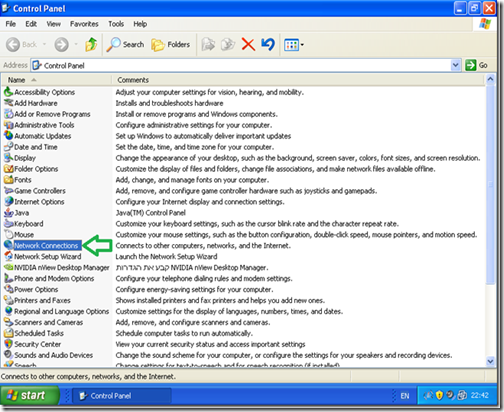
In “Control Panel” double click “Network Connections”.
clip_image002

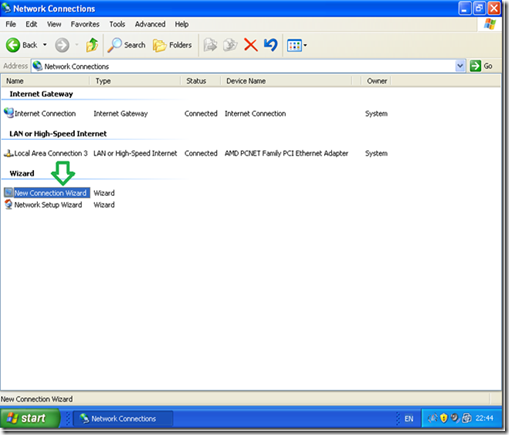
Double click “New Connection wizard”.
clip_image003

In the “New Connection wizard” welcome screen click “Next”.

clip_image004

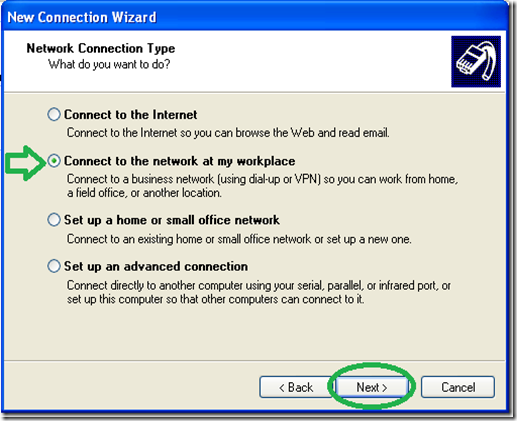
Select the “Connect to the network at my workspace” option and then “Next”.
clip_image005

Select the “Virtual Private Network connection” option and then “Next”.

clip_image006

Give a name to the VPN connection.

clip_image007

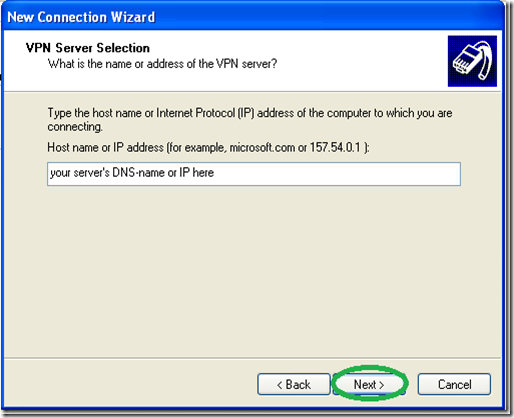
Type in the name of your VPN servers DNS-name or IP address as seen from the Internet.
clip_image008

Optionally You may choose to “Add a shortcut to the desktop” and “Finish”.

clip_image009

Now comes the tricky part, it is vitally important you do NOT try to connect now and go into the dialer’s “Properties”.

clip_image010

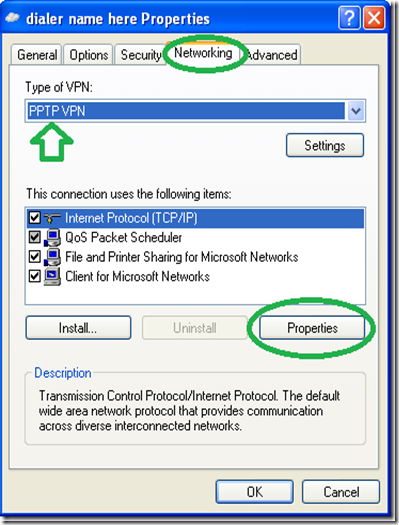
Go to the networking tab and change the “Type of VPN” to “PPTP VPN” as shown in the picture below (this is optional but will shorten the time it takes to connect) then go into “Properties”.
clip_image011

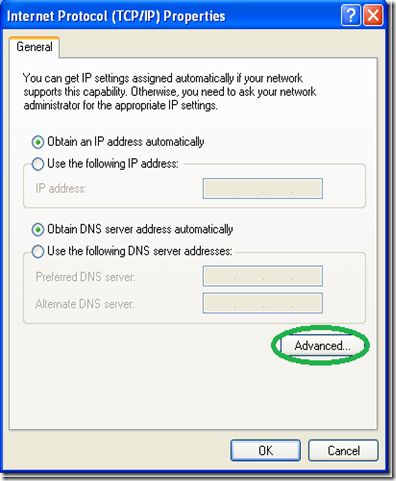
On the next window go into “Advance” without changing anything else.
clip_image012

On the next window, uncheck the “Use default gateway on remote network” option.

clip_image013

Now enter the connection’s credentials as you set them on the server and connect.

clip_image014

That’s it, you should now be able to access all the computers on your network from the XP client… Enjoy.


PPTP VPN Dialer Setup on Win7 (split tunnel)

We will create a regular VPN dialer with one note worthy exception, that we will set the system to NOT use it as the “Default Gateway” when connected.

Skipping this step will limit the connecting computer’s surfing speed to the VPN server’s upload speed (usually slow) because all of it’s traffic would be routed through the VPN connection and that’s not what we want.

We need to start the connection wizard, so we will go to the “Network and Sharing Center”.

Click the network icon in the system tray and then “Open Network and Sharing Center”
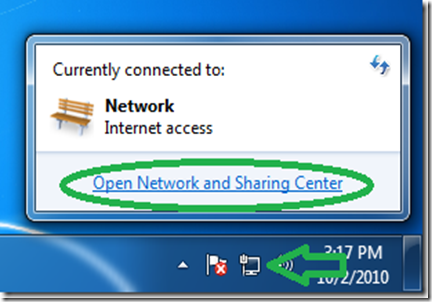
clip_image015

In the Network center click on “Set up a new connection or network”.
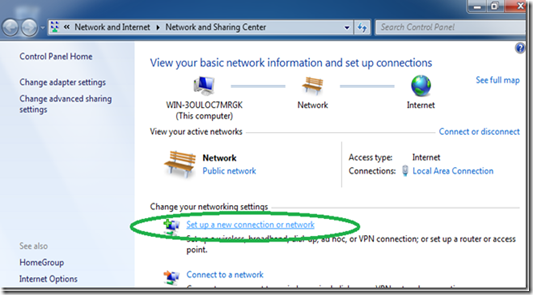
clip_image016
Select “Connect to a workplace” and then “Next”.
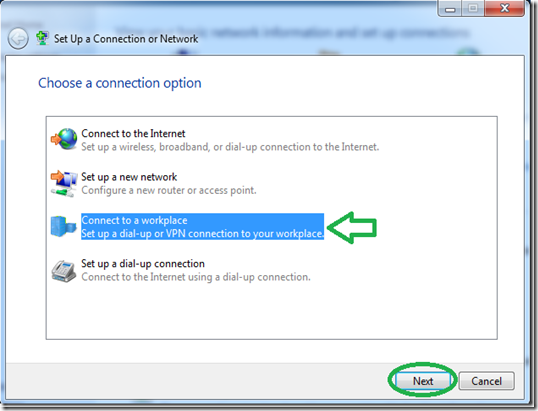
clip_image017
Click on the first option of “Use my Internet connection (VPN)”.
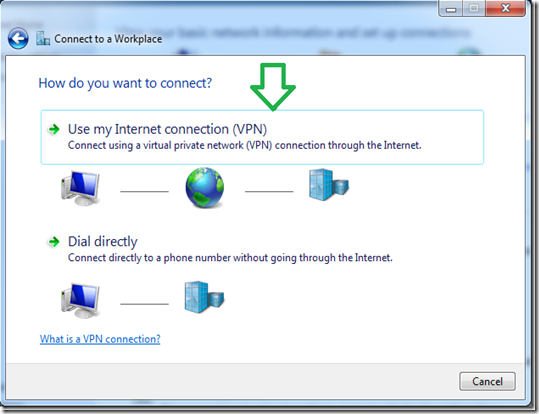
clip_image018
Set the address of your VPN server as seen from the internet either by DNS-name or IP.
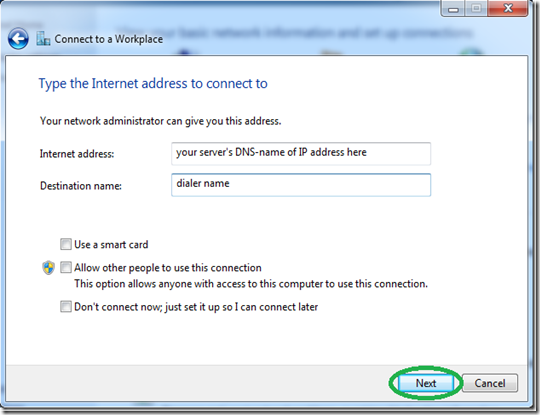
clip_image019
Even though it won’t connect now because we stil need to go into the dialer’s properties, Set the username and password and hit connect.
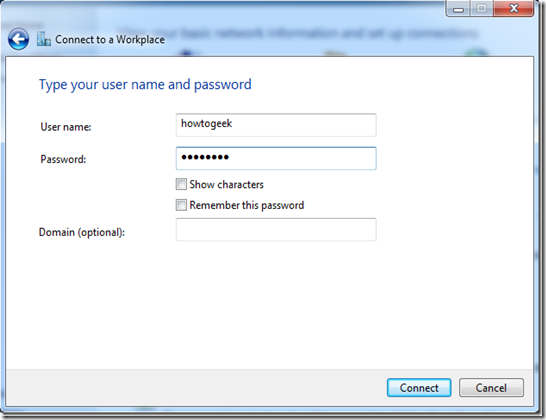
clip_image020
After the connection will fails to connect (that’s normal), click on “Set up the connection anyway”.

clip_image021
Back in the “Network Center”, click on “Change adapter settings”.
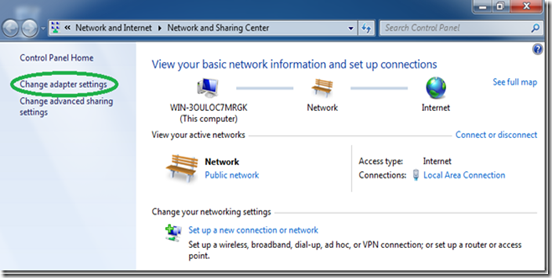
clip_image022
Find the dialer we have just created, right click it and select “Properties”.
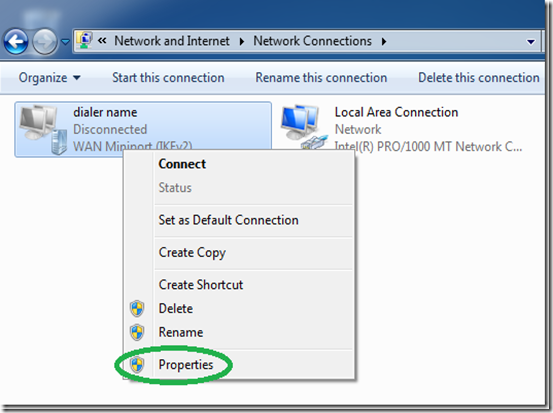
clip_image023

While its optional, for a faster connecting dialer, set the “type” of VPN to PPTP under “the “Security” tab.
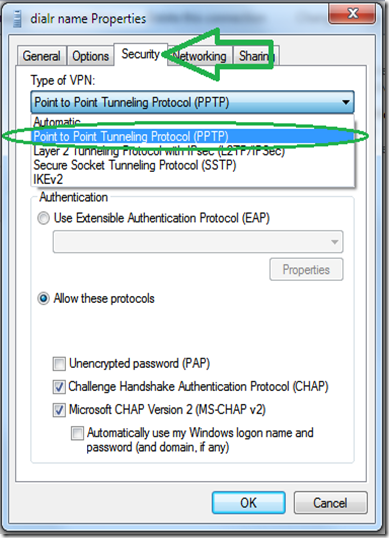
clip_image024

Go to the “Networking” tab, select the IPv4 protocol and go into it’s properties.
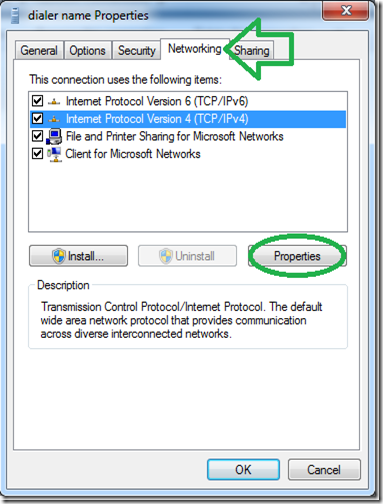
clip_image025

In the next window, click “Advance” without changing anything else.
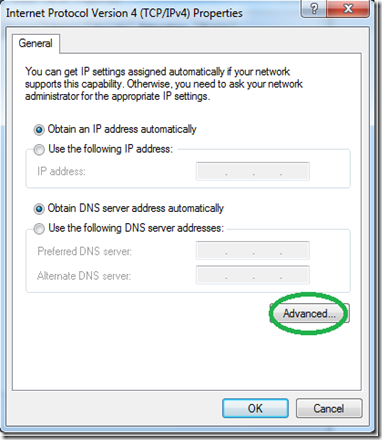
clip_image026

On the next window, uncheck the “Use default gateway on remote network” option.

clip_image027

Now enter the connection’s credentials as you set them on the server and connect.

clip_image028

That’s it, you should now be able to access all the computers on your network from the win7 client.

Note: Be sure and read our guide to setting up a VPN client for Ubuntu Linux.

Based On; http://www.howtogeek.com/51237/setting-up-a-vpn-pptp-server-on-debian/

Monday, September 21, 2015

Windows – PPTP VPN Server (+IOS Client +Port Forward)

Here we are going to show you how to set up a Home VPN by using a user PC running windows, so that you can access you home network form almost every device. 


VPN Server (Windows – User Edition)

The configuration is identical in Windows 7/8/10 (maybe on XP to)

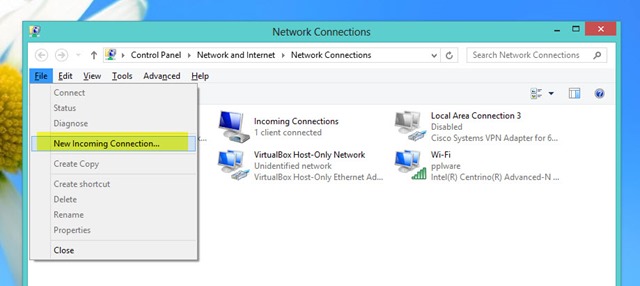
To create the VPN Server you should go to Control Panel > Network and Internet and then Network Connections .

Ther you should press the ALT key so that the options bar appears, next you should go to File > New Incoming Connection

clip_image002

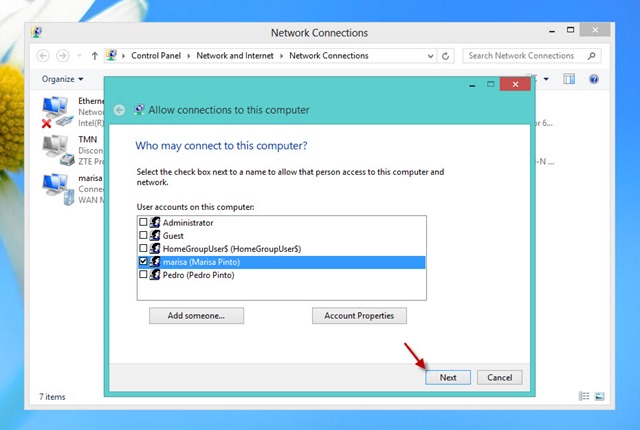
Select or add the users that can access the VPN

clip_image003

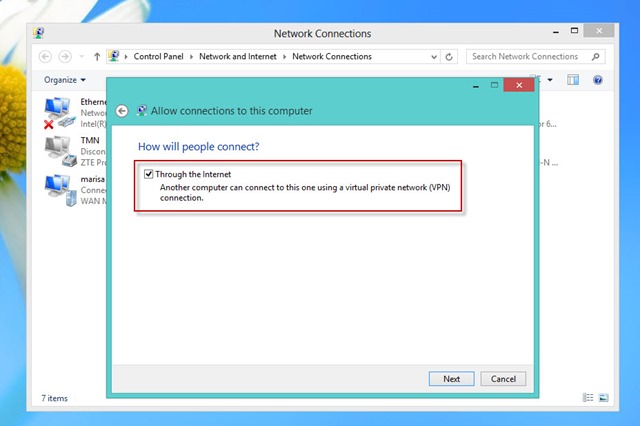
clip_image004

(Optional) In case that you want to define the addresses to give to the remote machines you should click on Properties

clip_image005

clip_image006

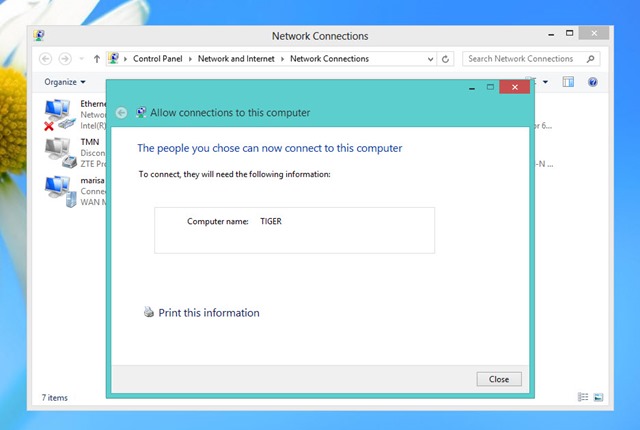
Now you have a PPTP VPN Server that receives the tunnels and forwards the traffic to the Lan, where it’s connected.


Port Forwarding

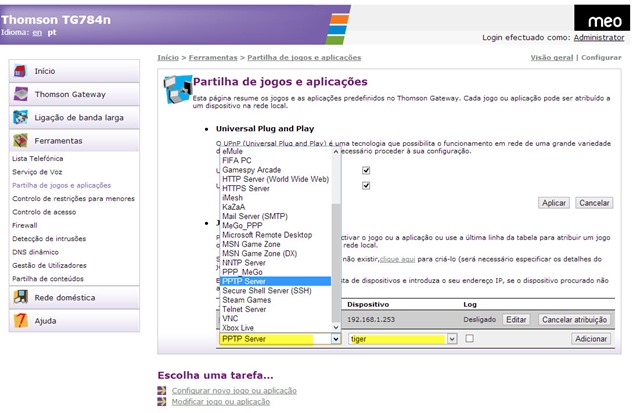
On your home router you need to forward PPTP trafic to your internal PPTP VPN Server.

Your need to forward:

  • PPTP Port 1723: Router Public IP ==> Internal PPTP Server
  • GRE Protocol (Protocol 47) : Router Public IP ==> Internal PPTP Server

clip_image007


VPN Client

Almost every system has a PPTP client already installed (IPhone / Android / Windows / Linux)

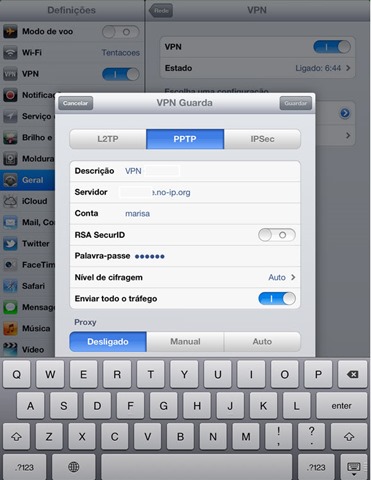
For the IPhone just do:

  • Description / Descrição: Brief description of the connection
  • Server / Servidor: Router Public IP / Name (DynDNS like no-ip)
  • Account / Conta: User Name
  • Password / Palavra-passe: Password
  • clip_image009

for the other systems the configuration is also pretty straight forward

Based on:

Tuesday, July 7, 2009

Setting up a dial-up VPN on the Juniper NetScreen Remote (client)

Note: I tried the tutorial on a Juniper SSG350M, with FW 6.0.0r4.0, and it worked althoug it's not the equipement on the tutorial


Note: To see the pictures at full quality just click on them.


This article was graciously contributed by mwdmeyer which was originally posted on his site here.

I've been getting lots of hits to the post about a site to site VPN setup with a netscreen. So I've decided to do one for a dial-up VPN user connecting to a netscreen.

A dial-up user is anyone who needs access into the network and has a dynamic ip address. We don't wish to be able to access them (the dial-up user) from within the network. This is how we setup most connections at work. This allows people to access file shares and outlook (without the need to setup RPC over HTTP).

Background

  • Netscreen 5GT running ScreenOS 5.4.0r1 (Should be the same process for any netscreen running ScreenOS 5.x)
  • Netscreen Remote 8.7 (The Windows VPN client)
  • Local Network (the one in which the vpn users want to access) of 10.0.0.0/22 (10.0.0.0 - 10.0.3.255)
  • External Address of 59.167.253.89

Setting up the Netscreen

1) First we need to create a user. This can be found in Objects -> Users -> Local (Note: Follow the screen shot below, you don't need a password here, you do need the IKE User info though)


So we have our user, Test.User

2) Create Phase 1 of the VPN tunnel. This can be found in VPNs -> AutoKey Advanced -> Gateway (Note: Security level is set to custom, password for VPN is entered here, Outgoing interface is your untrust interface).


3) Now we'll modify the advanced settings. Click Advanced (Note: We're using DES and MD5 here. Mode is set to Aggressive)


Now click return and okay to save your settings.

4) Now we'll create the Phase 2 information. This can be found in VPNs -> AutoKey IKE (Note: Security level is set to custom, Remote Gateway is set to "Test.UserP1")


5) Now we'll modify the advanced settings. Click Advanced (Note: We're using DES and MD5 here. Replay Protection is on)


Now click return and okay to save your settings.

6) Now we'll need to create a policy. This will go from untrust to trust. This can be found in Policies.


Click new (Note: Source Address is Any-IPv4 or just Any if IPv6 is disabled, Destination Address is your local subnet, tunnel the connection though the VPN user "Test.UserP2")


Now the Netscreen has been setup.

Setting up Netscreen Remote

1) Open the policy editor in Netscreen Remote

NetScreen Remote 1

2) Create a new connection (Note: Type in the remote subnet details and set the secure gateway to your netscreens external address)


3) Now we'll setup the login details (Note: The Certificate is None, The ID Type is Domain Name and the value is "Test.User")


4) Now click Pre-Shared Key (Note: Type in the password you used when setting up the connection in the netscreen)


5) Now we'll set the connection to aggressive (Note: Enable PFS, DH is Group 2 and Enable Replay Dection)


6) Now we'll setup the Phase 1 details (Note: We're using DES and MD5 here. SA Life is 28800 seconds)


7) Now we'll setup the Phase 2 details (Note: The SA Life here is 3600 Seconds)


8) Save the settings and Test!

That should be all you need to do.

Notes

  • The VPN may not work behind some NAT routers. You can try turning on NAT-T within the netscreen, although I find it doesn't normally work.
  • Make sure the details in the Netscreen and Netscreen Remote Match (i.e Phase 1 policies etc)
  • You can check the logs from both Netscreen and Netscreen Remote
  • You cannot connect to the VPN while within the local subnet
  • Netscreen Remote should be disabled when you're directly connected to the network
  • Only traffic for the subnet is passed over the VPN.


Taken From:
http://www.juniperforum.com/index.php?page=20
Added minor correction in te policy source that has to be "Dial Up"