Showing posts with label vpn. Show all posts

Sunday, February 14, 2016

Linux - GRE Tunnel

How to create a GRE tunnel on Linux

GRE tunnels are IP-over-IP tunnels which can encapsulate IPv4/IPv6 and unicast/multicast traffic. To create a GRE tunnel on Linux, you need ip_gre kernel module, which is GRE over IPv4 tunneling driver.

So first make sure that ip_gre is loaded.

  $ sudo modprobe ip_gre
  $ lsmod | grep gre

    ip_gre 22432 0
    gre 12989 1 ip_gre

Here, we assume that you want to create a GRE tunnel between two interfaces with the following IP addresses.

    - Host A: 192.168.233.204
    - Host B: 172.168.10.25

   
On host A, run the following command.

  $ sudo ip tunnel add gre0 mode gre remote 172.168.10.25 local 192.168.233.204 ttl 255
  $ sudo ip link set gre0 up
  $ sudo ip addr add 10.10.10.1/24 dev gre0

In the above, we create a GRE-type tunnel device called gre0, and set its remote address to 172.168.10.25. Tunneling packets will be originating from 192.168.233.204 (local IP address), and their TTL field will be set to 255. The tunnel device is assigned IP address 10.10.10.1 with netmask 255.255.255.0.

Now verify that route for the GRE tunnel is set up correctly:

  $ ip route show
    default via 135.112.29.1 dev eth0 proto static
    10.10.10.0/24 dev gre0 proto kernel scope link src 10.10.10.1

On host B, run similar commands as follows.

  $ sudo ip tunnel add gre0 mode gre remote 192.168.233.204 local 172.168.10.25 ttl 255
  $ sudo ip link set gre0 up
  $ sudo ip addr add 10.10.10.2/24 dev gre0

At this point, a GRE tunnel should be established between host A and host B.

To verify that, from one tunneling end point, ping the other end point.

  $ ping 10.10.10.2 (from host A)

    PING 10.10.10.2 (10.10.10.2) 56(84) bytes of data.
    64 bytes from 10.10.10.2: icmp_req=1 ttl=64 time=0.619 ms
    64 bytes from 10.10.10.2: icmp_req=2 ttl=64 time=0.496 ms
    64 bytes from 10.10.10.2: icmp_req=3 ttl=64 time=0.587 ms

If you want to tear down the GRE tunnel, run the following command from either end.

  $ sudo ip link set gre0 down
  $ sudo ip tunnel del gre0

Taken From: http://ask.xmodulo.com/create-gre-tunnel-linux.html

Saturday, September 26, 2015

Linux - PPTP VPN Server (via GUI on Ubuntu)


How to Setup a “Split Tunnel” VPN (PPTP) Client on Ubuntu 10.04

Sometimes you need to use a VPN connection to grant access to remote network resources and for that you use a VPN, but if you don’t want all of your client traffic to go through the VPN link, you’ll need to setup your VPN to connect in a “split tunnel” mode. Here’s how to do it on Ubuntu.

Note: make sure that you’ve read our article covering how to setup a VPN server for Debian-based Linux, which also covers configuring the Windows client.


Split what the what now?

The “split tunnel” term refers to the fact that the VPN client creates a “tunnel” from the client all the way to the server for “private” communication.

Traditionally the VPN connection is set up to create “the tunnel” and once it is up all the client’s communication is routed through that “tunnel”. this was good back in the day when the VPN connection had a couple of goals that overlapped and complimented each other:

  • The connection was meant to grant access for the road warrior from anywhere.
  • All of  the client’s connections need to be secured by means of  going through the corporate firewall.
  • The client computer must not be able to connect a potentially malicious network with the corporate network.

The way the VPN connection of the time achieved this goal, was to set the “default gateway” or “route” of the client machine to the corporate VPN server.

  • This method, while affective for the above goals has several disadvantages, espeshelly if you are implementing the VPN connection only for the “grant access” point:
  • It will slow down the entire surfing experience of the client computer to the speed of the VPN server’s upload speed, which is usually slow.
  • It will disable access to local resources like other computers in the local network unless they are all connected to the VPN, and even then the access will be slowed down because it has to go all the way to the internet and come back.

To overcome these shortcomings we will create a regular VPN dialer with one note worthy exception, that we will set the system to NOT use it as the “Default Gateway” or “route” when connected.

Doing this will make it so that the client will use the “VPN tunnel” only for the resources behind the VPN server and will access the internet normally for everything else.


Let’s get cracking

The first step is to get into “Network connections” and then “Configure VPN”.

One way you can do this is by clicking the desktop icon for networking as shown in the picture.

clip_image001

Another way is to go to “System” > “Preferences” > “Network Connections”.

clip_image002

Once your on the “VPN” tab in the “Network connections” configurations window, click “Add”.

clip_image003

On the next window we only need to click “Create”, as the default connection type of PPTP is what we want to use.

clip_image004

In the next window give your dialer a name, fill in the gateway with your servers DNS-name or IP address as seen from the internet and fill in the user credentials.

If you have used the “Setting up a VPN (PPTP) server on Debian” guide for the server setup or you are using this client for a DD-WRT PPTP server setup, you also need to enable the MPPE encryption options for authentication.

Click on “Advanced”.

clip_image005

On the “Advanced Options” window check the first checkbox for the MPPE option, then the second checkbox to allow stateful encryption and click “OK”.

clip_image006

Back on the main window, click the “IPv4 Settings” tab.

clip_image007

On the routes configuration window check the checkbox of “Use this connection only for resources on its network”.

clip_image008

Activate the VPN connection client by clicking on the “Network connections” icon and selecting it.

clip_image009

That’s it, you can now access the resources on the VPN servers side as if you were on the same network while not sacrificing your download speed in the process…


Taken From: http://www.howtogeek.com/51340/setting-up-a-split-tunnel-vpn-pptp-client-on-ubuntu-10-04/

Friday, September 25, 2015

Linux - PPTP VPN Server & Win XP/7 Client


How to Setup a VPN (PPTP) Server on Debian Linux
(also tested on the Raspberry Pi on Raspbian)

VPN-ing into your server will allow you to connect to every possible service running on it, as if you were sitting next to it on the same network, without individually forwarding every port combination for every service you would like to access remotely.

Using a VPN connection also has the upshot of, if desired, granting access to other computers on the network as if you where in it locally from anywhere across the internet.

While not the most secure of the VPN solutions out there, PPTP is by far the simplest to install, configure and connect to from any modern system and from windows specifically as the client is a part of the OS since the XP days and you don’t need to mess with certificates (like with L2TP+IPsec or SSL VPNs) on both sides of the connection.

Did i get you interested? then let’s go :)


Preface

  • You will need to forward port 1723 and the GRE protocol (47) from the internet to the server to enable the connection (not covered here).
  • You will see me use VIM as the editor program, this is just because I’m used to it… you may use any other editor that you’d like.~


Server Setup

Install the pptp server package:
    sudo aptitude install pptpd

Edit the “/etc/pptpd.conf” configuration file:
    sudo vim /etc/pptpd.conf

Add to it:
    option /etc/ppp/pptpd-options
    localip 192.168.1.5
    remoteip 192.168.1.234-238,192.168.1.245

Where the “localip” is the address of the server, and the remoteip are the addresses that will be handed out to the clients, it is up to you to adjust these for your network’s requirements.

Edit the “/etc/ppp/pptpd-options” configuration file:
    sudo vim /etc/ppp/pptpd-options

Append to the end of the file, the following directives:
    ms-dns 192.168.1.1
    nobsdcomp
    noipx
    mtu 1490
    mru 1490

here we are assuming that we are editing the pptpd default options config and adding to it, but if for some reason you start with a black “pptpd-options”, you will need to enter those defaults (based on a “pptpd-options” on Raspberry Pi Runing Raspbian):

name pptpd

# BSD licensed ppp-2.4.2 upstream
# with MPPE only

refuse-pap
refuse-chap
refuse-mschap

# Require the peer to authenticate
# itself using MS-CHAPv2

require-mschap-v2

# Require MPPE 128-bit encryption
require-mppe-128


# Making the peer appear to other
# systems to be on the local ethernet

proxyarp

# Debian: do not replace the default route
# with this you get split tunelling

nodefaultroute

# Create a UUCP-style lock file for
# the pseudo-tty to ensure exclusive

lock

# Disable Van Jacobson compression
novj
nobsdcomp

# Turn off logging to stderr
nologfd

to get more detail on each item check a default “pptpd-options” file it’s has quite some detail on each item.

Where the IP used for the ms-dns directive is the DNS server for the local network your client will be connecting to and, again, it is your responsibility to adjust this to your network’s configuration.

Edit the chap secrets file:
    sudo vim /etc/ppp/chap-secrets

Add to it the authentication credentials for a user’s connection, in the following syntax:
    username <TAB> * <TAB> users-password <TAB> *

Restart the connection’s daemon for the settings to take affect:
    sudo /etc/init.d/pptpd restart

If you don’t want to grant yourself access to anything beyond the server, then you’re done on the server side.


Enable Forwarding (optional)

While this step is optional and could be viewed as a security risk for the extremely paranoid, it is my opinion that not doing it defeats the purpose of even having a VPN connection into your network.

By enabling forwarding we make the entire network available to us when we connect and not just the VPN server itself. Doing so allows the connecting client to “jump” through the VPN server, to all other devices on the network.

To achieve this we will be flipping the switch on the “forwarding” parameter of the system.

Edit the “sysctl” file:
    sudo vim /etc/sysctl.conf

Find the “net.ipv4.ip_forward” line and change the parameter from 0 (disabled) to 1 (enabled):
    net.ipv4.ip_forward=1

You can either restart the system or issue this command for the setting to take affect:
   sudo sysctl -p

With forwarding enabled, all the server side settings are prepared.

We recommend using a “Split Tunnel” connection mode for the VPN client.

A more in depth explanation about the recommended “Split Tunnel” mode, as well as instructions for Ubuntu Linux users can be found in the “Setting up a “Split Tunnel” VPN (PPTP) Client on Ubuntu 10.04” guide.

For windows users, follow the guides below to create the VPN client on your system.


PPTP VPN Dialer Setup on XP (split tunnel)

We will create a regular VPN dialer with one note worthy exception, that we will set the system to NOT use it as the “Default Gateway” when connected.

Skipping this step will limit the connecting computer’s surfing speed to the VPN server’s upload speed (usually slow) because all of it’s traffic would be routed through the VPN connection and that’s not what we want.

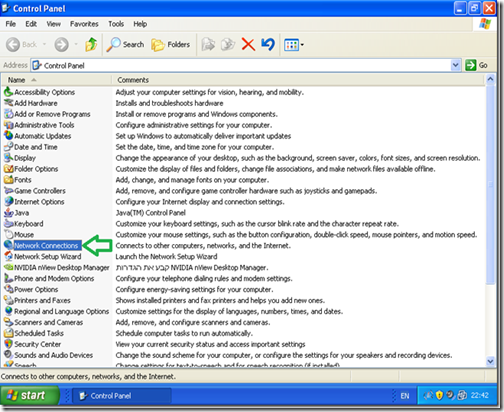
We need to start the connection wizard, so we will go to control panel.

Go to “Start” and then “Control Panel”.

clip_image001

*If your system is setup with the “Classic Start Menu” you need to just point on the “Control Panel” icon and then select “Network Connections”.

In “Control Panel” double click “Network Connections”.
clip_image002

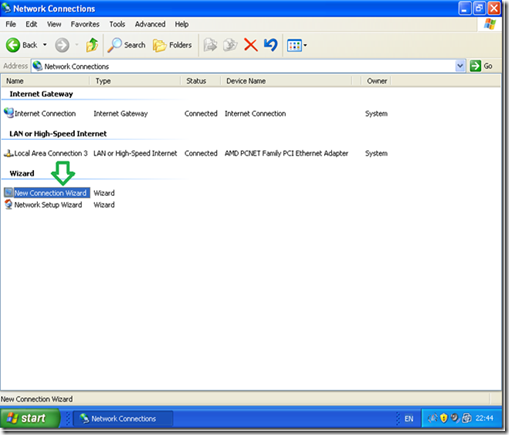
Double click “New Connection wizard”.
clip_image003

In the “New Connection wizard” welcome screen click “Next”.
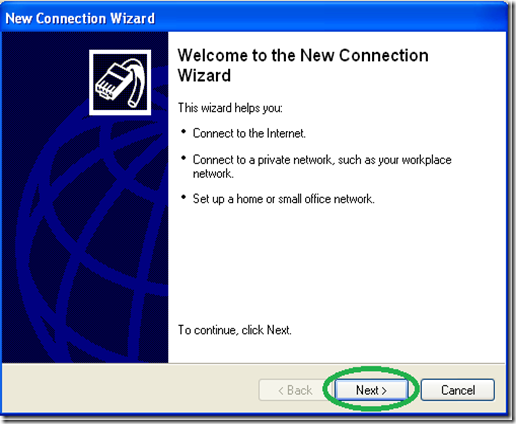
clip_image004

Select the “Connect to the network at my workspace” option and then “Next”.
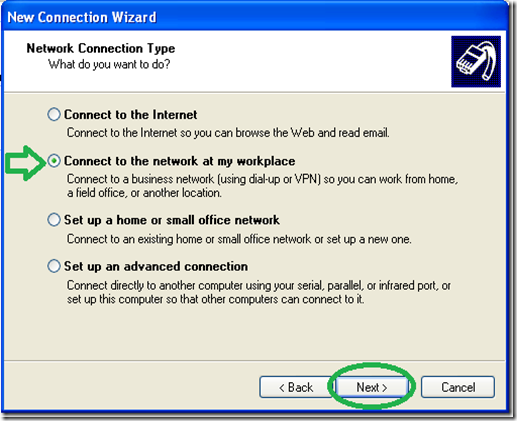
clip_image005

Select the “Virtual Private Network connection” option and then “Next”.

clip_image006

Give a name to the VPN connection.

clip_image007

Type in the name of your VPN servers DNS-name or IP address as seen from the Internet.
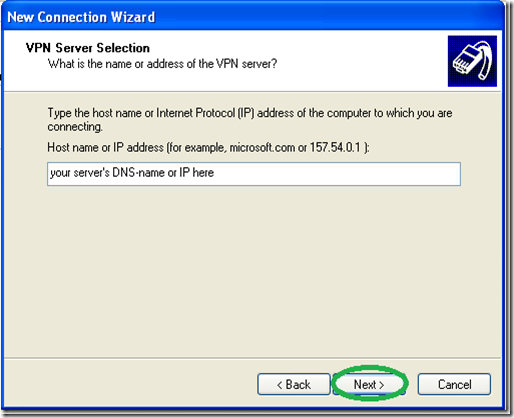
clip_image008

Optionally You may choose to “Add a shortcut to the desktop” and “Finish”.
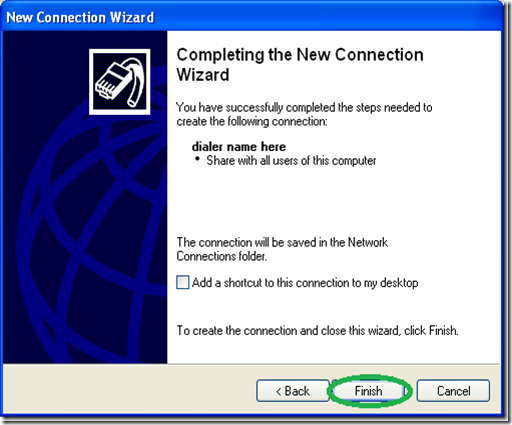
clip_image009

Now comes the tricky part, it is vitally important you do NOT try to connect now and go into the dialer’s “Properties”.

clip_image010

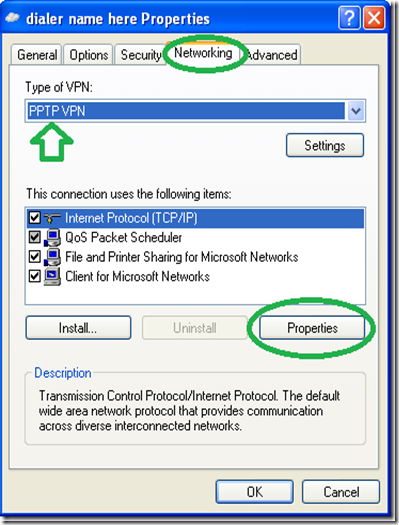
Go to the networking tab and change the “Type of VPN” to “PPTP VPN” as shown in the picture below (this is optional but will shorten the time it takes to connect) then go into “Properties”.
clip_image011

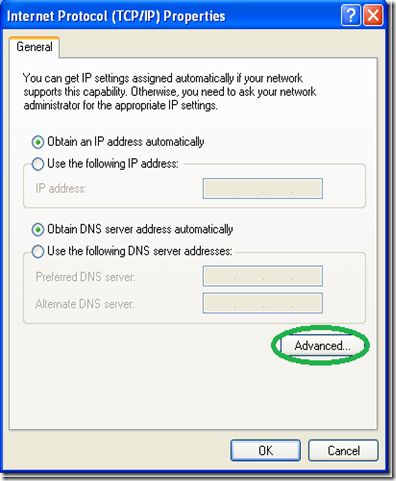
On the next window go into “Advance” without changing anything else.
clip_image012

On the next window, uncheck the “Use default gateway on remote network” option.

clip_image013

Now enter the connection’s credentials as you set them on the server and connect.

clip_image014

That’s it, you should now be able to access all the computers on your network from the XP client… Enjoy.


PPTP VPN Dialer Setup on Win7 (split tunnel)

We will create a regular VPN dialer with one note worthy exception, that we will set the system to NOT use it as the “Default Gateway” when connected.

Skipping this step will limit the connecting computer’s surfing speed to the VPN server’s upload speed (usually slow) because all of it’s traffic would be routed through the VPN connection and that’s not what we want.

We need to start the connection wizard, so we will go to the “Network and Sharing Center”.

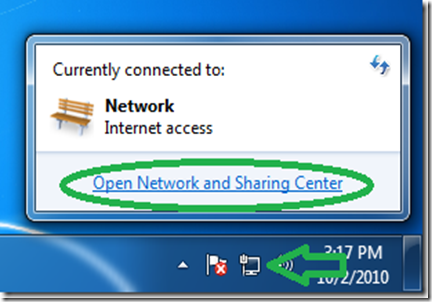
Click the network icon in the system tray and then “Open Network and Sharing Center”
clip_image015

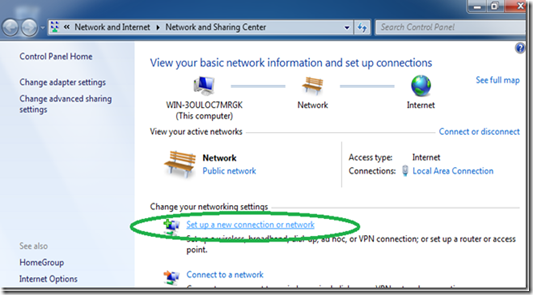
In the Network center click on “Set up a new connection or network”.
clip_image016
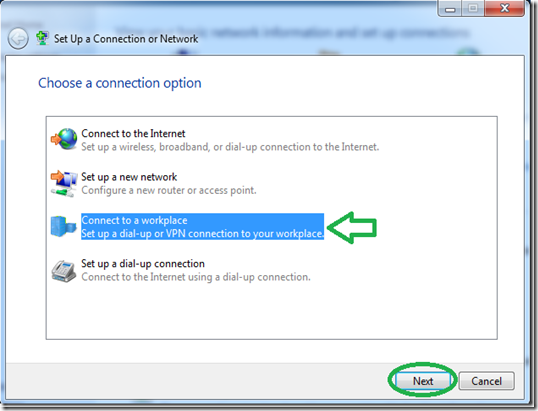
Select “Connect to a workplace” and then “Next”.
clip_image017
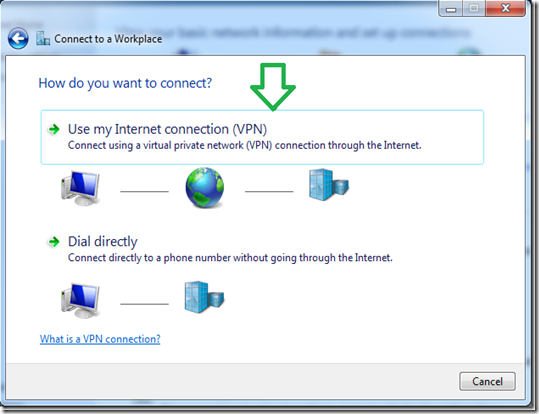
Click on the first option of “Use my Internet connection (VPN)”.
clip_image018
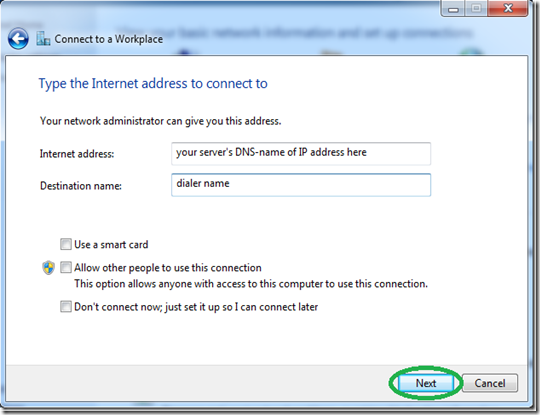
Set the address of your VPN server as seen from the internet either by DNS-name or IP.
clip_image019
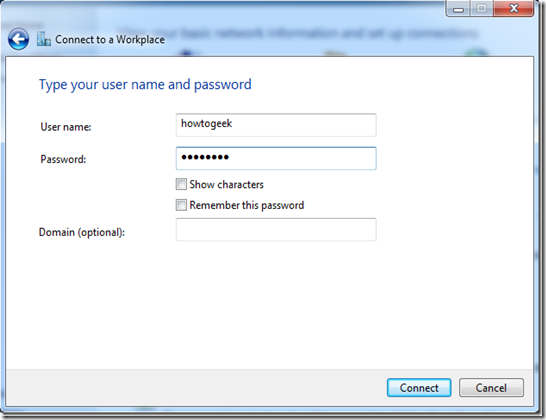
Even though it won’t connect now because we stil need to go into the dialer’s properties, Set the username and password and hit connect.
clip_image020
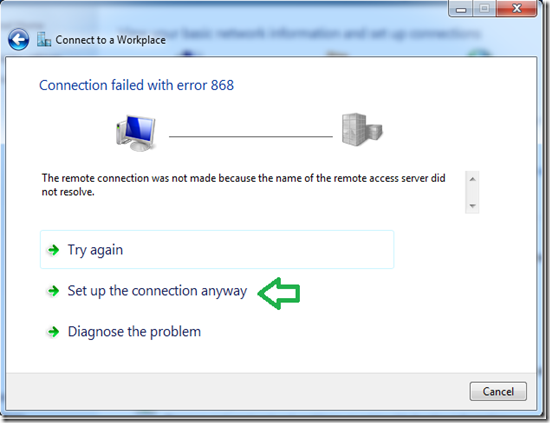
After the connection will fails to connect (that’s normal), click on “Set up the connection anyway”.
clip_image021
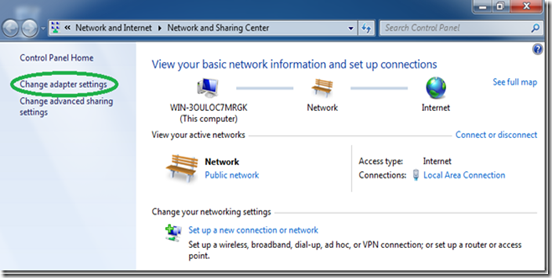
Back in the “Network Center”, click on “Change adapter settings”.
clip_image022
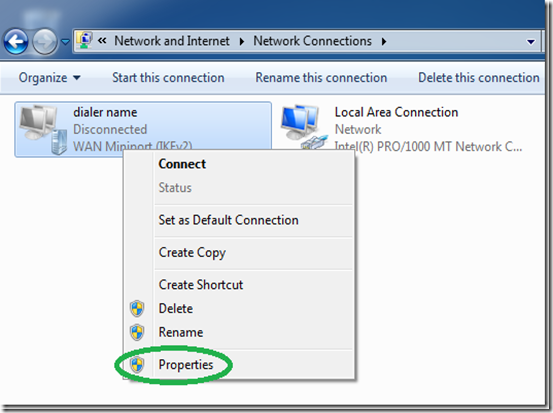
Find the dialer we have just created, right click it and select “Properties”.
clip_image023

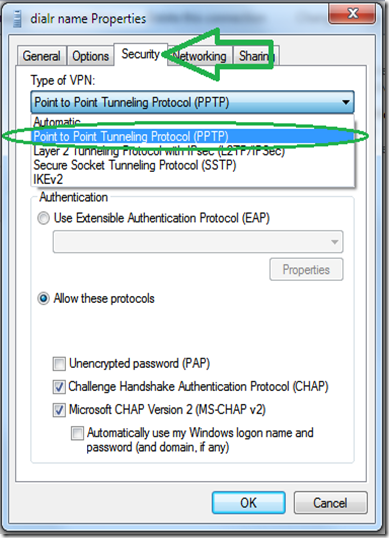
While its optional, for a faster connecting dialer, set the “type” of VPN to PPTP under “the “Security” tab.
clip_image024

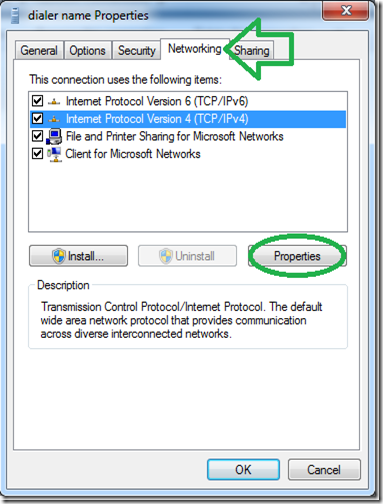
Go to the “Networking” tab, select the IPv4 protocol and go into it’s properties.
clip_image025

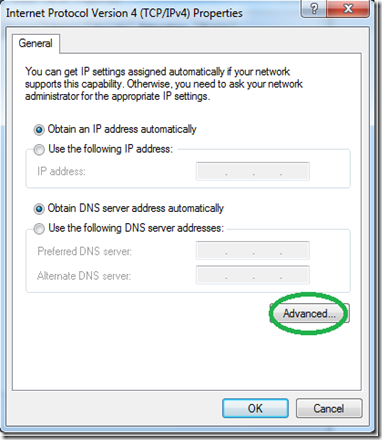
In the next window, click “Advance” without changing anything else.
clip_image026

On the next window, uncheck the “Use default gateway on remote network” option.

clip_image027

Now enter the connection’s credentials as you set them on the server and connect.

clip_image028

That’s it, you should now be able to access all the computers on your network from the win7 client.

Note: Be sure and read our guide to setting up a VPN client for Ubuntu Linux.

Based On; http://www.howtogeek.com/51237/setting-up-a-vpn-pptp-server-on-debian/

Monday, September 21, 2015

Windows – PPTP VPN Server (+IOS Client +Port Forward)

Here we are going to show you how to set up a Home VPN by using a user PC running windows, so that you can access you home network form almost every device. 


VPN Server (Windows – User Edition)

The configuration is identical in Windows 7/8/10 (maybe on XP to)

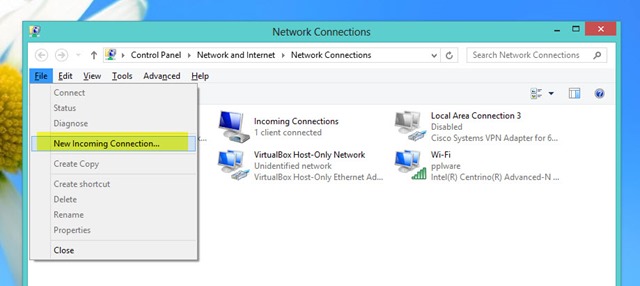
To create the VPN Server you should go to Control Panel > Network and Internet and then Network Connections .

Ther you should press the ALT key so that the options bar appears, next you should go to File > New Incoming Connection

clip_image002

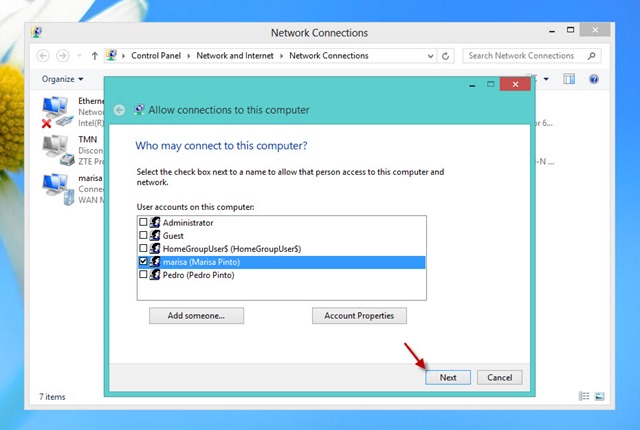
Select or add the users that can access the VPN

clip_image003

clip_image004

(Optional) In case that you want to define the addresses to give to the remote machines you should click on Properties

clip_image005

clip_image006

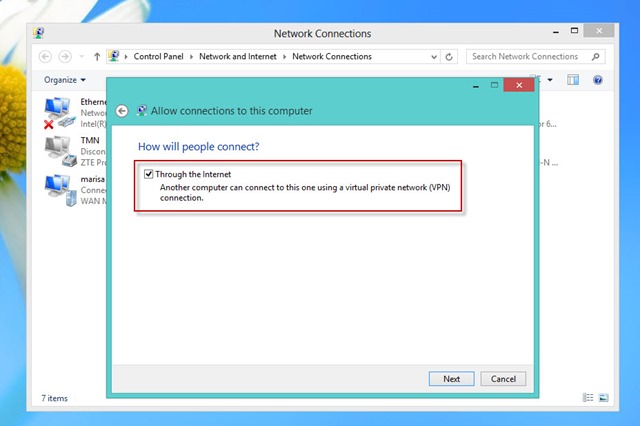
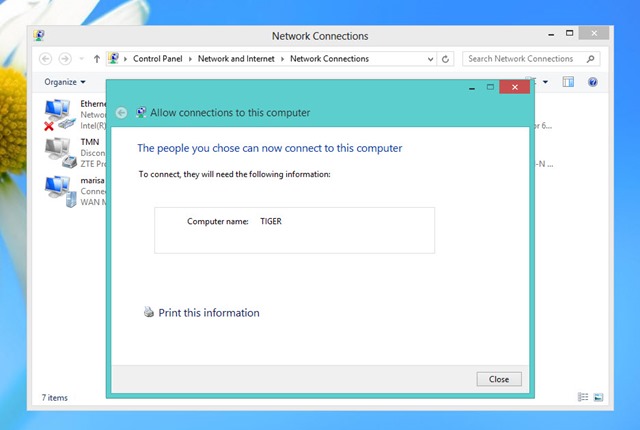
Now you have a PPTP VPN Server that receives the tunnels and forwards the traffic to the Lan, where it’s connected.


Port Forwarding

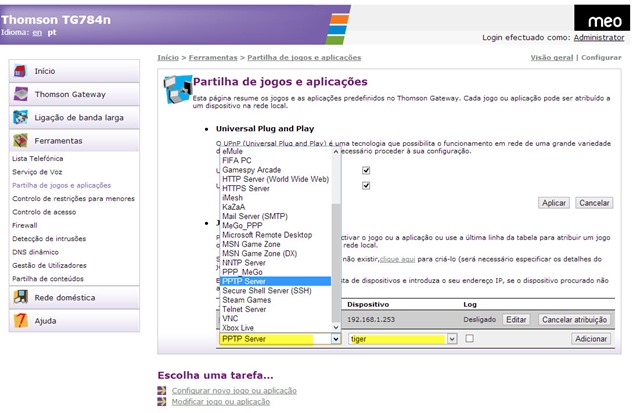
On your home router you need to forward PPTP trafic to your internal PPTP VPN Server.

Your need to forward:

  • PPTP Port 1723: Router Public IP ==> Internal PPTP Server
  • GRE Protocol (Protocol 47) : Router Public IP ==> Internal PPTP Server

clip_image007


VPN Client

Almost every system has a PPTP client already installed (IPhone / Android / Windows / Linux)

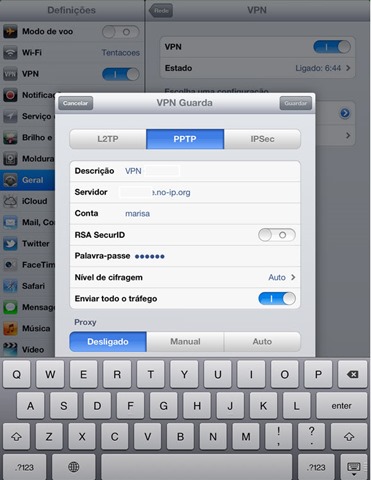
For the IPhone just do:

  • Description / Descrição: Brief description of the connection
  • Server / Servidor: Router Public IP / Name (DynDNS like no-ip)
  • Account / Conta: User Name
  • Password / Palavra-passe: Password
  • clip_image009

for the other systems the configuration is also pretty straight forward

Based on:

Tuesday, May 5, 2015

Cisco / Linux - Decapsulating Cisco ERSPAN With Linux

Decapsulation ERSPAN Traffic With Open Source Tools

Posted on May 3, 2015 by Radovan Brezula

Cisco Encapsulated Remote SPAN (ERSPAN) feature allows to monitor traffic on one or more ports and send the monitored traffic to one or more destination ports.  Traffic is encapsulated into GRE tunnel and routed via network to ERSPAN destination. Any device that supports ERSPAN can be used as ERSPAN destination. It might be another Cisco device or Linux with installed software that can decapsulate GRE traffic.

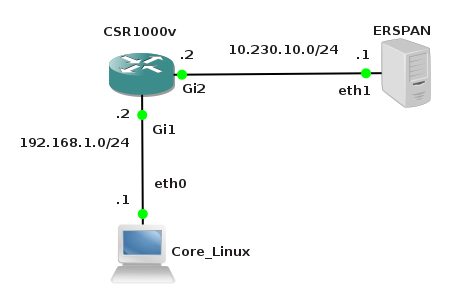
The goal of this article is to show methods and tools for decapsulation of  ERSPAN traffic. For this purpose I have built simple lab that consists of a Cisco CSR 1000v router and two Linux boxes. Core Linux represents a network host and generates network traffic (ICMP) that is going to be monitored. It is connected to the port GigabitEthernet1 of the Cisco router. The router is configured to monitor traffic on the port Gi1 and it sends traffic encapsulated in GRE tunneling protocol to IP address 10.230.10.1. It is the IP address of the ERSPAN destination configured on Linux  Security Union. Security Onion is a unique Linux distro for intrusion detection, network security monitoring, and log management based on Ubuntu however any other Linux distro can be used.

clip_image001

Picture 1 - ERSPAN Lab Topology

Below is an example of ERSPAN configuration on the CSR 1000v router. This is the source ERSPAN type and with configured rspan_id 1. The interface Gi1 is being monitored and the GRE traffic is sent to ERSPAN destination address IP 10.230.10.1.

CSR1000v# show running-config | b monitor
monitor session 1 type erspan-source
description ERSPAN to 10.230.10.1
source interface Gi1
destination
erspan-id 1
mtu 1464
ip address 10.230.10.1
origin ip address 10.230.10.2

Capturing ERSPAN Traffic with Wireshark

We are going to capture and analyze ERSPAN traffic with Wireshark packet sniffer. First configure IP address 10.230.10.1 on interface eth1 of the Linux Security Onion.

janosik@onion:~$ sudo su
root@onion# ip address add 10.230.10.1/24 dev eth1

Now use Wireshark to capture GRE traffic on Security Onion on its interface eth1 and ping the router IP address 192.168.1.2 from the Linux Core host (IP 192.168.1.1). If the source ERSPAN is properly configured on router, packets from the subnet 192.168.1.0/24 should appear in Wireshark output.

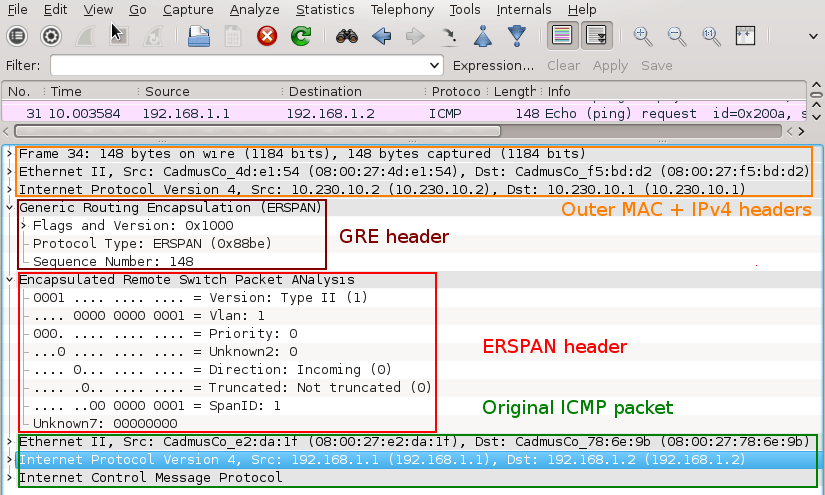
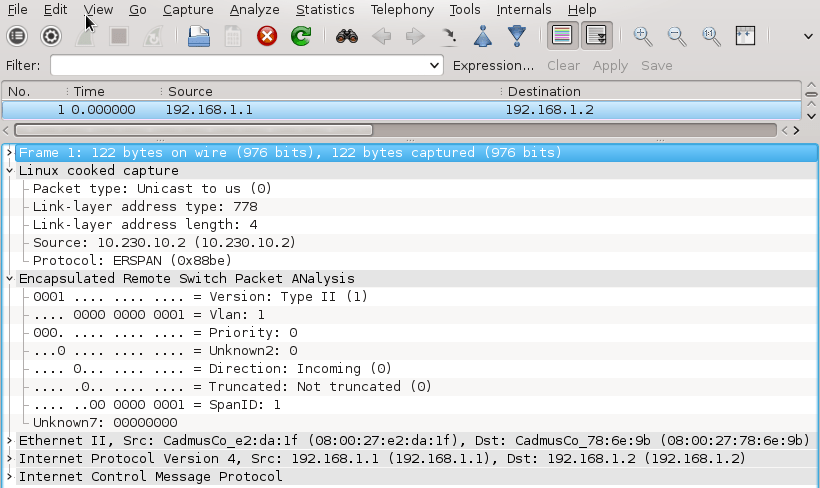
A closer look at the picture below reveals that the original packet ICMP packet (MAC header, IPv4 header and ICMP header) is now encapsulated as following.

MAC header + IPv4 header (10.230.10.2, 10.230.10.1) + GRE header (Protocol type ERSPAN) + ERPAN header + (original packet)

clip_image002

Picture 2 - Encapsulated GRE Traffic Captured on Interface Eth1

An original ICMP packet is encapsulated into GRE tunnel and the new outer MAC and IPv4 + GRE + ERSPAN headers are added to original packets. It allows encapsulated traffic to be forwarded through network to ERSPAN destination. However if we want software application such as IPS/IDS to analyze encapsulated packets, the outer L2 and L3 headers must be striped from packet. This can be done with tools such as RCDCAP  which dissects packets from GRE tunnel.


Configuring GRE tunnel on ERSPAN Destination Device

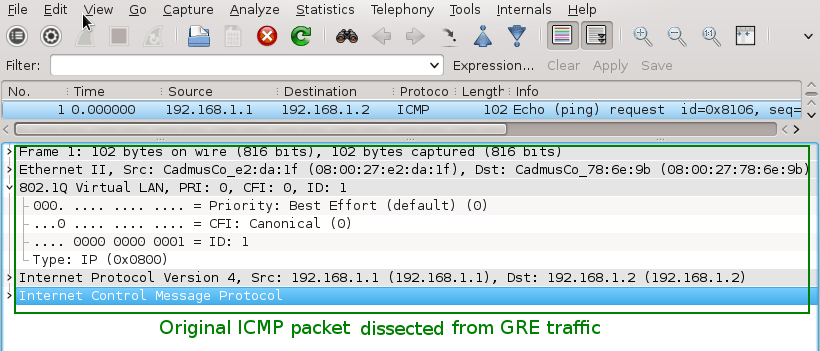
If for some reason we do not want to install special software that dissects packets from GRE tunnel we can configure GRE tunnel on ERSPAN destination (Linux Security Onion) and let IDS to listen on a tunneled interface. Thanks to this configuration the outer MAC and IPv4 headers are stripped and do no appear in Wireshark output.

a) Load gre module to kernel

janosik@onion:~$ sudo su
root@onion# modprobe ip_gre

b) Choose receiving interface and assign IPv4 to it

root@onion# ip addr add 10.230.10.1/24 dev eth1

Set the MTU of the network interface that receives GRE packets larger than 1500 e.g. to 1900.  Otherwise we are going to miss some bytes in larger packets.

root@onion# ip link set dev eth1 mtu 1900

c) Create virtual tunnel interface and associate it with IP previously configured on eth1 interface

root@onion# ip tunnel add mon0 mode gre local 10.230.10.1 ttl 8

d) Add IP address to interface mon0 which is not used for anything

root@onion# ip addr add 1.1.1.1/30 dev mon0

e) Change the state of mon0 device to up

root@onion# ip link set mon0 up

Again, generate some traffic in the subnet 192.168.1.0/24 and configure Wireshark to listen on interface mon0. Notice that the outer MAC and Ipv4 header are now stripped from the ICMP packet.

clip_image003

Picture 3 - Decapsulated Traffic Captured on Interface Eth1

Using RCDCAP for Decapsulating ERSPAN Traffic

RCDCAP is wrapper program that dissects the traffic and creates a virtual interface where the traffic is already decapsulated. I've compiled it from the source and created the Ubuntu package RCDCap-0.7.99-Linux for Ubuntu 15.04. Be aware that additional packages are needed to get it working.

janosik@onion:~$ sudo su
root@onion# apt-get install libboost-regex1.55.0

Use apt-get to install the packages below. If they are not available in a repository  download them from here and install manually with dpkg -i command.

  • libboost-program-options1.48.0_1.48.0-3_amd64.deb
  • libboost-thread1.48.0_1.48.0-3_amd64.deb
  • libboost-system1.48.0_1.48.0-3_amd64.deb

root@onion# dpkg -i libboost-program-options1.48.0_1.48.0-3_amd64.deb libboost-thread1.48.0_1.48.0-3_amd64.deb libboost-system1.48.0_1.48.0-3_amd64.deb

Now we can install RCDCAP with the command.

root@onion# dpkg -i RCDCap-0.7.99-Linux.deb

Once RCDCAP is installed configure interface eth1 to prepare for capturing.

janosik@onion:~$ sudo su
root@onion# ip addr add dev eth1 10.230.10.1/24
root@onion# ip link set dev eth1 mtu 1900
root@onion# ip link set dev eth1 up

Start RCDCAP with the command below and let Wireshark to listen on interface mon1.

root@onion# rcdcap -i eth1 --erspan --tap-persist --tap-device mon1 --expression "host 10.230.10.1"

We can see that RCDCAP have dissected monitored traffic from GRE and only original MAC + IPv4 + ICMP headers and pyaload are presented in Wireshark output.

clip_image004

Picture 4 - Decapsulated Traffic Captured on Interface Mon1

Reference:

Taken From: http://brezular.com/2015/05/03/decapsulation-erspan-traffic-with-open-source-tools/

Saturday, July 27, 2013

Cisco IPsec Configuration

by Priscilla Oppenheimer

This example annotates the configuration of two Cisco routers configured to send encrypted traffic across an IPsec tunnel. Following the annotations are some explanations of Cisco show commands that are useful when troubleshooting IPsec. The two routers are connected via Frame Relay. Each router also has a Fast Ethernet interface where end nodes reside, as shown in the following figure. The end nodes' traffic will be encrypted when traversing the IPsec tunnel.
clip_image001
R1 Annotated Configuration
R1's configuration is shown below. Annotations start with !---- and are in blue.
R1#show run
Building configuration...
Current configuration : 1907 bytes
!
version 12.4
service timestamps debug datetime msec
service timestamps log datetime msec
no service password-encryption
!
hostname R1
!
boot-start-marker
boot-end-marker
!
no aaa new-model
!
ip cef
!

!---- The IPsec configuration starts with configuring the Internet Security Association and Key Management Protocol (ISAKMP). ISAKMP is a framework for authentication and key exchange. Cisco uses Internet Key Exchange (IKE) which is derived from ISAKMP. IKE establishes a shared security policy and authenticated keys for IPsec to use.
First we create Policy 1. Then we say that we'll use MD5 to hash the IKE exchange, though we could use SHA (the Cisco default). We'll use DES to encrypt IKE, though we could use AES. (Because DES is the default it doesn't show in the configuration.)
We could use a Certificate Authority (CA) for authentication, but for our example we will manually enter a pre-shared key into each router. We will use "MyKey" for the key.
We also provide the address of our peer, 10.102.0.2. ----!

crypto isakmp policy 1
hash md5
authentication pre-share
crypto isakmp key MyKey address 10.102.0.2
!
!---- Next, we create an IPsec transform set that we call MySet. We specify the authentication protocol for the IPsec Authentication Header (AH) and we specify the encryption protocol for the IPsec Encapsulating Security Payload (ESP). These don't have to be the same proocols that IKE uses. In fact, we'll use SHA for authentication and AES-256 for encryption.----!
crypto ipsec transform-set MySet ah-sha-hmac esp-aes 256
!
!---- You can't expect Cisco to make anything easy! So next we create a crypto map, called MyMap, with sequence number 1. (A crypto map can be a collection of entries, each with a different sequence number, though we'll just use one entry.) The ipsec-isakmp argument tells the router that this map is an IPsec map. We tell the router about its peer (10.102.0.2) yet again and we set the security-association (SA) lifetime.

We will use 190 seconds for the SA lifetime because Cisco examples use 190. It seems too short but there's a tradeoff. If you make it too long you risk attackers being more successful. If you make it too short, the routers have to do more work to renegotiate the SA more often. The default is based on a global command that affects all maps and is 3600 seconds (one hour).
Our crypto map points to our MySet transform set. It also references access-list 101, which is later in the configuration and specifies which traffic will be encrypted. ----!

crypto map MyMap 1 ipsec-isakmp
set peer 10.102.0.2
set security-association lifetime seconds 190
set transform-set MySet
match address 101
!
interface FastEthernet0/0
ip address 10.1.0.1 255.255.0.0
!
interface Serial1/0
no ip address
encapsulation frame-relay
serial restart-delay 0
!
!---- Here we apply our crypto map to the interface that will be sending the encrypted traffic. The interface is a Frame Relay sub-interface with DLCI 102 that connects to our peer at the other end. Our address is 10.102.0.1. (Our peer is 10.102.0.2 as we've already seen.) ----!

interface Serial1/0.102 point-to-point
ip address 10.102.0.1 255.255.0.0
frame-relay interface-dlci 102  
crypto map MyMap
!
router ospf 100
log-adjacency-changes
network 10.0.0.0 0.255.255.255 area 0
!
no ip http server
no ip http secure-server
!

!---- Access list 101 specifies which traffic will use IPsec. Note that access-list 101 is referenced in the crypto map statement for MyMap above. ----!

access-list 101 permit ip 10.0.0.0 0.255.255.255 10.0.0.0 0.255.255.255
!
line con 0
logging synchronous
stopbits 1
line aux 0
stopbits 1
line vty 0 4
login
!
end
R1#   
R2 Annotated Configuration
R2's configuration is shown below. Annotations start with !---- and are in blue. Notice that R2 needs fewer annotations. It needs to match R1 so they will act like nice peers and not fight with each other.

R2#show run
Building configuration...
Current configuration : 1894 bytes
!
version 12.4
service timestamps debug datetime msec
service timestamps log datetime msec
no service password-encryption
!
hostname R2
!
boot-start-marker
boot-end-marker
!
no aaa new-model
!
ip cef
!
!---- Here we configure ISAKMP (IKE) as we did on R1. Note that for R2, we use 10.102.0.1 (R1) for our peer. ----!


crypto isakmp policy 1
hash md5
authentication pre-share
crypto isakmp key MyKey address 10.102.0.1
!

!---- Next, we create an IPsec transform like we did on R1.  ----!
crypto ipsec transform-set MySet ah-sha-hmac esp-aes 256
!

!---- Here's our map that points to our peer (R1) and references access list 101.  ----!


crypto map MyMap 1 ipsec-isakmp
set peer 10.102.0.1
set security-association lifetime seconds 190
set transform-set MySet
match address 101
!
interface FastEthernet0/0
ip address 10.2.0.1 255.255.0.0
!
interface Serial1/0
no ip address
encapsulation frame-relay
serial restart-delay 0
frame-relay lmi-type ansi
!
!---- Add the crypto map to the interface that connects back to R1.  ----!
interface Serial1/0.201 point-to-point
ip address 10.102.0.2 255.255.0.0
frame-relay interface-dlci 201  
crypto map MyMap
!
router ospf 100
log-adjacency-changes
network 10.0.0.0 0.255.255.255 area 0
!
no ip http server
no ip http secure-server
!

!---- As we did on R1, we define an access list to specify which traffic will use IPsec. The access-list is referenced in the crypto map statement for MyMap above. ----!

access-list 101 permit ip 10.0.0.0 0.255.255.255 10.0.0.0 0.255.255.255
!
line con 0
logging synchronous
stopbits 1
line aux 0
stopbits 1
line vty 0 4
login
!
!
end
R2# 
R2 Show Commands
Once you have configured the router peers, a variety of show commands will help you verify that the security associations are live and the traffic is being encrypted.

!---- The show crypto session command lets us verify that the IKE session is active. Notice that we're talking to our peer via UDP port 500, the port for IKE. ----!

R2#show crypto session
Crypto session current status
Interface: Serial1/0.201
Session status: UP-ACTIVE    
Peer: 10.102.0.1 port 500
  IKE SA: local 10.102.0.2/500 remote 10.102.0.1/500 Active
  IPSEC FLOW: permit ip 10.0.0.0/255.0.0.0 10.0.0.0/255.0.0.0
        Active SAs: 4, origin: crypto map

!---- The show crypto isakmp policy command tells us more than we ever wanted to know about our IKE session. ----!

R2#show crypto isakmp policy
Global IKE policy
Protection suite of priority 1
        encryption algorithm:   DES - Data Encryption Standard (56 bit keys).
        hash algorithm:         Message Digest 5
        authentication method:  Pre-Shared Key
        Diffie-Hellman group:   #1 (768 bit)
        lifetime:               86400 seconds, no volume limit
Default protection suite
        encryption algorithm:   DES - Data Encryption Standard (56 bit keys).
        hash algorithm:         Secure Hash Standard
        authentication method:  Rivest-Shamir-Adleman Signature
        Diffie-Hellman group:   #1 (768 bit)
        lifetime:               86400 seconds, no volume limit

!---- The show crypto map verifies our IPsec status. We aren't using Perfect Forward Secrecy (PFS) as we don't need that extra protection from evil-doers. ----!

R2#show crypto map
Crypto Map "MyMap" 1 ipsec-isakmp
        Peer = 10.102.0.1
        Extended IP access list 101
            access-list 101 permit ip 10.0.0.0 0.255.255.255 10.0.0.0 0.255.255.255
        Current peer: 10.102.0.1
        Security association lifetime: 4608000 kilobytes/190 seconds
        PFS (Y/N): N
        Transform sets={
                MySet,
        }
        Interfaces using crypto map MyMap:
                Serial1/0.201

!---- The show crypto ipsec transform-set verifies our IPsec status and shows that we're using tunnel mode (rather than transport mode). Tunnel mode is appropriate for a router-to-router configuration as opposed to an end node talking to another end node. ----!

R2#show crypto ipsec transform-set
Transform set MySet: { ah-sha-hmac  }
   will negotiate = { Tunnel,  },
   { esp-256-aes  }
   will negotiate = { Tunnel,  },

!---- The show crypto ipsec sa command shows identity information and packet counts and then displays information about all our security associations (SAs) . Notice that there's an inbound SA and an outbound SA for both authentication (AH) and encryption (ESP). The inbound and outbound Payload Compression Protocol (PCP) SAs aren't active, but the others are. They became active because a PC connected to R1's Fast Ethernet interface pinged a PC connected to R2's Fast Ethernet interface. Each SA is identified by a unique security parameter index (SPI). ----!

R2#show crypto ipsec sa               
interface: Serial1/0.201
    Crypto map tag: MyMap, local addr 10.102.0.2
   protected vrf: (none)
   local  ident (addr/mask/prot/port): (10.0.0.0/255.0.0.0/0/0)
   remote ident (addr/mask/prot/port): (10.0.0.0/255.0.0.0/0/0)
   current_peer 10.102.0.1 port 500
     PERMIT, flags={origin_is_acl,}
    #pkts encaps: 13, #pkts encrypt: 13, #pkts digest: 13
    #pkts decaps: 13, #pkts decrypt: 13, #pkts verify: 13
    #pkts compressed: 0, #pkts decompressed: 0
    #pkts not compressed: 0, #pkts compr. failed: 0
    #pkts not decompressed: 0, #pkts decompress failed: 0
    #send errors 2, #recv errors 0
     local crypto endpt.: 10.102.0.2, remote crypto endpt.: 10.102.0.1
     path mtu 1500, ip mtu 1500, ip mtu idb Serial1/0.201
     current outbound spi: 0x8590D11F(2240860447)
     inbound esp sas:
      spi: 0xFDC7B87B(4257724539)
        transform: esp-256-aes ,
        in use settings ={Tunnel, }
        conn id: 2004, flow_id: SW:4, crypto map: MyMap
        sa timing: remaining key lifetime (k/sec): (4565647/146)
        IV size: 16 bytes
        replay detection support: Y
        Status: ACTIVE
     inbound ah sas:
      spi: 0x11B79D1C(297245980)
        transform: ah-sha-hmac ,
        in use settings ={Tunnel, }
        conn id: 2004, flow_id: SW:4, crypto map: MyMap
        sa timing: remaining key lifetime (k/sec): (4565647/140)
        replay detection support: Y
        Status: ACTIVE
     inbound pcp sas:
     outbound esp sas:
      spi: 0x8590D11F(2240860447)
        transform: esp-256-aes ,
        in use settings ={Tunnel, }
        conn id: 2003, flow_id: SW:3, crypto map: MyMap
        sa timing: remaining key lifetime (k/sec): (4565647/134)
        IV size: 16 bytes
        replay detection support: Y
        Status: ACTIVE
     outbound ah sas:
      spi: 0xECA2A6B8(3970082488)
        transform: ah-sha-hmac ,
        in use settings ={Tunnel, }
        conn id: 2003, flow_id: SW:3, crypto map: MyMap
        sa timing: remaining key lifetime (k/sec): (4565647/132)
        replay detection support: Y
        Status: ACTIVE
     outbound pcp sas:

Taken From: http://www.priscilla.com/ipsecexample.htm

For more complex configurations check:
http://www.routeralley.com/ra/docs/ipsec_site2site_router.pdf

For more detail on IKE:
http://en.wikipedia.org/wiki/Internet_Key_Exchange


Monday, February 20, 2012

GNS3 - PIX Firewall Emulation

PIX Firewall Emulation

GNS3 is also capable of emulating PIX firewalls. Once again, you’ll need to provide your own PIX image. If you want to run more than a restricted license, you’ll also need to have a valid serial number and activation keys.

Configuring Qemuwrapper and Cisco PIX image

First, go to Preferences on the Edit menu in GNS3. Click on Qemu in the left pane. The default path to the Qemuwrapper should be fine. You may want to specify a different working directory. Note that Qemuwrapper is shipped with a compiled version of Pemu, therefore you do not need Qemu to emulate PIX.

On PIX tab, use the button next to Binary image to specify the location of your PIX operating system image. You may also change other settings like RAM or the number of interfaces. Once you are finished with the settings, click on Save.

clip_image002clip_image004

You may use the default Key and Serial number, if necessary. This will provide a restricted license with limited features. You will need a valid serial number and activation keys to access additional features. The graphic below on the left is a restricted image. Failover, VPN-DES, and VPN-3DES-AES are disabled. You are also limited to 6 physical interfaces and 25 VLANs. The graphic below on the right is unrestricted. With an unrestricted license, these features are enabled along with support for additional interfaces and VLANs.

clip_image006

If you have a serial number and valid activation keys, you may move from a restricted license to an unrestricted license. Type in the activation keys separated by commas with no spaces. Use all lower case. Be sure your serial number is converted to hexadecimal. It is usually in decimal in a show version command. Use a calculator to convert from decimal to hexadecimal if necessary.

Using Cisco PIX

Click OK to return to the GNS3 main interface. Drag a PIX firewall icon from the Nodes Types pane into the workspace. Right-click FW1 and choose Start, then right-click on FW1 again and choose Console.

Once you console into your PIX firewall, issue a show version command. If the activation keys do not show up properly, then issue the following command from privileged mode (enable mode):

pixfirewall# activation-key 0x12345678 0x12345678 0x12345678 0x12345678

clip_image008

The command is issued on one line with spaces between the activation keys. Save the configuration using either the write command orcopy run start. Stop the device and restart it. Congratulations! Your PIX firewall is up and running.

Interfaces on the PIX are Ethernet interfaces. To connect to other devices, you’ll need to use either Ethernet or FastEthernet interfaces. You may not connect to a serial interface.

You may connect to other PIX firewalls, routers, and switches. You may not connect to a cloud. Consequently, to connect to a real network or to a Virtual PC, you’ll need to connect from the PIX to a switch, and then from the switch to your Cloud.

CPU usage with PIX

Just as with routers, CPU usage is an issue when emulating PIX firewalls on your computer. You will note that your CPU usage is most likely 100%. There are no idle-pc values available for PIX firewalls at this time. Instead, you may use third-party software to control your CPU usage. There are a variety of products on the market. The one that I use for Windows is called BES and is a free download.

Complete documentation is available on the Web site along with the program download. Once you start your PIX firewall, start BES. Click the Target button. Choose the pemu.exe process and click the Limit this button. A confirmation screen will appear.

Click the Control button to control how much CPU limiting will be used. I’ve set mine to reduce CPU usage by 50%. If you are running multiple firewalls, you will want to limit each one. This program may also limit other processes running on your Windows computer.

clip_image010clip_image012

For Linux, use cpulimit. You may learn more about cpulimit at the following Web site: http://cpulimit.sf.net. On ubuntu you can use Synaptic Package Manager or Ubuntu Software Centre to download and install cpulimit.

To run cpulimit, press F2 while holding the ALT key down (ALT+F2) in Ubuntu to open a Run Application box. Type the following in the box:

cpulimit –e pemu –l 40

clip_image014

This will limit the application pemu to 40% CPU usage.

Still in your Ubuntu, choose System Monitor under Administration on the System menu. Click the Resources tab. You should see that pemu process is running at 40% of your CPU usage.

Taken From: http://www.gns3.net/gns3-pix-firewall-emulation/